Share Parameter Constraints Across Multiple Block Masks
You can create a parameter constraint in an XML file and share it across masks of different blocks in the same model or different models. When you define a shared constraint in an XML file, you can edit the data and compare the file with a previous version.
Explore Model
In the model slexMaskConstraints.slx, refer to the Subsystem blocks SharedConstraintBlock1 and SharedConstraintBlock2. The parameter value on both Subsystem blocks must be a real scalar.
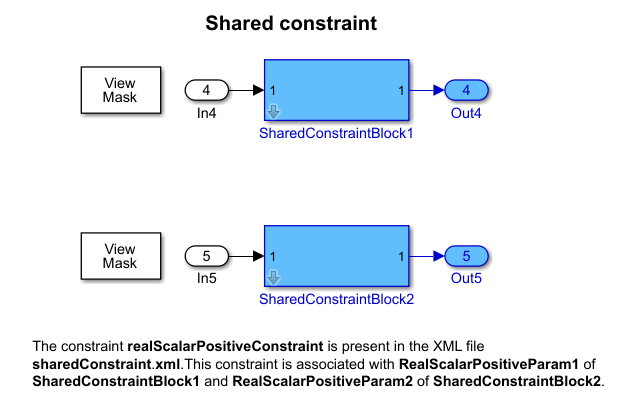
Create Constraint in a File
To create and share a parameter constraint:
1. Create a mask on the SharedConstraintBlock1 block.
2. In the Mask Editor, in the Parameters & Dialog tab, create an edit parameter named PositiveParameter.
3. In the Constraints tab, click New and enter the name of the XML file as sharedConstraint.
4. Create the parameter constraint in the XML file. In the Constraint Gallery pane, click Parameter Constraint and specify the attributes for the constraint.
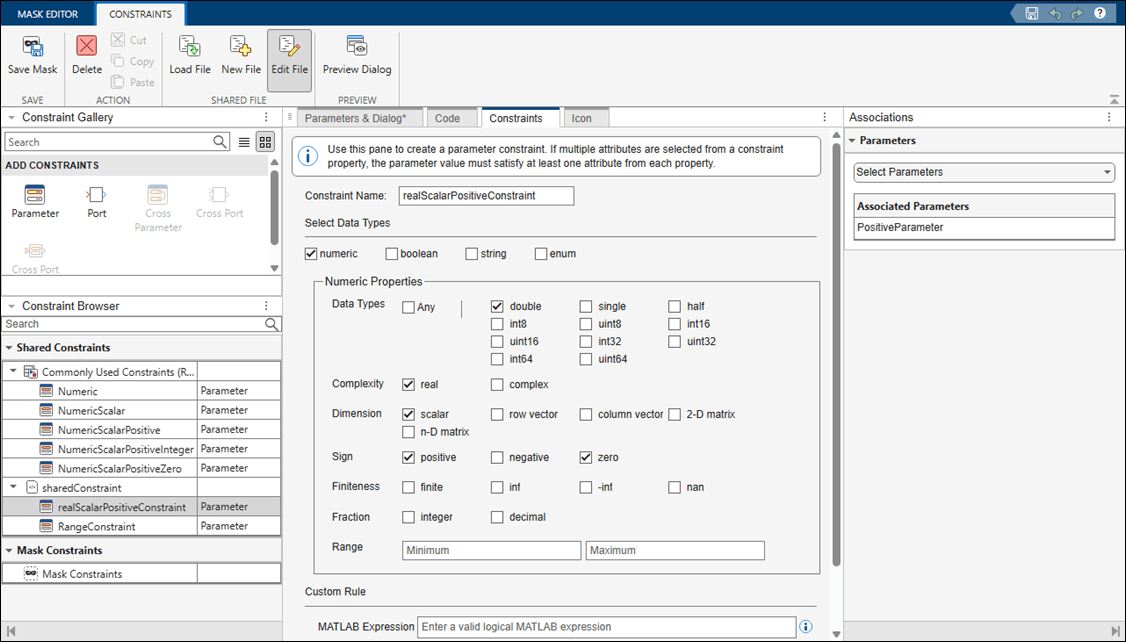
5. To associate the constraint with the parameter, in the Associations pane, in the Parameters section, select the parameter PositiveParameter.
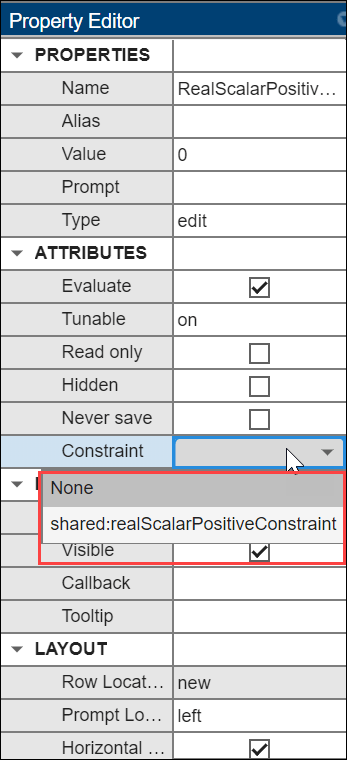
Note: If you created constraints in a MAT file, you must convert it to an XML file using the syntax Simulink.Mask.Constraints.convertMatToXML(matFileName, xmlFileName). matFileName is the name of the MAT file to convert, and xmlFileName is the name of the XML file to create. For more information, see Simulink.Mask.Constraints.convertMatToXML. The XML file must be on the MATLAB path.
Associate Constraint Across Multiple Blocks or Models
To reuse the constraint sharedConstraint:realScalarPositiveConstraint in the SharedConstraintBlock2 block:
1. Create a mask on the SharedConstraintBlock2 block.
2. In the Mask Editor, select Constraint, and click Load to load the constraint. Select the XML file and save the mask.
3. To associate the constraint with the parameter, in the Associations pane, in the Parameters section, select the parameter RealScalarPositiveParameter.
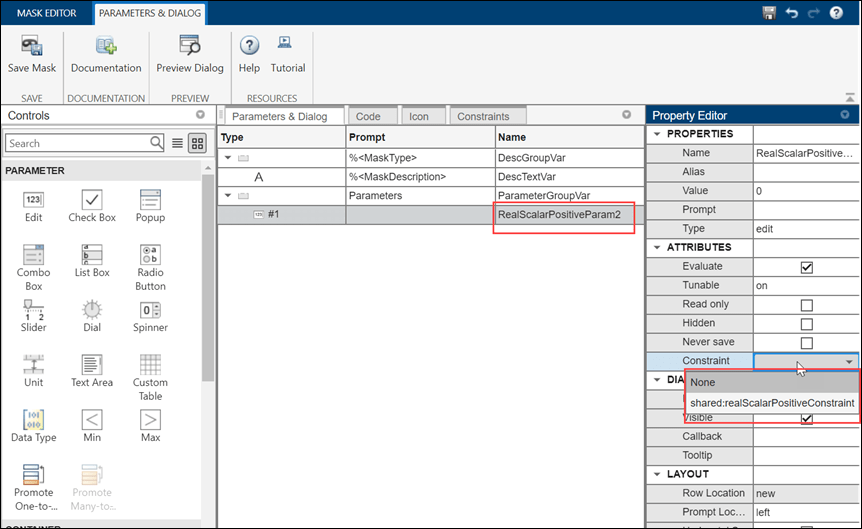
Validate the Constraint
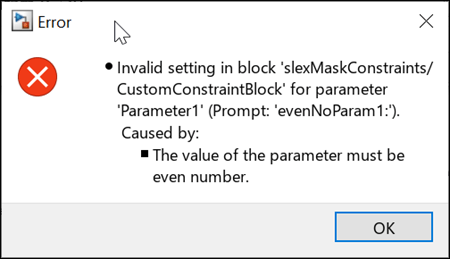
Open the mask dialog box, and specify a value 2i to the parameter. The software displays an error.
See Also
Topics
- Create Custom Constraint for Mask Parameters
- Use Port Constraints to Validate Input and Output Signals
- Validate Port Signals Among Ports of the Same Masked Block

