Tune Motion Detection Algorithm Running on NVIDIA Jetson
This example shows how to perform parameter tuning and data logging on a Simulink® model running on NVIDIA® Jetson™ hardware. The Simulink model implements a surveillance algorithm that measures kinetic energy in a room and uses a threshold to determine the presence of an intruder. If the threshold value is too low, the algorithm interprets small movements as an intruder. If the threshold value is too high, the algorithm does not detect movement.
In this example, you run the model in external mode by using the Universal Measurement and Calibration (XCP) protocol, which enables you to change parameter values while the model is running. You identify a functional threshold value by trying different values and monitoring the change in the output. You then generate an execution-time profile with timing data from the external mode simulation.
Prerequisites
To run this example, you must have:
An NVIDIA Jetson embedded platform.
An Ethernet crossover cable to connect the target board and host PC. If you connect the board to a local network, a cable is not required.
Environment variables on the target board for the compilers and libraries. For more information, see Prerequisites for Generating Code for NVIDIA Boards.
Connect the Host Computer to NVIDIA Hardware
The MATLAB® Coder™ Support Package for NVIDIA Jetson and NVIDIA DRIVE™ Platforms uses an SSH connection over TCP/IP to execute commands while building and running the generated code on the Jetson or DRIVE platforms. Connect the target board to the same network as the host computer or use an Ethernet crossover cable to connect the board to the host computer. For information on how to set up and configure your board, see the NVIDIA documentation.
To communicate with the NVIDIA Jetson hardware, create a live hardware connection object by using the jetson function. When connecting to the target board for the first time, provide the host name or IP address, user name, and password of the target board.
hwobj = jetson("jetson-deviceaddress","username","password");
When you call the jetson function without input arguments, the hardware connection object reuses the device address, username, and password from the last successful connection.
hwobj = jetson;
### Checking for CUDA availability on the target...
### Checking for 'nvcc' in the target system path...
### Checking for cuDNN library availability on the target...
### Checking for TensorRT library availability on the target...
### Checking for prerequisite libraries is complete.
### Gathering hardware details...
### Checking for third-party library availability on the target...
### Gathering hardware details is complete.
Board name              : NVIDIA Jetson Nano Developer Kit
CUDA Version            : 10.2
cuDNN Version           : 8.2
TensorRT Version        : 8.2
GStreamer Version       : 1.14.5
V4L2 Version            : 1.14.2-1
SDL Version             : 1.2
OpenCV Version          : 4.1.1
Available Webcams       :
Available GPUs          : NVIDIA Tegra X1
Available Digital Pins  : 7  11  12  13  15  16  18  19  21  22  23  24  26  29  31  32  33  35  36  37  38  40
Examine the Simulink Model
The surveillance Simulink model implements the motion detection algorithm. The model simulates motion energy and detects movement if the energy exceeds a threshold parameter. Open the surveillance Simulink model.
open_system("surveillance")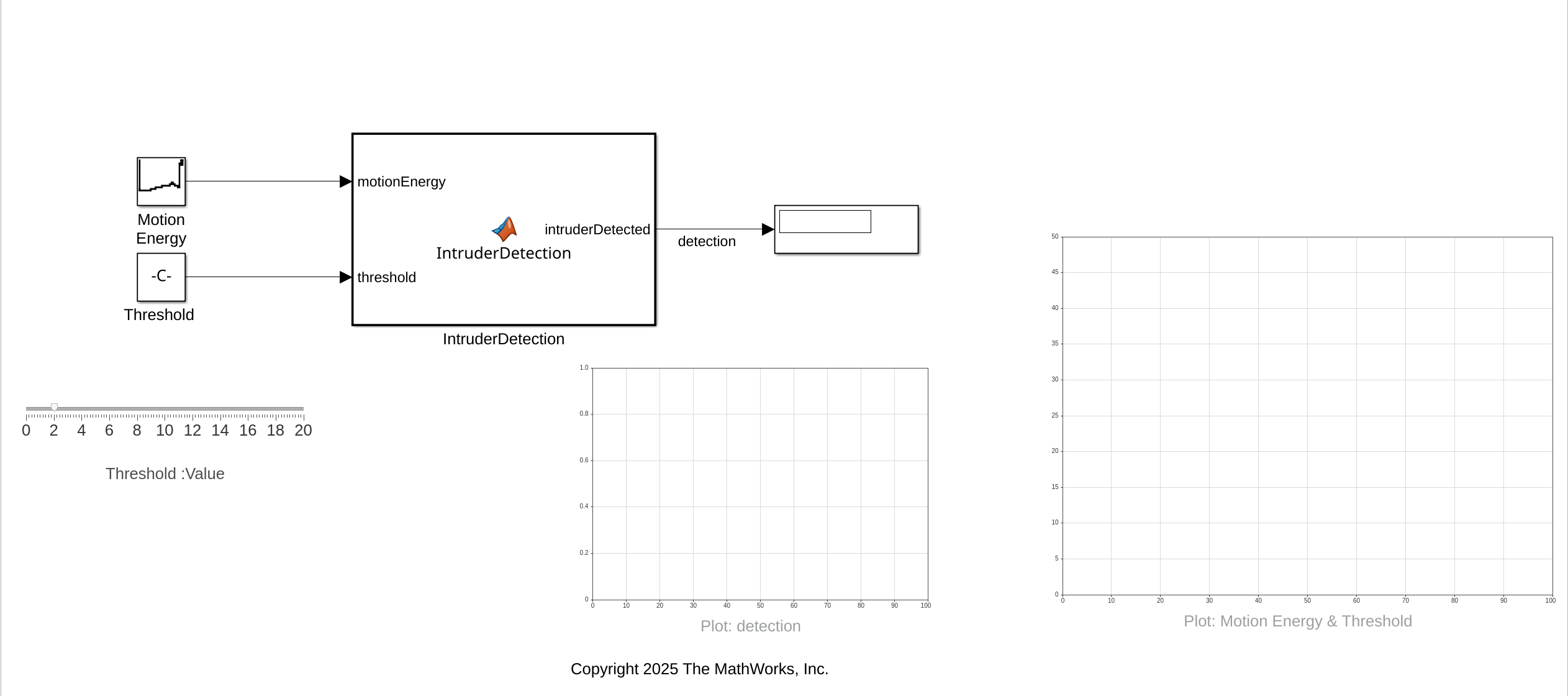
To simulate motion energy, the Motion Energy block generates a repeating sequence. The MATLAB Function block IntruderDetection compares two consecutive motion energy values with the value from the Threshold block and outputs true when both the motion energy values are greater than the threshold, or false otherwise. You can use the slider to adjust the value in the Threshold block during simulation.
function intruderDetected = IntruderDetection(motionEnergy,threshold)
% This code compares two consecutive motion energy values with the threshold
% and outputs true when both the motion energy values are greater than the threshold,
% or false otherwise.

persistent prevMotionEnergy;
if isempty(prevMotionEnergy)
    prevMotionEnergy = motionEnergy;
    intruderDetected = false;
else
    intruderDetected = (prevMotionEnergy > threshold) && (motionEnergy > threshold);
    prevMotionEnergy = motionEnergy;
end
end
The model also has a Display block that displays the value of the detection signal. The two Dashboard Scope blocks plot the values of the Motion Energy, Threshold, and detection values during simulation.
Configure Simulink Model for NVIDIA Jetson Hardware
To run the model in external mode, configure it to run on NVIDIA Jetson hardware. To time the functions in the generated code, you can also configure the model to generate an execution-time profile.
1. In the Simulink Toolstrip, in the Modeling tab, select Model Settings.
2. In the Configuration Parameters dialog box, in the Hardware Implementation pane, set Hardware Board to NVIDIA Jetson. Selecting NVIDIA Jetson also sets the Communication Interface parameter in the External mode tab of the Target hardware resources section to XCP on TCP/IP.
3. Click OK.
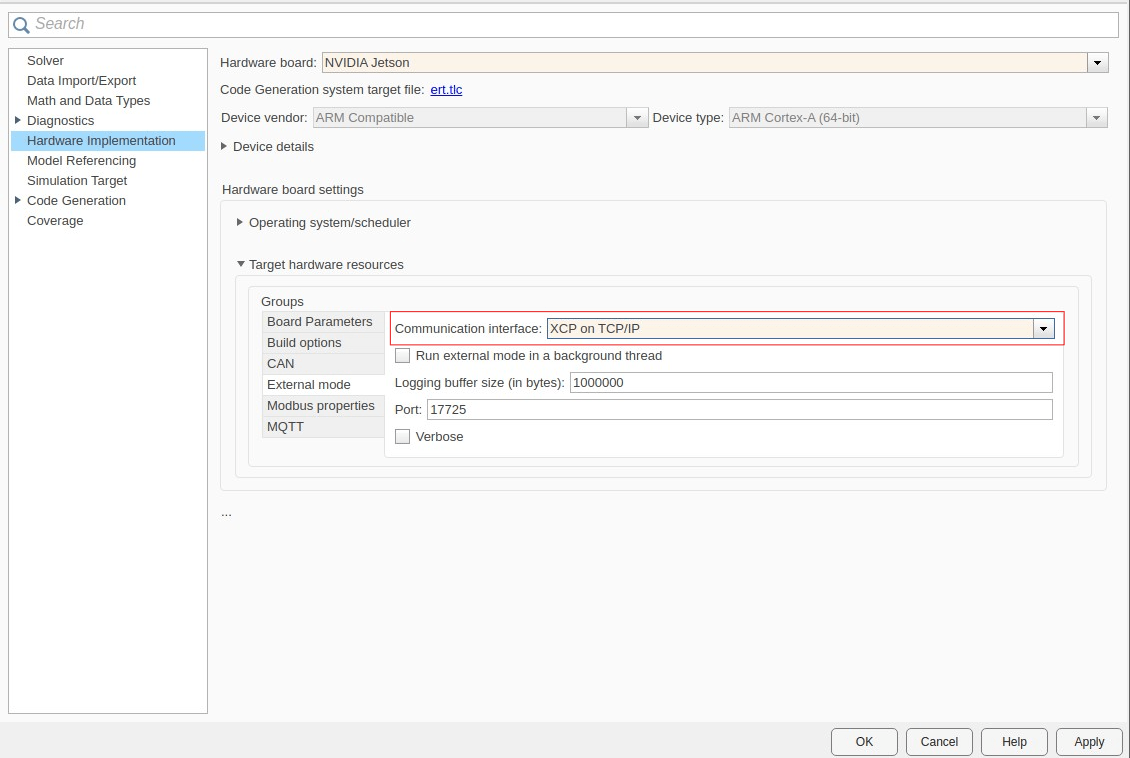
Alternatively, to set the Hardware board configuration parameter of the model programmatically, use the set_param function.
set_param("surveillance","HardwareBoard","NVIDIA Jetson");
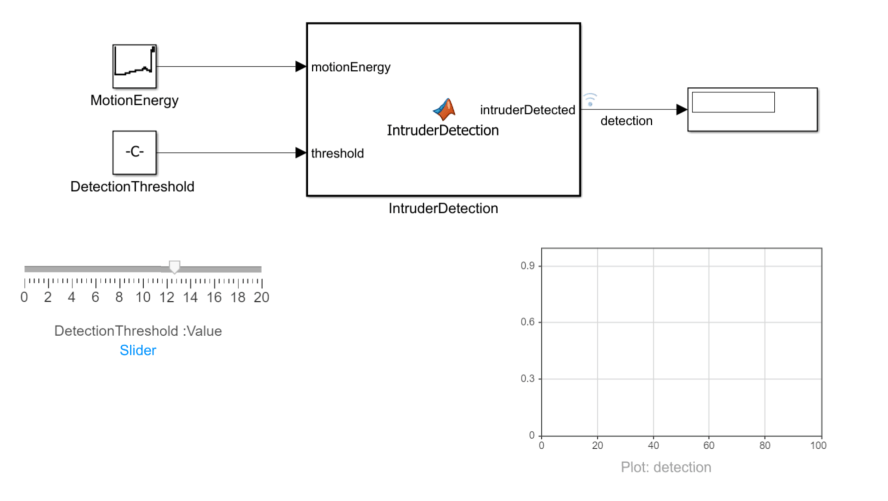
4. In the Simulink model, select the signal named detection. In the toolstrip, in the Simulation tab, click the Log Signals button.
Simulink displays a logging badge on each logged signal. For more information, see Save Signal Data Using Signal Logging (Simulink).
5. To enable execution-time profiling in the generated code, open the Configuration Parameters dialog box. In the Code Generation > Verification pane, select the Measure task execution time check box.
Run Simulink Model on NVIDIA Jetson and Tune the Parameters
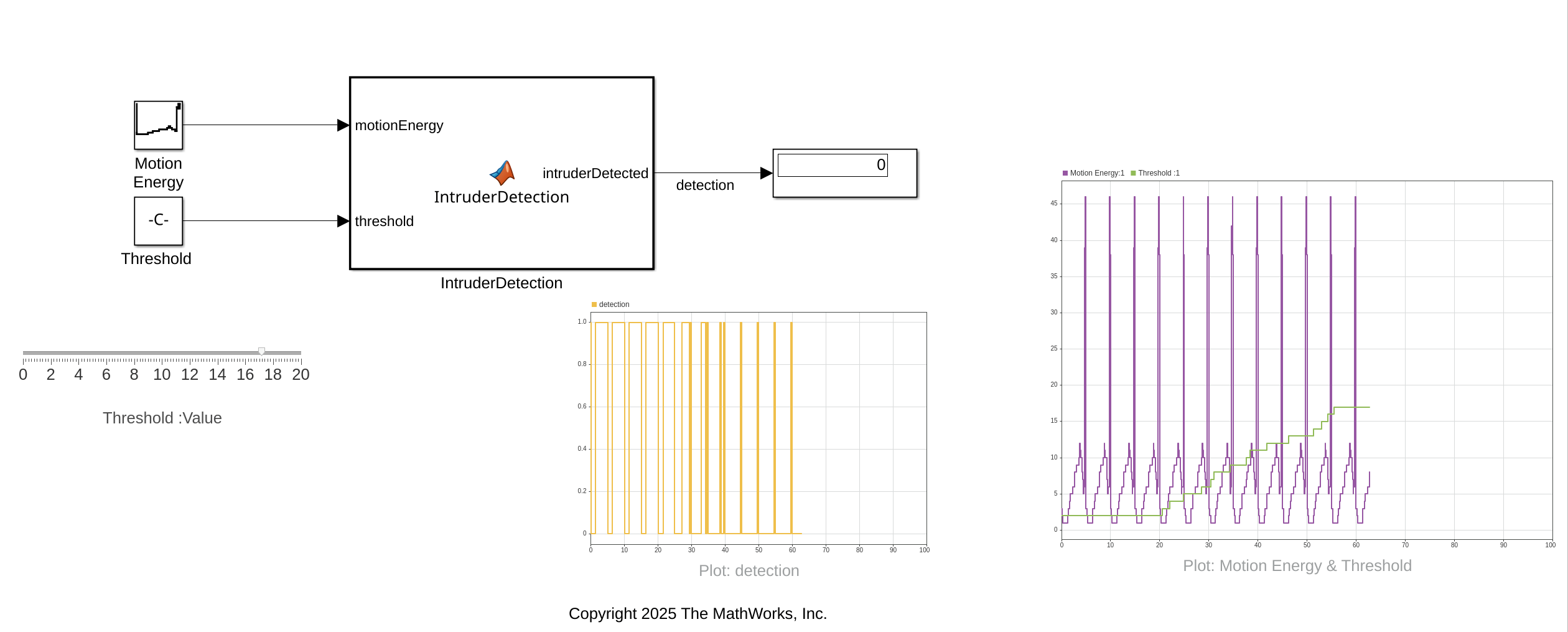
To run the model in external mode, in the Simulink Toolstrip, in the Hardware tab, click Monitor & Tune. As the model runs on hardware, it communicates with Simulink by using XCP on TCP/IP. To tune the parameters, modify the values in Simulink and monitor the signals from the hardware.
1. To modify the value in the Threshold block, drag the Slider block. This changes the threshold value in the model running on the NVIDIA Jetson board.
2. Monitor the changes in the detection signal by using the Dashboard Scope blocks in the model. In this screenshot, the threshold value increases gradually from zero to approximately 17. In the Plot: detection block, the plot shows that detections are less frequent as the threshold increases.
Alternatively, to inspect the data from the logged signal, use the Simulation Data Inspector. In the Simulink Toolstrip, in the Hardware continues.
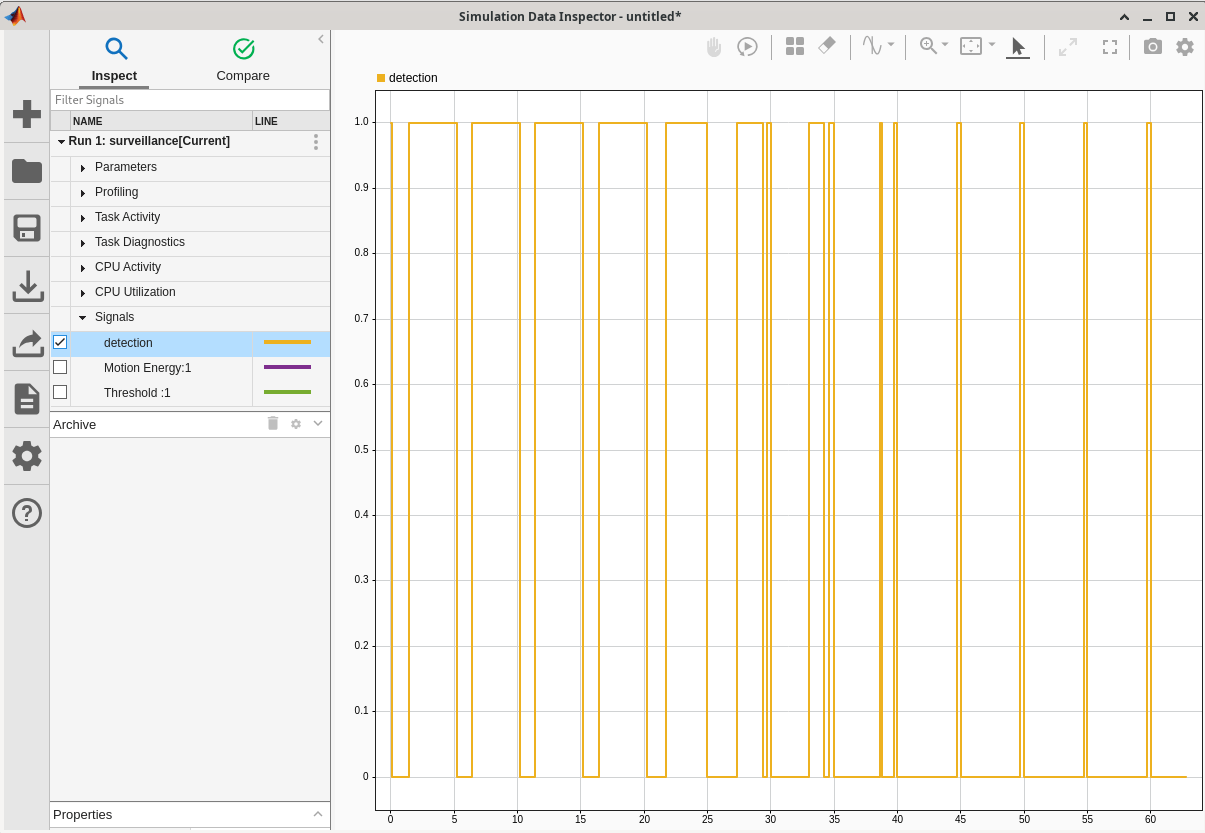
You can also use the Simulation Data Inspector to compare data from multiple simulations. For more information, see Simulation Data Inspector (Simulink).
Tune the algorithm so that it detects an intruder every five seconds. To stop the external mode simulation, in the Hardware tab, in the Run on Hardware section, click the Stop button.
Examine Execution-Time Profile
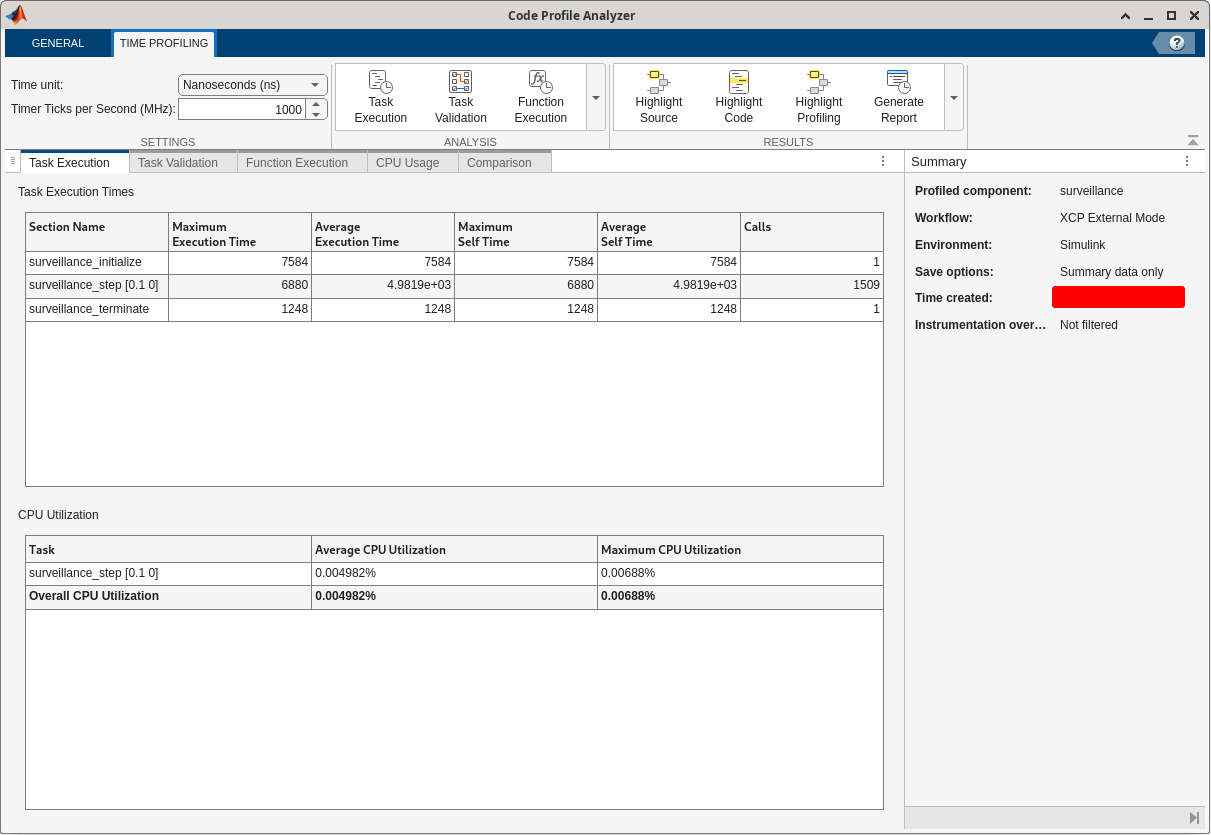
After the simulation finishes, the Profiling window opens with links to the profiling data. To view the profiling data, open the Code Profile Analyzer link. The analyzer opens and shows the timing data for the functions surveillance_initialize, surveillance_step, and surveillance_terminate.
See Also
Objects
Apps
- Code Profile Analyzer (Embedded Coder) | Simulation Data Inspector (Simulink)

