Standalone Applications and Arguments
R2026bWhen you deploy a MATLAB® function as a standalone application, the operating system passes command-line arguments to your function as input. This topic explains how to pass arguments at the command line and handle them in your MATLAB code.
You can pass arguments to standalone applications created using MATLAB Compiler™ in the same way that you pass input arguments to any console-based application on the command line. Type the application name followed by one or more input arguments separated by spaces.
When you run a standalone application, the main program passes any command line arguments to your main function—the function you listed first when you created the application. By default, your standalone application receives the input arguments as character vector input. Your application code must handle the argument data and convert it to another data type, if necessary. For general guidance on writing code for deployment, see Write Deployable MATLAB Code. For instructions on creating a standalone application, see Create Standalone Application from MATLAB.
Pass Command Line Arguments to Applications
Refer to the following table for examples of passing different argument types, such as
files, numbers or letters, matrices, and MATLAB variables to a standalone application named myapp.
| To Pass... | Use This Syntax... | Notes |
|---|---|---|
A file named helpfile
|
myapp path/to/helpfile
| If the path to the file contains spaces, surround the path with double quotes. |
| Numbers or letters |
myapp 1 2 3 a b c
| Do not use commas or other separators between the numbers and letters you pass. |
| Matrices as input |
myapp "[1 2 3]" "[4 5 6]"
| Place double quotes around each matrix argument. |
| MATLAB variables | At the MATLAB Command Window, type: for k=1:10 cmd = ['myapp ',string(k)]; system(cmd); end | To pass a numeric MATLAB variable to a program as input, you must convert it to a character vector or string. |
You can also call a standalone application from MATLAB. The following examples show how to pass the numbers and letters 1 2
3 a b c to a standalone application named myapp at the
MATLAB Command Window.
Using system, dos, or
unix
Specify the entire command as a character vector (including input arguments) using
the system
command.
system('myapp 1 2 3 a b c')Using ! (Bang) Operator
In MATLAB, use the ! (bang) operator.
!myapp 1 2 3 a b c
When you use the ! (bang) operator, the remainder of the input
line is interpreted as a system command, so you cannot use
MATLAB variables as arguments.
Using Windows Batch File
To run a standalone application with arguments by double-clicking it, you can create
a batch file that calls the standalone application with the specified input arguments.
For example, create runmyapp.bat with the following code.
 rem This is main.bat file which calls
 rem myapp.exe with input parameters

 myapp "[1 2 3]" "[4 5 6]"
 @echo off
 pause
The last two lines of code in runmyapp.bat keep the window
displaying your output open until you press a key.
Once you save this file, you run your code with the arguments listed above by
double-clicking the icon for runmyapp.bat.
Handle Input Arguments in MATLAB
When a standalone application receives command-line arguments, MATLAB passes them to the main function. Arguments arrive as a
char value (character vector). This includes numeric input arguments,
such as matrices. You must convert arguments to the types your function expects before
operating on them.
If your code expects the data in a different format (for example,
double), you must do one or both of the following in your MATLAB code:
Convert the character vector input to the required format in your MATLAB code before processing it. For example, you can use the
stringanddoublefunctions to convert the character vector input to numeric data.Create your application with the behavior to automatically treat numeric inputs as MATLAB doubles by using the
TreatInputsAsNumericoption withcompiler.build.standaloneApplication, the Treat all inputs to the app as numeric MATLAB doubles option in the Standalone Application Compiler app, or themcc -nflag. For details on the differences among packaging options, see Choose Deployment Option.
Here are two methods to convert input arguments to character vectors in your MATLAB code.
Method 1
Use ischar to test whether the input argument z
is a character vector, and if so, convert it to a double value.
function [x,y]=foo(z);

if ischar(z)
    z=double(string(z));
else
    z=z;
end
x=2*z
y=z^2;
disp(y)
Method 2
isdeployed returns true when your code is running as a compiled
application and false in the MATLAB Command Window. Use isdeployed to test whether the
function is running in deployed mode, and if so, convert z to a
double value.
function [x,y]=foo(z);

if isdeployed
    z=double(string(z));
end
x=2*z
y=z^2;
disp(y)
Use Variable Arguments
Use varargin if the number of arguments your application accepts
is variable or not known at build time. MATLAB passes arguments to the main function as a varargin
cell array.
Use nargin to ensure at least one argument is present. Use
isdeployed to test whether the function is running in deployed
mode, and if so, convert each argument explicitly using functions such as
str2double for scalar numeric strings or
str2num for matrix expression strings (for example, [1 2
3]).
  function sumUp(varargin)
      if nargin == 0
          disp('Usage: sumUp <num1> <num2> ...');
          return;
      end
      if isdeployed
          values = cellfun(@str2double, varargin);
      else
          values = [varargin{:}];
      end
      fprintf('Sum: %g\n', sum(values));
  end
As an alternative to explicit conversion, you can create an application that automatically treats numeric inputs as MATLAB doubles.
Display Data to Screen Using MATLAB File
You cannot directly return values from your standalone application to the user. The only way to return values from compiled code is to either display them on the screen or store them in a file. By default, deployed applications output text to the standard output and standard error streams.
To display data on the screen, do one of the following:
Do not use semicolons to suppress commands that yield your return data.
Use the
dispfunction to display the variable value. Then, redirect the output to other applications using command line redirects (the>operator) or pipes (||) on non-Windows® systems.Display data visually using MATLAB graphics, such as with the
plotfunction. The application displays graphics in new windows when you run it and continues running until you close all graphics windows.
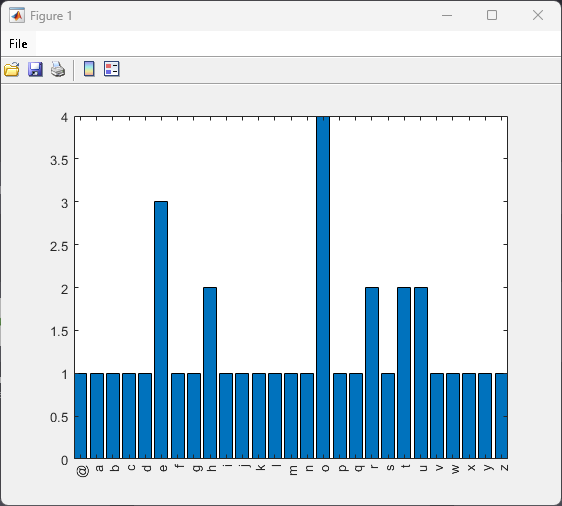
For example, create a program that plots a histogram of the number of times each letter in the alphabet appears in an input string. The function takes a single input and has zero outputs.
function freq(msg)
  % Remove spaces
  msg(msg == ' ') = [];

  % Convert to lower case, and map the letters to numbers.
  % a=1, b=2, etc.
  msg = lower(msg) - double('a') + 1;

  % Map non-letter characters to zero.
  msg(msg < 1) = 0;
  msg(msg > 26) = 0;

 % Display a histogram of the letter frequency in the message.
  count = hist(msg, 27);
  bar(0:26, count);
  labels = char([double('@'), double('a'):double('z')])';
  set(gca, 'XTick', 0:26+0.5, 'XTickLabel', labels);
 axis tight
Create a standalone application using compiler.build.standaloneApplication.
compiler.build.standaloneApplication('freq.m',Verbose=true);Test the application at the MATLAB Command Window.
!freq "The quick brown fox jumps over the lazy dog!"
See Also
compiler.build.standaloneApplication | Standalone Application Compiler | mcc

