Create Virtual Sensors Interactively Using Deep Learning and Generate C Code for Deployment
This example shows how to interactively train a deep neural network as a virtual sensor to predict battery state of charge using the Time Series Modeler app. You can use the Time Series Modeler app to build, train, and compare models for time series forecasting.
Battery state of charge (SOC) is the level of charge of an electric battery relative to its capacity, measured as a percentage. SOC is critical information for the vehicle energy management systems. However, the nonlinear temperature, health, and SOC-dependent behavior of lithium ion batteries make SOC estimation challenging. Traditional approaches to this problem, such as electrochemical models, usually require precise parameters and knowledge of the battery composition and physical response. In contrast, using neural networks is a data-driven approach that requires minimal knowledge of the battery or its nonlinear behavior.
In this example, you build a Long Short-Term Memory (LSTM) network to predict the battery charge from input signals like voltage and current. By default, the app trains the network using a GPU if one is available and if you have Parallel Computing Toolbox™. After training, you can export the model to Simulink® and generate C code using Embedded Coder® to integrate the virtual sensor into an embedded device.
Load Data
Load the BSOC_MultipleTemperatures data file. This data consists of 20 example battery SOC simulations at different temperatures. For each simulation, the state of charge response is computed as a function of multiple predictors, including input voltage and current.
load BSOC_MultipleTemperatures.matTrain Model in Time Series Modeler
Import Data
Open the Time Series Modeler app.
timeSeriesModeler;
Load the data into the app by clicking New on the toolstrip. The Import Data dialog box opens.
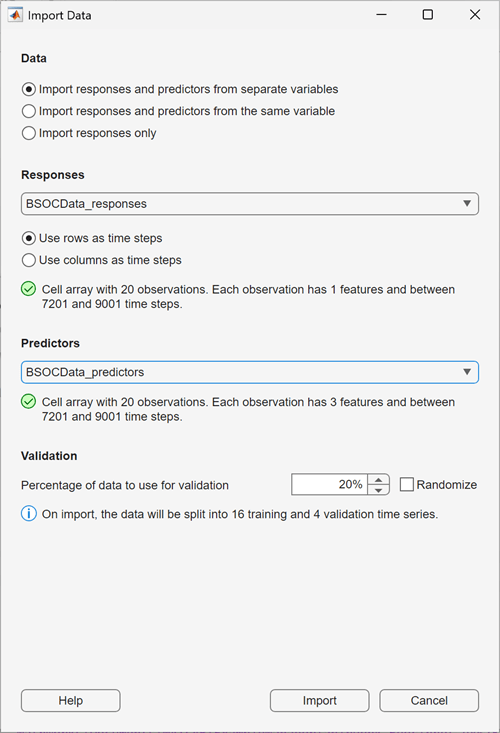
In the Import Data dialog box, select Import responses and predictors from the separate variables and import the usagedata variable. Under Responses, select BSOCData_responses and under Predictors, select BSOCData_predictors. To use the last 20% of the time series as validation data, keep the default value of 20% in the Percentage of data to use for validation box. Click Import.
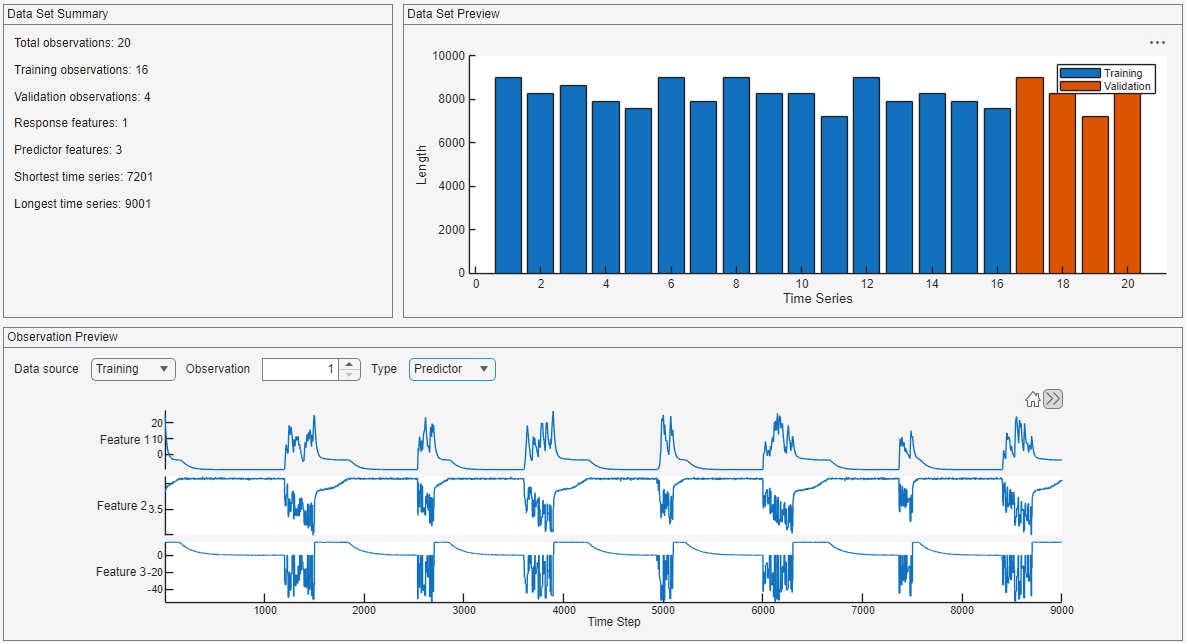
In the Data tab, view the Observation Preview pane to verify that the data is correct.
To display the predictor channels, set the Type to Predictor. The app displays three predictor channels, that correspond to the voltage and current measurements of the battery.
Train Simple Multilayer Perceptron
Begin with a small multilayer perceptron (MLP) model. This deep neural network has fully connected learnable layers. It is fast to train and can learn simple input-output mapping.
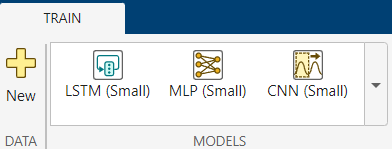
Click MLP (Small) in the Models gallery.
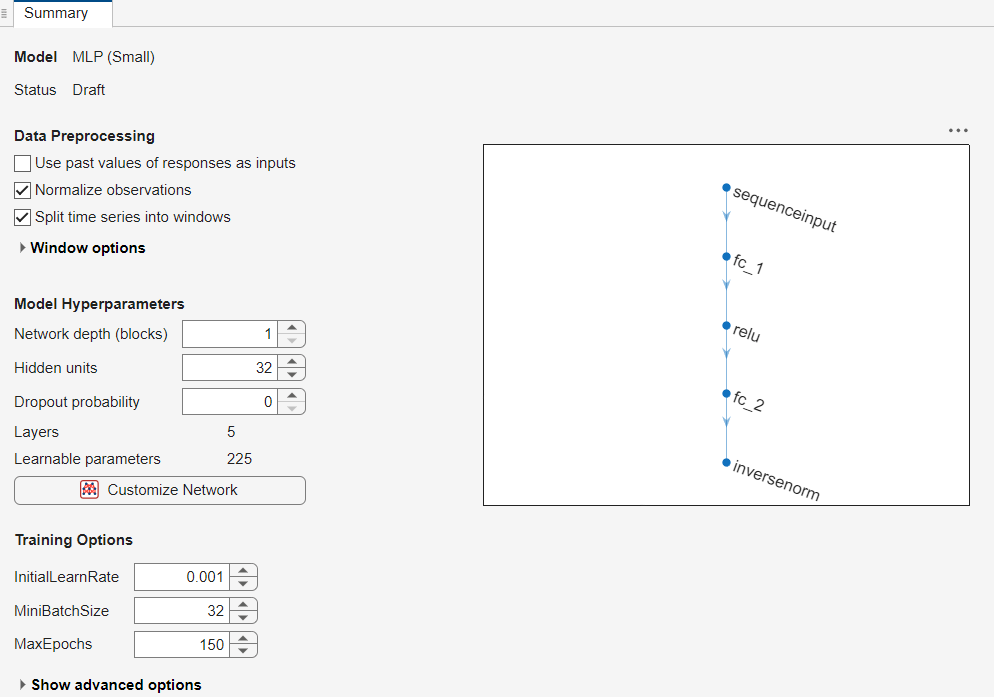
See the Summary tab for information about the model and the network architecture. The model accepts three input predictor channels and outputs a single response (the battery charge).
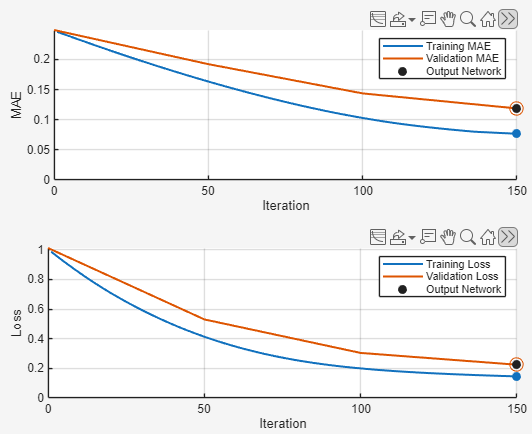
To train the model, click Train. The Training Progress document displays the mean square error (MSE) loss and mean absolute error (MAE) of the model.
Training this model takes tens of seconds. To interrupt training, you can click Stop.
The loss curve shows that the loss is still decreasing at the end of training. This suggests that training the model for longer could improve the accuracy of its predictions.
Increase Model Accuracy
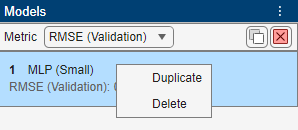
To increase the model accuracy, increase the number of training epochs. Make a copy of the MLP model by right-clicking it in the model list and selecting Duplicate.
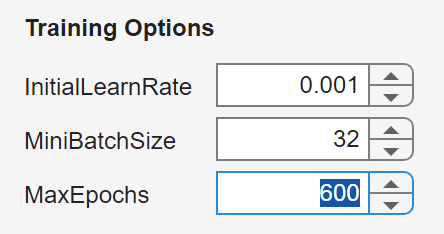
In the Summary tab of the new copy of the model, set MaxEpochs to 600. Train the model.
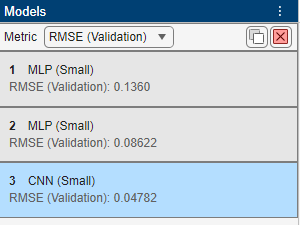
After training, the root mean square error (RMSE) of the model on the validation data appears in the models list.
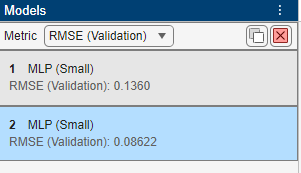
The model that trained for more epochs has a lower RMSE. To reduce the RMSE even further, you can train the model for even longer.
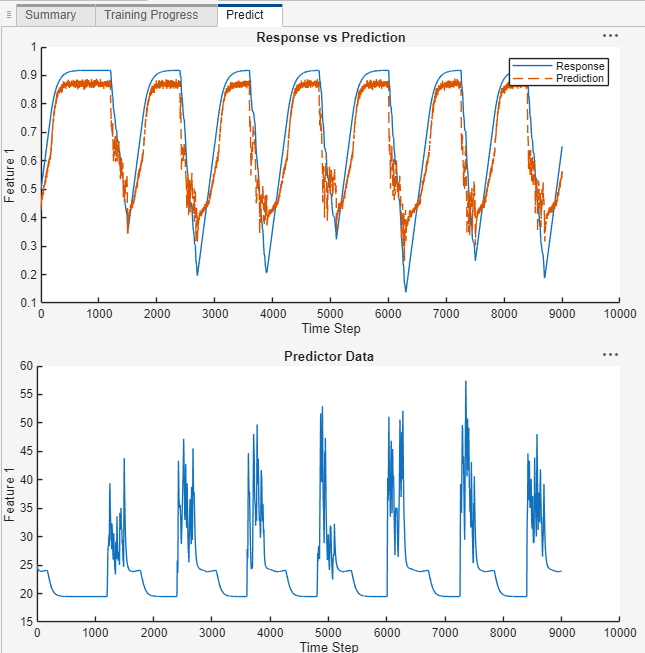
To display the predict plot, click Predict. The simple MLP model is able to make predictions that roughly fit the response data.
Train Convolutional Neural Network (CNN) Model
A 1-dimensional CNN performs convolutions in the time dimension, allowing it to capture short-term temporal correlations. These correlations allow the network to model the time series more accurately.
To train a CNN, select CNN (Small) in the Models gallery. Set the MaxEpochs parameter to 600 and train the model. Notice that the model trains faster and has a smaller RMSE than the MLP models.
Train Long Short-term Memory (LSTM) Model
An LSTM model typically uses more of the temporal history of the data than a CNN. Select LSTM (Small) from the Models gallery. To improve the training speed, set Hidden units to 16 to reduce the number of learnable parameters to 1.3k. This number is still higher than the MLP and CNN networks. Set Max epochs to 600 and train the model. Training takes over 10 minutes.
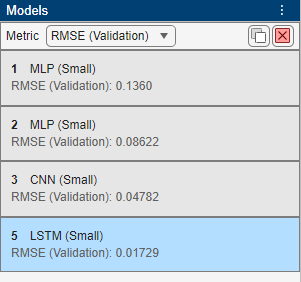
To compare the performance of the models, see the RMSE in the Models list. The LSTM takes longer to train, but has a smaller RMSE.
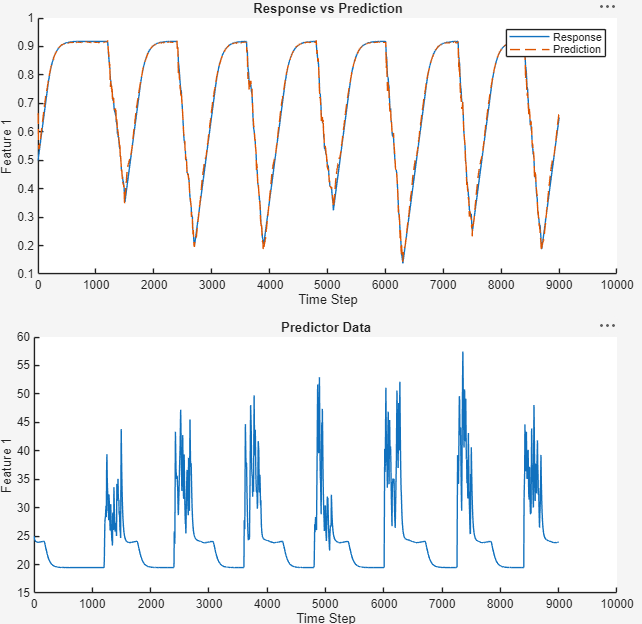
To view the predictions plot, click Predict. Verify that the predictions of the LSTM closely match the data.
Generate C Code for the Model Using Embedded Coder
To use the neural network as a virtual sensor in an embedded device, generate C code with the Embedded Coder app in Simulink.
Export Deep Neural Network to Simulink
On the toolstrip, select Export > Export to Simulink to convert the trained model to Simulink layer blocks. In the Export to Simulink dialog box, choose a location to save your model, then click OK. This file location stores the model weights. Exporting to Simulink can take some time.
Simulink displays the network as layer blocks. Data transformations like normalization that you use during training are included in the Simulink model.
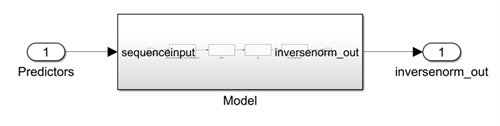
To explore the network architecture, double-click the Model block. The Model block shows the network layers represented as individual layer blocks. This layer-level view is useful for debugging or exploring the behavior of the network in Simulink.

Generate C Code
In Simulink, select the Apps tab. From the Simulink Apps Gallery, start the Embedded Coder app. Then on the Embedded Coder toolstrip, select Generate Code.
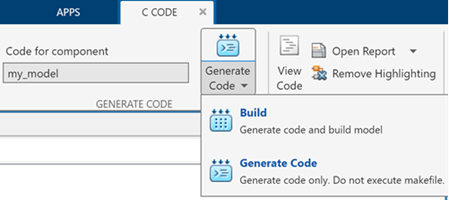
Embedded Coder converts the Simulink blocks of the deep neural network to C code.
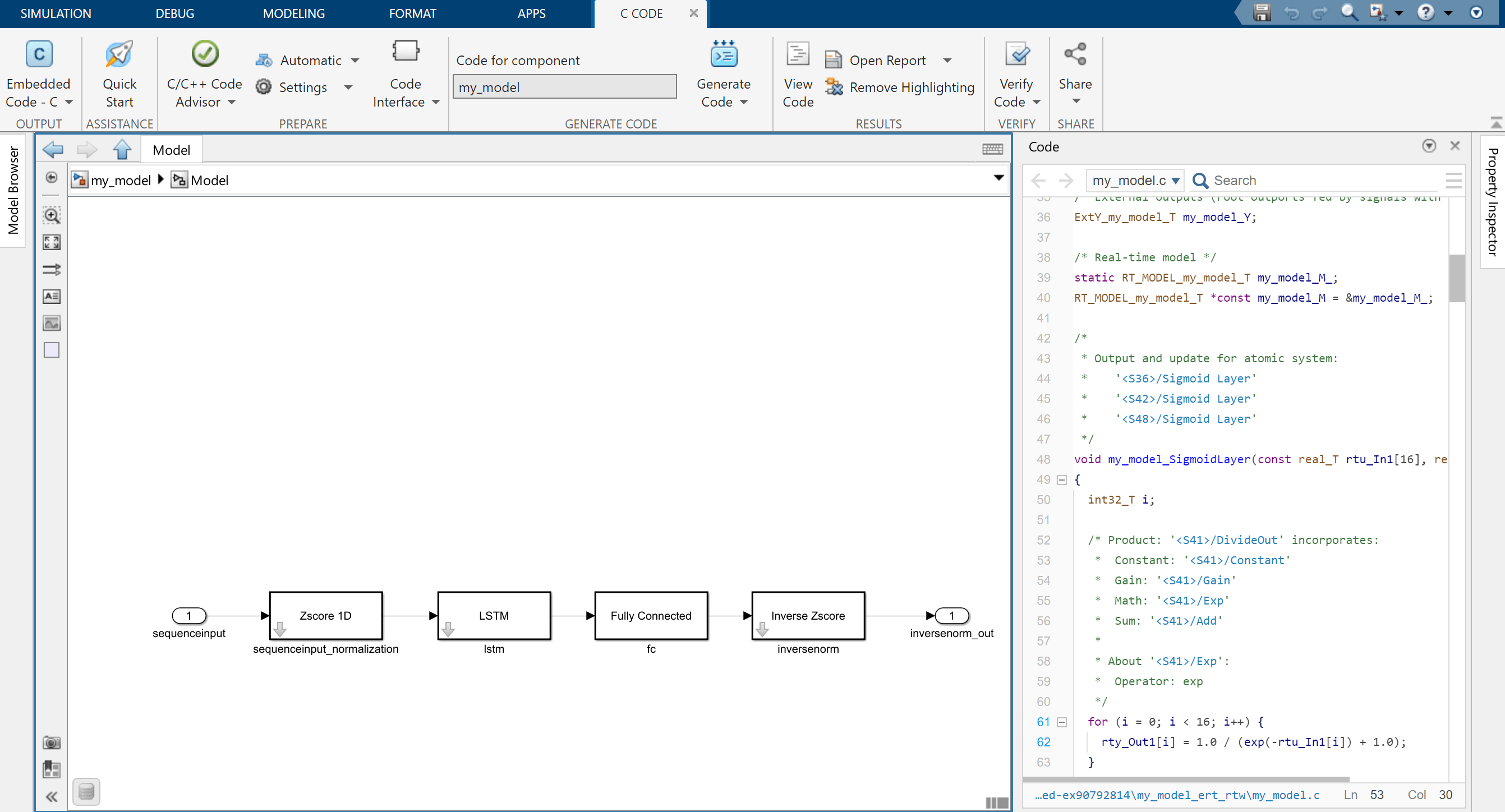
See Also
Apps
- Time Series Modeler | Embedded Coder (Embedded Coder)
Functions
Topics
- Battery State of Charge Estimation Using Deep Learning
- Time Series Forecasting Using Deep Learning
- Compare Deep Learning and ARMA Models for Time Series Modeling
- Build Custom Network for Time Series Modeling of a Virtual Sensor
- Autoregressive Time Series Prediction Using Deep Learning
- Denoise ECG Signals Using Deep Learning
- Build Transformer Network for Time Series Regression

