addLateralHeight
R2026bSyntax
Description
addLateralHeight(
adds the vertical elevation road,longitudinalDistance,lateralDistance,height)height to cross‑section of a specified road,
road. The function adds or updates a cross‑section height node at the
lateral distance lateralDistance and longitudinal distance
longitudinalDistance on the road. If a node exists, the function
updates its height. If no node exists, the function inserts a new cross-section node.
addLateralHeight(
specifies the measurement method for the lateral distance.road,longitudinalDistance,lateralDistance,height,LateralDistanceType=lateralDistanceType)
Examples
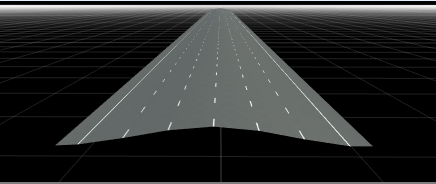
Create a RoadRunner scene with a horizontal road with multiple driving lanes, shoulder lanes, and crowned road geometry. Road crowning allows the road surface to slope outward from the centerline, which improves drainage and defines realistic roadway elevation across the lateral width of the road.
Create a roadrunner object, specifying the path to an existing project. For example, this code shows the path to a project, on a Windows® machine, located at "C:\RR\MyProject". This code assumes that RoadRunner is installed in the default location, and returns an object, rrApp, that provides functions for performing basic tasks such as opening, closing, and saving scenes and projects.
rrApp = roadrunner(ProjectFolder="C:\RR\MyProject");Note: If you are opening RoadRunner from MATLAB® for the first time, or if you have changed the RoadRunner installation location since you last opened it from MATLAB, you can use the roadrunnerSetup (RoadRunner) function to specify new default project and installation folders to use when opening RoadRunner. You can save these folders between MATLAB sessions by selecting the Across MATLAB sessions option from the corresponding drop down.
Create a new RoadRunner scene in the current project by using the newScene function, specifying the roadrunner object rrApp.
newScene(rrApp);
Create a roadrunnerAPI object, rrApi, that references the object for the current RoadRunner instance rrApp. The rrApi object enables you to programmatically author scenes, such as by adding and modifying road and lane components, using MATLAB.
rrApi = roadrunnerAPI(rrApp);
Extract the object for your scene from the Scene property of the authoring API object rrApi. The extracted Scene object enables you to specify the scene in which to add scene elements such as roads and lanes.
scn = rrApi.Scene;
Extract the Project object for your RoadRunner project from the Project property of the authoring API object rrApi. The extracted Project object enables you to specify the project folder for the current RoadRunner session from which to retrieve asset objects. You can use the asset objects to assign markings to the lanes in your scene.
prj = rrApi.Project;
Add a horizontal road 500 meters in length to the scene by using the addLineArcRoad function. Specify the position of the road by specifying the positions of its control points along the X- and Y-axes of the RoadRunner local coordinate system. These control points define the positions of the start and end of the road. You can modify the positions of the control points to adjust the length and direction of the road relative to the scene origin. You can also add control points between the start and end points of the line-arc curve to adjust the curvature and radius of the road curve.
rrHorizontalRoad = addLineArcRoad(scn,[0 0; 500 0]);
Extract the reference lane of the road from the ReferenceLane property of the road object rrHorizontalRoad. The reference lane defines the center lane, or reference line, of a road in a RoadRunner scene. This lane has no width and serves as the basis for positioning all other lanes, which RoadRunner arranges outward from the reference line.
refLane = rrHorizontalRoad.ReferenceLane;
Use the getAsset (RoadRunner Scenario) function to extract lane marking style objects, which represent the DashedSingleWhite.rrlms and SolidSingleWhite.rrlms assets, from the project prj. Use these assets to mark the reference lane of the road. You can also use these assets to assign lane‑marking styles to other driving and shoulder lanes.
dashedWhiteMarkingStyle = prj.getAsset("<PROJECT>/Assets/Markings/DashedSingleWhite.rrlms","LaneMarkingStyle");
solidWhiteMarkingStyle  = prj.getAsset("<PROJECT>/Assets/Markings/SolidSingleWhite.rrlms","LaneMarkingStyle");
ReferenceLaneSpan = refLane.LaneMarkingProfile.Spans(1);
ReferenceLaneSpan.LaneMarkingStyle = dashedWhiteMarkingStyle;
Add three driving lanes to the left of the reference lane by using the addLaneToLeft function. For each lane, specify the lane type and travel direction using the LaneType and TravelDirection properties. Assign the appropriate marking style for each lane by modifying the first span of the marking profile of each lane.
leftLane1 = addLaneToLeft(refLane);
leftLane1.LaneType = "driving";
leftLane1.TravelDirection = "backward";
leftLane1.LaneMarkingProfile.Spans(1).LaneMarkingStyle = solidWhiteMarkingStyle;

leftLane2 = addLaneToLeft(refLane);
leftLane2.LaneType = "driving";
leftLane2.TravelDirection = "backward";
leftLane2.LaneMarkingProfile.Spans(1).LaneMarkingStyle = dashedWhiteMarkingStyle;

leftLane3 = addLaneToLeft(refLane);
leftLane3.LaneType = "driving";
leftLane3.TravelDirection = "backward";
leftLane3.LaneMarkingProfile.Spans(1).LaneMarkingStyle = dashedWhiteMarkingStyle;
Add three driving lanes to the right of the reference lane by using the addLaneToRight function. Also configure the lane type and travel direction, then assign dashed or solid marking styles to the outer boundaries of each lane.
rightLane1 = addLaneToRight(refLane);
rightLane1.LaneType = "driving";
rightLane1.TravelDirection = "forward";
rightLane1.LaneMarkingProfile.Spans(1).LaneMarkingStyle = solidWhiteMarkingStyle;

rightLane2 = addLaneToRight(refLane);
rightLane2.LaneType = "driving";
rightLane2.TravelDirection = "forward";
road.ReferenceLane.LaneMarkingProfile.Spans(1).LaneMarkingStyle = dashedWhiteMarkingStyle;
rightLane2.LaneMarkingProfile.Spans(1).LaneMarkingStyle = dashedWhiteMarkingStyle;

rightLane3 = addLaneToRight(refLane);
rightLane3.LaneType = "driving";
rightLane3.TravelDirection = "forward";
rightLane3.LaneMarkingProfile.Spans(1).LaneMarkingStyle = dashedWhiteMarkingStyle;
Now, add shoulder lanes to the outermost driving lanes. Use the addLaneToLeft and addLaneToRight functions to place a shoulder lane on each side. Set their lane types to "shoulder", and define their width profiles by specifying the WidthProfile nodes.
endLane1 = addLaneToLeft(leftLane1);
endLane1.LaneType = "shoulder";
endLane1WidthProfile = endLane1.WidthProfile;
endLane1WidthProfile.Nodes(1).EndWidth   = 1.75;
endLane1WidthProfile.Nodes(2).StartWidth = 1.75;

endLane2 = addLaneToRight(rightLane1);
endLane2.LaneType = "shoulder";
endLane2WidthProfile = endLane2.WidthProfile;
endLane2WidthProfile.Nodes(1).EndWidth   = 1.75;
endLane2WidthProfile.Nodes(2).StartWidth = 1.75;
Define the crowned elevation of the road surface by using the addLateralHeight function. Specify a 1.5 meter crown height at the reference line, decreasing to 0 meters at 10.5 meters laterally. This creates a crown at the centerline that decreases toward the outer shoulder lanes. Create crown definitions at both the start and end of the road to ensure smooth interpolation along the entire alignment.
addLateralHeight(rrHorizontalRoad,0,[0 10.5],[1.5 0]);
addLateralHeight(rrHorizontalRoad,500,[0 10.5],[1.5 0]);
Input Arguments
Version History
Introduced in R2026a
See Also
roadrunnerAPI | roadrunnerSetup | getAsset | Scene | Lane | ReferenceLane | addLineArcRoad | LaneMarkingStyle | LateralProfile | CrossSectionCurve | CrossSectioneNode

