Customize Arguments of Step C Function Generated from Single-Tasking Model
Entry-point functions are functions in the generated model code that interface with your external code. A step function is an entry-point function that contains the execution code for each step in a Simulink® model task. The return value and input arguments of the generated function represent the root-level inports and outports that are used by that task, and the function body corresponds to the task logic.
The examples Customize Generated Entry-Point C Function Arguments for Component Models and Customize Generated Entry-Point C Function Arguments for Subcomponent Models show how to customize the identifiers of entry-point function arguments and how to customize the way root-level inports and outports are passed to the generated entry-point functions.
When your model is configured as single-tasking, you can override these customizations for the generated step function. In these settings, you can directly customize the arguments of the step function:
You can specify the order of the arguments in the generated function prototype.
You can specify the identifier for each of the arguments.
You can customize the function to use combined arguments, corresponding each to one root-level inport and one root-level outport of the model.
This example shows how to configure your model to apply these customizations.
Note:
Applying these customizations does not affect other generated entry-point functions.
The customizations demonstrated in this example apply to both models configured for component deployment type, and models configured for subcomponent deployment type.
Limitations: To apply the customization options demonstrated in this example:
Your model must be configured as single-tasking.
The storage class of all root-level inports and outports of the model must be specified as
Auto, or asModel defaultwith the default storage class of the execution category specified asDefault.If your model is configured for component deployment type, it must be configured as nonreusable, or as reusable with the root-level ports passed as individual arguments.
If your model is configured for subcomponent deployment type, it must be configured as reusable, or as nonreusable with the root-level ports passed as individual arguments.
Open Model
Open the model EntryPoints.
epModel = "EntryPoints";
open_system(epModel)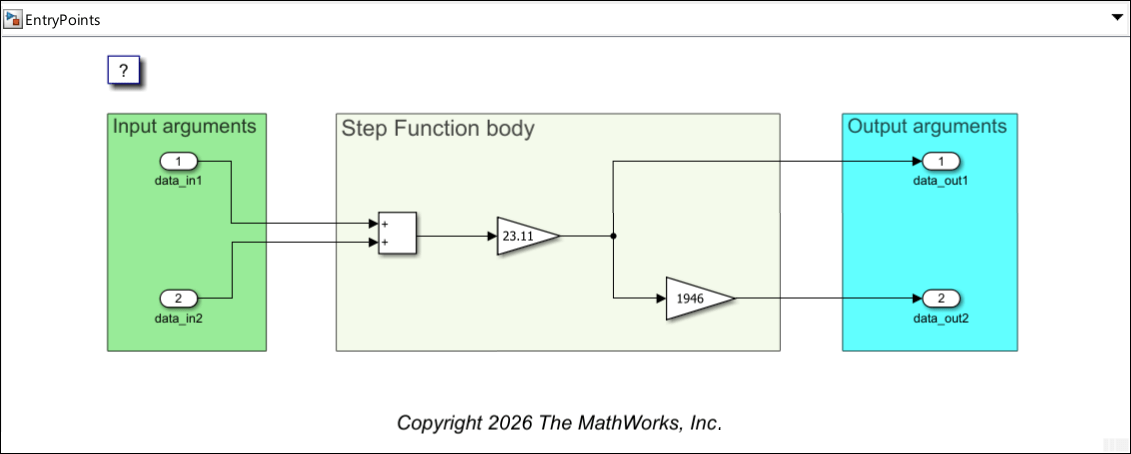
EntryPoints is a nonreusable, single-rate single tasking model, configured to use the ERT system target file.
Prepare to Customize Step Function Arguments
To customize the step function arguments, use the Configure C Step Function Interface dialog box:
Open the Embedded Coder® app.
Open the Code Mappings editor and navigate to the Functions tab.
Locate the entry with
Periodic:D1in the Source column and click on the Function Preview content of the entry.
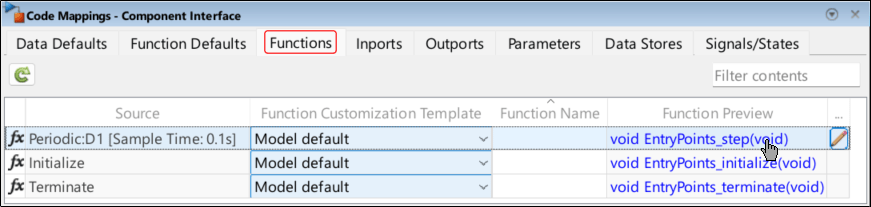
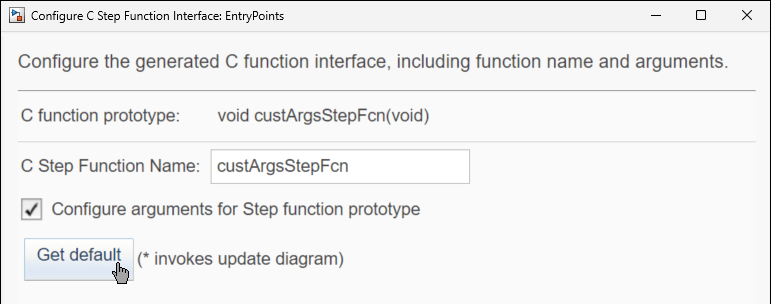
In the dialog box that opens, update the function name to custArgsStepFcn, and select Configure arguments for Step function prototype. Click the Get default button that appears to populate the dialog box parameters you can use for customizing the function arguments.
Designate Return Value
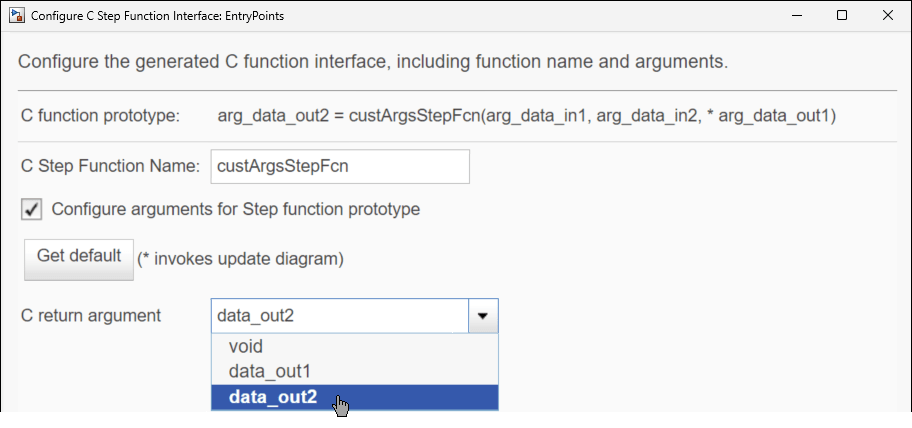
The C language syntax allows only one explicit return value. You can specify the return argument of the generated function as either void or as one of the root-level outports. Except for the root-level outport you designate to become the return value of the generated function, all root-level outports become pointer input arguments in the generated function. In this example, designate the root-level outport data_out2 as the return value:
In the Configure C Step Function Interface dialog box, from the C return argument list, select data_out2 to specify it as the return value of the generated function. The function prototype is updated accordingly: data_out2 becomes the return value, and data_out1 becomes a pointer input argument with the identifier arg_data_out1.
Customize Argument Identifier, Type Qualifiers, and Order
The table in the lower part of the dialog box shows the root-level inports and outports of the model. Except for the root-level outport you designated as the return value of the generated function, each of the root-level ports appears as an entry in the table.
The first column of the table, Port Name, is the name of the root-level port block. The second column of the table, Port Type, indicates whether the port is an inport or an outport. The third column of the table, C Type Qualifier, indicates how the corresponding input argument is passed to the generated function. For the C Type Qualifier, select one of these values.
Value— The code generator attempts to have the argument passed by value. If the code generator cannot do that, the argument is passed as a pointer.Const— The code generator attempts to have the argument passed by constant value. If the code generator cannot do that, the argument is passed as a pointer to constant.Pointer— The argument is a pointer. This is the only option for arguments that correspond to root-level outports.Pointer to const— The argument is a pointer to a constant.Const Pointer to const— The argument is a constant pointer to constant.
Considerations / limitations for the C Type Qualifier:
The only option for arguments that correspond to root-level outports is
Pointer, because the function needs to have the ability to change their values.For complex variables, such as arrays, the code generator cannot honor
ValueorConst. In such cases, the argument is generated asPointerorPointer to const, respectively.
Use the last column of the table, C Identifier Name, to specify the identifier for the argument.
Use the drag-and-drop dotted areas on the left to reorder the entries. This is how you specify the order of the arguments in the generated function prototype.
In this example, order the arguments and specify their values according to this list:
Drag outport
data_out1to be the first entry, and specify its identifier asoutArg1. Because it is an outport, its qualifier isPointer(without the possibility to select a different qualifier).Drag inport
data_in2to be the second entry, and specify its identifier asinArg2. From the list, select the qualifierConstfor this port.Drag inport
data_in1to be the third entry, and specify its identifier asinArg1. From the list, select the qualifierPointer to constfor this port.
Click Apply, and then click Validate to validate your specifications.
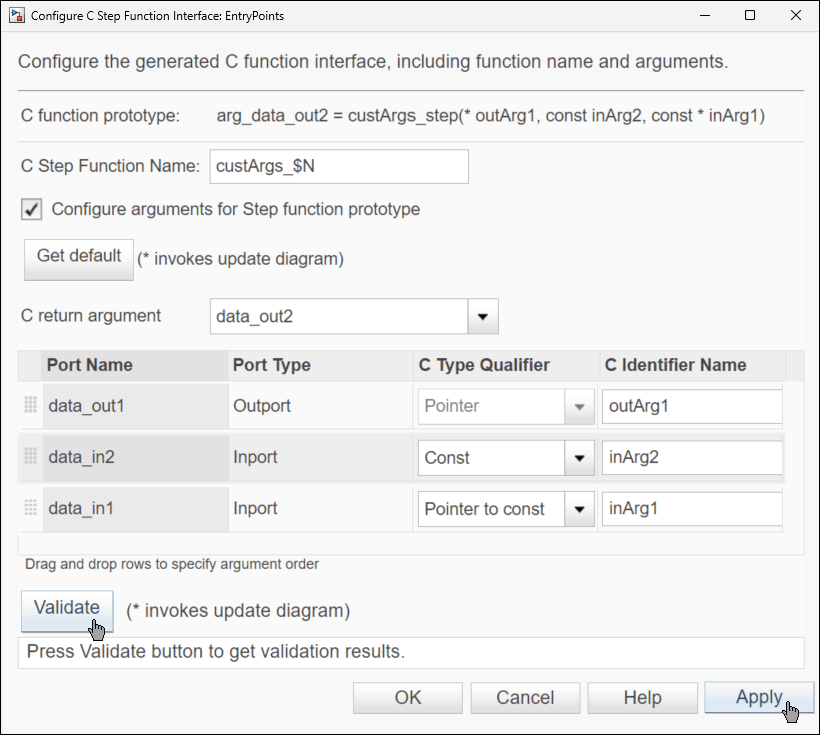
Generate code from the model: in the Simulink Toolstrip, select the C Coder tab. Then, in the Generate Code section, click Generate Code  to generate code from the model.

In the Code pane, navigate to the generated source code file EntryPoints.c and examine the definition of the generated step function.
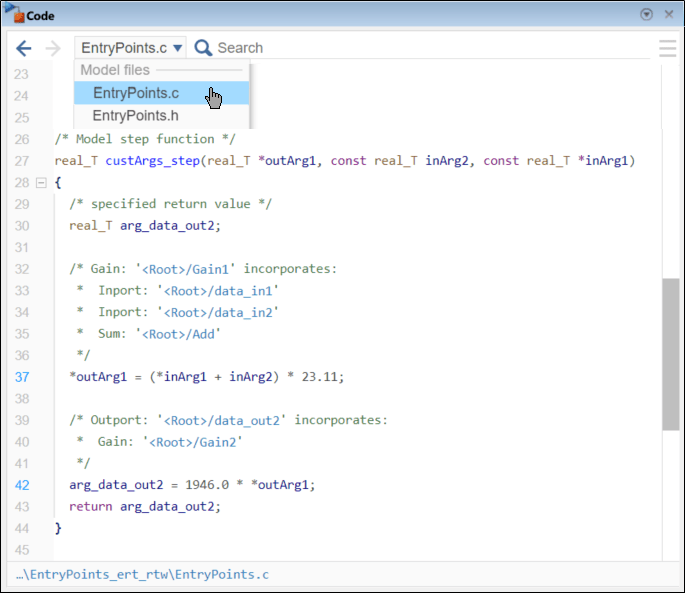
In the generated code:
The argument order, type qualifiers, and identifiers adhere to your specifications.
The return value is kept, during the running of the function, in the temporary variable
arg_data_out2, which corresponds to root-level outportdata_out2that you designated to be the return value of the generated function.
Use Combined Inports and Outports
You can customize the generated function to have combined arguments, corresponding each to one root-level inport and one root-level outport. A combined argument is passed by pointer and is used in the generated function for both input and output. To use combined arguments, in the Configure C Step Function Interface dialog box, specify the same identifier for both the inport and the outport.
In the example, reopen the Configure C Step Function Interface dialog box and in it, specify these:
Specify C Step Function Name as
sharedArgsStepFcn.From the C return argument list, select
void.In the table, drag the ports to reorder them as
data_in2,data_out2,data_in1,data_out1.Specify each of the identifiers for
data_in2anddata_out2assharedArg2.Specify each of the identifiers for
data_in1anddata_out1assharedArg1.
The C Type Qualifier value of all table entries is automatically updated to Pointer. This is because combined arguments must be passed as pointers to the generated function.
Click Apply, and then click Validate to validate your specifications.
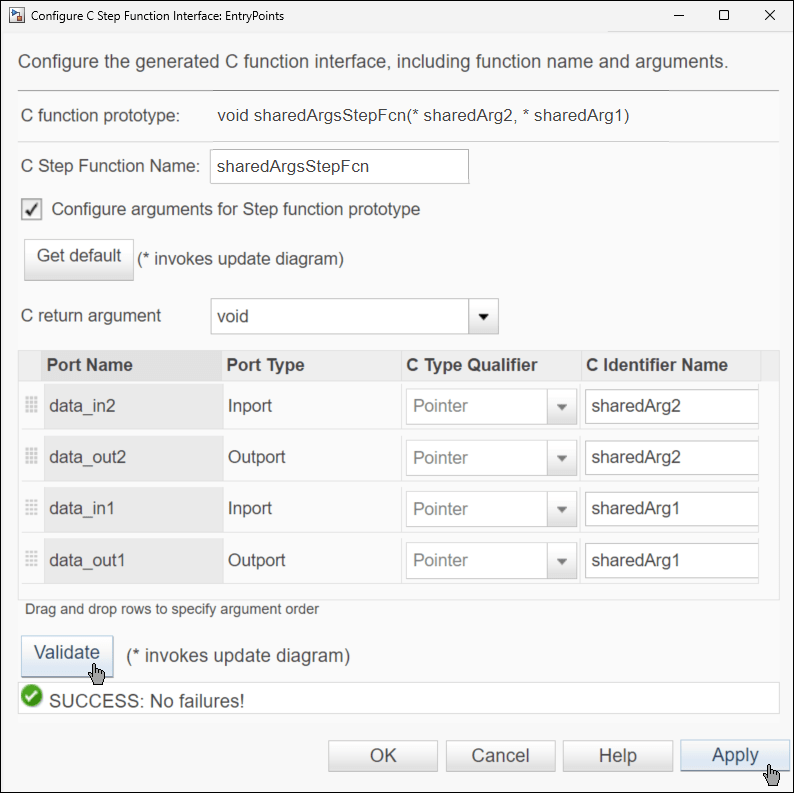
Generate code from the model, and in the Code pane examine the definition of the generated step function.
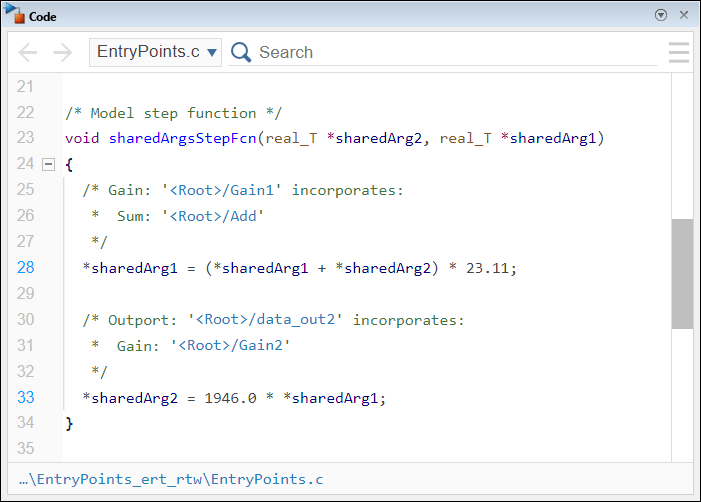
In the code, each of the combined arguments is used for both input and output. The value of each argument is used in the calculations, and is being updated.

