Access OPC Classic (DA) Servers Using OPC UA Tunneling
R2026bOPC UA is the recommended protocol for communicating with OPC servers from MATLAB®. However, if you cannot modify or upgrade your existing OPC infrastructure and need to access legacy OPC DA systems, you can use third-party tunneling or bridge software to expose an OPC DA server as an OPC UA endpoint. MATLAB can then connect to this endpoint using OPC UA client functions.
Prerequisites
A third-party OPC UA tunneling or bridge application installed and configured. For example, Matrikon OPC UA Tunneller wraps OPC Classic DA/AE servers as OPC UA endpoints.
An accessible OPC DA server running on your network.
Industrial Communication Toolbox™ installed in MATLAB.
Note
If the OPC DA server and tunneling software reside on different machines, ensure the DCOM configuration is correct on each machine.
Configure Tunneling Software
This example demonstrates the tunneling workflow using Matrikon OPC UA Tunneller. The server-side component (SSC) in the tunneller connects to the OPC DA server. The UA wrapper service then exposes the DA server as an OPC UA endpoint, which you can connect to from MATLAB.
Install the tunneling software. Before starting the tunneling software, verify that the OPC DA server is running.
The tunneling software requires multiple services, such as a server-side component (SSC), a client-side component (CSC), and a UA wrapper service. To check for these services, open the Windows Services manager (
services.msc) and confirm that each required service has a status ofRunning.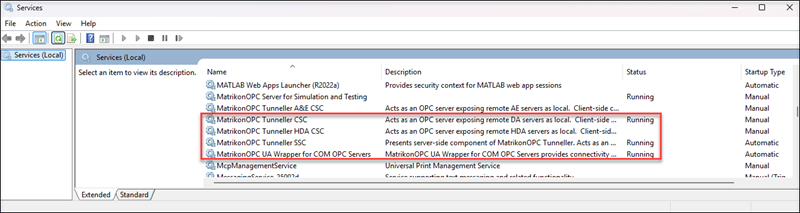
If a service shows a status of
Stopped, right-click the service and select Start. If the service fails to start with error1069, right-click the service, select Properties, go to the Log On tab, and enter the correct credentials for the service account.In the tunneling software, select the UA Client to Classic Server tab to access configuration settings that connect an OPC UA client to an OPC Classic server.
Add the OPC DA server connection. In the Add/Edit Connection panel, expand Discover Classic Server to browse for available servers on the network, or manually enter the server details under Classic (COM) Details including the
ProgIDandHost Name. Click Add to register the server.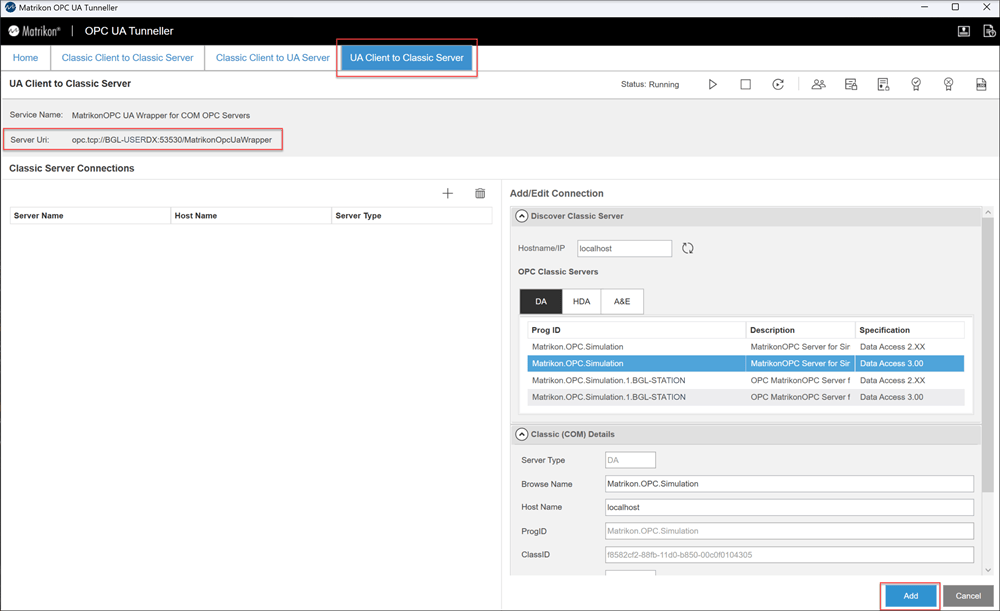
Note the OPC UA endpoint URL displayed in the Server Uri field. You use this URL to connect to the DA server from MATLAB.
Set the server security policy. This example uses
NoneandAnonymous, which is suitable in trusted environments only. You can choose a policy that matches your network security requirements.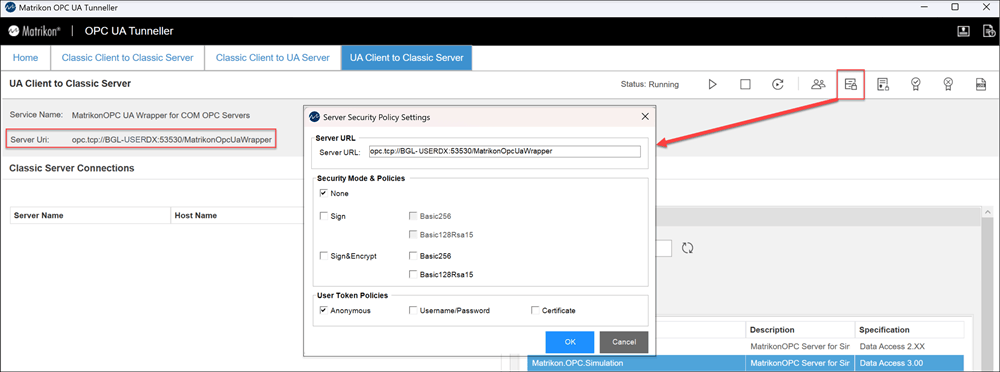
Connect from MATLAB
After configuring the tunneling software, connect to the exposed OPC UA endpoint from MATLAB.
Create an OPC UA client object using the endpoint URL from the tunneling software.
uaClient = opcua("opc.tcp://BGL-USERDX:53530/MatrikonOpcUaWrapper");Connect to the server.
connect(uaClient);
Verify the connection by displaying the client object.
uaClient
OPC UA Client:

   Server Information:
                       Name: 'MatrikonOPC UA Wrapper for COM OPC Servers'
                   Hostname: 'BGL-USERDX'
                       Port: 53530
                EndpointUrl: 'opc.tcp://bgl-userdx:53530/MatrikonOpcUaWrapper'

   Connection Information:
                    Timeout: 10
                     Status: 'Connected'
                ServerState: 'Running'

   Security Information:
        MessageSecurityMode: None
      ChannelSecurityPolicy: None
                  Endpoints: [1×1 opc.ua.EndpointDescription]

   Server Limits:
              MinSampleRate: 0 sec
               MaxReadNodes: 0
              MaxWriteNodes: 0
        MaxHistoryReadNodes: 0
    MaxHistoryValuesPerNode: 0
If the connection is successful, the client object displays Status:
'Connected' and ServerState: 'Running'.
After connecting, you can browse the server namespace and read and write node values using standard OPC UA client functions. For more information, see Access Data from OPC UA Servers.
Limitations
The tunneling software might not expose some OPC DA nodes in the OPC UA namespace.
The translation between OPC DA and OPC UA protocols can introduce additional latency.

