Create Live Scripts
R2026bLive scripts are program files that contain your code, output, and formatted text together in a single interactive environment. In live scripts, you can write your code and view the generated output and graphics along with the code that produced them. Add formatted text, images, videos, hyperlinks, and equations to create an interactive narrative that you can share with others.
Create Live Script
To create a live script, go to the Home tab and click New Live Script .
If you have an existing script, you can open it as a live script. Opening a script
as a live script creates a copy of the file and leaves the original file untouched.
MATLAB® converts publishing markup from the original script to formatted
content in the new live script. To open an existing script as a live script from the
Editor, right-click the document tab, and select Open
scriptName as Live Script from the
context menu. Alternatively, go to the Editor tab and click Save > Save As. Then, set the Save as type option to
MATLAB Live Code File (*.m) and click
Save.
Add Code
After you create a live script, you can add code and run it. For example, add this code, which plots a vector of random data and draws a horizontal line on the plot at the mean.
n = 50;
r = rand(n,1);
plot(r)
m = mean(r);
yline(m)
title("Mean of Random Uniform Data")

Run Code
To run the code in the current section, click the vertical striped bar to the left of the code. Alternatively, go to the Live Editor tab and click Run . Clicking the Run button runs all the code in the live script.
While your program is running, a status indicator  appears at the top left of the Editor window. A
gray blinking bar to the left of a line of code indicates the line that MATLAB is evaluating. To navigate to the line that MATLAB is evaluating, click the status indicator.
appears at the top left of the Editor window. A
gray blinking bar to the left of a line of code indicates the line that MATLAB is evaluating. To navigate to the line that MATLAB is evaluating, click the status indicator.
If MATLAB detects a significant issue in your code before running or if an error occurs while MATLAB is running the live script, the status indicator becomes an error icon . To navigate to the error, click the icon. An error icon to the right of a line of code indicates the error. The corresponding error message appears as an output.
You do not need to save your live script to run it.
Save Live Scripts
To save your live script, go to the Live Editor tab, and
click Save
. Alternatively, use the Ctrl+S keyboard shortcut. Enter a name for your live script and
click Save. By default, MATLAB saves the file using the live code file format
(.m). For more information, see Live Code File Formats.
Display Output
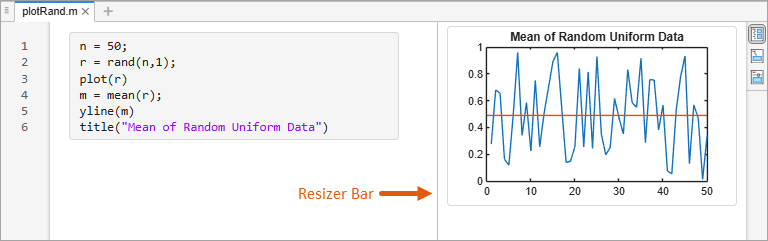
By default, output appears to the right of the code, aligned with the line that creates it. As you scroll, the output stays aligned with the corresponding code. To adjust the width of the code and output panel, drag the resizer bar between the two panels.
To turn off synchronized scrolling, right-click the output section and select Disable Synchronous Scrolling. When synchronized scrolling is off, the code and output panels scroll independently.
Clear Output
To clear a single output, right-click the output or the code line that created it, and select Clear Output.
To clear all output, right-click anywhere in the script and select Clear All Output. Alternatively, go to the View tab and in the Output section, click the Clear All Output button.
Open Output in Separate Window
To open an individual output such as a variable or figure in a separate
window, click the View Variable or Open in figure window button
 in the upper-right corner of the output. Variables open in
the Variables editor, and figures open in a new figure window.
in the upper-right corner of the output. Variables open in
the Variables editor, and figures open in a new figure window.
Changing variables or figures outside of a live script does not affect the output displayed in the live script.
Modify Figures
To modify figures in the output, use the tools in the upper-right corner of the figure axes or in the figure toolstrip. If the tools are not visible in the figure axes, click the Expand axes toolbar button to expand the axes toolbar. You can use the tools to explore the data in a figure and add formatting and annotations.
For more information, see Modify Figures in Live Scripts.
Use Keyboard to Interact with Output
To interact with output using the keyboard, move focus from the code to the output and then activate the output.
To move focus when output is on the right, press Ctrl+Shift+O. On macOS systems, press Option+Command+O.
To move focus when output is inline, use the down arrow and up arrow keys.
To activate a selected output, press Enter.
After you activate an output, you can:
Scroll text using the arrow keys.
Navigate through hyperlinks and buttons using the Tab key.
Open the context menu by pressing Shift+F10.
Deactivate the output by pressing Esc.
To disable keyboard focus for inline output, on the Home tab, in the Environment section, click Settings. Select MATLAB > Editor/Debugger > Display, and clear the Focus outputs using keyboard when output is inline option.
Change View
You can optimize the layout of your live script for your current workflow by changing where to display output and whether to display code in the live script. To change the layout of the live script, go to the View tab, and in the View section, select from the available options. You also can select one of the layout buttons at the top right of the live script. The options in the View tab and in the layout buttons affect only the active live script.
To change the default location of the output for all new live scripts, on the Home tab, in the Environment section, click Settings. Select MATLAB > Editor/Debugger > Display, and then select a different option for Live Editor default view.
Output on Right View
In Output on Right view, the output appears to the right of the code. Each output appears next to the line that creates it. This layout is ideal when writing code.

Output Inline View
In Output Inline view, each output appears underneath the line that creates it. This layout is ideal for sharing.

Hide Code View
In Hide Code view, the code is hidden and only output, labeled controls, tasks, and formatted text are shown. This layout is ideal for sharing when you want others to change only the value of the controls in your live script instead of interacting directly with the code.

Format Text
You can add formatted text, images, videos, hyperlinks, and equations to your live
scripts to create a presentable document to share with others. For example, add a
title and some introductory text to the plotRand live script:
Place your cursor at the top of the live script, and on the Live Editor tab, click Text . A new text line appears above the code.
Click the Select Style button
 and select
Title.Add the text
Plot Random Data.With your cursor still in the line, click the Align Center button to center the text.
Press Enter to move to the next line.
Type the text
This script plots a vector of
                                random data and draws a horizontal line on the plot at the
                                mean.
When you add the formatted text to the live script, the first code line number updates to 3. The reason is that in live scripts saved using the plain text live code file format, each line of text accounts for one or more code lines in the saved file.
For more information about all available formatting options, see Format Text in Live Scripts.


