Invert Lookup Tables
You can use CAGE to produce a lookup table that is the inverse of another lookup table. Inverting involves swapping a lookup table input with a lookup table output, and you can invert 1-D or 2-D lookup tables.
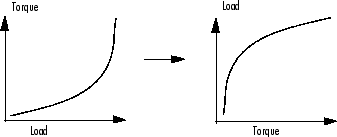
Inverting a lookup table allows you to link a forward strategy to a backward strategy; that is, swapping inputs and outputs. This process is desirable when you have a "forward" strategy, for example predicting torque as a function of speed and load, and you want to reverse this relationship in a "backward strategy" to find out what value of load would give a particular torque at a certain speed.
Normally you fill lookup tables in CAGE by comparing with data or models. Ideally you want to fill using the correct strategy, but that might not be possible to find or measure. If you only have a forward strategy but want a backward one, you can fill using the forward strategy (tables or model) and then invert the lookup table.
For example, to fill a lookup table normally from a model, you need the model response to be the lookup table output, and the model inputs to be a function of the lookup table inputs (or it should be possible to derive the input, for example, air mass from manifold pressure). If the available model is “inverted“ (the model response is a lookup table input and the lookup table output is a model input) and you cannot change the model, you can invert the lookup table in CAGE.
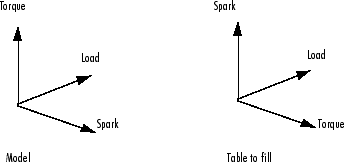
In the diagram of a lookup table shown, the x- and y-axes represent the normalizers (which you want to be spark and load) and the z-axis is the output at each breakpoint (torque). Filling the lookup table correctly from the model is a two-step process. First, fill a lookup table that has the same input and output as the model, and then fill a second lookup table by inversion.
For the inversion to be deterministic and accurate, the lookup table to be inverted must be monotonic; that is, always increasing or decreasing. This requirement is similar to the one-dimensional example. Every point on the y-axis must correspond to a unique point on the x-axis. The same problem applies also to two-dimensional lookup tables: for any given output in the first lookup table, there must be a unique input condition; that is, every point on the z-axis should correspond to a unique point in the x-y plane. Some lookup table inversions have multiple values and so do not meet this requirement, just as the square root function can take either positive or negative values. You can use the inversion wizard in CAGE to handle this problem; you can control the inversion process and determine what to do in these cases.
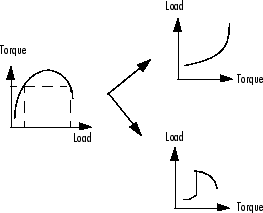
The following example illustrates a lookup table with multiple values. There are two solutions for a single value of torque. CAGE has a lookup table inversion tool that can help overcome this problem. You can specify whether you want to use the upper or lower values for filling certain parts of the lookup table; this allows you to successfully invert a multiple-valued function. See the inversion instructions for 1-D and 2-D lookup tables in the next sections.
The process of inverting a one-dimensional lookup table is different from the process of inverting a two-dimensional lookup table.
Inverting One-Dimensional Lookup Tables
To invert a one-dimensional lookup table,
Ensure that your session contains two lookup tables:
The first 1D lookup table that you want to invert, filled.
Another 1D lookup table with a different input, which you want to fill with the inverted lookup table.
Highlight the lookup table that you want to invert.
Click
 or select Table > Invert.
The Table Inversion dialog box appears.
CAGE selects a suitable table in the Table to fill list. Check that this is the lookup table that you want to fill, or select another.
The next control, Resolve non unique inverses with, specifies what CAGE should do if it encounters multiple values. To minimize the error, leave the default,
Least
                        squares
. The options are:Least squaresselects the range that produces the least error (see below; the last page of the wizard plots the error metric).Minimumselects the lower of the two if a given number has two possible inverses (like selecting the negative square root of a number).Maximumselects the uppermost range if a given number has two possible inverses (like selecting the positive square root of a number).Intermediateselects the middle range if a given number has more than two possible inverses.
For example, the function y =x2 is impossible to invert over the range -1 to 1. You can specify to invert the range from 0 to 1, sacrificing the inversion in the lower range, or the reverse. To select the range from 0 to 1, highlight
Maximum.The display shows a comparison between the lookup table (green) and the function x = f-1(f(x)).
The lower pane of the dialog box has a plot that shows the inversion error. If desired, you can change the plot type to view Input and Output. If your forward function is y = f(x), and your inverse function is x = g(y), then, combining these, in an ideal world, you should have x = g(f(x)). The plot then displays a line showing x against x and a line showing x against g(f(x)). The closeness of these two lines indicates how good the inversion has been: a perfect inverse would show the lines exactly on top of each other.
The plot can show you which part of your lookup table has not successfully inverted and where you should try a different routine.
Note
The least squares inversion routine tries to minimize the total distance between these lines. This can sometimes lead to unexpected results. For example, given the function f(x) = x^2 from -1 through 1, if you select either positive or negative square root as the inverse, this induces a large error in the combined inverse. If you choose g(y) = sqrt(y), then g(f(-1)) = 1, an error of 2. To minimize this, the least squares routine might choose to send everything to zero and accept a medium error over the whole range rather than a large error over half the range. Use knowledge of the form of the lookup table you are inverting to help you choose which routine to select.
Click OK to accept the inversion or Cancel to ignore the result and return to the original lookup table.
Inverting Two-Dimensional Lookup Tables
To invert a two-dimensional lookup table,
Ensure that your session contains two lookup tables:
The first lookup table you want to invert.
A second lookup table with exactly one of the same inputs, which you want to fill with the inverted lookup table.
Highlight the lookup table you want to invert.
Click
or select Table > Invert.The Table Inversion dialog box appears.
CAGE selects a suitable table in the Table to fill list. Check that this is the table that you want to fill, or select another.
The next control, Resolve non unique inverses with, specifies what CAGE should do if it encounters multiple values. To minimize the error, leave the default,
Least squares. See inverting a 1D table for the other options.The lower pane of the dialog box has a plot that shows the inversion error. If desired, you can change the plot type to view the Input and Output. If the forward function is z = f(x,y), and the inverse function is x = g(y,z), then, combining these, in an ideal world you should have x = g(y,f(x,y)). The plot then displays a plane showing x plotted against x and y, and a colored surface showing g(y,f(x,y)) plotted against x and y. The closeness of these two planes indicates how good the inversion is. If you want to improve the inversion in some areas, try other settings in Resolve non unique inverses with.
Click OK to accept the result or Cancel to ignore the result and return to the original table.

