Automate Vehicle Labels and Distance Attributes Using YOLOv2 in Multi-Sensor Labeler
R2026bThis example shows how to create a custom automation algorithm for the Get Started with Multi-Sensor Labeler app that detects vehicles using a pretrained vehicleDetectorYOLOv2 (Automated Driving Toolbox) and estimates their distances from the ego vehicle using a monoCamera (Automated Driving Toolbox) object.
Instead of annotating vehicles manually frame-by-frame, this automated workflow detects vehicles, labels them with bounding boxes, and stores estimated distances as numeric attributes. You can verify and refine results interactively in the Get Started with Multi-Sensor Labelerapp.
Detect Vehicles from Monocular Camera Using YOLOv2
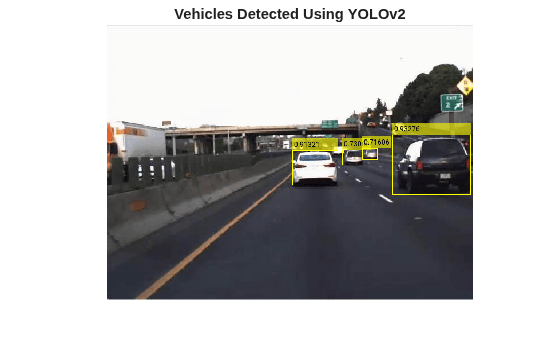
To detect vehicles, use the pretrained YOLOv2 detector returned by vehicleDetectorYOLOv2 (Automated Driving Toolbox). The configureDetectorMonoCamera (Automated Driving Toolbox) function wraps this detector with monocular camera calibration information. The resulting camera-aware detector constrains detections to physically plausible object sizes on the ground plane. For more details on camera-based perception, see the Visual Perception Using Monocular Camera (Automated Driving Toolbox) example.
Try the detection algorithm on a single video frame.
%% Load a video and read a frame of interest.
vidObj = VideoReader('highway_lanechange.avi');
vidObj.CurrentTime = 0.1;
I = readFrame(vidObj);

% Load the monoCamera object.
data = load('FCWDemoMonoCameraSensor.mat', 'sensor');
sensor = data.sensor;

% Load the pretrained YOLOv2 vehicle detector.
detector = vehicleDetectorYOLOv2();

% Width of a common vehicle is between 1.5 to 2.5 meters.
vehicleWidth = [1.5, 2.5];

% Configure the detector to take into account configuration of the camera
% and expected vehicle width
detector = configureDetectorMonoCamera(detector, sensor, vehicleWidth);

% Detect vehicles in the frame.
[bboxes, scores] = detect(detector, I, Threshold=0.5);

% Display the detections.
Iout = insertObjectAnnotation(I, 'rectangle', bboxes, scores);
figure;
imshow(Iout)
title('Vehicles Detected Using YOLOv2')
Estimate Distances to Detected Vehicles
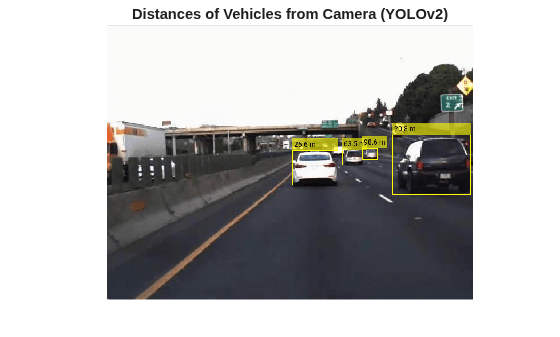
Estimate distances from detected vehicles to the camera in world coordinates using a monoCamera object. The imageToVehicle method provided by the monoCamera converts points from image coordinates to vehicle coordinates (in meters). The distance is computed from the bottom-center of each bounding box, which approximates the point where the vehicle contacts the ground.
% Find the bottom-center point of each bounding box in image coordinates.
midPtsImg = [bboxes(:,1) + bboxes(:,3)/2, bboxes(:,2) + bboxes(:,4)];

% Convert to vehicle coordinates using the monoCamera object.
midPtsWorld = imageToVehicle(sensor, midPtsImg);

% Compute Euclidean distance from the camera.
x = midPtsWorld(:,1);
y = midPtsWorld(:,2);
distance = sqrt(x.^2 + y.^2);

% Display bounding boxes annotated with distance.
distanceStr = compose("%.1f m", distance);
Iout = insertObjectAnnotation(I, 'rectangle', bboxes, distanceStr);
figure;
imshow(Iout)
title('Distances of Vehicles from Camera (YOLOv2)')
Create Automation Algorithm Class
To integrate vehicle detection and distance estimation into the Multi-Sensor Labeler app, you must use a class that inherits from vision.labeler.AutomationAlgorithm (Computer Vision Toolbox). This example provides the VehicleDetectionYOLOv2Distance class that implements the vehicle detection and distance estimation automation algorithm. Open the class file to see the full implementation, which consists of these steps:
Step 1: Define Algorithm Metadata
Specify constant properties (Name, Description, UserDirections) that identify the algorithm in the app and provide usage directions.
Step 2: Define Custom Properties
Store the YOLOv2 detector, monoCamera sensor, and detection thresholds as class properties. Store detection thresholds as these class properties:
- ScoreThreshold (default 0.5) — Rejects low-confidence detections
- OverlapThreshold (default 0.4) — Eliminates overlapping bounding boxes during non-maximum suppression
Step 3: Implement Setup Methods
The checkLabelDefinition method restricts the algorithm to Rectangle labels only. The checkSetup method verifies that a monoCamera object is provided via the settings dialog before the algorithm can run.
Step 4: Implement Execution Methods
The run method processes each frame by detecting vehicles, suppressing overlapping boxes, and computing distances. The distance computation finds the bottom-center of each bounding box (approximating the ground-contact point), converts it to vehicle coordinates using imageToVehicle, and computes the Euclidean distance.
function autoLabels = run(algObj, I)
    autoLabels = [];

    [selectedBbox, ~] = detect(algObj.Detector, I, ...
        Threshold= algObj.ScoreThreshold, SelectStrongest=true);

    if isempty(selectedBbox)
        return;
    end

    autoLabels.Name     = algObj.SelectedLabelName;
    autoLabels.Type     = labelType.Rectangle;
    autoLabels.Position = selectedBbox;

    if algObj.AutomateDistanceAttribute && algObj.HasValidDistanceAttribute
        attribName = algObj.DistanceAttributeName;
        autoLabels.Attributes = computeVehicleDistances(algObj, selectedBbox, attribName);
    end
end
Use Automation Algorithm in Multi-Sensor Labeler App
To use the VehicleDetectionYOLOv2Distance automation algorithm class in the app, follow these setup and configuration steps:
Create the folder structure required under the current folder, and copy the automation class into it. You only need to do this once in a session.
 mkdir('+vision/+labeler');
 copyfile('VehicleDetectionYOLOv2Distance.m', '+vision/+labeler');
Load the monoCamera information into the workspace. This camera sensor must correspond to the camera used to capture the video.
data = load('FCWDemoMonoCameraSensor.mat', 'sensor');
sensor = data.sensor;
Open the Multi-Sensor Labeler app with the video.
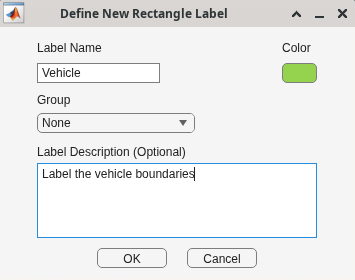
multiSensorLabeler 'highway_lanechange.avi'To define the label and attribute, under the Multi-Sensor Labeler tab, click Add Label and select Rectangle/Cuboid from the drop-down. Define a Rectangle ROI label with the name Vehicle. Click OK.
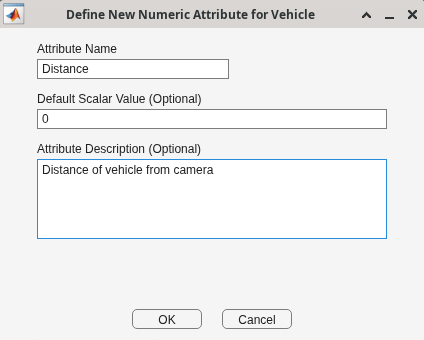
With the Vehicle label selected, click Attribute and select Numeric from the drop-down. Define an attribute with the name Distance and a default scalar value of 0. Click OK. This attribute stores the estimated distance for each detected vehicle.
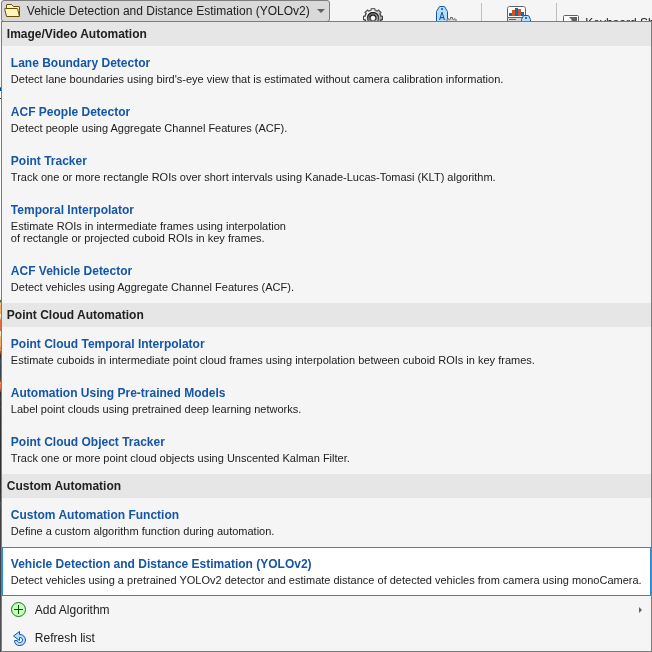
To load the automation algorithm, select Algorithm > Select Algorithm > Refresh list, then select Algorithm > Vehicle Detection and Distance Estimation (YOLOv2). If you do not see this option, verify that the current working folder contains +vision/+labeler/VehicleDetectionYOLOv2Distance.m.
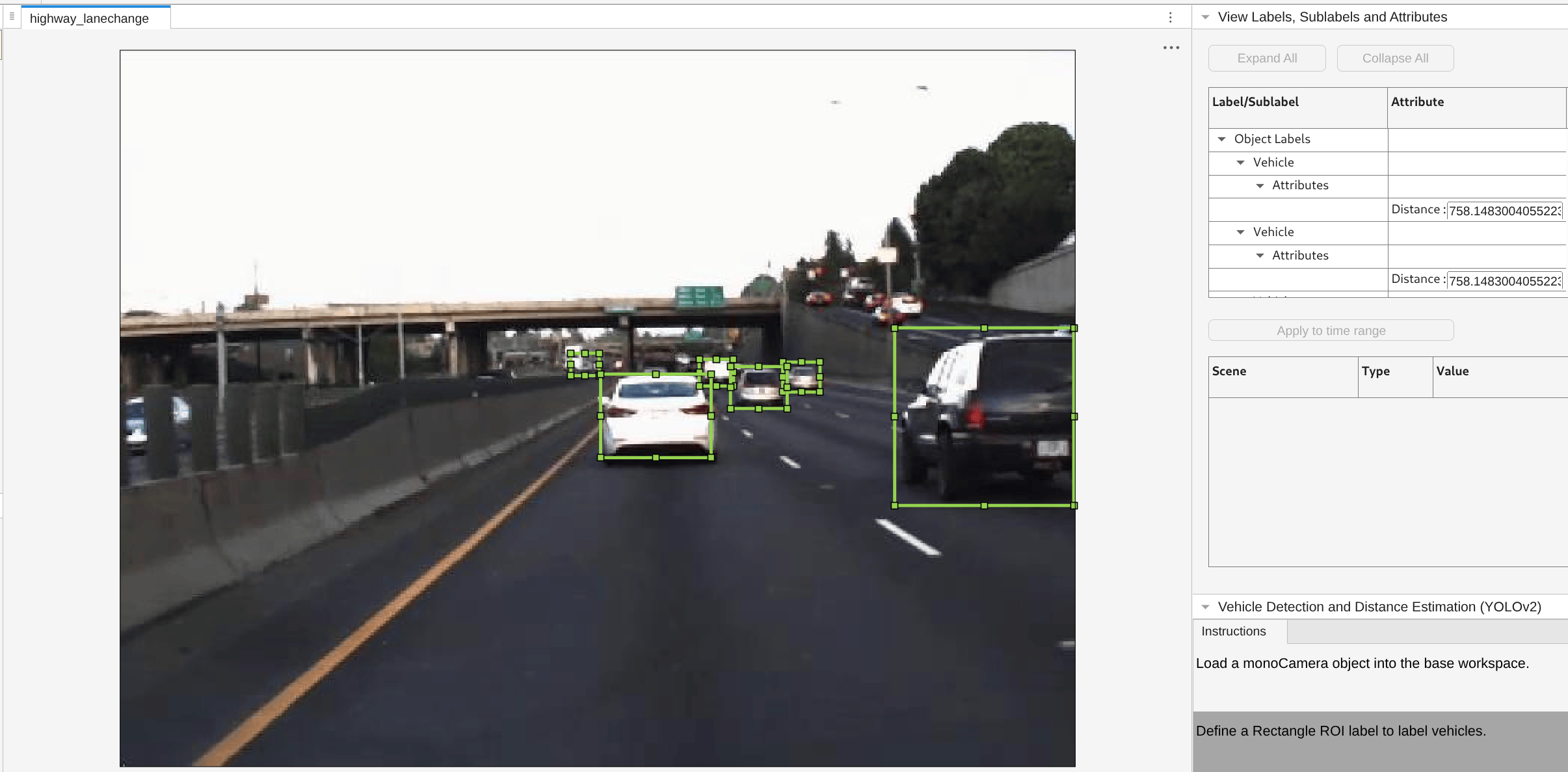
Click Automate. A new tab opens displaying directions for using the algorithm.
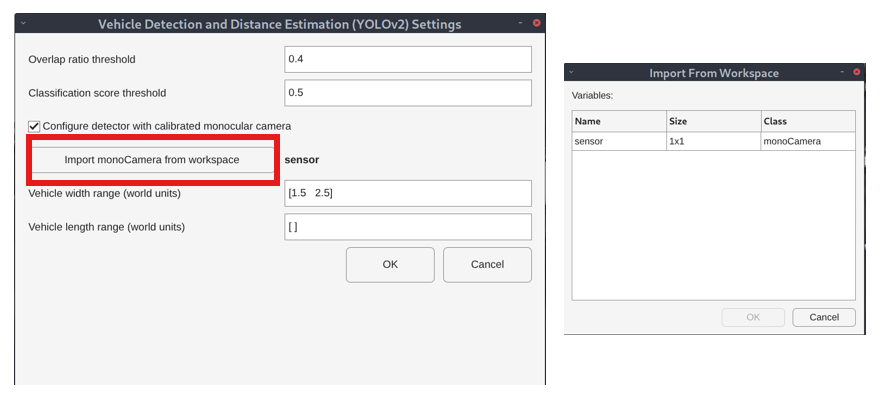
Click Settings and enter sensor as the monoCamera variable name. Adjust the score threshold and overlap threshold if needed. Click OK.
Click Run. The algorithm processes each video frame, detects vehicles, and annotates each detection with the estimated distance.
After the run completes, use the slider or arrow keys to scroll through the video and inspect the results. Manually adjust bounding boxes or distance values where needed.
When you are satisfied with the results, click Accept.
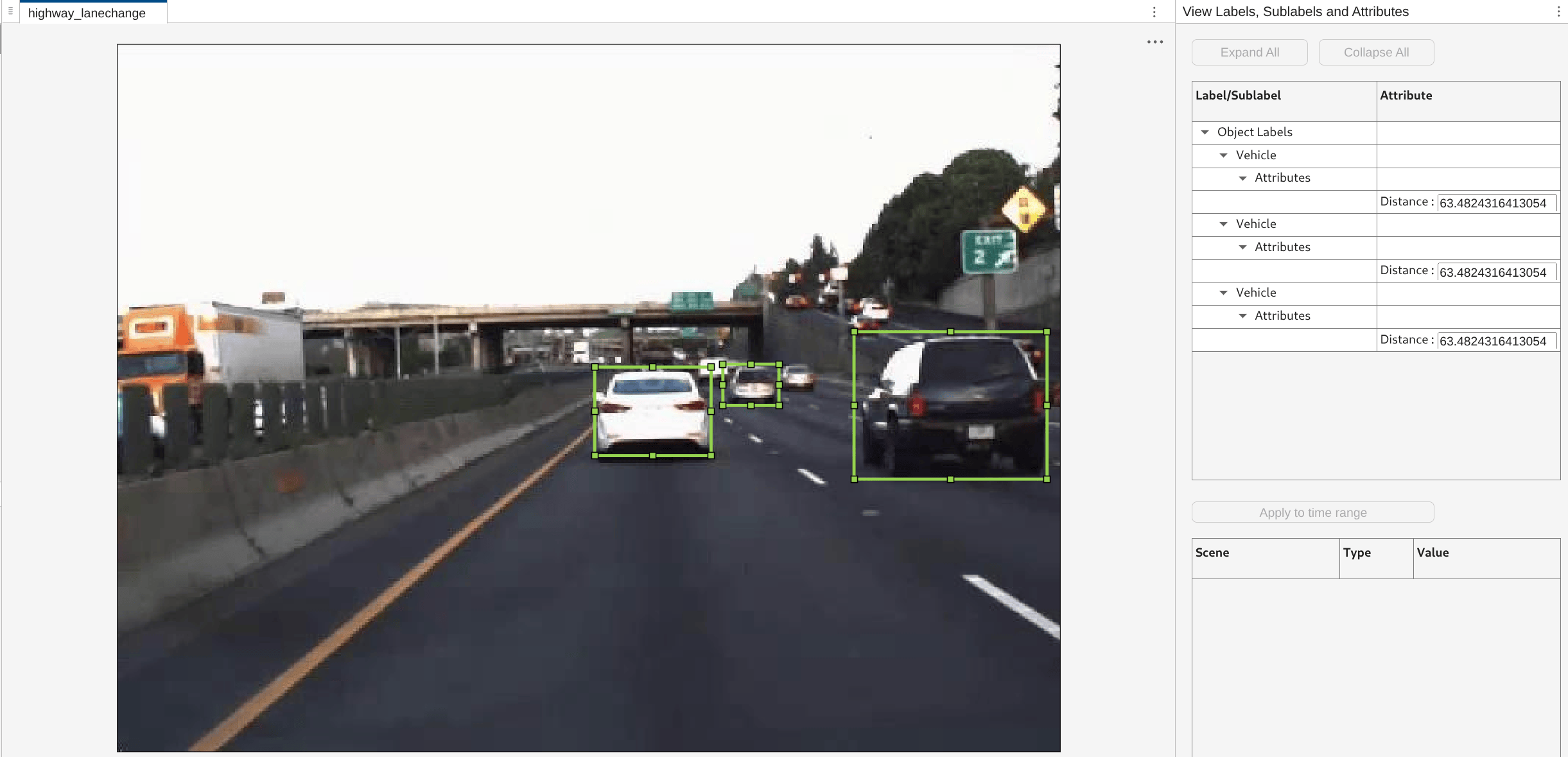
The automated labeling is complete. You can continue labeling other objects, save the session, or export the results.
Next Steps
You can extend this automation algorithm to support additional attributes, such as vehicle orientation or lane assignment, by adding fields to the autoLabels.Attributes structure. To adapt the algorithm to other object types, replace vehicleDetectorYOLOv2 with a detector trained for the target class and adjust the vehicle size constraints accordingly.
See Also
Multi-Sensor
Labeler | vehicleDetectorYOLOv2 (Automated Driving Toolbox) | monoCamera (Automated Driving Toolbox) | configureDetectorMonoCamera (Automated Driving Toolbox) | vision.labeler.AutomationAlgorithm (Computer Vision Toolbox)

