Visualize People Tracking Using TI mmWave Radar Boards with PIL Simulation
R2026bThis example shows you how to use Radar Toolbox Support Package for Texas Instruments mmWave Radar Sensors for reading detections from a TI mmWave radar board for tracking people, and perform a visualization of people tracking using Processor-in-the-loop (PIL) simulation. In this example, you perform multi-object tracking and fusion along with reading detections from a TI mmWave radar board. This helps you to sense the environment using TI mmWave radar board and obtain almost real-time data and detections while the PIL simulation is in progress.
The example generates embedded code for reading detections, clustering and tracking. With PIL simulation, the tracker object is deployed on the ARM® Cortex® processor of TI mmWave radar board. You also perform execution time profiling using Embedded Coder to measure the execution time and memory usage of the generated code for the tracker object as it runs on the TI mmWave radar board.
The implementation of this example consists of four main components:
Radar Data Input - TI mmWave radar point cloud data
DBSCAN Clustering - Groups multiple reflections from same person
JPDA (Joint Probabilistic Data Association) Tracking - Multi-object tracking with data association
Visualization - Real-time display of tracking results
Required Hardware
One of the supported TI mmWave Radar Evaluation Modules (EVM) (see Supported Boards)
USB Cable Type A to Micro B
Additional power adapter (if you are using the AWR1642BOOST, IWR1642BOOST, AWR1843BOOST or IWR1843BOOST boards)
Connect the TI Radar board to micro USB cable and power cable (if applicable).
Initialize the People Tracking System and Set Parameters for Different Blocks
This example provides a helper function to set up and configure all necessary parameters for radar-based people detection, tracking, and sensor fusion.
Run the setup script for the initial set up:
helperPeopleTrackingSetup();
Open Models
This example uses these Simulink models, which use the Workspace variables generated using the initialization.
open_system("radarClusterTrack.slx");
open_system("peopleTrackingUsingPILVerification.slx");
Create Bus Objects
Run this helper script to create Simulink Bus objects for the models.
helperCreateBusObjects();
The below sections explain the model setup that is achieved by performing the initialization steps.
Set Up Point Cloud Data Detection, Clustering, and Tracking
Configure Read Detections Block
By default, the Read Detections block in radarClusterTrack.slx uses the Configuration file, xwr18xx.cfg. For this people tracking example, you can use the Configuration file PeopleTrackingConfiguration.cfg, instead.
To do this, open the Read Detections block, click Browse, and select PeopleTrackingConfiguration.cfg that is provided with this example.
Note: The PeopleTrackingConfiguration.cfg file is specific to the AWR1843BOOST board that is selected in the Simulink model in this example. If you use a different TI mmWave radar board, use a Configuration (.cfg) file that is compatible with that board.
In the Read Detections block in this example, the name of the detection report output bus is specified as BusReadDetections. Compared to the default values, the block also uses a different value for the CFAR threshold in range direction and it also removes static clutter during detections. You can verify this setting in the Detection Reporting tab.

DBSCAN Clustering of Point Cloud Data for Multi-Object Tracking and Fusion
The Joint Probabilistic Data Association Multi Object Tracker (Sensor Fusion and Tracking Toolbox) used in this example works best with object-level detections, where the input from each sensor is processed to represent one potential object, rather than a raw point cloud or pixel data. The pre-processing includes the clustering step, where multiple detections from the TI mmWave radar board are clustered into a single measurement. The helper function HelperDBScanClustering is used for clustering.

The parameter values in the Clustering block are already defined in helperPeopleTrackingSetup helper function. Change the values, if required.
Once you have the clustered detections, you feed them directly into the Simulink block, Joint Probabilistic Data Association Multi Object Tracker.
Some of the parameter values in the JPDA Tracker block are already defined using the helperPeopleTrackingSetup helper function. Change the values, if required.
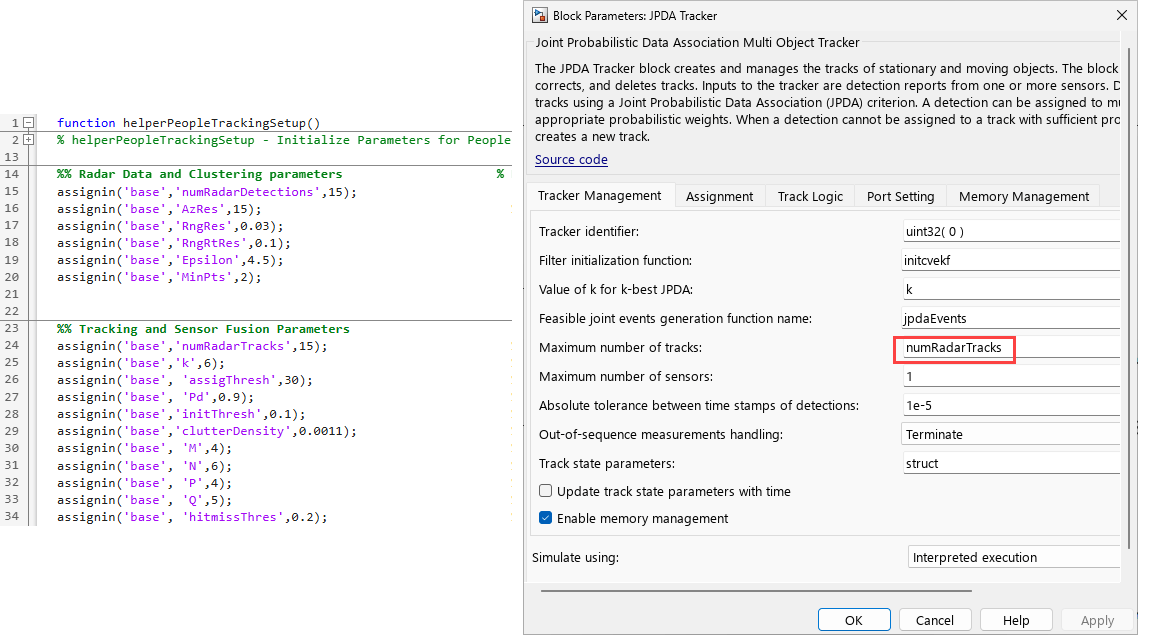
The JPDA Tracker receives the detections as a Simulink Bus at each time step. It predicts the state of existing tracks, performs data association based on joint probabilities, and outputs a list of confirmed tracks.
Run PIL Simulation and Visualization
The PIL workflow using the model peopleTrackingUsingPILVerification.slx requires that the hardware board is connected to the host computer and the SIL/PIL configuration settings are correctly set in the Simulink model.
Connect the TI mmWave radar board to the COM port of the host computer.
In the Hardware tab in Simulink Editor, select the same board from the list (click Select Another Hardware Board and select the supported board, if you are not using AWR1843BOOST). Ensure that you select the correct board in both
peopleTrackingUsingPILVerification.slx(top model) and inradarClusterTrack.slx(referenced model).

You can use the SIL/PIL Manager app in Simulink Editor that provides a simplified workflow for verifying generated model code (in the Apps tab, click SIL/PIL Manager). The SIL/PIL tab displays the Run section. To run PIL simulation:
In the Stop Time field, specify the simulation time.
Click Run SIL/PIL.

The process also involves changing the switch positions on the connected TI mmWave board and flashing the binary file. The Hardware Setup window that is launched automatically guides you though the process of flashing the binary file on the target hardware. The hardware setup windows follows this sequence: Enable Flashing Mode ----> Flash Binary ----> Enable Functional Mode.

The Simulink model becomes non-interactive during the whole process while you navigate through Hardware Setup windows. In the final window (Step 3/3 of Enable Functional Mode), click Finish to complete the hardware setup.
During the PIL workflow, the sensor model is cross‑compiled, downloaded, and executed on the ARM Cortex processor of the TI mmWave radar board, while the MATLAB System block that provides real‑time visualization for people tracking continues to run on the host computer.

After PIL deployment is successful, you can view radar point cloud detections, clustered detection centroids, tracked people with labels and history, and the radar coverage area in the Figure window.

For details on obtaining and interpreting results after running PIL verification, refer to SIL/PIL Manager Verification Workflow (Embedded Coder).
Code Profiling for Tracking Algorithm (Real-Time Verification)
Code profiling is typically integrated into the PIL process through the following steps:
Before the code is compiled and downloaded to the target, Embedded Coder inserts specific timing calls (start and stop timestamps) around the functions and sections of the tracking algorithm.
The instrumented code is executed on the target hardware (ARM Cortex processor TI mmWave radar board) during the PIL run.
The target hardware captures the execution times for the instrumented code sections and sends this profiling data back to the host computer.
After PIL simulation is complete, open the code execution profiling report by running
report(executionProfile)in the MATLAB Command Window.
You can look at the Task Execution in the report to verify real-time requirements of the point cloud data detection and tracking system:
Maximum Execution Time: Ensure that the tracking loop completes within its deadline.
Average Execution Time: Determine the typical load the algorithm puts on the processor. A low average time ensures the processor has sufficient free compute time for other critical tasks (e.g., control, communication).
Execution Time per Function: Identify the computational hotspots within the point cloud data detection and tracking algorithm (to know which parts of the algorithm are consuming the most CPU time).
Stack Usage: Verify that the memory requirements are met.
Note: The CPU Utilization section in the Code Profile Analyzer is disabled for models that use the Read Detections block. For more information, refer to Analyze Execution-time and Stack Usage Profiles for Generated Code.
Summary
In this example, you learned how to generate code for a people tracking algorithm using a multi-object tracker for PIL simulations with TI mmWave radar board, by using the Read Detections block, and visualize the people tracking using a MATLAB System block. You also assessed the computational performance and real-time capability of the tracking algorithm when the TI mmWave radar board is used.

