RF Part Catalog
R2026bDescription
Use the RF Part Catalog tool to select Analog Devices (ADI)
amplifiers and mixers. You must install the third-party database before using the tool. Once
you select the amplifier or mixers, the tool returns an amplifier,
modulator, mixerIMT object with the component
data.
You can include these components for RF budget analysis using the rfbudget object or the
RF Budget
Analyzer app.
Note
Install the third-party database containing Analog Devices™
components with the installRFParts() command.
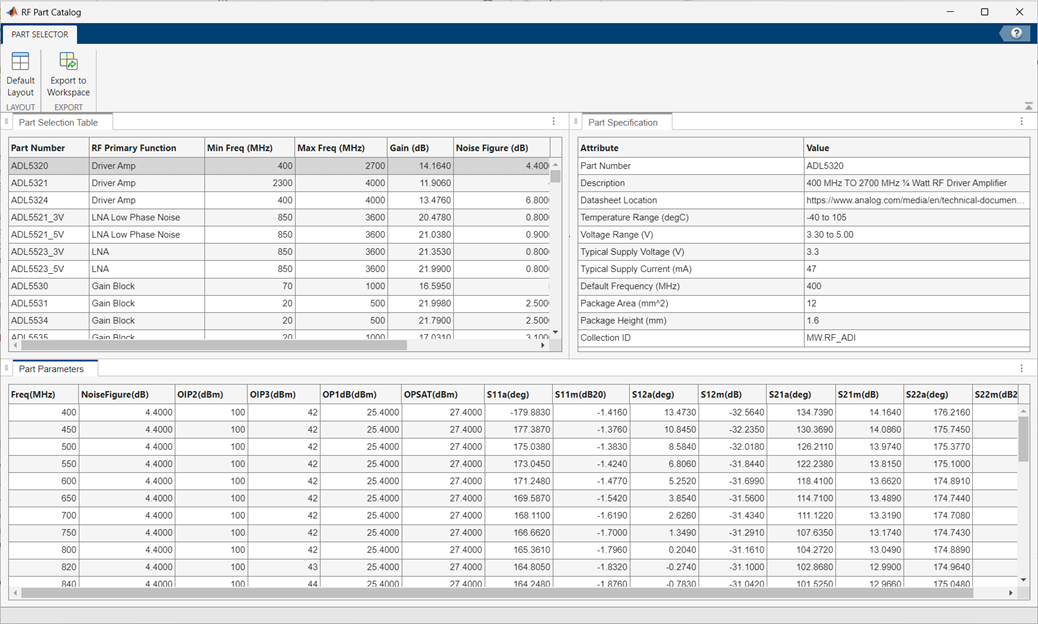
Open the RF Part Catalog
MATLAB® command prompt: Enter
rfPartCatalog(Type="amplifier").MATLAB command prompt: Enter
rfPartCatalog(Type="mixer").
Examples
Install the third-party component database using the installRFParts function.
installRFParts()
Open the RF Parts Catalog tool.
rfPartCatalog(Type='amplifier')
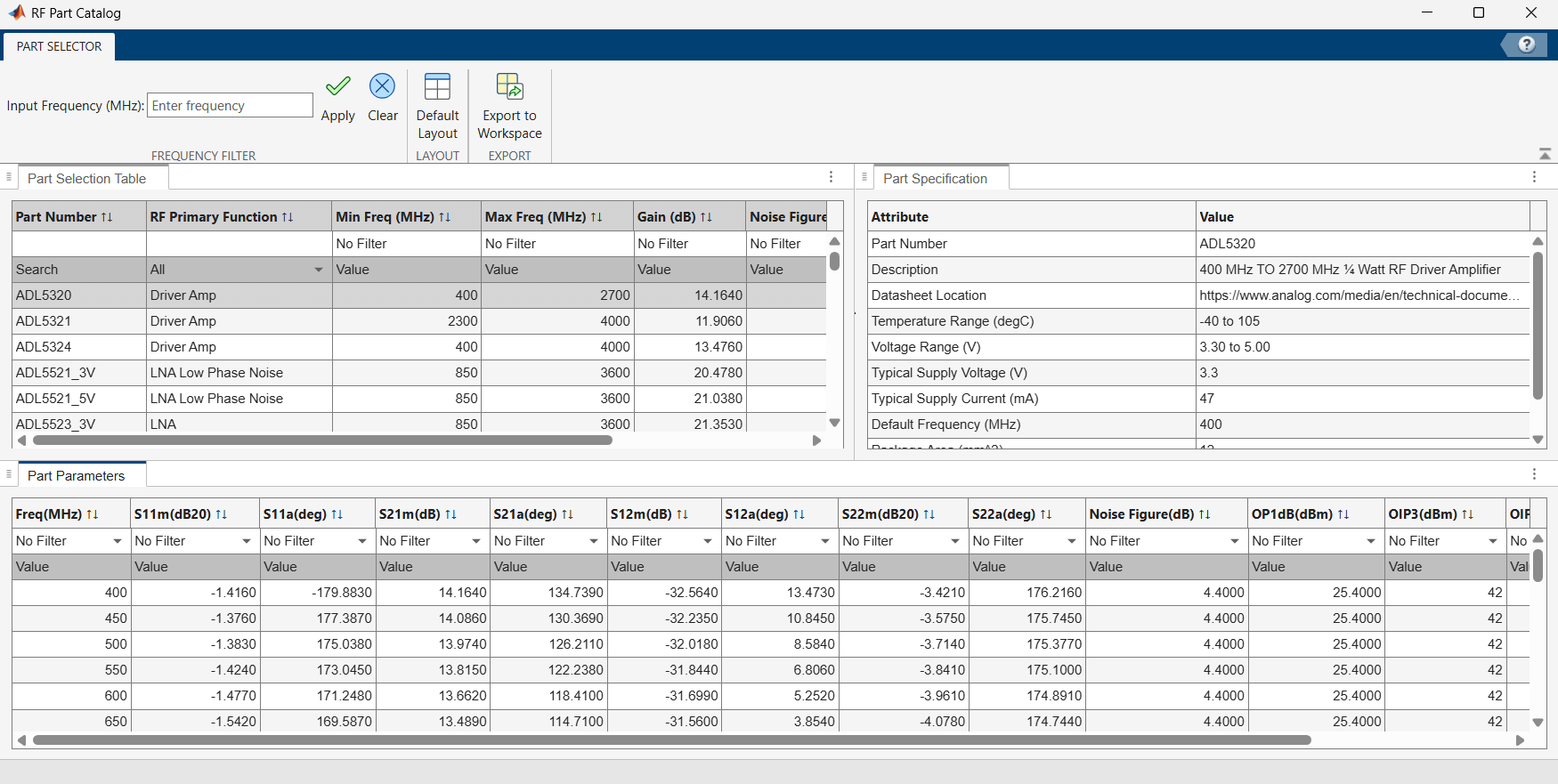
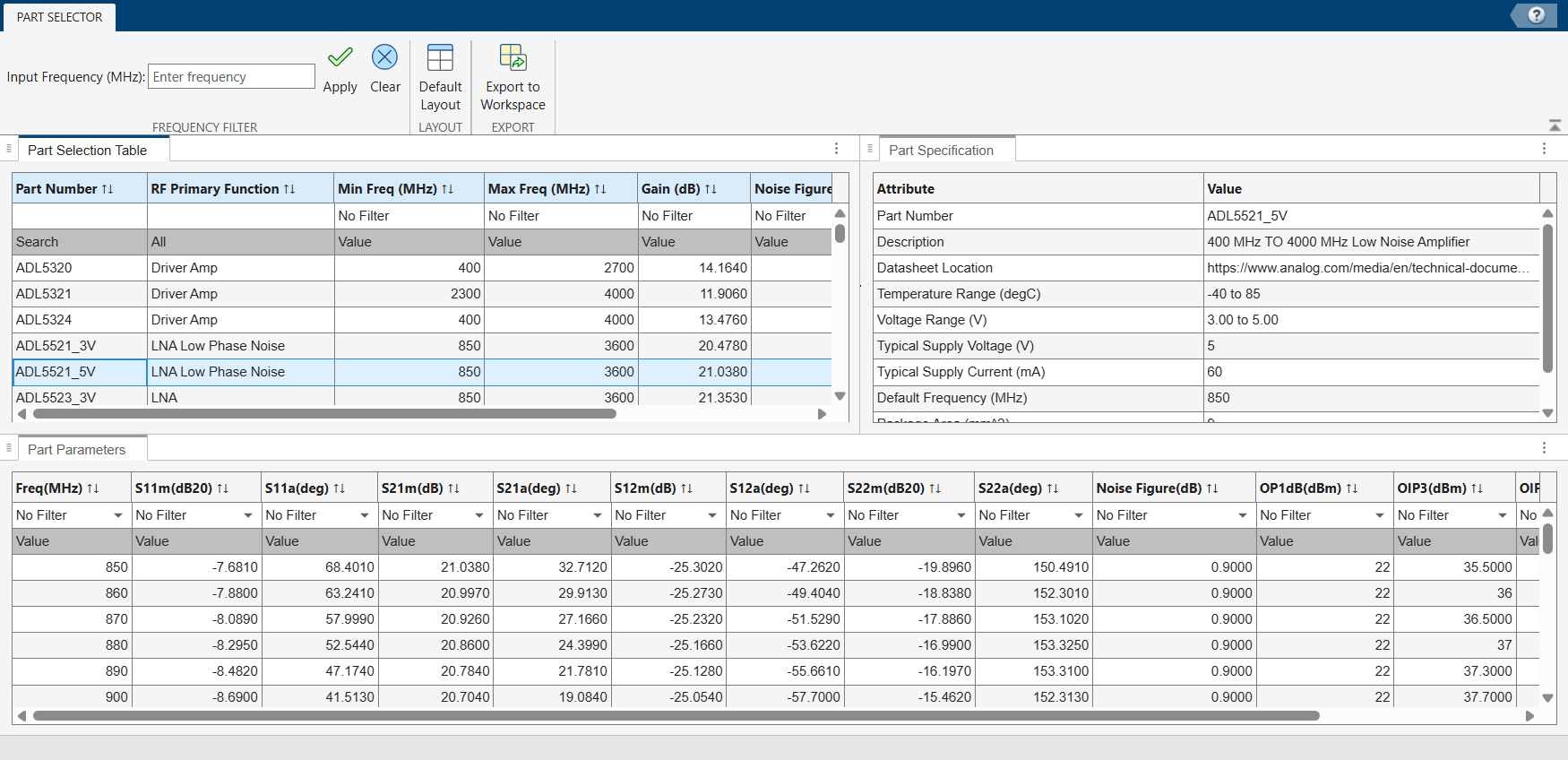
Select the amplifier component. For this example, select ADL5523_5V is selected.
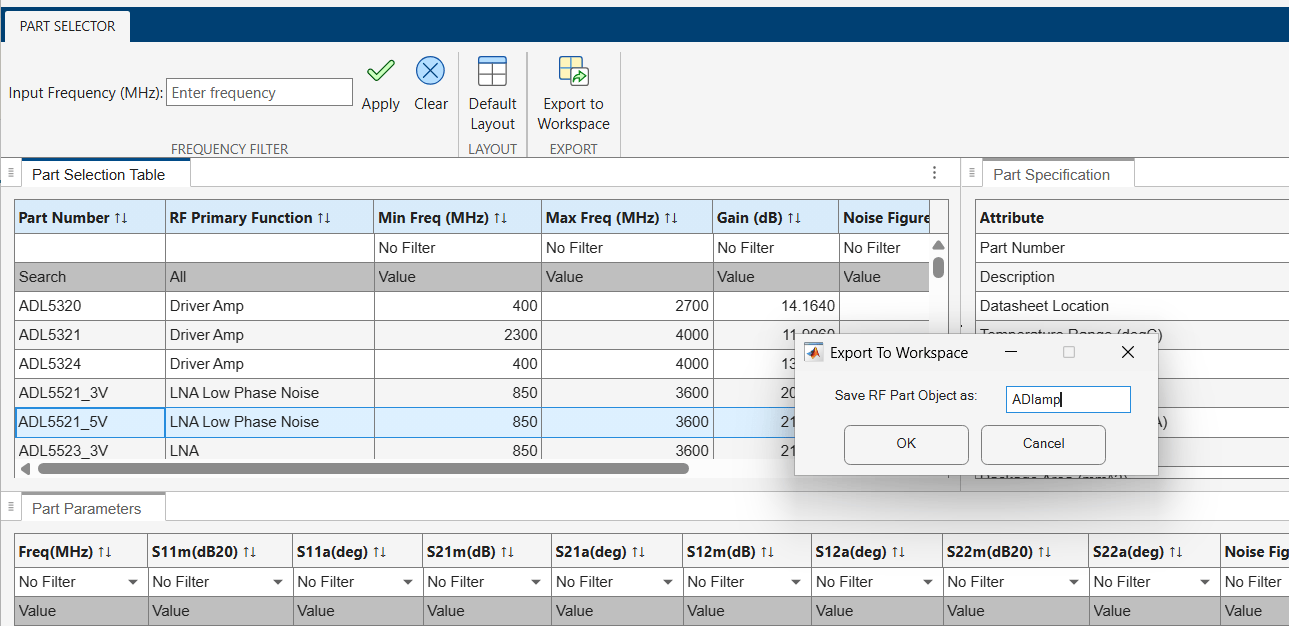
Select the Export to Workspace button. Enter the variable name. This example uses the default variable name, ADIamp. Then, select OK. The amplifier object with ADL5523_5V data is created and exported to the workspace
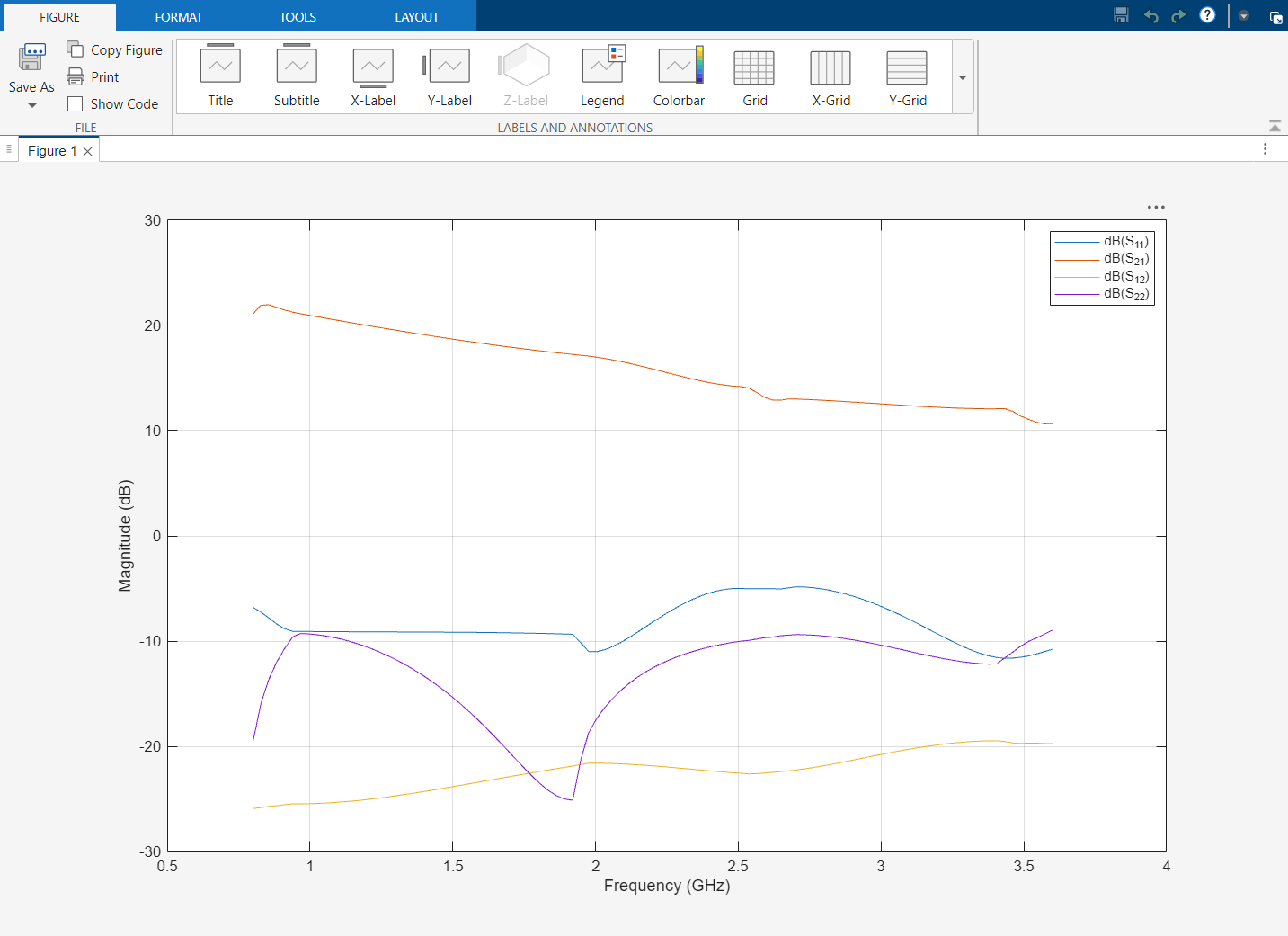
Compute the S-parameters of this amplifier object and then plot its characteristics.
spar = sparameters(ADIamp,linspace(30e6,9e9,101));
rfplot(spar);
Since R2026b
Specifying the component type and vendor to open the RF Part Catalog App.
installRFParts
rfPartSelector(Type="mixer", Vendor="ADI")
The app opens with the Part Selection Table showing all available mixer parts and the Part Parameters table showing frequency-dependent performance data.
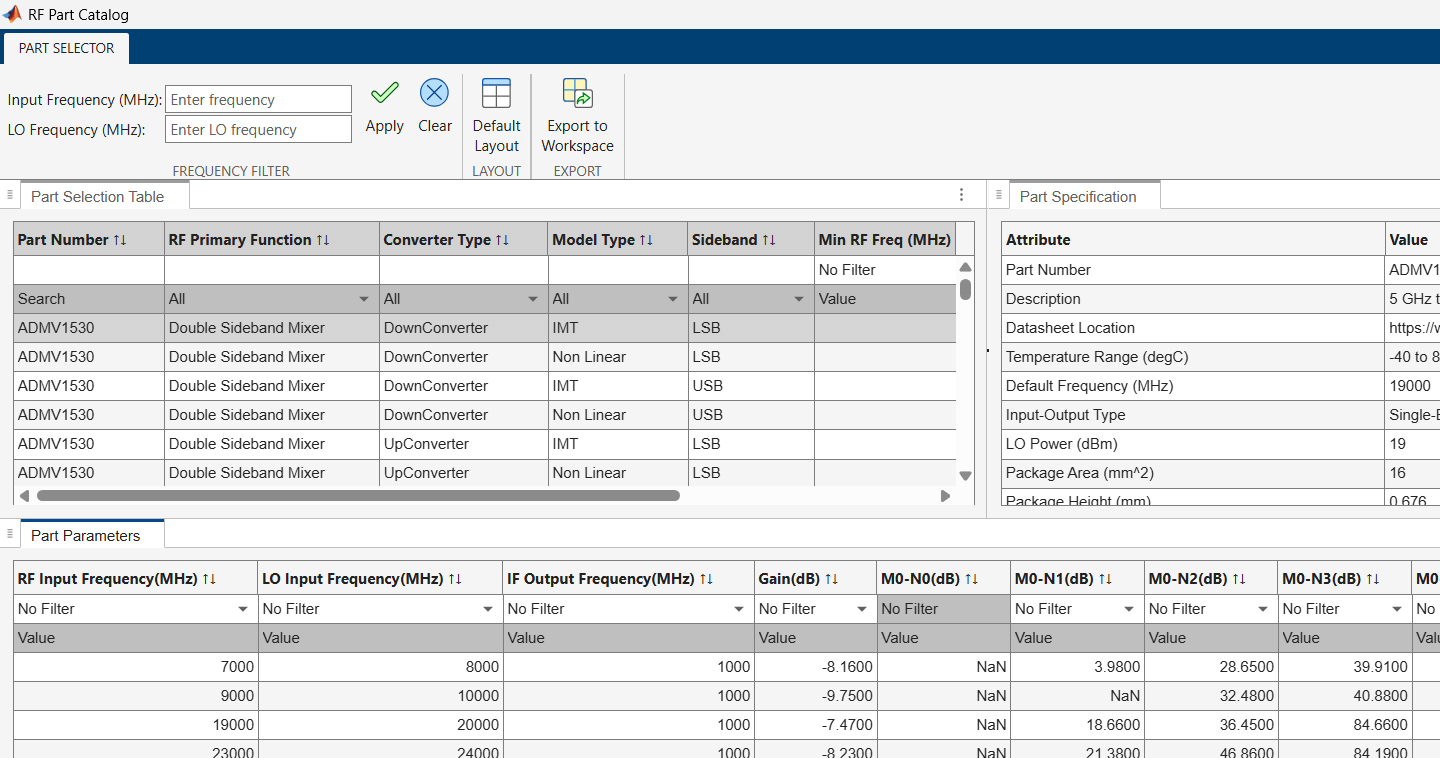
Enter Input and LO Frequencies
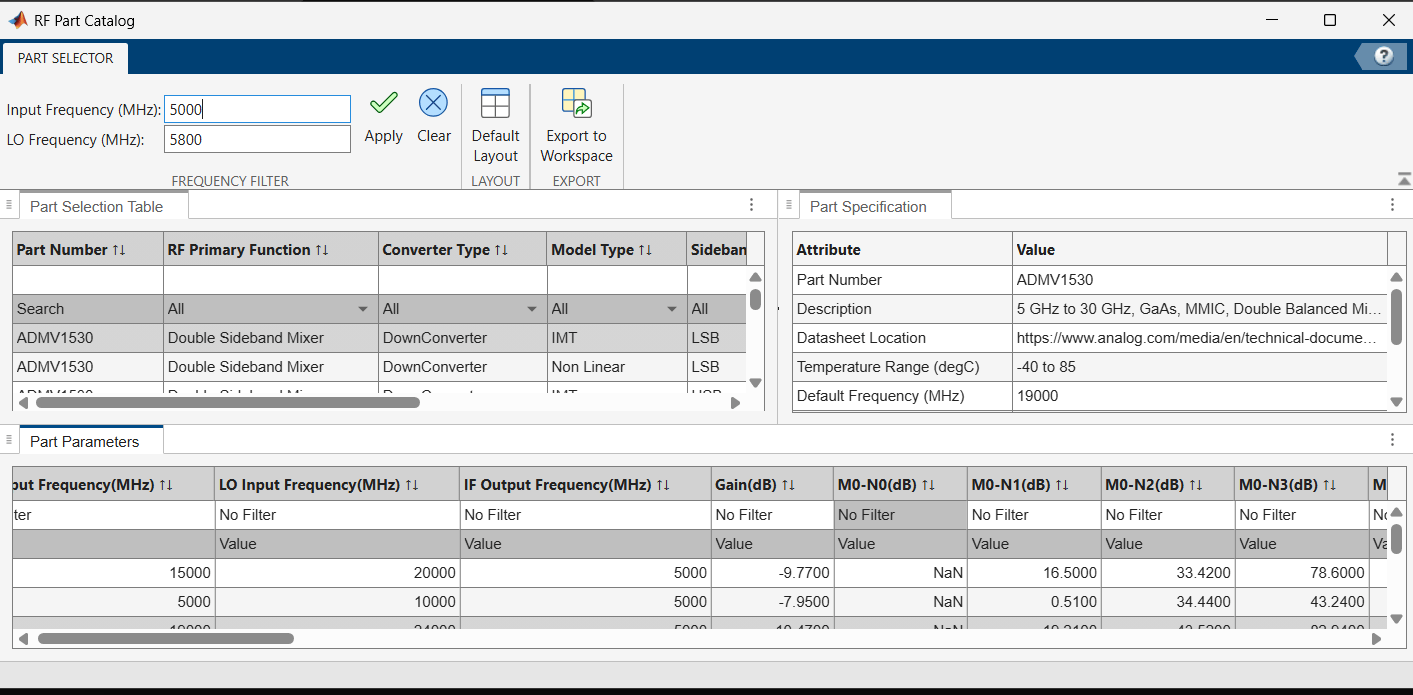
Enter input and LO frequencies to filter mixers based on the the operating point at which the Part Parameters table displays performance data such as gain, noise figure, and intermodulation products. For this example, enter an Input Frequency of 5000 MHz and an LO Frequency of 5800 MHz in the Frequency Filter section.
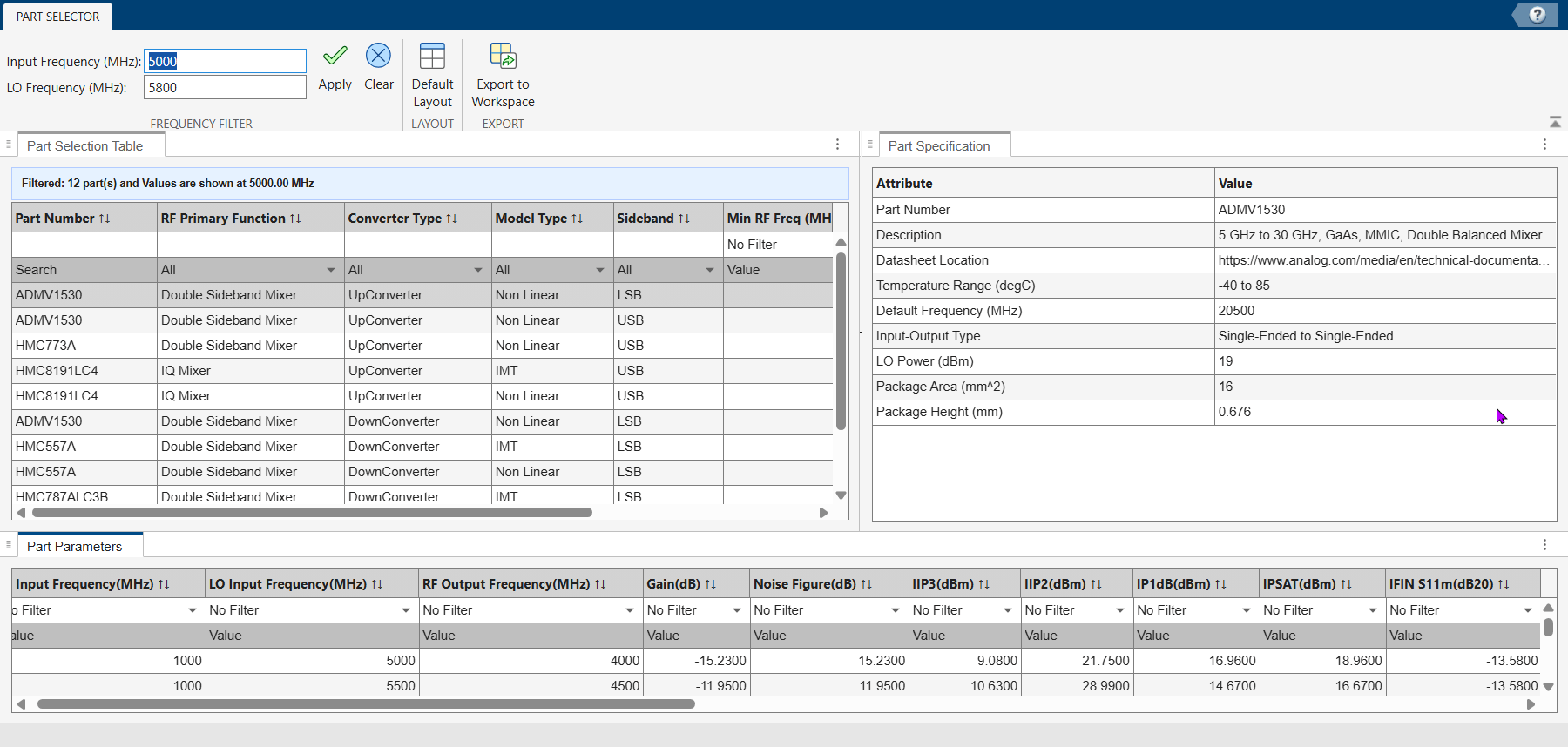
Click Apply to update the tables. The Part Selection Table now shows 12 mixer parts. The Part Parameters table updates with frequency-dependent values computed at the specified input and LO frequencies.
Filter Parts by Min RF Frequency
Use the column filter in the Part Selection Table to narrow down the selection further. For this example, click the filter drop-down list under the Min RF Freq (MHz) column.
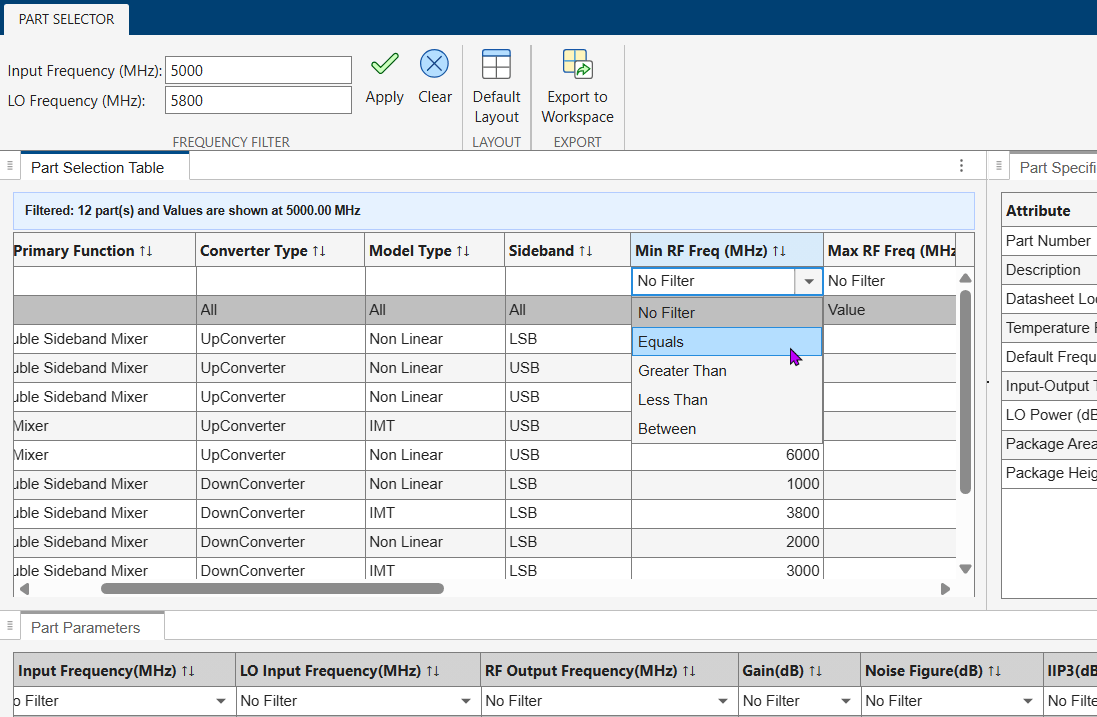
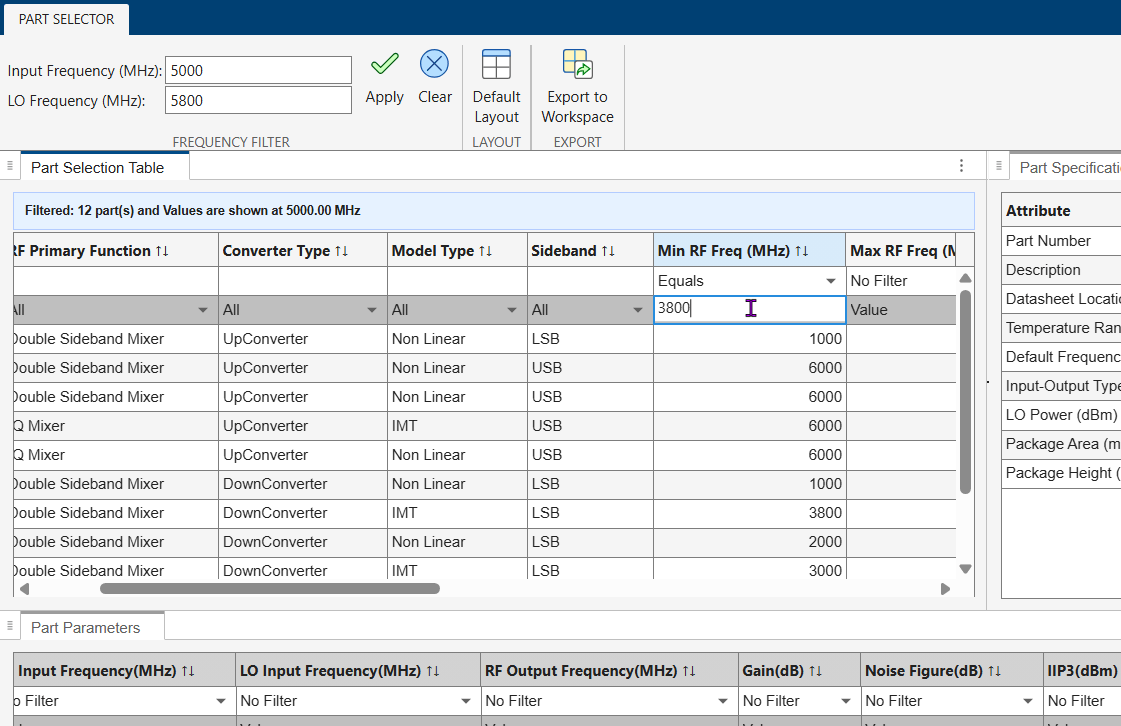
Select Equals from the list and type 3800 in the Value field, then press Enter.
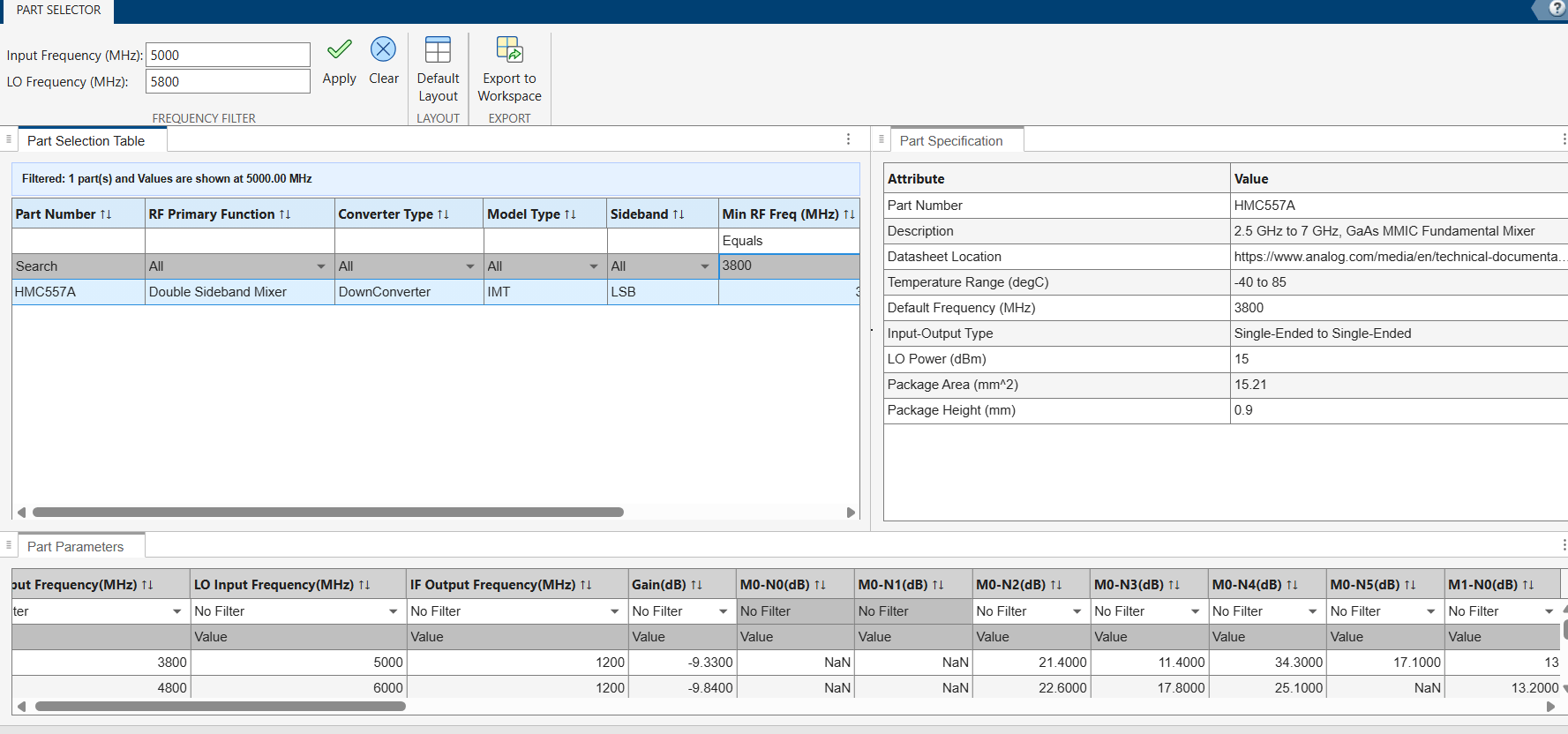
The table filters down to 1 part matching the criteria: HMC557A, a double-sideband mixer downconverter with a minimum RF frequency of 3800 MHz. The Part Specification pane on the right shows detailed attributes including the operating temperature range, LO power, and package information.
Export Component to Workspace
Click Export to Workspace in the app toolstrip to export the selected mixer part as an RF component object to the MATLAB workspace. In the dialog box, specify a variable name and click OK.
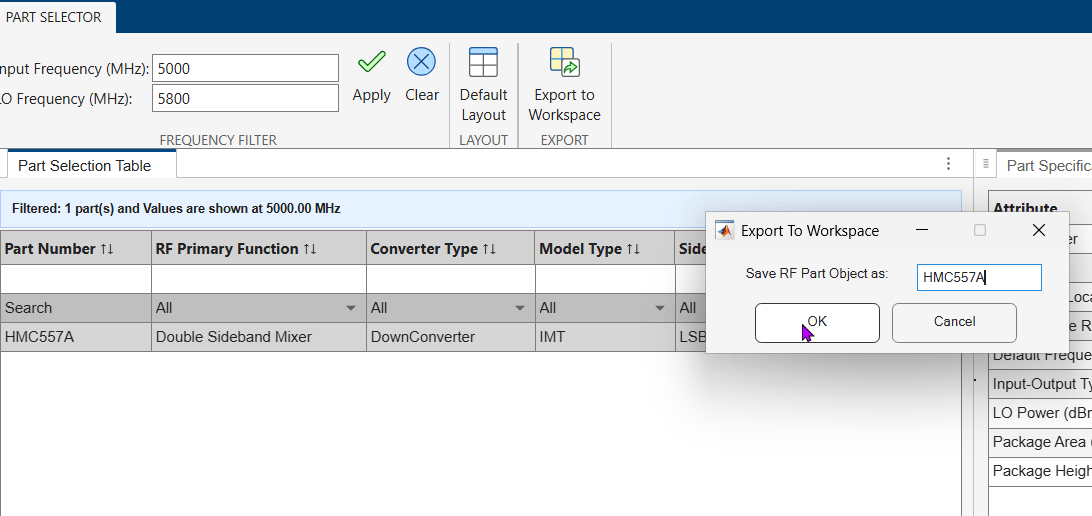
The exported object is a mixerIMT component that you can use in RF system simulations and analysis.

