Inspect Signal, Run, and Comparison Metadata
When you log or import signals to the Simulation Data Inspector, the software stores both data and metadata. In the Inspect pane, you can find run and signal metadata. In the Compare pane, you can access metadata for the comparison, baseline signals, and comparison signals. To interactively access the metadata, you can:
Add a column to the signal table to display a specific property for all logged signals in the table.
View metadata for a signal, run, or comparison in the Properties pane.
Display Properties in Signal Table
To view the value of particular property for all signals in the signal table, you can add a column to the table. The properties available to add as a column are the same as those in the Properties pane. Some properties, such as Display Scaling or Align By, are specific to either the Inspect or Compare pane.
To choose which signal properties to display in the table on the
Inspect pane, click Preferences  and select Inspect. Select the
columns you want to display from the Inspect - Columns list.
Columns appear in the table in the order in which you select them. To rearrange, click
and drag a column left or right in the signal table.
and select Inspect. Select the
columns you want to display from the Inspect - Columns list.
Columns appear in the table in the order in which you select them. To rearrange, click
and drag a column left or right in the signal table.

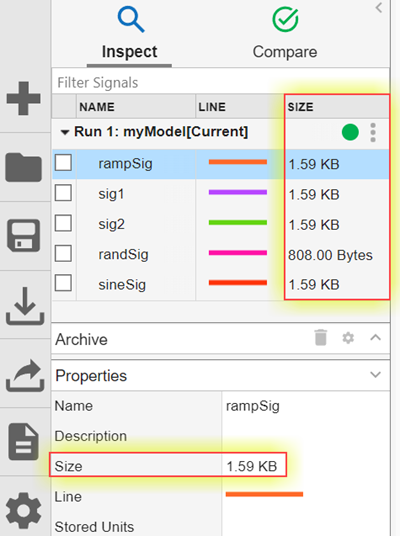
For example, to add a column to the signal table that shows the approximate storage size of the signals logged to the Simulation Data Inspector, in the Inspect - Columns list, select Size. In the Simulation Data Inspector, the new Size column appears at the right-most side of the signal table and displays the storage size for all signals in the table.
In the Compare pane, create a similar table of signal properties
by choosing from the Compare - Columns list in Preferences
. Many properties available for the comparison signal
table have a baseline signal and a comparison signal version that you can display
independently. When a property does not specify baseline or comparison signal, but both
signals have the property, the column shows data for the baseline signal.
View and Edit Signal Properties
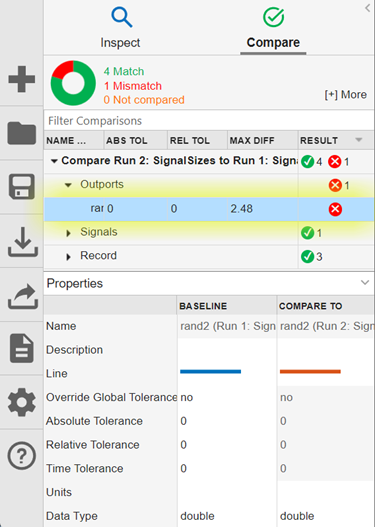
To view all properties for a particular signal, select the signal and expand the Properties pane under the signal table. For some properties, you can edit the values in the column on the right. For example, to change the line color, click the color swatch in the second column of the Line row.

When you compare data, the properties for both the baseline and comparison signal are displayed in the Properties pane.
Signal Metadata Properties
This table describes the signal metadata properties.
| Property Name | Value |
|---|---|
| Name | Signal name |
| Line | Signal line style and color |
| Stored Units | Signal measurement units In the Compare pane, this property is named Units. |
| Data Type | Signal data type |
| Complexity | Complexity of signal data This property is only available in the Inspect pane. |
| Complex Format | Display format for complex data This property is only available in the Inspect pane. |
| Sample Time | Signal sample time |
| Model | Name of the model that generated the signal |
| Block Name | Name of the block that produced the signal |
| Block Path | Path to the block that produced the signal |
| Port | Index of the output port connected to the signal |
| Dimensions | Dimensions of the matrix containing the signal |
| Channel | Index of signal within a matrix |
| Run | Name of the simulation run containing the signal |
| Absolute Tolerance | Absolute tolerance to use in signal comparisons |
| Relative Tolerance | Relative tolerance to use in signal comparisons |
| Override Global Tolerance | Whether signal tolerances take priority over global tolerances |
| Time Tolerance | Time tolerance to use in signal comparisons |
| Interp Method | Interpolation method used to plot the signal and in the synchronization step of comparisons |
| Sync Method | Synchronization method used to coordinate signals for comparison |
| Time Series Root | Name of the variable associated with signals imported from the MATLAB® workspace |
| Time Source | Source of imported signal time data |
| Data Source | Source of imported signal data |
| Description | Description of signal |
| Display Units | Units used to display signal This property is only available in the Inspect pane. |
| Domain | Logging origin of the signal |
| Display Scaling | Scaling used to display signal This property is only available in the Inspect pane. |
| Display Offset | Offset used to display signal This property is only available in the Inspect pane. |
| Size | Storage size of signal The signal storage size accounts for both the data and time vectors of a signal and can be affected by the sample time. |
| Max Difference | The maximum difference between the Baseline and Compare to signals This property is only available as a column option when comparing signals |
| Align By | Primary signal alignment criterion specified in the Compare - Alignment tab of the Simulation Data Inspector Preferences menu This property is only available in the Compare pane. |
View Run and Comparison Properties
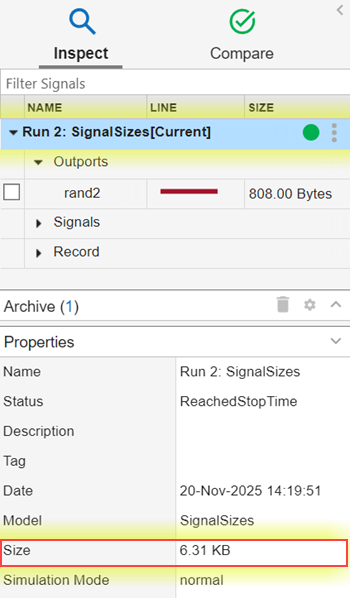
To view all properties for a particular run, in the Inspect pane, select the run and expand the Properties pane. Scroll through the Properties pane to view all of the properties associated with that run. For example, to view the storage size of a run in the Properties pane, scroll to the Size row.
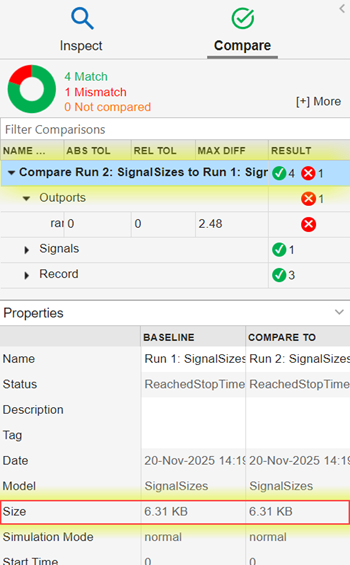
To view all properties for the runs used in a comparison, in the Compare pane, select the comparison and expand the Properties pane. When you are comparing data, the Simulation Data Inspector displays properties for both the baseline and comparison runs in the Properties pane for the comparison. For example, to view the storage size of the runs in a comparison, scroll to the Size row.
Run and Comparison Metadata Properties
This table describes the run and comparison metadata properties.
| Property Name | Value |
|---|---|
| Name | Run or Comparison name |
| Status | Simulation status |
| Description | Description of run or comparison |
| Tag | Tag for additional run information |
| Date | Run or comparison creation date |
| Model | Model simulated to create run or comparison |
| Size | Storage size of run or comparison |
| Simulation Mode | Simulation mode |
| Start Time | Run or comparison start time |
| Stop Time | Run or comparison stop time |
| Simulink Version | Software version used for model simulation that created the run or comparison |
| Model Version | Version of the model simulated to create run or comparison |
| User ID | System account used to perform the simulation that created the run or comparison |
| Machine Name | Name of machine used for simulation |
| Platform | Operating system on machine used for simulation |
| Task Name | Name of task if model simulated using parallel computing |
| Solver Type | Type of solver used in simulation |
| Solver Name | Name of solver used in simulation |
| Solver Step Size | Solver step size used in simulation |
| Initialization Time | Time to initialize |
| Execution Time | Time to execute |
| Termination Time | Time to terminate |
| Total Elapsed Time | Total time elapsed |
| Stop Description | Description of the simulation stop |
| Stop Source | Block that issued stop event |
| Errors | Errors that occurred during simulation |
| Warnings | Warning that occurred during simulation |
| User String | User specified string corresponding to simulation |
See Also
Simulink.sdi.getSizeInfo | Simulation Data
Inspector | Simulink.sdi.Run | Simulink.sdi.Signal

