Filter Model Coverage Outcomes Using Simulink Test Manager
This example shows multiple ways of applying coverage filters to coverage results with Simulink Test™ Manager, and how to apply an existing coverage filter to future runs of a test suite. For an example of coverage filtering that does not use Simulink Test Manager, see Creating and Using Coverage Filters.
The slvnvdemo_covfilt example model contains examples of common patterns filtered from coverage results.
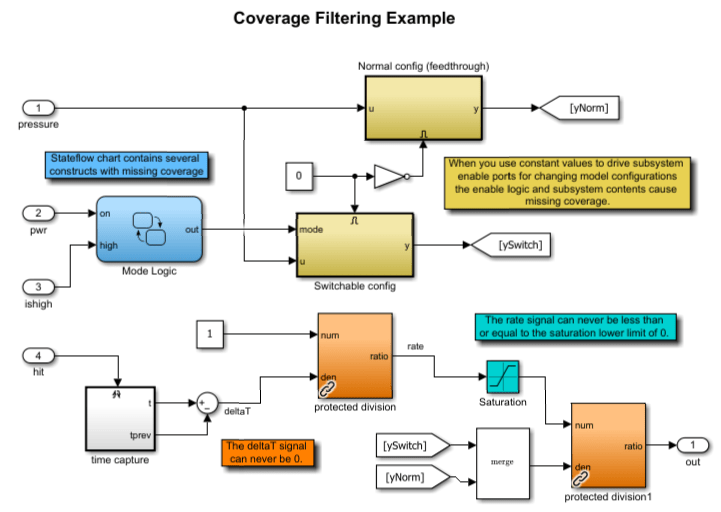
In particular, the Stateflow® chart Mode Logic contains logic with unreachable coverage outcomes.
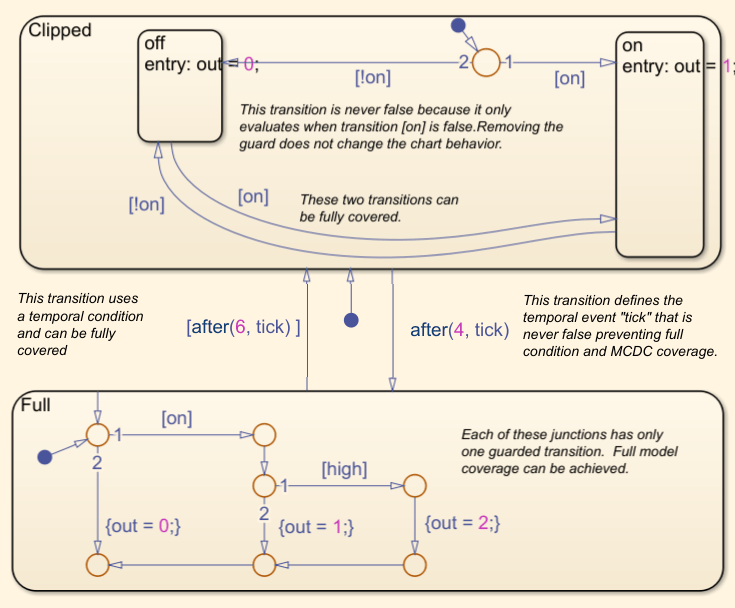
When a chart uses C as the action language, Simulink Coverage reports a decision for the tick event which can never be false.
Open Test Manager and Load Tests
Open the test manager, then load and run the test file.
sltest.testmanager.view;
testFile = sltest.testmanager.load("covfilt-tests.mldatx");
testResults = run(testFile);
Filter Coverage Outcomes
To filter coverage outcomes, you can load one or more existing filters, create new filters, or use Simulink Design Verifier™ to create filter rules. If you already have a filter file and you want to apply it to all future runs of the tests, you must apply it in the Test Browser pane instead of the Results and Artifacts pane.
Load a Coverage Filter
Next, load a coverage filter. In the Test Manager, in the Results and Artifacts pane, click Results. In the Coverage Filters section, click Add. In the Open dialog box, select Filter_Tick.cvf and click Open.
The Filter_Tick.cvf file contains an exclusion filter for the Stateflow® tick event. The tick event is never false, so it is dead logic that you can exclude from the coverage results.
Create a Filter File and Justify Coverage
Open the model with coverage highlighting. In the Test Manager, in the Results and Artifacts pane, click Results. In the Aggregated Coverage Results section, click slvnvdemo_covfilt.
In the Coverage Details pane of the model, scroll to the Details section and then down to the sub-section Logic block "Logical Operator." In the Conditions analyzed table, in the True column, click the Add justification rule icon. In the Select Coverage Filter dialog box, select Create new filter file and click OK. Simulink Coverage creates a new untitled filter file and adds a rule for the true outcome of the Logical Operator block. In the Filter Editor, set the Name field to covFilterTestManager. Under Filter Rules, in the Rationale column, set the rationale to Not relevant, then click Apply. In the Save Filter dialog box, set the file name of the filter file to covFilterTestManager.
Use Simulink Design Verifier™ to Create Justification Rules for Dead Logic
In some cases, missing coverage is due to dead logic and the associated coverage objectives are unreachable. You can use Simulink Design Verifier to identify unreachable coverage objectives by clicking the link in the Missing Model Coverage Analysis section of the coverage report. For more information, see Identify and Resolve Missing Coverage Caused by Dead Logic.
View Filtered Coverage Results in Test Manager
Close the Filter Explorer. In the Test Manager, the Coverage Results section for a specific test run does not update to show the filtered results. Instead, click on its parent Results. In the Coverage Filters section, check to make sure the section contains the filters. If any are missing, click Add and select them.
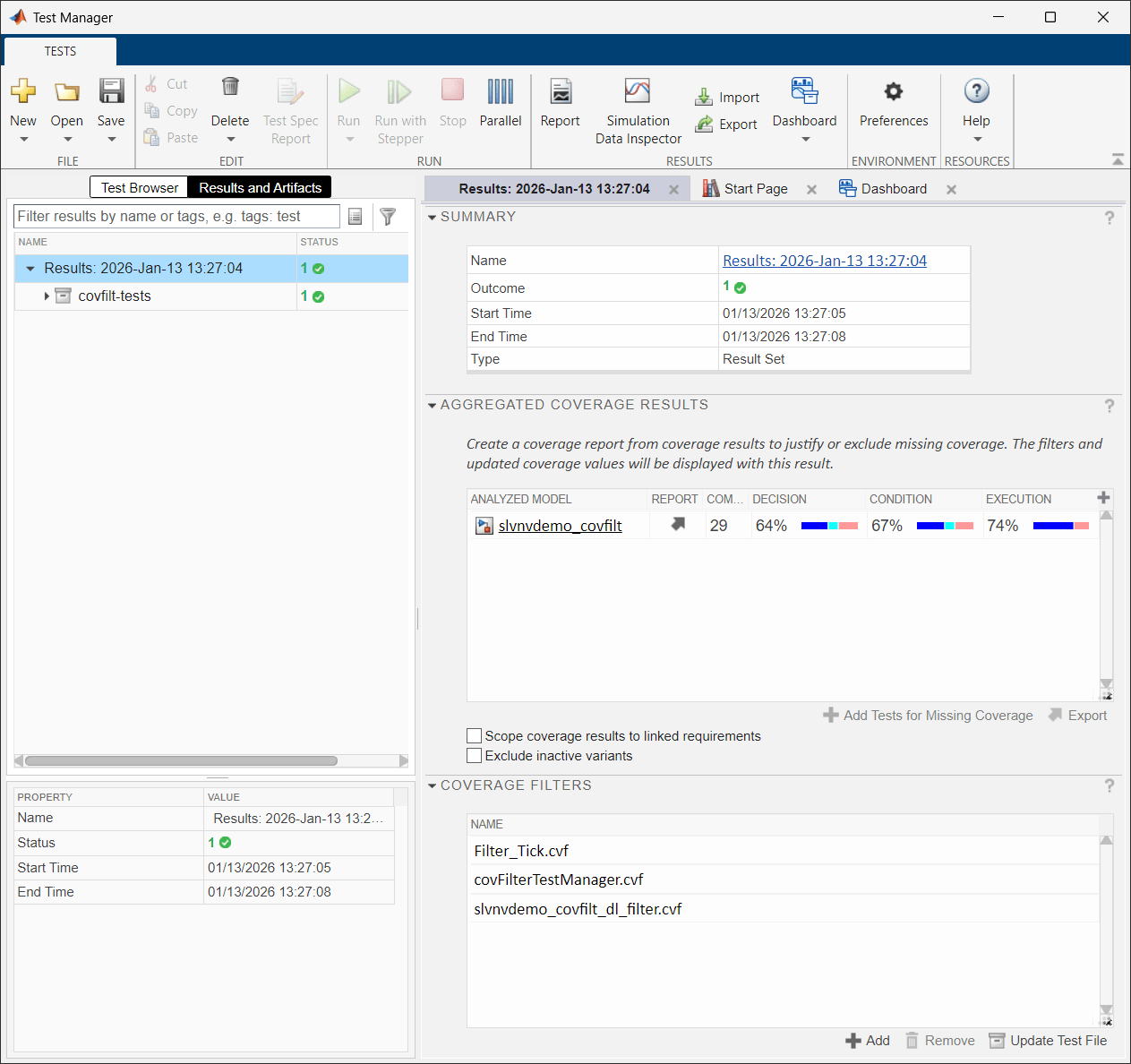
The Aggregated Coverage Results section displays a table that contains the coverage results for each model in the current results set. In this example, the test case analyzes decision coverage, condition coverage, and execution coverage. Blue indicates satisfied coverage, red indicates unsatisfied coverage, and cyan indicates justified coverage. The Coverage Filters section displays a list of applied filters, and you can add or remove filter files by clicking the Add and Remove buttons. The Update Test File button changes the test file used to generate the current results to apply the displayed filters on future runs.
Apply Coverage Filter File to Future Runs
If you apply a filter after running tests, the aggregated coverage results update to reflect the filtered coverage results, but if you re-run the tests, Simulink Test does not apply your filter automatically. There are two ways to make sure that future runs apply filters. You can use the Update Test File button in the results view, or you can edit the test file manually.
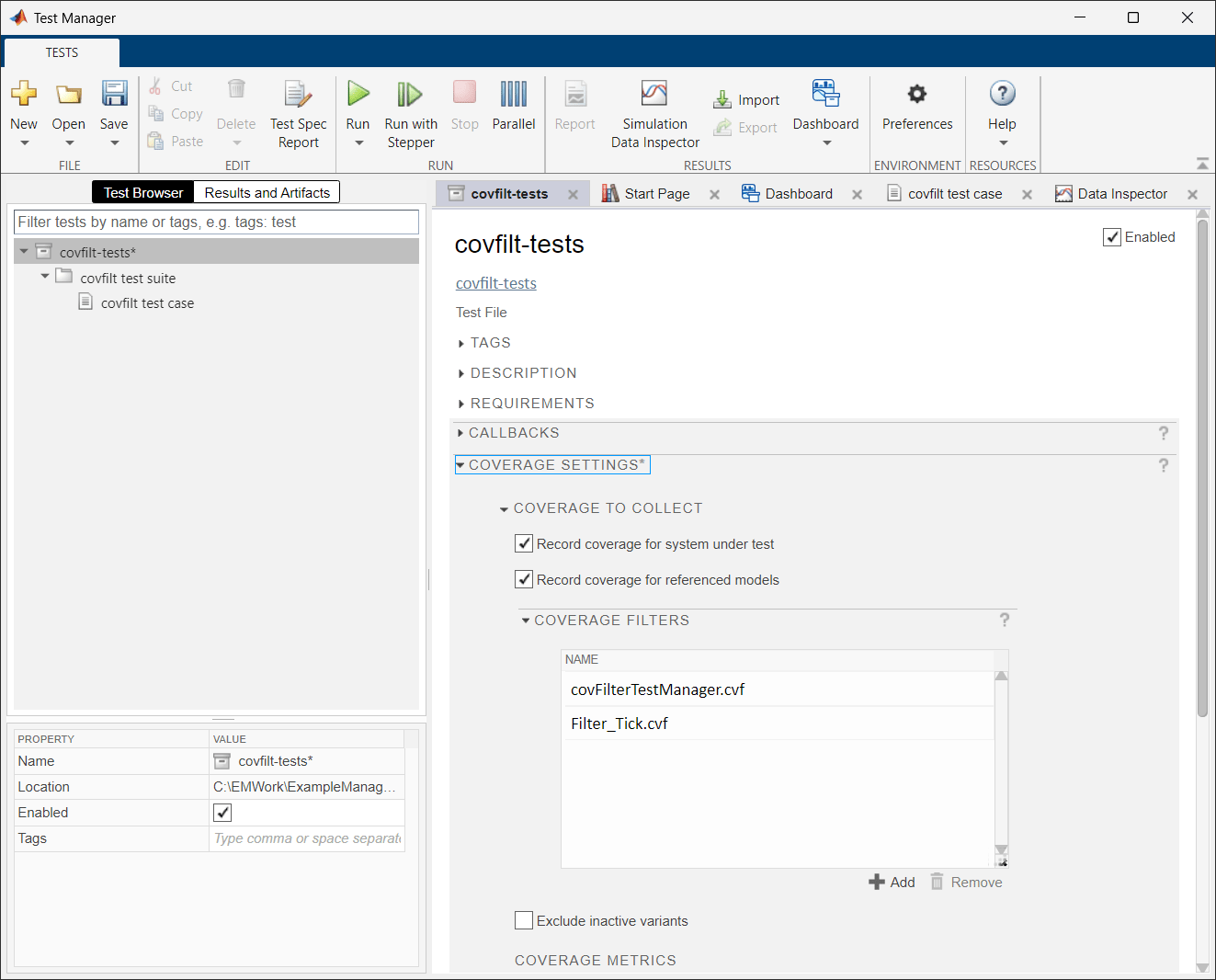
In the Test Manager, click Test Browser, then click the test file covfilt-tests. On the right pane, click Coverage Settings to expand the section. In the Coverage Filters section, you can add or remove coverage filters to apply the filters to all future tests run using this test file. If you clicked Update Test File from the results view, you see the two filters here.
See Also
slcoverage.Filter | slcoverage.FilterRule

