Configure Signal Logging for Stateflow Charts
R2026bConfigure signal logging to track data values and state activity in Stateflow charts during simulation. By logging states and data, you can analyze chart behavior, troubleshoot issues, and check that the chart meets the design requirements.
Enable Signal Logging
To enable signal logging:
Open the Configuration Parameters dialog box.
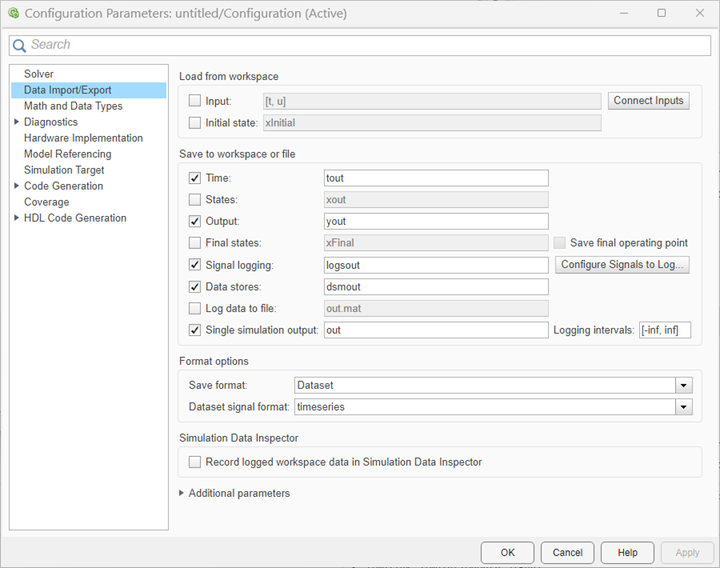
In the Data Import/Export pane, select Signal logging.
When you enable this setting, the model logs data for the chart activity, data values, and Simulink signals you mark for logging to a variable in the MATLAB workspace. You can specify the format of the logged data by using the Save format parameter. For more information see, Model Configuration Parameters: Data Import/Export (Simulink).
Log States and Data
After you enable signal logging, you must specify which states and data to track during simulation. For states, you can track their active or inactive status at different levels of the hierarchy. For data, you can monitor how values change throughout the simulation. To configure individual elements, use the Property Inspector. To configure multiple elements, use the Stateflow API.
Log State Activity
To log state activity:
Select a state in your chart.
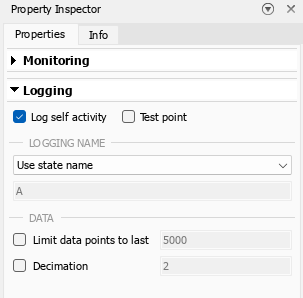
In the Property Inspector, in the Logging section, select Log self activity.
Log Data Values
To log data values:
In the Symbols pane, select a local or output data in your chart.
In the Property Inspector, in the Logging section, select Log signal data.
Monitor Chart Activity with Output Ports
Real-time visualization of chart activity helps you to understand dynamic behavior of your chart and catch issues as they occur. Output ports show the state changes and transitions during simulation.
To visualize chart activity during simulation:
In the Simulation tab, click Add Output Port. In the top model, a new port titled ChartMode appears on the Chart block.
Connect a Scope (Simulink) block to this port.
In the Simulation tab, click Run. The state data populates the scope.
Log Multidimensional Data
In the workspace variable that contains the logged signal data, Stateflow logs each update
to a multidimensional signal as a single change. For example, updating two elements
of a matrix A produces two different changes in the logged
data:
A[1][1] = 1;
A[1][2] = 1;
In contrast, if you update the matrix A using a single command, such as
A[i][j] = 1, Stateflow logs only one change in the variable,
even though the command sets the values of multiple variables. In this case, the
variable contains only the value:
A = 1;
Access Logged Data
When you simulate the model, the model creates a workspace variable that has the name and
data type that you specified. By default, the variable has the name
logsout and is a Simulink.SimulationData.Dataset (Simulink)
object.
After running a simulation, you can view the logged data in the Simulation Data Inspector or in the MATLAB workspace.
View Logged Data with the Simulation Data Inspector
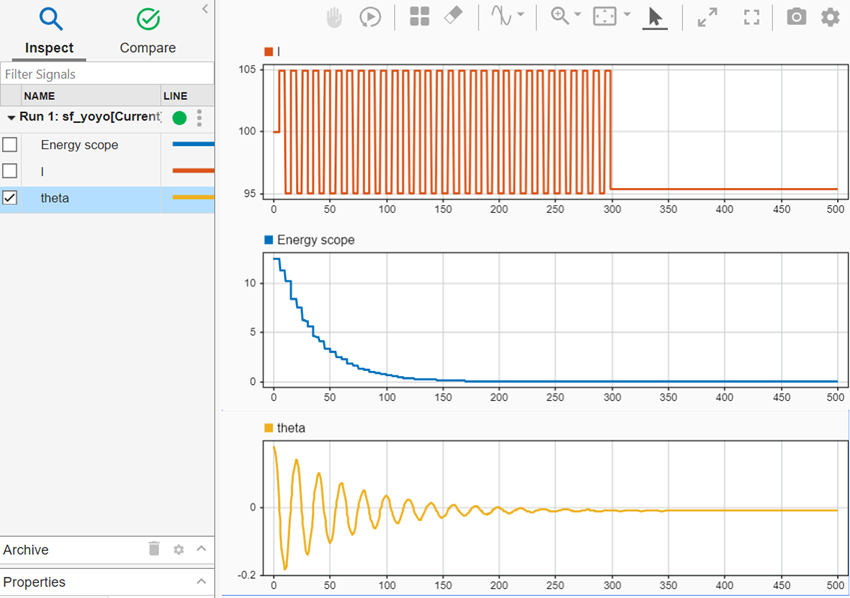
You can use the Simulation Data Inspector to view and compare data across simulations. To open the Simulation Data Inspector, in the Simulation tab, click Data Inspector. When you simulate the model, the Simulation Data Inspector icon changes color to indicate new simulation data. For more information, see View State Activity by Using the Simulation Data Inspector.
Best Practices and Considerations
Minimize performance impact by logging only the signals you need to analyze.
When simulating models in external mode, you cannot log Stateflow data.
When simulating models in rapid accelerator mode, you cannot log Stateflow chart self-activity or local data.
If you enable Fast Restart enabled and log state activity or data from a chart, any run after the first run duplicates the first logged data points. When you run algorithms that process these data points, account for this duplication.
See Also
Simulation Data Inspector (Simulink)

