doubt regards of centroid
Info
This question is closed. Reopen it to edit or answer.
Show older comments
originalImage = imread('result1.png');
%originalImage=rgb2gray(originalImage);
binaryImage = originalImage>200;
labeledImage = bwlabel(binaryImage, 8);%labeled 0 as background & 1 as object
%D=regionprops(labeledImage,'all');
D=regionprops(labeledImage,'Centroid');
save('data.mat', 'D');
imshow(originalImage);
hold on;
but D shows the 40x1 struct in that centroid the all values of the centroid is different one by one how to find the correct centroid %plot(D); and also divide the 60degrees each how its possible sir
Answers (2)

Laurent
on 22 Aug 2013
It seems that your labeledImage contains 40 different objects. All of those objects will have a centroid and that's why you get a 40x1 struct.
To see if this is the case use
[labeledImage,NUM]=bwlabel(binaryImage, 8);
NUM will be the number of objects found.
What you can do is lower your threshold (200 in this case) so that you have only one object.
It all depends on what is exactly in your image, but if your object has values > 0 and every other pixel is 0, you could do
binaryImage = OriginalImage>0;
If you want a more specific answer, please show us your image.
1 Comment

ajith
on 22 Aug 2013
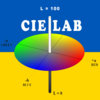
Image Analyst
on 22 Aug 2013
Try this, using the image you uploaded:
% Read in a standard MATLAB gray scale demo image.
folder = 'd:\Temporary stuff'; % You need to change this!!!!
baseFileName = '7_result1.png';
% Get the full filename, with path prepended.
fullFileName = fullfile(folder, baseFileName);
% Check if file exists.
if ~exist(fullFileName, 'file')
% File doesn't exist -- didn't find it there. Check the search path for it.
fullFileName = baseFileName; % No path this time.
if ~exist(fullFileName, 'file')
% Still didn't find it. Alert user.
errorMessage = sprintf('Error: %s does not exist in the search path folders.', fullFileName);
uiwait(warndlg(errorMessage));
return;
end
end
grayImage = imread(fullFileName);
% Get the dimensions of the image.
% numberOfColorBands should be = 1.
[rows, columns, numberOfColorBands] = size(grayImage);
if numberOfColorBands > 1
% It's not really gray scale like we expected - it's color.
% Convert it to gray scale by taking only the green channel.
grayImage = grayImage(:, :, 2); % Take green channel.
end
% Display the original gray scale image.
subplot(2, 2, 1);
imshow(grayImage, []);
title('Original Grayscale Image', 'FontSize', fontSize);
% Enlarge figure to full screen.
set(gcf, 'Units', 'Normalized', 'OuterPosition', [0 0 1 1]);
% Give a name to the title bar.
set(gcf, 'Name', 'Demo by ImageAnalyst', 'NumberTitle', 'Off')
% Let's compute and display the histogram.
[pixelCount, grayLevels] = imhist(grayImage);
subplot(2, 2, 2);
bar(pixelCount);
grid on;
title('Histogram of original image', 'FontSize', fontSize);
xlim([0 grayLevels(end)]); % Scale x axis manually.
binaryImage = grayImage < 255;
% Display the original gray scale image.
subplot(2, 2, 3);
imshow(binaryImage, []);
title('Binary Image', 'FontSize', fontSize);
measurements = regionprops(binaryImage, 'Centroid');
centroid = [measurements.Centroid]
% Plot a cross there.
hold on;
plot(centroid(1), centroid(2), 'r+', ...
'MarkerSize', 25, 'LineWidth', 3);
message = sprintf('The centroid is at (x,y) = (%.2f, %.2f)',...
centroid(1), centroid(2));
uiwait(msgbox(message));

6 Comments
Image Analyst
on 23 Aug 2013
I don't know what that means. Divide 60 by what? Maybe
result = 60 / someNumber;
??????
ajith
on 3 Sep 2013
Image Analyst
on 3 Sep 2013
You'd have to generate 6 different binary images, one for each 60 degree sector that you want. You can use poly2mask to make a mask covering 300 degrees and then use that to erase the 5 sectors you don't want. Repeat for every sector.
ajith
on 4 Sep 2013
Image Analyst
on 4 Sep 2013
Edited: Image Analyst
on 4 Sep 2013
I'll show you how to mask but I think you can do the 10th grade geometry to get the x and y coordinates of the sector yourself, right? The FAQ might help.
[rows, columns] = size(originalBinaryImage);
mask = poly2mask(x, y, rows, columns); % Pie shaped 60 degree sector.
binaryImageSingleSector = originalBinaryImage; % Initialize
binaryImageSingleSector(~mask) = false;
measurements = regionprops(binaryImageSingleSector);
This question is closed.
Products
Closed:
on 20 Aug 2021
Community Treasure Hunt
Find the treasures in MATLAB Central and discover how the community can help you!
Start Hunting!
