Getting started using agents for the one-button game contest
Want to try an AI coding agent for the One-Button Game Contest? In this post, I'll show you how to connect OpenCode to MATLAB and use it to create your first game. You can get everything set up and start building in less than 20 minutes.
Here's what you'll need:
- Download and install OpenCode (Desktop application or CLI): https://opencode.ai/v2/docs/
- Download and install the MATLAB Agentic Toolkit: https://github.com/matlab/matlab-agentic-toolkit
- The contest starter project from the File Exchange: https://www.mathworks.com/matlabcentral/fileexchange/185098-matlab-one-button-game-minihack-starter-project
- MATLAB R2021a or later
For those who already have local coding agents like Claude or Codex, you can skip a few steps but will still need to ensure the MCP connection to MATLAB and leverage the contest starter project from File Exchange.
Selecting an LLM
Here is a list of OpenCode's cloud-hosted models: https://opencode.ai/v2/docs/console/models#free-models. These can change unexpectedly and your requests may be rate limited, but I haven't run into any issues so far. Starting with a cloud-hosted model means you don't have to install additional tools or download rather large model files.
I'll be using GLM-5.3-Flash. The documentation says "Its provider follows a zero-retention policy and does not use your data for model training" which is nice.
If you'd prefer to use a locally running model, likely for security reasons, and if your hardware supports it, follow the instructions here: https://github.com/matlab/matlab-local-agent-quickstart.
Configuring OpenCode
You've installed the MATLAB MCP server but OpenCode doesn't know about it yet. You'll need to find or create a configuration file to make that connection. The file is named opencode.json and can be found (or created) in the .config directory in your user path:
C:\Users\<username>\.config\opencode\opencode.json
This is an example for a Windows system:
{
"$schema": "https://opencode.ai/config.json",
"mcp": {
"matlab": {
"enabled": true,
"type": "local",
"command": [
"C:\\Users\\<username>\\.matlab\\agentic-toolkits\\bin\\matlab-mcp-server.exe",
"--matlab-root",
"C:\\Program Files\\MATLAB\\R2026a"
]
}
}
}
Note: The path to MATLAB only needs to point to the directory, the executable is appended automatically by the MCP server.
Verify the MCP connection
- Restart OpenCode and verify the connection to the MATLAB MCP server is working. MATLAB doesn't have to be running for the connection to work.
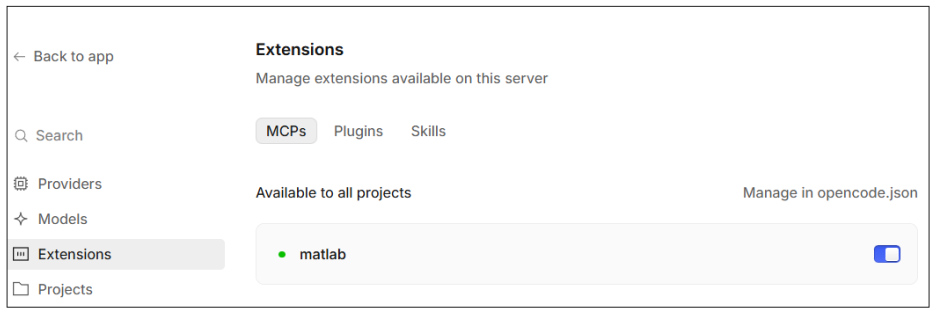
- Navigate to File > Settings > Extensions > MCPs. You should see MATLAB listed and toggled 'on'.
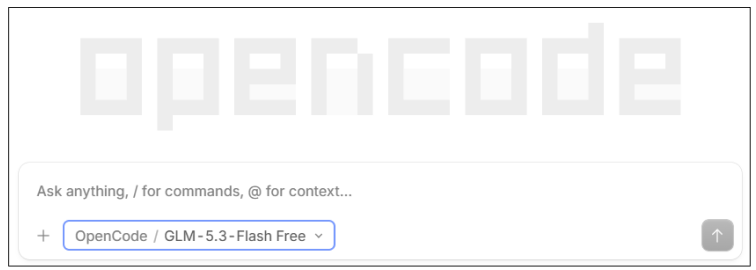
Note: Ensure you've selected the model you want. You can do this using the list box below the prompt. The following image shows that GLM-5.3-Flash Free is selected.
You can now create your first OpenCode session and ask "Can you connect to MATLAB?" or "What tools are available via the MATLAB MCP server?". If it's working you should see the agent response acknowledging it can connect to MATLAB.
Creating a game
In this step, you''ll use OpenCode to create a MATLAB game by simply having a conversation. You'll see MATLAB open and edits being made to the game.m file. At any time you can edit the MATLAB code or simply tell the OpenCode agent what you want changed.
- Download the starter kit from the File Exchange if you haven't already done so. Clicking on the New Entry button in the contest pages also provides the link: https://www.mathworks.com/matlabcentral/fileexchange/185098-matlab-one-button-game-minihack-starter-project
- Extract it to a directory of your choice. Then, open the project (.proj file) in MATLAB. Doing this runs a bootstrap function that installs dependencies.
- Create a new OpenCode project by selecting the Add project link/button, then select the directory for the contest starter kit. OpenCode needs to know where on your system to create the new session.
- Create a new OpenCode session, double check your model choice is visible, and then simply tell OpenCode what you want to do by typing in your request. For example, "I'd like to create a one-button game for the MATLAB Central contest. Can you suggest an idea?".
- OpenCode may ask clarifying questions and spend a few minutes 'thinking' (you can click and expand these UI elements to see what it's doing). It will use MATLAB to iterate on and validate the game code, making sure the tests pass. Once ready, it'll run the game for you. Or, you can start the game by running minihackContest.play in the command window.
That's it! You've created your first game with the help of an AI coding agent and MATLAB.
Once you're happy with your game, you can submit it to the contest by entering minihackContest.submit in the MATLAB Command Window.
Watch me do this on YouTube: https://youtu.be/0R_kYatC_Ag
Reply below and let me know if you found these instructions helpful and if you ran into any issues. Also, I'm interested to know which models you used. Thanks.
2 Comments
Time Descending
A minor typo in the code to go in opencode.json: "C:\Program Files\MATLAB\R2026a" should have double slashes as in the previous path for agentic-toolkits.
Sign in to participate
Tags