Results for

One-Button Game Mini Hack Entry: Pump-Send
Hi everyone! Pump-Send is a side-view mountain bike game on an endless desert pump track. You never pedal: all your speed comes from pumping the rollers, and one button does everything. On the ground, a tap pumps or pops; in the air, it throws you into a backflip.
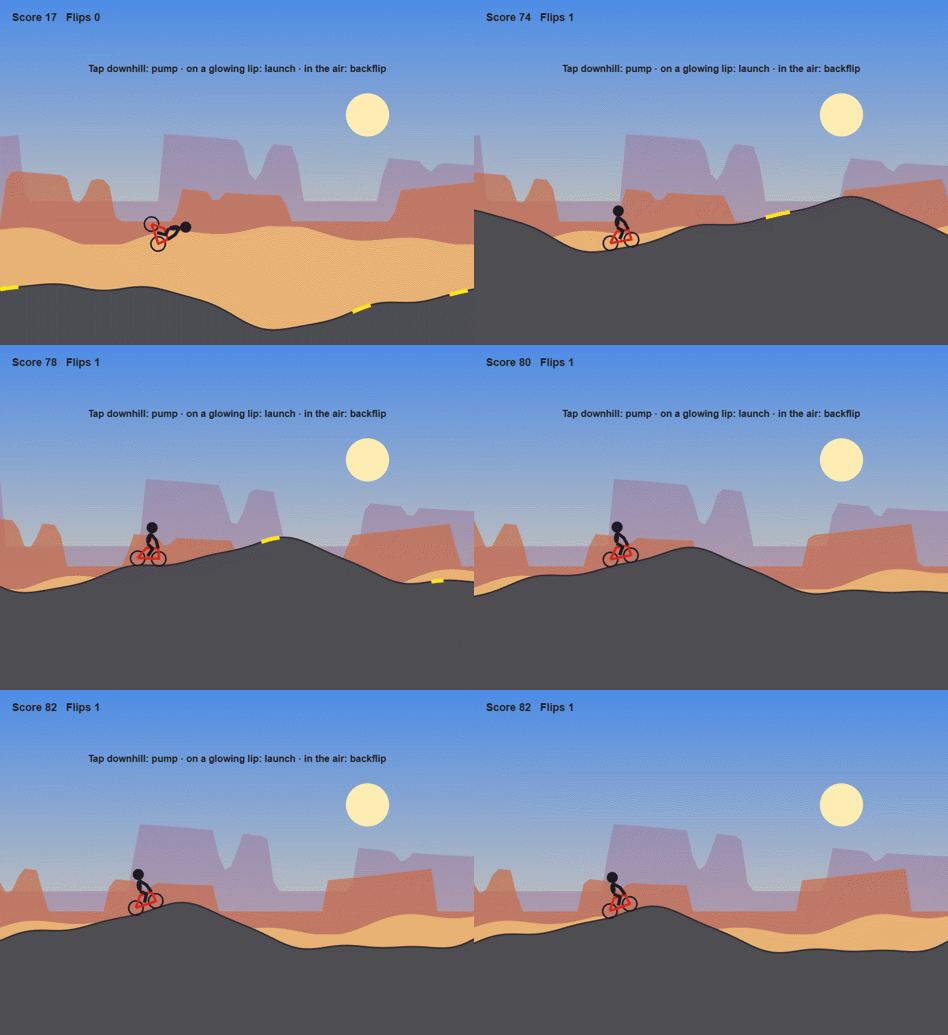
How scoring works
- You get 1 point for every meter you ride. The run ends if you run out of momentum or crash.
- Every clean backflip is worth 50 points, so one flip equals 50 meters of riding.
- Your score and flip count are shown in the top-left corner.
Definitions
- Pump: A tap while rolling downhill. You push the bike into the slope and gain speed.
- Scrub: A tap at the wrong time (going uphill, or a second tap right after a pump). It costs you a little speed.
- Lip: The rising face just before the top of a hill. It glows yellow.
- Pop: A tap on a glowing lip. It's the only way to get airborne.
- Flip: A tap in the air spins the rider backward. Each full rotation you land counts as one flip. Tap only; don't hold the button.
- Stall: Going too slow for too long. This ends the run.
Physics you'll want to know
- Steeper downhill = bigger pump. A pump on a steep drop gives you a big shove, about a third of your starting speed. On a nearly flat stretch, it does almost nothing. Aim for one good pump on each downhill.
- Scrubs add up. A badly timed tap only takes back about a third of a good pump, but a few in a row can leave you crawling.
- Watch the hills scroll. If the scenery slows down and you're barely making it over the crests, pump now or you'll stall.
- Speed is hang time. The faster you hit a glowing lip, the higher and longer you fly, and the more time you have to finish a flip.
- Spin fades in the air. Each tap adds spin, and the spin slowly dies down. More taps spin you faster, but you have to be wheels-down at the right angle when you touch the ground.
- Land matching the slope. Don't start another flip if you won't finish it in time to land at the right angle.
Quick tips
- Build speed with a few pumps before you try your first flip.
- On a big jump, one tap in the air is usually a full flip. Count, then stop tapping.
- When in doubt, skip the flip: distance points still add up.
- The game gets harder as you go, with tighter pump timing and landing requirements.
Behind the scenes
I built Pump-Send with a team of Claude Code agents: one designed the game, one wrote the tests (113 of them!), one built it, one reviewed the code, and one judged prototypes to help me choose among my four original ideas. The judging turned out to be less useful than I expected, since it was pretty obvious after playing which idea would pan out best. The most interesting lesson for me was about using bots to tune the physics.
Lesson one: the bot was too good
The first bot was simply too good at the game. It predicted where each jump would land and planned its flips accordingly, scoring hundreds of points. Then I took the wheel (err, handlebars) and crashed in seconds.
So I had the agents build a bot that plays like a person. It makes the same decisions, but each tap arrives 100 ± 60 ms late, it waits to see what one tap did before deciding again, and it taps at most 10 times per second. That bot survived a median of 8 seconds and crashed in 17 of 30 rides.
Here's what it uncovered and what I changed:
- A slightly late tap on a lip turned into a backflip spin on a tiny hop. Now you only leave the ground when you tap.
- Riders landed on the next uphill 55–68% of the time. Now a lip glows only if a pop at your current speed will land on a downhill.
- A flat dead zone at every crest turned late taps into scrubs. It's gone.
- Everything runs in gentle slow motion (0.8×), so every timing window lasts 25% longer.
- In most flips, the rider's head went through the ground. Now the rider spins around the hips.
After those fixes, the human-like bot survived a median of 53 seconds with 0 of 30 crashes. "The human-like bot survives at least 30 seconds" is now a permanent test for every new build.
Lesson two: bad players on purpose
Bots that play badly are just as useful. Every build is tested against `idle` (never taps), `spam` (taps every frame), and `masher` (8 taps per second). Each one has to die within 15 seconds or score under a fifth of what the scripted bot scores, so you can't win by ignoring or mashing the button. A `random` tapper rounds out the lineup.
Results for the current build, 20 rides of up to 60 seconds each (a different set of rides from the 30 above, so the human-like numbers differ a little):
+------------+----------------------------+-----------------+--------------+--------------+
| Bot | How it plays | Median survival | Median score | Median flips |
+------------+----------------------------+-----------------+--------------+--------------+
| idle | Never taps | 12.8 s | 40 | 0 |
| spam | Taps every frame | 2.2 s | 1 | 0 |
| masher | 8 taps per second | 2.3 s | 9 | 0 |
| random | Random taps | 6.2 s | 30 | 0 |
| human-like | Smart taps, 100 ms late | 46.3 s | 801 | 8.5 |
| scripted | Smart taps, perfect timing | 51.2 s | 1,391 | 14.5 |
+------------+----------------------------+-----------------+--------------+--------------+
Your turn
What's your high score? Did you beat the human-like bot? I'd love to hear if anyone lands three flips in one jump.

Hi there,
Is there a change in the json response when I do http write to a channel ?
Regards

Once you've uploaded your one-button game, it doesn't seem like there's a way to edit/update it. That's led me to fall into a couple of traps. One has a simple solution, so I'll share it. The other has me still scratching my head, so I'll open it up for discussion.
- Restarting. While you're developing and testing in MATLAB, it's easy enough to close the window and rerun your game. But the process is clunkier in the online gallery, so make sure your game includes a clean way to restart. If you're using an agent, it's easy enough to instruct it to modify the spacebar/click callback when the game ends so that it now calls the start/initialization function. This is a nice job for an agent (standard coding pattern it will probably do right, while I'll mess up and get annoyed).
- Timing. I can't figure out how to translate frame rate on my slow desktop MATLAB to the online running framework. Things that seem very sedate while testing suddenly get very exciting when I upload. Anyone know a good way to emulate just how zippy the real game will be?

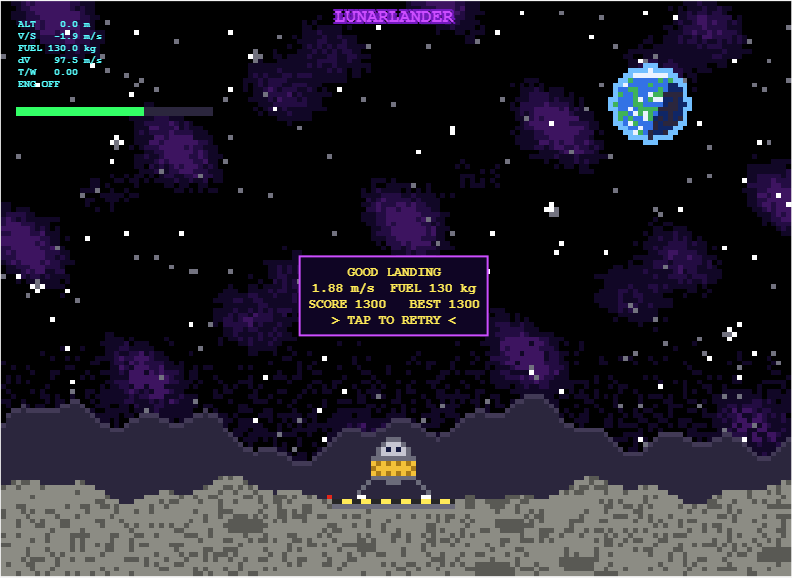
My entry for the one-button game mini hack Lunar Lander - Tap to Burn, is a one-button powered descent. You start 500 m above the surface, falling at 10 m/s, with 200 kg of propellant. One tap turns on the engine, and the next tap stops it.
How scoring works
- Crash: landing at 3 m/s or faster scores 0.
- Abort: rising above 750 m scores 0.
- Safe landing: below 3 m/s scores 10 points per kilogram of fuel remaining.
- Perfect touchdown: below 1 m/s doubles the reward to 20 points per kilogram of fuel remaining.
Physics in the game
- Fuel mass decreases as propellant is burned.
- Gravity continuously accelerates the lander downward.
- The engine does not reach full thrust instantly, so timing matters.
- The display turning red indicates when a full thrust landing burn becomes possible.
Display readouts
- ALT [m]: Height above the surface.
- V/S [m/s]: Vertical speed.
- FUEL [kg]: Remaining propellant.
- dV [m/s]: remaining velocity change the fuel can provide, from the rocket equation Δv=Isp·g₀·ln(m/m_dry).
- T/W: Thrust to weight ratio.
My best so far is 1300. Has anyone managed a sub 1m/s landing?

The day and night colours depend on how far the fox has run. Instead of recolouring everything on every frame, I turn the cycle into a small number of steps and only recolour when the step changes:
nn=.5-.5*cos(2*pi*s.dist/3200);
q=round(nn*40);
if ~isequal(s.ax.UserData,q)
s.ax.UserData=q;
% recolour the background, ground, text and obstacles here
end
The current step is stored in the axes UserData, so the check is cheap. Text works the same way. I only set a text string when the new string is different from the old one:
if ~strcmp(s.sct.String,t), s.sct.String=t; end
Setting properties that have not changed still costs time in every frame, so skipping them helps a lot in a game that redraws many times per second.
Check against your code: the first block is simplified from your renderFrame. Your real code also adds +100*(s.st==2) to q so the colours change on the game-over screen, and I left that out to keep the tip simple. The strcmp line is from your score text. Both matc
The day and night colours depend on how far the fox has run. Instead of recolouring everything on every frame, I turn the cycle into a small number of steps and only recolour when the step changes:
nn=.5-.5*cos(2*pi*s.dist/3200);
q=round(nn*40);
if ~isequal(s.ax.UserData,q)
s.ax.UserData=q;
% recolour the background, ground, text and obstacles here
end
The current step is stored in the axes UserData, so the check is cheap. Text works the same way. I only set a text string when the new string is different from the old one:
if ~strcmp(s.sct.String,t), s.sct.String=t; end
Setting properties that have not changed still costs time in every frame, so skipping them helps a lot in a game that redraws many times per second.
All the graphics objects (patches, lines and text) are created one time, when the game starts. After that, the render function only changes their data with set:
set(s.hd,'XData',s.DS{k}+DX,'YData',s.DT{k}+G+s.dy)
Creating new objects on every frame is a common reason MATLAB games feel slow. Updating objects that already exist is much cheaper. To hide an object, I set its data to NaN instead of deleting it:
set(s.ho(m),'XData',NaN,'YData',NaN)
Disclosure: the game code was written with Claude (an AI assistant). I tested the game in MATLAB and checked the details myself.
For the One-button Game Mini Hack, the code limit is 10,000 characters. I made a game called Ember Fox, where a fox runs and a stone guardian chases it, and you have one button. These are the techniques in the code that I found most useful.
Tip 1: Draw pixel-art sprites from text
Each sprite is stored as a grid of characters, where # is a filled pixel and . is empty:
A=['######';'#.##.#';'######';'.####.'];
[X,Y]=spr(A,0.6);
A helper function, spr, turns the grid into rectangles. For each row it uses diff to find where every run of # starts and ends, and each run becomes one rectangle instead of one rectangle per pixel. This keeps the sprite data small and the number of graphics objects low. All the sprites are built once, when the game starts.

If you are as excited as me to play these games but somehow something is stopping you from doing just that, you are at the right place. Follow the steps below and you will be playing in no time (maybe some time depending on your browser, network speed, etc.):
- Click on the game you like the look of (let's say, something that is transformative).
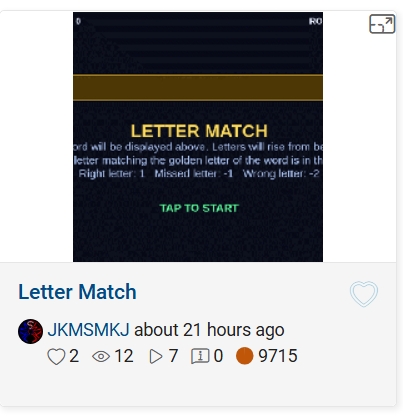
- This will open up its details page with the game code, preview video and the "Play Game" button. Click the video or the button.
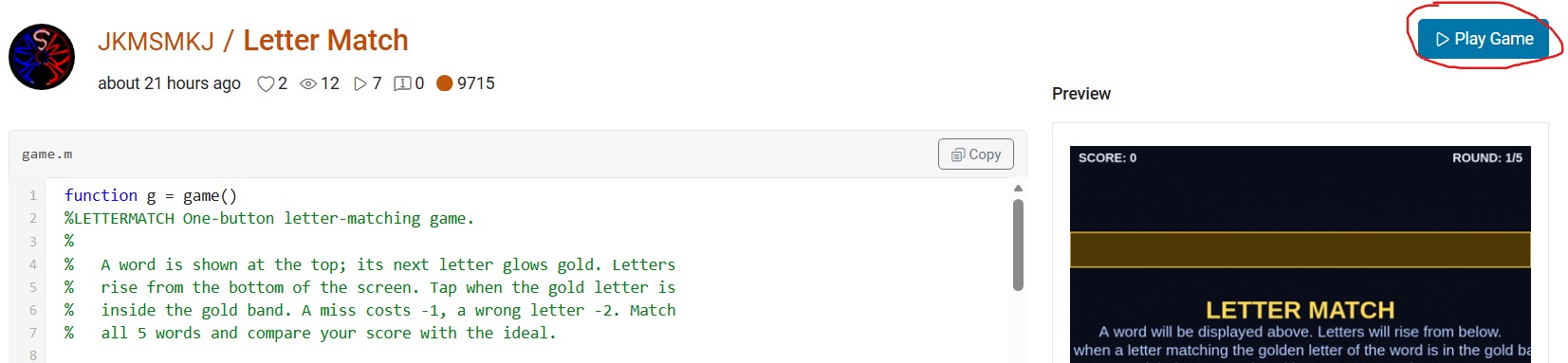
- This will open up "MATLAB Drive" in a new browser window with a preview screenshot of a half-played game and a "Run this App" button. Click this button and nothing will seem to happen at first. And nothing will happen at any other subsequent tries. But don't worry, that's why you're here.
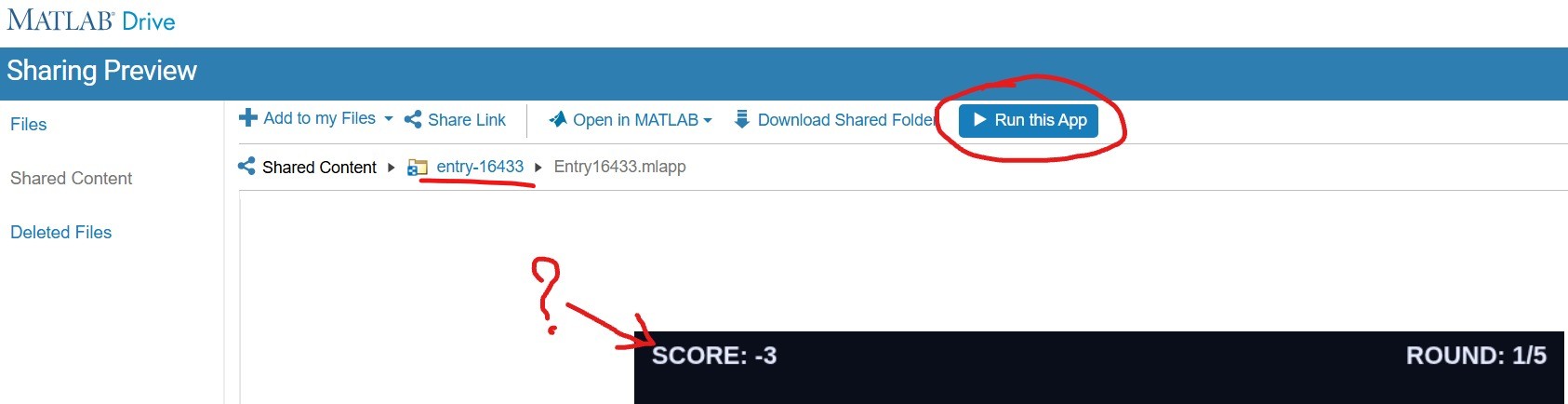
- Click on the "entry-×××××" blue hyperlink just above the preview area (underlined in red above). This will take you to a list of two files but hide the crucial blue button. Click on the "Entry×××××.mlapp" file to resurface the blue button.
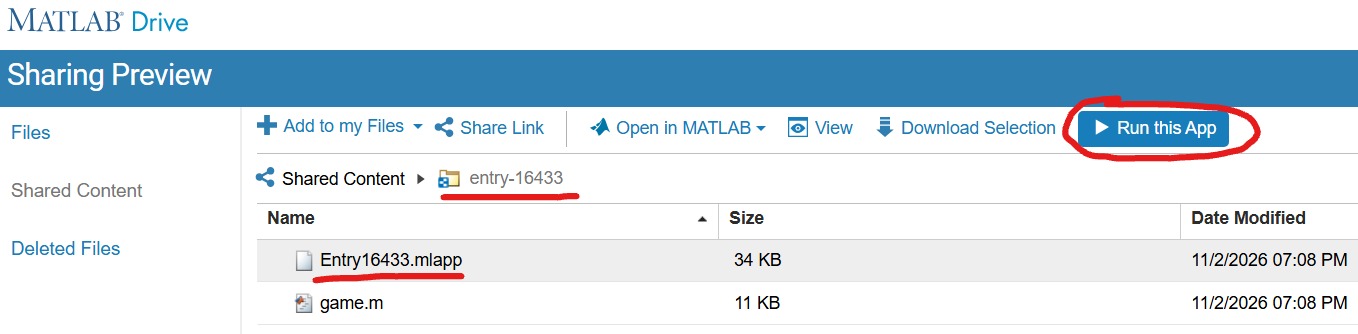
- With expectant hands, click the "Run this App" button. This time it will reload the "MATLAB Drive" and put it in the mode to run your chosen game.
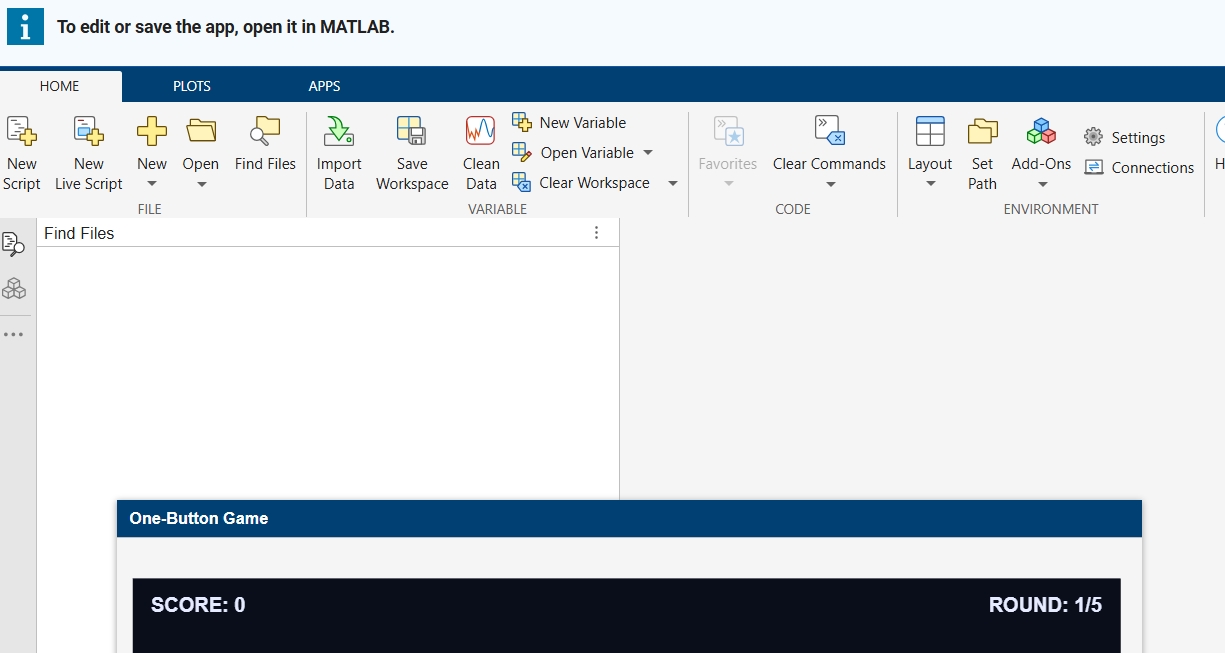
- Finally, you are where you expected to be in the point 3! Enjoy your game.🥳
Hi everyone,
I made Ember Fox: Outrun the Stone Guardian for the One-button Game Mini Hack. A fox runs forward, and a stone guardian rolls behind it and chases it. You must hop over obstacles to stay ahead.
Play it here: https://www.mathworks.com/matlabcentral/communitycontests/contests/10/entries/16448
(Click Play Game, then Run this App.)
The whole game fits in less than 10,000 characters. Below are the main tricks I used. I hope they help you with your own games.
How the game works
- One button does everything: tap to hop, tap again in the air to dive.
- If you hit an obstacle, the stone guardian gets closer. If it catches you, the game ends.
- Diving onto a flying enemy gives bonus points.
- Power-ups give a shield, slow motion, or push the guardian back.
- Passing obstacles builds a combo multiplier.
- The game gets faster the longer you play, and the sky changes from day to night.
Trick 1: Draw pixel-art sprites from text
I draw each sprite as a grid of characters. A # means a filled pixel:
A=['######';'#.##.#';'######';'.####.'];
[X,Y]=spr(A,0.6);
My helper function spr turns each row into rectangles. It uses diff to find where every run of # starts and ends. One run becomes one rectangle, not one rectangle per pixel. This keeps the number of graphics objects low and the code short.
Trick 2: Create graphics once, then only update them
In init I create every patch, line and text object one time. In renderFrame I only change them with set:
set(s.hd,'XData',s.DS{k}+DX,'YData',s.DT{k}+G+s.dy)
Creating new objects every frame makes a game slow. Updating existing ones is much faster. To hide an object, I set its data to NaN instead of deleting it.
Trick 3: Update only what changed
The day and night colours depend on how far you have run. I turn the cycle into a small number of steps and change the colours only when the step changes:
nn=.5-.5*cos(2*pi*s.dist/3200);
q=round(nn*40);
if ~isequal(s.ax.UserData,q)
s.ax.UserData=q; % change all colours here
end
I do the same for text. I only set the text when the new text is different:
if ~strcmp(h.String,t), h.String=t; end
Trick 4: One button, different actions
The game state decides what the button does:
- On the start or game-over screen, it starts the game.
- On the ground, it makes the fox hop.
- In the air, it makes the fox dive down faster.
This gives the player more choices without adding more buttons.
Trick 5: Smooth difficulty and simple collisions
The speed grows quickly at first, then slows down, so the game stays fair:
s.spd=55+90*(1-exp(-s.sc/900));
Collisions are simple rectangle checks. After a hit, the fox is safe for a short time, so one mistake does not cause many hits in a row.
Trick 6: Fit the character limit
- Use short variable names.
- Use loops and shared code instead of repeating lines.
- Run minihackContest.validate often to check the character count.
Known problem: the game runs smoothly in desktop MATLAB, but it can lag in MATLAB Online. For the best experience, run it on your computer with minihackContest.play.
Thank you for reading! If you have questions or ideas to make it better, please write a comment. I would love to see how you solve these problems in your own games.

I have MATLAB R2026b, the MATLAB Agentic Toolkit, and Claude Code installed.
In the first session, I asked Claude (Opus 5.5, High effort) to review the game rules, suggest MATLAB Agentic Toolkit skills, install them inside the project folder, and create a CLAUDE.md file.
In the second session, I asked Claude to create a combat game in which the player controls a simple stick figure wielding a club; clicking makes the figure swing the club. Simple monsters approach the player and drain the player’s health on contact, while hitting a monster with the club eliminates it. The game has an old-school 2D look, with a dark blue, star-filled background and light blue characters.
That's it. You can see result here: CLUB NIGHT
My best score until now is 2060.
Let me know your best score in the comments.


I started my game for this contest, Stack OverDad, one month before the contest began. Dad tells programming jokes at the dinner table, and you have to laugh at the right moment. I was very happy with it. It had a dog, a little brother with a spoon, a window with a sun that goes down, fifty jokes, and many small animations.
Then the contest started, and I read the rules again. One line said: each entry is limited to 10,000 characters of MATLAB code.
My code had more than 70,000 characters.
So, as you can guess, the next hourse were cut, test, cut, test, cut... In this post, I will tell you what I learned on the way (from my AI friend!). Some of it surprised me.
Step 1: Cut What the Player Does Not Feel
For every part of the game, I asked: "Does the player really feel this?"
The dog: cute, but no. The brother: funny, but no. The sunset: nobody looks at the window when Dad tells a joke. Forty jokes: a game only uses ten anyway.
This was the biggest step, and the hardest, because I liked all of these things. But the game did not get worse. It got clearer. After this, my file had about 9,800 characters. I was done!
Step 2: The Surprise
The contest project has a command to check the game before you submit it:
minihackContest.validate
I ran it, and it said:
Validation failed: game.m exceeds the character limit (16145 / 10000, comments excluded).
16,145? My file had 9,800 characters. I counted again. It still had 9,800.
So I opened the validator to see how it counts. This is the line:
charCount = strlength(char(tree2str(mtree(gameFile, '-file'))));
mtree reads the code into a tree, and this removes the comments. Then tree2str writes the code again, in a clean, standard layout. The validator counts that text, not my file.
And the clean layout is not short at all. For example, this one line of mine:
if p,pr(s.T);end
comes back from tree2str like this:
if p
pr( s.T );
end
Every statement gets its own line. Every line gets indentation. Every f(a,b) becomes f( a, b ), and every [1 2 3] becomes [ 1, 2, 3 ]. My short style was not short anymore.
The good news: now I knew the real rule, so I could play by it.
Step 3: What Is Cheap and What Is Expensive
- Expensive: many statements, deep nesting, and long lists of numbers.
- Cheap: text inside a string. tree2str does not change a string at all.
So the plan was: fewer statements, less nesting, and move numbers into strings.
Example 1: Many Values in One Statement
s.st = 3;
s.t0 = t;
s.la = -1;
becomes one statement with deal:
[s.st, s.t0, s.la] = deal(3, t, -1);
Example 2: A Small if Without if
if n == 1
s.fl = "TEN?!";
end
With logical indexing, it is one line. If the condition is false, nothing changes:
s.fl(n == 1) = "TEN?!";
Example 3: Many Strings in One String
A list like ["PERFECT!", "GOOD!", "TOO LATE..."] pays for every ", ". One string with a separator is cheaper:
B = split("PERFECT!|GOOD!|TOO LATE...", "|");
All fifteen jokes are now one string too.
Example 4: Numbers Inside a String
This was the biggest trick. My scene (the table, the chairs, Dad, the family) is made of rectangles, ellipses, and polygons. That is hundreds of numbers.
So I stored each number as one character in a string. A character is really a number (its code), so I can turn it back:
v = double(char(z))/20 - 1025; % every character of z becomes one number again
I chose codes from a big block of normal, printable characters. They look like Chinese characters, but they are not words. I only use their codes. One small loop reads the string and draws all the shapes with patch. Now the whole scene costs about one character per number.
One warning from my own mistake: use double(char(z)), not double(z). If z is a string, double(z) gives NaN. My first test showed an empty table because of this.
I kept the readable list of shapes in a separate file, and it writes the packed strings for me.
I Had Help
I worked with an AI assistant the whole way. It read the validator with me, tested many small ideas fast, measured which part of the code cost the most, and rewrote code again and again without getting tired.
But the AI did not decide what the game is. It could tell me that the dog costs 1,700 characters. It could not tell me if the dog is worth it. Every "keep" or "cut" was my choice. I think this is the best way to work with AI: let it do the heavy lifting, and keep the decisions for yourself.
The Result
The validator now says 9,936 characters. The game still has Dad, THE LOOK, Mom's warnings, the family walking out, the ranks, and fifteen jokes.
My advice: run minihackContest.validate early. Do not count the characters yourself, because the validator does not count your file. It counts the clean version of your file.
I hope you have found this helpful. Thank you for reading.

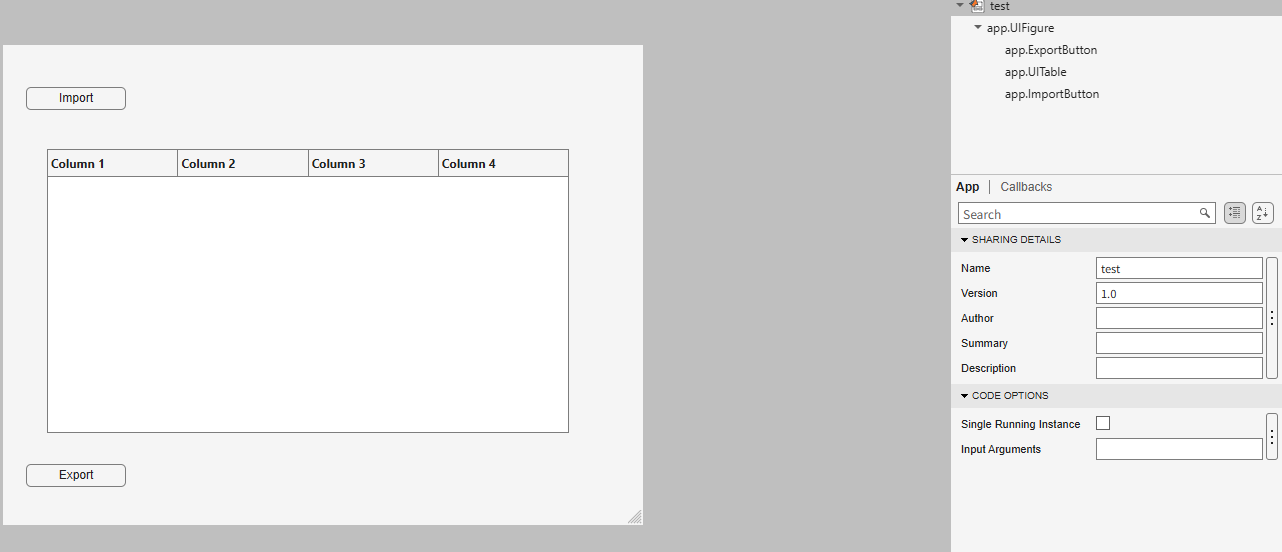
Hello everyone, I am new to Matlab.
I am trying to create an app to export the 5th column into a new sheet in the imported Excel file when I click Export button.
How can I write code in ExportButtonPushed
classdef test < matlab.apps.AppBase
% Properties that correspond to app components
properties (Access = public)
UIFigure matlab.ui.Figure
ExportButton matlab.ui.control.Button
UITable matlab.ui.control.Table
ImportButton matlab.ui.control.Button
end
% Callbacks that handle component events
methods (Access = private)
% Button pushed function: ImportButton
function ImportButtonPushed(app, event)
[file, location] = uigetfile( ...
{'*.xlsx;*.xlsm', 'Excel files'; '*.txt', 'Text files'; '*.*', 'All files'}, ...
'File Selector');
figure(app.UIFigure)
if isequal(file, 0), return, end
fullPath = fullfile(location, file);
try
[~,~,ext] = fileparts(fullPath);
if any(strcmpi(ext, {'.xlsx','.xlsm','.xls'}))
T = readtable(fullPath, 'Sheet', 1, 'VariableNamingRule', 'preserve');
else
T = readtable(fullPath, 'VariableNamingRule', 'preserve');
end
catch ME
uialert(app.UIFigure, ME.message, 'Read error');
return
end
if width(T) < 5
uialert(app.UIFigure, 'The file needs at least 5 columns.', 'Import error');
return
end
app.UITable.Data = T;
app.UITable.ColumnName = T.Properties.VariableNames;
lengthlist = T{:,5};
end
% Button pushed function: ExportButton
function ExportButtonPushed(app, event)

Recently, I encountered an issue where solve returned no solution for a system of equations, even though the system obviously has solutions. This can be easy to overlook.
For example:
syms a b c x
equs = [a*x^2+b*x+c==0;
a==1];
St = solve(equs,x)
St is returned as an empty set, suggesting that there is no solution???
However, since a is constrained by the equation a == 1, the correct way is:
S = solve(equs,[x,a])
disp(S.x)
disp(S.a)
Here, a must also be included in the list of variables to solve for. Only then will solve treat a as an unknown, apply the constraint a == 1, and substitute it into the equation during the solving process.
symvar(equs)
Based on the output of the symvar function, a is already identified as one of the symbolic variables (unknowns) in the system of equations. However, the actual behavior of solve appears to contradict this expectation. In practice, a must still be explicitly included in the variable list passed to solve; otherwise, it is treated as a symbolic parameter rather than a variable to be solved for.
Takeaway: When using solve for a system of equations, any symbol that appears in the equations and is constrained by additional equations (such as a == 1) should generally be included in the variable list. Otherwise, solve may treat it as a symbolic parameter rather than an unknown, which can lead to an empty solution set or unexpected results.
Am I missing something here? I'd love to hear your thoughts.

I have learned that I am never, ever going to use Copilot in Simulink again, and probably never use Copilot in any Microsoft application again either. Two times I asked Copilot for some simple help on how to configure a subsystem block and BOTH TIMES it gave me incorrect information that did not work. After 10 minutes of trying to get accurate information out of Mathworks' own native AI (definitely light on the "I" part), I gave up and when to ChatGPT which immediately gave me the correct answer.
Do better Mathworks. Your bloatware is bad enough, and your rejection of systems engineering standards for your own is also pretty terrible. But your selection of an AI "assistant" is a complete failure.

We use Timecontrol for statistic automations. Yesterday at 2026-10-220 10:00pm CET Time control stopped working. There is new new time in the "Run At" field, although the script should run every 5 minutes. We had the same problem in September, see https://de.mathworks.com/matlabcentral/answers/2184870-thingspeak-timecontrol-stopped-working-at-all?s_tid=srchtitle
Has anybody also prolems with Timecontrol?

The new installer streamlines the process of installing and setting up agentic workflow with MATLAB. If you have been intimidated by the setup process, give this a try!
https://github.com/matlab/agentic-toolkit-installer

For the past several days I have been experiencing a problem with data visualization on two of my ThingSpeak channels.
The data appears to be uploaded and stored correctly, and new entries are still being added to the channels. However, the visualizations are not working correctly.
The standard Field Charts show only a very small number of data points instead of the normal continuous measurements. Most of the points are compressed on the left side of the chart, while one or a few points appear far to the right and are connected by long straight lines. The time axis is also incorrect and sometimes shows repeated dates such as “01 Jan”.
The numeric widgets are affected as well and display incorrect values. Some custom visualizations also remain blank or fail to load.
The problem appeared suddenly and affects two separate channels which had previously been working correctly. I did not make any significant changes to the channels before the problem started.
This seems somewhat similar to the ThingSpeak chart/timeline issue reported in June 2026, when charts were displaying incorrect time ranges and the DAYS/RESULTS settings were not working correctly. However, my current problem also affects numeric widgets and custom visualizations, and the charts show incorrect dates and strangely positioned data points.
Could this be a regression or a similar issue with the ThingSpeak visualization system?
Has anyone else experienced the same problem recently?

Hey, this is a safe space to share your cool projects you know. I have pet ducks, I use ThingSpeak to open the door to their house each morning. I just finished an upgrade to the LED strip lights on my driveway that are controlled via ThingSpeak. And the valves for my drip irrigation system. You got it. Controlled by ThingSpeak. Let me know your last cool project you finished or the one you keep dreaming of starting. I need some more inspiration :)
I contributed a guet post for @Mike Croucher - AI Agent Demystified – Building a Minimalist Agent in MATLAB
Basically, my use case is an coding agent built with MATLAB to code MALTAB, but you can actually roll your own agnet with MATLAB AI Agent SDK for more realistic use cases. Hopefully my post gives you a starting point for a fun exploration!

The example code below shows how to write version 7.3 MAT files directly from C++ using the HDF5 library (libhdf5) and HighFive, a header-only C++ wrapper for libhdf5. Version 7.3 MAT files are HDF5-based, but contain a proprietary header in the first 512 bytes of the file.
The implementation performs three primary tasks:
First, it creates an HDF5 file with a 512-byte userblock. After data has been added into the file, the file is closed. Then a 128-byte header is written into the userblock so that the file is recognized by MATLAB as a valid version-7.3 MAT file. This is done in function “makeMatHeader”.
Second, MATLAB-specific metadata attributes are added to each dataset. Attributes such as “MATLAB_class” and “MATLAB_int_decode” inform MATLAB how each dataset should be interpreted.
Third, MATLAB-compatible complex datasets are created by overriding HighFive's default complex-number layout. HighFive uses the field names `r` and `i` by default, while MATLAB expects `real` and `imag`. A Highfive custom compound type is therefore registered for `std::complex<double>` using the MATLAB field names.
With these changes in place, C++ code can write scalar values, vectors, structs, complex arrays, and character arrays to a file that MATLAB can read as a version 7.3 MAT file.
#include <iostream>
#include <vector>
#include <complex>
#include <cstddef>
#include <fstream>
#include <string>
#include <cstdint>
#include <utility>
#include <bitset>
#include <highfive/highfive.hpp>
#include "hdf5.h"
// Modify the 512-byte userblock at the front of the HDF5 file to make it compatible with MATLAB's v7.3 MAT file format.
void makeMatHeader(std::string filename)
{
char header[512]; // MATLAB-style header for HDF5 file
memset(header, 0, sizeof(header)); // Initialize header to all zeros
// Example header content
snprintf(header, sizeof(header), "MATLAB 7.3 MAT-file, Platform: HDF5");
header[124] = 0;
header[125] = 2;
// I/M indicate little-endian format (Intel Mac/Windows)
header[126] = 'I';
header[127] = 'M';
// Write the header to the beginning of the file
std::ofstream outFile(filename, std::ios::binary | std::ios::in | std::ios::out);
outFile.seekp(0);
outFile.write(header, sizeof(header));
outFile.close();
}
// https://www.geeksforgeeks.org/dsa/inplace-m-x-n-size-matrix-transpose/
void MatrixInplaceTranspose(int *A, int rows, int cols)
{
// Moves elements in-place to achieve the transpose.
// A is a pointer to a 2D array, rows is the number of rows, and cols is the number of columns.
int size = rows*cols - 1;
int t; // holds element to be replaced, eventually becomes next element to move
int next; // location of 't' to be moved
int cycleBegin; // holds start of cycle
int i; // iterator
const int HASH_SIZE = 8192; // define a suitable hash size for the bitset. Must be at least as large as the number of elements in the matrix.
std::bitset<HASH_SIZE> b; // hash to mark moved elements. Must be large enough to cover all indices.
if (rows <= 0 || cols <= 0) {
throw std::invalid_argument("Matrix dimensions must be positive");
}
else if ((rows * cols) > HASH_SIZE)
{
throw std::invalid_argument("Matrix size exceeds hash size for in-place transpose. Increase the HASH_SIZE constant.");
}
b.reset();
b[0] = b[size] = 1;
i = 1; // Note that A[0] and A[size-1] won't move
while (i < size)
{
cycleBegin = i;
t = A[i];
do
{
// Input matrix [rows x cols]
// Output matrix [cols x rows]
// i_new = (i*rows)%(N-1)
next = (i*rows)%size;
std::swap(A[next], t);
b[i] = 1;
i = next;
}
while (i != cycleBegin);
// Get Next Move (what about querying random location?)
for (i = 1; (i < size) && b[i]; i++)
;
}
}
template <typename T>
std::vector<std::vector<T>> transpose(const std::vector<std::vector<T>>& matrix)
{
// Performs a nonconjugate transpose on a vector of vectors
// The input matrix is a vector of vectors, where each inner vector represents a row of the matrix.
// Handle empty matrix edge case
if (matrix.empty() || matrix[0].empty()) {
return {};
}
size_t rows = matrix.size();
size_t cols = matrix[0].size();
// Initialize the transposed matrix with flipped dimensions: cols x rows
std::vector<std::vector<T>> transposed(cols, std::vector<T>(rows));
for (size_t i = 0; i < rows; ++i) {
for (size_t j = 0; j < cols; ++j) {
transposed[j][i] = matrix[i][j];
}
}
return transposed;
}
// Creates a HighFive compound type for representing MATLAB-style complex numbers
// HighFive by default uses r/i but that is not compatible with MATLAB's complex number representation, which uses real/imag.
HighFive::CompoundType matlabComplexDouble () {
return {
{"real", HighFive::AtomicType<double>{}},
{"imag", HighFive::AtomicType<double>{}}
};
}
// Register the CompoundType to represent std::complex<double>
HIGHFIVE_REGISTER_TYPE(std::complex<double>, matlabComplexDouble);
int main()
{
const std::string filename = "test.mat";
// Needed for the complex number literal suffix 'i'
using namespace std::literals;
/*
* MATLAB vs C++ array layout
*
* MATLAB stores arrays in column-major order, meaning values in the same column are
* laid out next to each other in memory. Typical C++ containers such as nested std::vector and arrays
* are written in row-major order, where values in the same row are adjacent in memory.
*
* That difference matters when something such as a 2D dataset is exchanged from C++ to MATLAB. A 2x3
* matrix written from C++ in row-major order will be interpreted by MATLAB as a 3x2 matrix, transposed relative
* to the original C++ layout. The user will have to transpose the array to view the original C++ layout
* correctly.
*
* C++ developers need to be aware of the memory layout when
* exchanging multidimensional arrays with MATLAB. To maintain the structure,
* one will need to transpose the array before writing it to the mat file.
*/
// Test data
// 2x3 Array of complex double
std::vector<std::vector<std::complex<double>>> dataComplex = {{10.0 + 1.0i, 20.0 + 2.0i, 30.0 + 3.0i},
{40.0 + 4.0i, 50.0 + 5.0i, 60.0 + 6.0i}};
// 1x3 Vector of double
std::vector<double> dataDoubleVec = {1.1, 2.2, 3.3};
// 1x5 Array of integers
int dataIntArray[5] = {1, 2, 3, 4, 5};
// 2x4 Array of integers
int dataIntArray2x4[2][4] = {{1, 2, 3, 4},
{5, 6, 7, 8}};
int dataInt = 79;
double dataDouble = 3.14;
std::string dataString = "Hello, MATLAB!!!!!";
{
// Put the highfive related code into its own block so that the file gets closed when the file object is no longer in scope.
// Create a highfive file create property, get the underlying HDF5 property ID, and set a userblock size
HighFive::FileCreateProps fcp = HighFive::FileCreateProps::Empty();
hid_t fcpl_id = fcp.getId();
H5Pset_userblock(fcpl_id, 512);
HighFive::File file(filename, HighFive::File::Truncate, fcp);
// Storing a double to the file
// For something that is only a single value, must create a 1x1 dataspace
HighFive::DataSpace scalarDoubleSpace({1, 1});
// This creates a variable in the MATLAB workspace with the name "double_value"
HighFive::DataSet doubleField = file.createDataSet<double>("double_value", scalarDoubleSpace);
doubleField.write(dataDouble);
// Metadata for MATLAB compatibility
doubleField.createAttribute("MATLAB_class", std::string("double"));
// Storing an integer to the file
// For something that is only a single value, must create a 1x1 dataspace
HighFive::DataSpace scalarIntSpace({1, 1});
// This creates a variable in the MATLAB workspace with the name "int_value"
HighFive::DataSet intField = file.createDataSet<int>("int_value", scalarIntSpace);
intField.write(dataInt);
// Metadata for MATLAB compatibility
intField.createAttribute("MATLAB_class", std::string("int32"));
// Storing a C-style 1x5 array of integers to the file
// Since it is a single dimension, there is no need to move the data, just reinterpret it as a 5x1 row-major array.
// When Matlab imports it, it will perceive it as a 1x5 column-major array.
// This line casts the 1x5 array to a 5x1 array to match MATLAB's column-major order
int (*numArrayTrans5x1)[1] = reinterpret_cast<int (*)[1]>(dataIntArray);
HighFive::DataSpace intArray5x1Space({5, 1});
// This creates a variable in the MATLAB workspace with the name "int_array"
HighFive::DataSet intArrayField = file.createDataSet<int>("int_array", intArray5x1Space);
intArrayField.write(numArrayTrans5x1);
intArrayField.createAttribute("MATLAB_class", std::string("int32"));
// Storing a C-style 2x4 array of integers to the file
// For something that is a multi-dimensional array, we need to transpose the array and create a dataspace with the dimensions swapped
// so that the data is stored in column-major order.
MatrixInplaceTranspose((int*)dataIntArray2x4, 2, 4);
// After moving the values around, we need to cast the array with the new dimensions to match the new layout
// Cast the transposed 2x4 array to a 4x2 array to match MATLAB's column-major order
int (*numArrayTrans)[2] = reinterpret_cast<int (*)[2]>(dataIntArray2x4);
HighFive::DataSpace intArray2x4Space({4, 2});
// This creates a variable in the MATLAB workspace with the name "int_array_2x4"
HighFive::DataSet intArray2x4Field = file.createDataSet<int>("int_array_2x4", intArray2x4Space);
intArray2x4Field.write(numArrayTrans);
intArray2x4Field.createAttribute("MATLAB_class", std::string("int32"));
// Creating a Matlab struct (HDF5 group)
HighFive::Group my_struct = file.createGroup("my_struct");
my_struct.createAttribute("MATLAB_class", std::string("struct"));
// The only difference between storing data into a struct or as a normal variable in the MAT file is the
// the parent object you use when you do "createDataSet".
// file.createDataSet would create a normal variable, my_struct.createDataSet creates it within the "my_struct" struct.
// Storing a string to the struct so that it will be accessible as a character array in MATLAB
// For something that is a string, we create a dataspace with dimensions [string_length, 1] and save the character data accordingly
// We create a vector that has dataString.size() elements, each of which is a char vector of size 1 to store individual characters.
std::vector<std::vector<char>> text_bytes(dataString.size(), std::vector<char>(1));
// MATLAB expects character arrays to be a row vector so we reshape it accordingly since dimensions are swapped between C++ and MATLAB
for (int i = 0; i < dataString.size(); ++i) {
text_bytes[i][0] = dataString[i];
}
HighFive::DataSpace charSpace({dataString.size(), 1});
// uint16_t is required for MATLAB character arrays
HighFive::DataSet textField = my_struct.createDataSet<uint16_t>("text_value", charSpace);
textField.write(text_bytes);
// Metadata for MATLAB compatibility
textField.createAttribute("MATLAB_class", std::string("char"));
// Tell MATLAB to interpret the data as characters rather than integers
textField.createAttribute("MATLAB_int_decode", 2);
// Storing a vector to the struct
// In order to transpose the vector correctly, we first wrap it in another vector to make it a 2D array.
std::vector<std::vector<double>> transposableDoubleVec = { dataDoubleVec };
// For vectors, we let HighFive infer the dataspace from the data itself
// Transpose the vector to match MATLAB's column-major order
HighFive::DataSet doubleVectorField = my_struct.createDataSet("double_vector", transpose(transposableDoubleVec));
// Metadata for MATLAB compatibility
doubleVectorField.createAttribute("MATLAB_class", std::string("double"));
// Storing a complex (and multi-dimensional) vector to the struct
// For multi-dimensional vectors, we need to perform a noncojugate transpose on the array to match
// MATLAB's column-major order so the data layout is consistent between C++ and MATLAB.
// For vectors, we let HighFive infer the dataspace from the data itself
HighFive::DataSet complexField = my_struct.createDataSet("complex_vector", transpose(dataComplex));
// Metadata for MATLAB compatibility
complexField.createAttribute("MATLAB_class", std::string("complex"));
}
// Finalize the MATLAB-compatible HDF5 file by writing the MATLAB header into the userblock
makeMatHeader(filename);
return 0;
}

