Results for

What happens when you take a classic Pac-Man style maze game and limit the player to just one button?
That was the idea behind MAZE FRENZY, my entry for the MATLAB One Button Game Mini Hack.
The player moves automatically through a maze, collecting pellets while avoiding four pursuing ghosts. A single click changes direction at available turns. Power orbs temporarily reverse the chase, allowing players to capture ghosts and earn bonus points.
How to play
- Collect pellets for 10 points each.
- Collect power orbs for 50 points.
- Capture powered up ghosts for 200 points.
- Survive with three lives.
- Clear the maze to advance to faster levels.
Gameplay screenshot
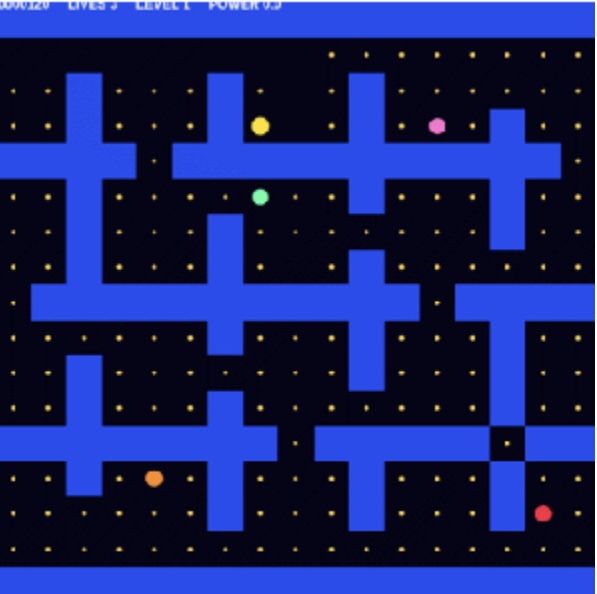
Figure1. Maze gameplay showing the player, ghosts, pellets,
power orbs, and scoreboard.
Inside the MATLAB code
The game follows the init,update, and render architecture.
- init constructs the maze and initializes graphics.
- update handles movement, collisions, scoring, and ghost behavior.
- render updates the existing graphics objects.
The maze uses a logical matrix (true for walls and false for paths). MATLAB functions such as image, scatter, text, find, set, abs, and sprintf handle the graphics and game logic. Ghosts use Manhattan distance calculations to pursue the player and retreat when a power orb is active.
What I'd improve next
I would like to explore breadth first search for smarter ghost navigation, individual ghost personalities, procedural maze layouts, and smoother character animation.
The interesting challenge was making a familiar arcade game work with just one button. It turns movement into a strategic excercise in timing and anticipating the next junction.
How would you approach ghost AI in MATLAB for shortest path search or individual enemy behaviors?

If you had to catch up with a spacecraft ahead of you in the same orbit, what would you do?
The intuition is to speed up and catch the spacecraft ahead. In orbit, that’s wrong. To catch something ahead of you, you burn retrograde and slow down.
Why burning retrograde works
Slowing down drops you into a lower orbit. A lower orbit is shorter and faster, so you complete each revolution sooner and gain on the spacecraft ahead every lap.
At the lowest point of that new orbit you’re actually moving faster than your target. Speeding up does the opposite: you climb higher, your orbit takes longer, and you fall behind.
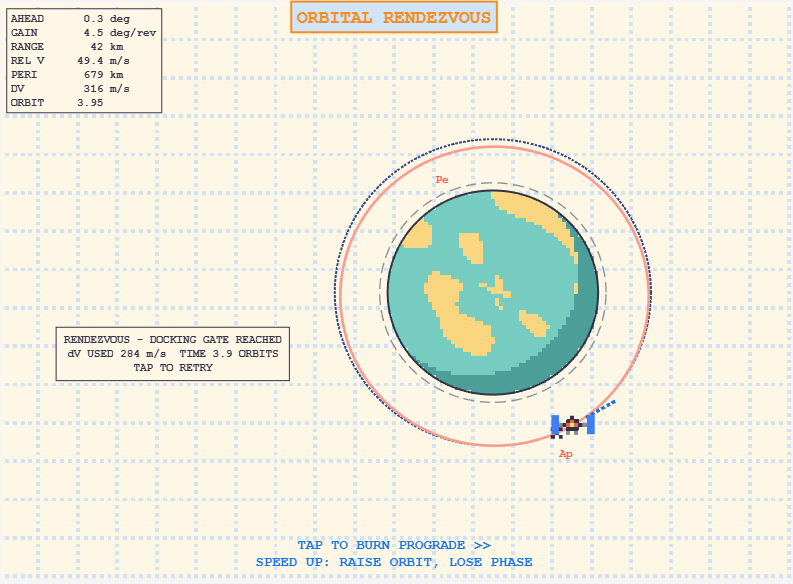
You start in the same 800 km circular orbit as a space station, trailing it by 25–55° with 400 m/s of Δv. One tap starts a burn and the next tap cuts the engine.
Burns alternate automatically: the first is retrograde, the second prograde, then retrograde again, and so on.
How to win
- Win: get within 200 km of the station with a relative speed below 50 m/s.
- Don’t burn up: if your orbit drops below 120 km altitude, you burn up in the atmosphere.
- Watch your fuel: you have 600 m/s of Δv.
- Beat the clock: you have 20 orbits to dock.
Key terms
- Prograde: thrusting along your direction of travel. Speeds you up and raises the opposite side of your orbit.
- Retrograde: thrusting against your direction of travel. Slows you down and lowers the opposite side of your orbit.
- Perigee: the lowest point of an orbit.
- Apogee: the highest point of an orbit.
What I learned building the game: realism vs. playability
I started out trying to make everything 1:1 with real orbital mechanics. It was physically accurate, but it was frustrating to play. Some trade-offs had to be made:
What I kept real
- The game simulates planar Keplerian dynamics. Burns are applied either along (prograde) or against (retrograde) your velocity vector.
- Orbital mechanics: to catch a station that’s ahead of you, you slow down. A retrograde burn reduces your semi-major axis a, and since the orbital period is T = 2π·sqrt(a³/μ), a smaller orbit has a shorter period. You gain on the station every revolution.
- The vis-viva equation v² = μ(2/r − 1/a), shows that speed is highest at periapsis and lowest at apoapsis. At the periapsis of your lower orbit you’re moving faster than the station, even though you got there by braking.
- To stop drifting, do a prograde burn back at the point where you first burned, which is now your apoapsis. Raising a back to the station’s radius recircularises your orbit and matches its period.
What I changed for playability
- Time warping. A real orbit at this altitude takes about 100 minutes. In the game it takes 8 seconds, roughly 750x real time.
- Burn in slow motion. Time runs 4x slower while the engine fires, so you can actually control how long a burn lasts with one button.
- A strong engine. Thrust is about 0.4 m/s², which is way higher than a normal spacecraft but it means a burn takes a few seconds instead of minutes.
- Exaggerated distance. In the game the distance from the station’s orbit is stretched 3x, otherwise the difference of the orbits wouldn't be visible.
- A generous docking gate. A realistic range (tens of km and relative velocity around 15 m/s) was nearly impossible to hit, so I widened it to 200 km and 50 m/s.

1. TRANSCRIPTION: Climb the Helix
You are RNA polymerase climbing a DNA double helix. Each rung is a base pair, and the next one is either up-left or up-right. An arrow swings back and forth above you, and a tap steps the way it points. Pick the wrong side and the polymerase stalls. Every step reads one template base and adds its partner to your growing mRNA (A to U, T to A, G to C, C to G), which trails behind you as colored tiles. Your NTP bar drains constantly and refills a little with each step. Each stage is one gene that starts with AUG and ends with a stop codon, and finishing one refills your NTPs for the next, longer gene.
The biology: RNA polymerase really does build RNA from four NTPs (ATP, GTP, CTP, UTP), which are both its building blocks and its energy, so running out stops the process. As it moves, the two DNA strands open into a small transcription bubble that closes again behind it, and you can watch that bubble travel up the helix with you. The game takes liberties: real polymerases don’t hop sideways, and real transcripts carry untranslated regions instead of ending at the stop codon.
2. IMMUNE HERO
You are a T cell travelling through a blood vessel. Pathogens drift in from the right, and a tap launches an attack with a short cooldown, so timing is everything. Every fifth wave brings a boss. Defeated pathogens drop XP, and on level-up you choose one of three upgrade cards: tap to light a card, tap again to move to the next, and stop tapping for two seconds to confirm. Upgrades stack, so every run grows into a different immune cell.
The biology: each upgrade borrows from the real immune response. Cytokines coordinate immune cells, so they speed up your attacks. Interferons warn neighbouring cells, so they hit everything nearby. The complement system punches holes in pathogen membranes, so it pierces. Memory cells make a second infection milder, so they give you a second life. In a real body antibodies come from B cells, not T cells, so think of this hero as the whole immune system squeezed into one cell.
Tips
Judge the tap against what the player saw. In TRANSCRIPTION, my first version moved the arrow before checking the tap, so a tap made while the arrow clearly pointed the right way could be judged against the next frame and count as a miss. Reading input before advancing any animation that decides the outcome removed every unfair fall.
Lock one-button menus for a moment. In IMMUNE HERO, players are usually mid-combo when they level up. Ignoring taps for the first half second after the menu opens stops their next tap from picking a card by accident.
And if you lose
Don’t worry too much. Right now, inside your own cells, real RNA polymerases are transcribing at dozens of nucleotides per second with only about one mistake in ten thousand or more, and your immune system is quietly stopping pathogens every day. You may lose the game, but your body is already winning it. Have fun!

The goal is simple: help MATLAMB escape through all 10 farms without getting caught!
But with farmers patrolling, dogs following your trail, and a new challenge in every farm, escaping won't be easy!
The Controls
You only need one button!
- Tap or press SPACE to start walking.
- Tap again to stop walking.
- Stop inside a bush to hide from farmers.
Watch Out for Farmers!
Each farm has a farmer patrolling back and forth. Farmers can only see in the direction they're facing, so pay attention to where they're looking!
If a farmer spots you, the ALERT meter starts filling up. Once it's full, you're caught! Farmers will also follow you once they've spotted you, so make sure you find a hiding spot before it's too late.
Beware of the Dogs!
Hiding from farmers is only half the battle! Each farm also has a dog that follows your trail.
If you stay hidden in a bush for too long, the dog can eventually catch up and sniff you out. Watch the DOG meter , if it fills completely, you're caught!
Ten Farms, Ten Challenges!
Each farm introduces something new:
- Field: Learn the basics of walking, stopping, and hiding.
- Watch: The farmer looks behind himself more frequently.
- Dogs: A faster dog makes camping in bushes more dangerous.
- Fog: The farmer has a shorter viewing distance.
- Light: The farmer's lantern allows him to see in both directions when illuminated.
- Chase: The farmer moves faster when chasing you.
- Mud: Muddy areas slow MATLAMB down.
- Wind: Changing winds can speed you up, slow you down, or even push you while you're stopped!
- Bark: Getting too close to the dog while walking can alert the farmer.
- Gate: Moving near the final gate rings a bell that alerts the farmer.
Checkpoints
Don't worry if you get caught! You'll unlock checkpoints after reaching Farms 4 and 7, meaning you won't always have to start from the beginning.
Tips for Escaping
- Watch which way the farmer is facing before moving.
- Don't stay in bushes too long—the dogs are always approaching!
- Keep an eye on your ALERT and DOG meters.
- Be extra careful in the Wind farm, since stopping doesn't always mean staying still.
- Sometimes it's better to keep moving than to risk hiding in the wrong spot.
Good luck helping MATLAMB escape!
Hello Everyone!
For the MATLAB One-Button Game Mini Hack, I created MATLAMB ESCAPE!, a side-scrolling stealth game where a sheep (inspired by the real MATLAMB!) tries to escape through ten farms while avoiding farmers and their dogs. The entire game is controlled using just one button: tap to start walking, and tap again to stop. Stopping inside a bush lets the sheep hide from farmers, but the dogs can still follow its trail, so you can't stay hidden forever! Each section also introduces its own unique challenge to keep things interesting. Keep reading to find out what awaits MATLAMB Escape!
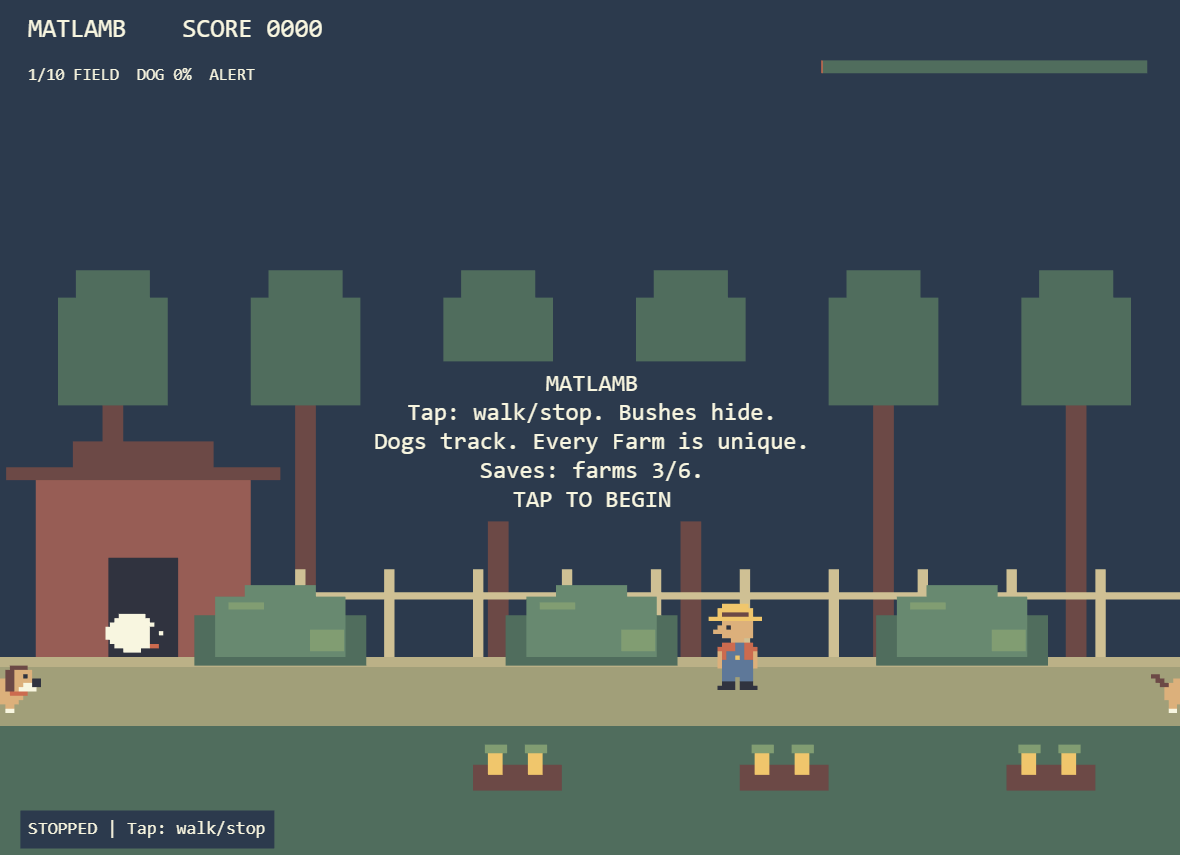
(If you would like a tutorial on the game, make sure to check out my other Tips & Tricks post!)
The Idea
When I started brainstorming ideas, I knew I wanted to do something fun Mathworks related. After spending a few days brainstorming ideas and getting nowhere, I finally found my inspiration in this perfectly timed Mathworks Instagram Post! There is an actual sheep born in 2024 at Mass Audubon's Drumlin Farm in Massachusetts and named in honor of MathWorks. Apparently, some of the sheep escaped their barn, and MATLAMB was suspected of leading the charge! You literally cannot make up a better MATLAB game idea.
Designing around one button
My biggest design challenge was making a stealth game that still requires strategy without having separate movement and hiding controls.
I decided to make the sheep move automatically when walking is toggled on. Instead of controlling its direction, players have to observe the farmers movements and make tactical decisions on when to stop.
However, I quickly realized that players could just camp in bushes until the perfect opportunity to move, which took away much of the challenge. So, how did I fix this? Puppies! No, literally. I added dogs that follow the sheep's trail and sniff out its hiding spots, forcing players to keep moving instead of staying in one bush forever.
To prevent the game from feeling repetitive, I gave the ten sections, aka 'farms' different mechanics. These include a farmer with a lantern that detects movement in both directions, muddy terrain that reduces movement speed, and a windmill farm where changing wind directions can push the sheep even when the player stops.
Working with AI and the character limit
I used ChatGPT throughout development to help write, revise, and simplify the MATLAB code. I guided the game's design and continued adjusting the mechanics, enemy behavior, difficulty, and overall gameplay.
One of the hardest constraints was the 10,000-character limit. As I added more mechanics, I had to find ways to reduce the code size without removing the features that made the game interesting.
Some useful approaches included shortening internal variable names, representing multiple enemies with arrays, using shared functions for repeated graphics operations, and constructing scenery from reusable patterns.
My biggest takeaway was that the one-button restriction actually encouraged me to design more creative game mechanics.
I'd be interested to hear how other participants approached one-button game design in MATLAB!
Thank you for taking the time to read my post, best of luck to you all!

For the MATLAB One-Button Game Mini Hack, I created RESONANCE — Master the Frequency, a five-level educational game that transforms a simple physics simulation into an interactive challenge.
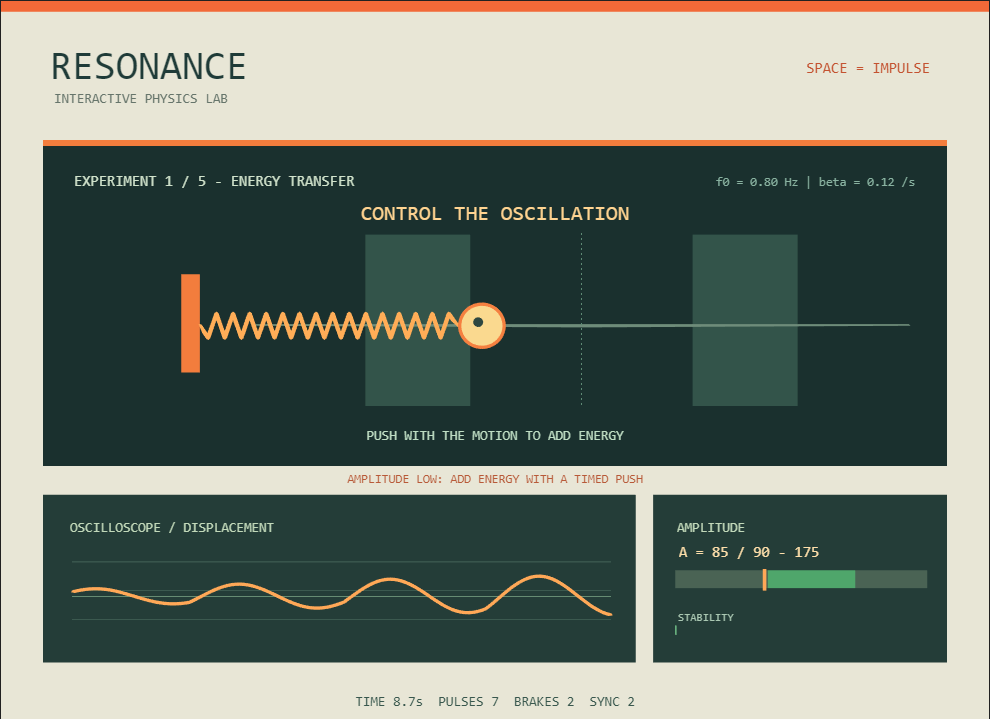
RESONANCE — An interactive mass–spring–damper experiment controlled with a single button.
The idea started with a question:
Can someone learn how oscillations work by controlling them with only one button?
Instead of directly moving a character, the player applies impulses to a mass–spring–damper system. Depending on the timing, an impulse can increase or decrease the oscillator's mechanical energy.
The challenge is not to press the button as fast as possible. It is to understand when to press it and why the timing matters.
1. Turning a Physics Equation into Gameplay
RESONANCE is based on the classical mass–spring–damper system.
Its equation of motion is:
m*x'' + c*x' + k*x = F(t)
where:
- m represents mass.
- c is the damping coefficient.
- k represents spring stiffness.
- x is displacement.
- F(t) is the externally applied force.
Between impulses, the game uses the normalized equation for unit mass:
x'' + 2*beta*x' + omega_0^2*x = 0
Here, beta controls damping and omega_0 represents the undamped natural angular frequency.
The simulation uses a compact numerical integration method:
s.v=s.v+(-s.w^2*s.x-2*s.beta*s.v)*dt;
s.x=s.x+s.v*dt;
These two lines update velocity and displacement using a semi-implicit Euler method.
One useful discovery was that changing just a few physical parameters could create very different gameplay challenges.
Increasing damping makes the oscillator lose energy faster. Increasing natural frequency makes the motion faster, forcing the player to adjust the timing of their impulses.
This allowed me to build several levels around the same physical model.
2. One Button, Two Different Energy Outcomes
The main mechanic is surprisingly simple: pressing SPACE applies an impulse toward the right.
The corresponding MATLAB code is:
s.delta=s.v*s.j+.5*s.j^2;
s.v=s.v+s.j;
The change in mechanical energy caused by an instantaneous velocity impulse, assuming unit mass, is:
Delta_E = v*J + 0.5*J^2
Here, v is the velocity before the impulse and J is the velocity increment.
This produces an interesting result:
- When the mass moves to the right, a rightward impulse increases its kinetic energy.
- When the mass moves sufficiently fast to the left, the same impulse reduces its kinetic energy.
- If the mass moves too slowly to the left, the impulse can reverse its direction and still increase its energy.
In other words, the same button can accelerate or brake the oscillator depending on its current motion.
The player gradually discovers this relationship through experimentation.
This became the foundation of the game's educational design.
3. Measuring Amplitude Through Energy
Another important challenge was determining whether the player had successfully controlled the oscillator.
Instead of checking only the mass's position, the game calculates an energy-based amplitude indicator:
s.A=sqrt(s.x^2+(s.v/s.w)^2);
For the corresponding undamped oscillator with unit mass, mechanical energy is:
E = 0.5*v^2 + 0.5*omega_0^2*x^2
From this expression, an equivalent amplitude can be calculated:
A = sqrt(x^2 + (v/omega_0)^2)
In the damped simulation, this serves as an instantaneous energy-based amplitude indicator rather than an exact prediction of the next displacement peak.
The player must maintain this indicator within a specified target range for a certain amount of time.
This creates an interesting challenge: reaching the correct amplitude is only part of the solution. The player must also prevent the system from gaining or losing too much energy.
4. Designing Five Educational Levels
I organized RESONANCE into five experiments, each introducing a different learning objective.
Level 1 — Energy Transfer
The player learns how properly timed impulses can increase the oscillator's energy and amplitude.
This first level introduces the basic relationship between motion, timing, and energy transfer.
Level 2 — Damping
The damping coefficient increases, causing the oscillator to lose energy more rapidly.
The player must compensate for that loss by applying impulses at appropriate moments.
The objective is to understand that maintaining an oscillation requires replacing the energy dissipated by damping.
Level 3 — Precision Control
The player must apply at least one impulse that reduces mechanical energy.
This level introduces active braking and demonstrates that applying more force is not always the correct solution.
Sometimes the best action is to remove energy.
Level 4 — Natural Frequency
The oscillator's natural frequency increases.
Its oscillations become faster, giving the player less time to react.
The challenge includes two phase-aligned impulses, encouraging the player to adapt to the system's changing dynamics.
Level 5 — Resonance Challenge
The final experiment requires three phase-aligned impulses followed by precise amplitude stabilization.
The game recognizes favorable impulses near the equilibrium position while the mass is moving toward the right:
if s.v>0 && abs(s.x)<40
s.sync=s.sync+1;
end
This demonstrates how the timing of repeated energy transfers influences the buildup of oscillations.
Classical resonance involves periodic excitation near a system's natural frequency. RESONANCE uses discrete impulses instead, providing a simplified, interactive analogy of phase-synchronized excitation rather than a complete simulation of sinusoidal resonance.
5. Making Physics Visible
I wanted RESONANCE to look like an interactive physics laboratory rather than a traditional arcade game.
The interface includes:
- An animated mass connected to a spring.
- An oscilloscope-style displacement trace.
- Highlighted target amplitude regions.
- A real-time amplitude indicator.
- A stability progress bar.
- Feedback about energy transfer and impulse timing.
One useful MATLAB technique was creating the graphics objects during initialization and updating their properties during gameplay.
For example, the spring animation uses:
s.coil.XData=linspace(161,p-20,32);
s.coil.YData=271+[0 repmat([10 -10],1,15) 0];
This changes the spring's geometry as the mass moves, creating the appearance of stretching and compression.
The oscilloscope provides another view of the same physical process, helping the player connect the moving mass with its displacement over time.
These visual elements are not merely decorative. They help communicate the behavior of the underlying system.
6. Learning Through Feedback
An important lesson during development was that a game does not automatically become educational just because it contains a physics simulation.
The player needs enough information to understand what is happening.
I therefore introduced contextual feedback during gameplay.
For example, when the amplitude is too low, the game suggests adding energy with a well-timed impulse. When the amplitude is too high, it encourages the player to consider braking.
The game also displays a short explanation after each completed experiment.
The player must press SPACE to continue, allowing time to read the explanation before starting the next challenge.
This creates a simple learning cycle:
Experiment → Observe → Adjust → Succeed → Understand
Rather than presenting equations as a separate lesson, the game connects the explanations to actions the player has already performed.
7. Working Within the 10,000-Character Limit
One of the biggest technical challenges was fitting the physics simulation, five levels, graphics, gameplay logic, and educational messages within the contest's 10,000-character limit.
To keep the implementation compact, I:
- Reused the same graphics objects across all levels.
- Stored level-specific parameters in arrays.
- Used small helper functions for drawing.
- Kept the physics calculations separate from rendering.
- Avoided unnecessary dependencies and additional game files.
The published version contains 9,305 characters according to the official MATLAB contest validator.
A useful lesson from this process was to rely on minihackContest.validate instead of estimating the character count from the source file, because the validator applies its own counting rules.
The character limit also encouraged me to focus on the mechanics that contributed most to gameplay and learning.
8. Development Process and Lessons Learned
AI assistance was used during concept development, MATLAB code generation, debugging, and iterative refinement.
I tested the game in MATLAB, evaluated the difficulty of each experiment, adjusted parameters, refined the educational messages, and validated the implementation using the official contest tools.
One challenge was balancing the difficulty progression.
During early testing, the damping experiment and the final synchronization challenge were particularly demanding. Adjusting the target ranges and stability requirements helped create a more gradual progression.
Another important decision was to distinguish between the physics being simulated directly and the concepts being demonstrated through simplified gameplay.
The main lessons I took from this project were:
- A differential equation can become the foundation of an engaging game mechanic.
- A single input can produce different physical outcomes depending on the system's state.
- Visualizing displacement and amplitude can make abstract concepts easier to understand.
- Increasing difficulty works best when each level builds on previously learned skills.
- Educational feedback is most meaningful when it explains something the player has just experienced.
Final Thoughts
RESONANCE is an experiment in combining simulation, game design, and STEM education within a very small MATLAB project.
The goal was not to create the most complicated physics simulator, but to make a few important concepts intuitive through interaction.
By the end of the five experiments, I hope players have developed a better intuition for energy transfer, damping, natural frequency, and the importance of impulse timing.
Sometimes, the best way to understand a physical system is to try controlling it.
Thanks for reading, and I hope you enjoy experimenting with RESONANCE!

I am unable to submit an entry for the One Button contest using the supplied minihackContest.submit function. I keep getting the error "Submission failed: HTTP 500 Something went wrong. Please try again in a moment.". It happens to me both in a MATLAB session as well as on a MATLAB Online session. No idea what I am doing wrong...

I thought I had the game in pretty good shape until I tried it in MATLAB Online. A launch that felt immediate on desktop could feel slower in the browser, which matters in a game where timing is the main control.
I built Slingshot Home: Escape Saturn for the MATLAB One-Button Game Mini Hack. The goal is to time your launches to travel between 15 of Saturn’s moons and return to Earth, with three shields and a clock counting down.
Getting the game to feel responsive took a few iterations, particularly when running it in MATLAB Online. Here are some of the approaches that worked well.
Reuse Graphics Objects
The game creates 21 graphics objects during initialization and reuses them throughout gameplay. Instead of recreating the scene, it updates properties such as position, color, and text.
I also check whether a property has changed before assigning it again. Static planets and labels do not need to be updated as frequently as the spacecraft.
For the Mini Hack, the game harness handles the window, input, and drawing loop. The game provides the init, update, and render functions.
Use Elapsed Time for Motion
The spacecraft moves around each moon using basic trigonometry:
theta = startAngle + angularSpeed*elapsedTime;
position = moonCenter + radius*[cos(theta), sin(theta)];
heading = [-sin(theta), cos(theta)];
Pressing the button launches the spacecraft along the tangent to its current orbit, so the gameplay is based on timing rather than steering.
Calculating the orbital angle from elapsed game time, rather than advancing it by a fixed amount per frame, also makes the motion less dependent on rendering speed.
Separate Trajectory Calculation from Rendering
I used ode45 to calculate each flight trajectory, then deval and interpolation to provide positions during playback. This avoids solving the trajectory again on every frame.
The physics is intentionally simplified. The moons remain in fixed positions, captures are assisted, and the escape gate represents leaving Saturn’s sphere of influence rather than calculating its actual boundary. These assumptions are documented in the code comments.
Generate Textures in MATLAB
The planet textures are generated directly in MATLAB, so there are no external image files to load:
MATLAB
x = linspace(-1,1,80);
z = max(0,1-x.^2-x'.^2);
brightness = max(.1,.8*sqrt(z)-.6*x);
This produces directional lighting while retaining some brightness on the night side. The textures are generated once during initialization.
Increasing the texture resolution helped smooth the edges, but adjusting the lighting had a larger effect on the overall appearance.
Test as You Go
I used Codex to help edit and refine the code. Through MATLAB MCP, it could run MATLAB code, inspect Code Analyzer results, and exercise states such as countdown, launch, and restart.
That was useful for finding issues, but running and playing the game was still important. Some things only became apparent during gameplay, such as a launch feeling delayed or an orbit being difficult to see. I also tested regularly in MATLAB Online rather than relying only on desktop behavior.
I used the Mini Hack validator to keep track of the character limit:
minihackContest.validate
The validator count differs from the raw file size. Comments are excluded, so I could document the physics and assumptions without using the executable-code budget.
Try It in MATLAB Online
One feature I liked about the final result is that there is very little setup required to try it.
Click “Play game,” then “Run this app,” and the game runs in the browser.
For me, the biggest improvements came from fairly small changes: reusing graphics objects, basing motion on elapsed time, calculating trajectories separately from rendering, and testing regularly in MATLAB Online.
FOLD: One Button, Two Worlds
For the MATLAB One-Button Game Mini Hack, I developed FOLD, a six-level puzzle-platformer built entirely in MATLAB.
Unlike traditional platformers, the player does not directly control the character. Instead, the character moves automatically, while a single button changes the geometry of the environment.
Each press rotates platforms, changes available paths, and activates or deactivates obstacles.
Play FOLD here:
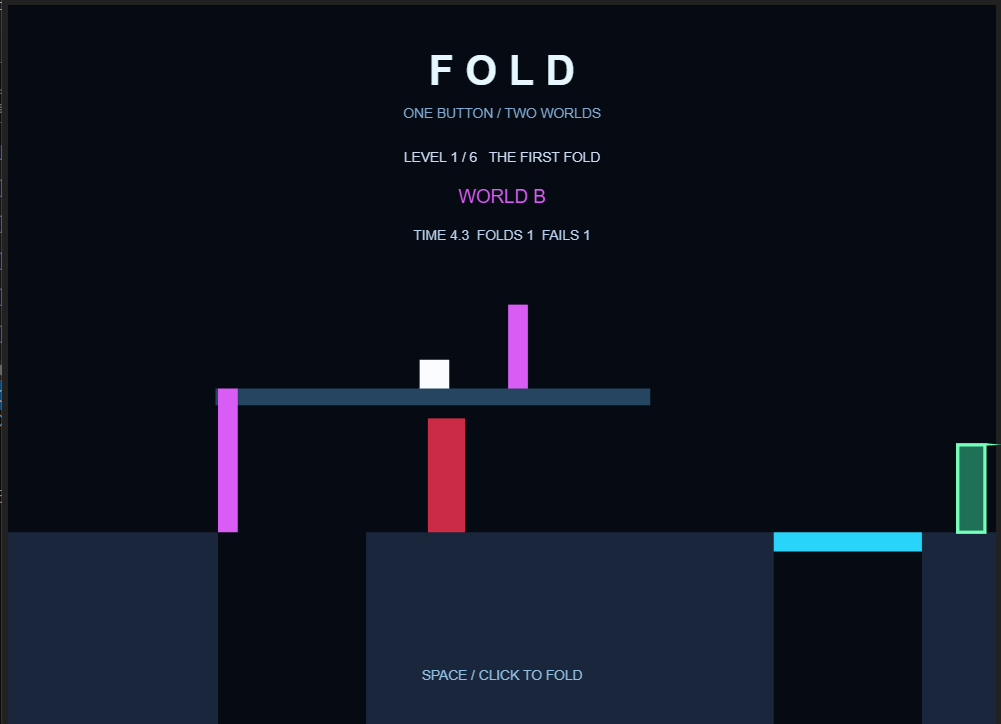
FOLD — Rotating platforms and phase-based obstacles controlled with a single button.
1. Creating Rotating Platforms with Trigonometry
One of the main technical challenges was creating platforms that rotate around a fixed pivot.
Rather than recreating graphical objects every frame, I calculate the vertices of each platform using trigonometric functions.
For a platform with length L, thickness w, and rotation angle a:
dx=L*cos(a);
dy=-L*sin(a);
nx=w*sin(a);
ny=w*cos(a);
px=[x x+dx x+dx+nx x+nx];
py=[y y+dy y+dy+ny y+ny];
These coordinates define the four corners of the platform.
By updating the XData and YData properties of an existing patch, MATLAB can animate the platform without creating new graphics objects every frame.
This approach keeps the animation simple and efficient.
2. Making the Character Move with a Platform
Initially, the character would fall whenever a platform started rotating.
To solve this, I introduced a mechanism that temporarily attaches the character to the rotating platform.
The character's position is calculated relative to the platform's pivot:
s.x=170+s.dist*cos(a)-12;
s.y=440-s.dist*sin(a)-24;
Here, s.dist represents the distance along the platform, while a is the current rotation angle.
This allows the character to move together with the platform and reach elevated sections of the level.
3. Designing Gameplay Around a Single Button
The most interesting design challenge was creating meaningful gameplay with only one input.
FOLD uses two world states: A and B.
Pressing SPACE or clicking the mouse switches between these states. Multiple platforms respond simultaneously, while certain obstacles become active or inactive.
This creates situations where opening one path may close another.
Across six levels, players must learn to anticipate how their actions affect the environment.
The objective was to make the game progressively more strategic without introducing additional controls.
4. Optimizing MATLAB Code for the Character Limit
The competition limits submissions to 10,000 characters.
One important discovery was that the validator's character count could differ significantly from the raw source file length.
Removing whitespace alone was not sufficient.
I reduced code duplication, reused helper functions, represented level configurations using arrays, and simplified unnecessary graphical elements.
The final implementation successfully passed minihackContest.validate.
5. What I Learned
Developing FOLD helped me explore several useful MATLAB techniques:
- Updating existing graphical objects instead of recreating them.
- Applying trigonometry to interactive 2D geometry.
- Managing game states and frame-based updates.
- Designing multiple puzzles around a single input.
- Optimizing code under strict technical constraints.
AI assistance was used during prototyping, debugging, and code refinement. The gameplay was tested locally in MATLAB, and the final submission passed the official contest validator.
The main takeaway: limitations can encourage creativity. With a single button, basic trigonometry, and carefully designed state transitions, it is possible to build an interactive puzzle game with surprisingly varied gameplay.

My second entry, Event Horizon (entry 16546), puts you in orbit around a black hole. Tapping fires your engine and climbs, and the accretion disk's drag pulls you down. Lower orbits slow your clock, so your score is how many years into Earth's future you travel. Flares light up rings of the disk, and you have to get out of a red band before it turns white and burns.
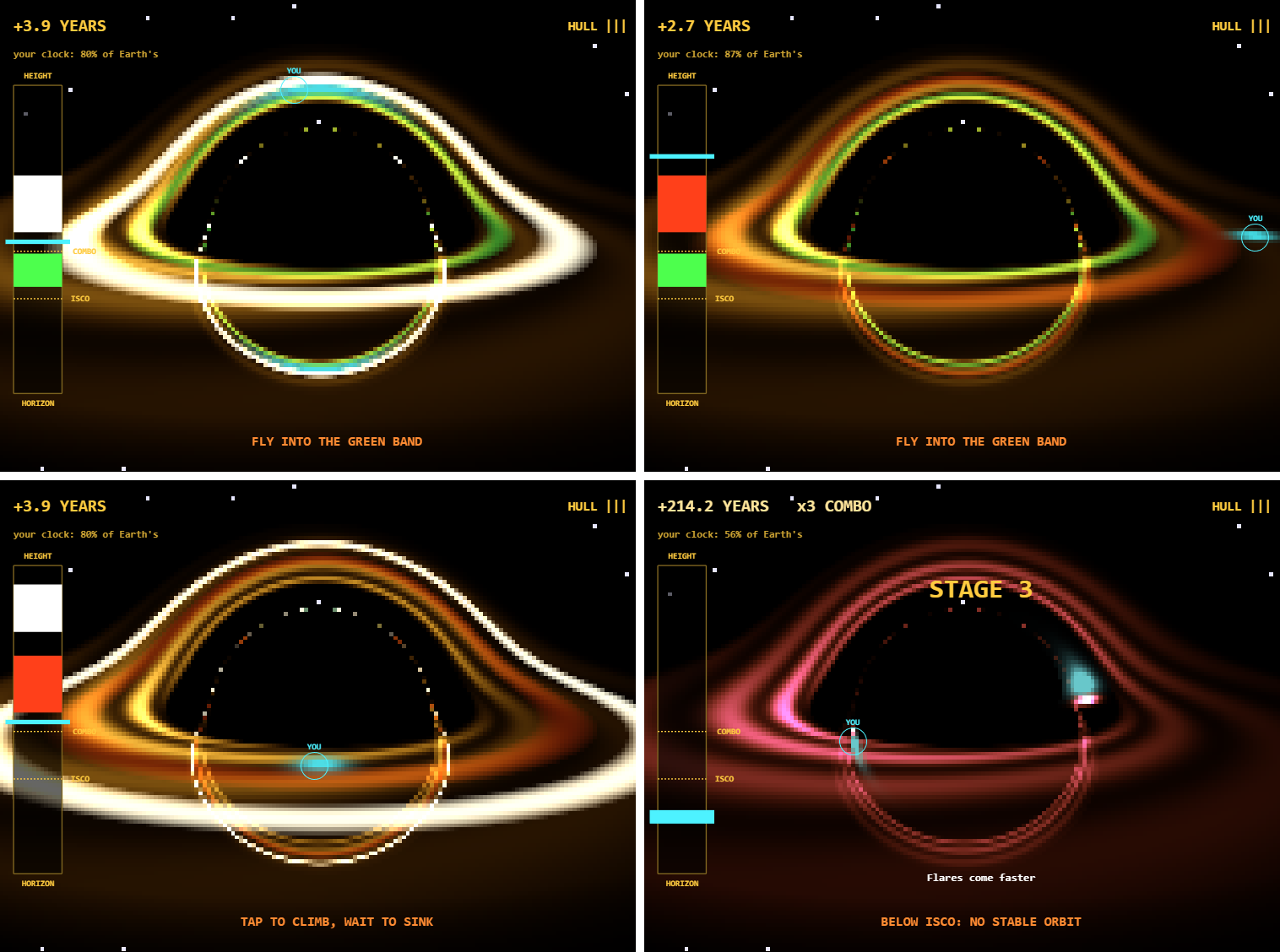
Real frames from the game. In the top left, the ship (cyan, marked YOU) is behind the hole, and gravity bends its light into an arc over the top.
The picture isn't drawn by hand. It comes from tracing light through the Schwarzschild metric, the spacetime around a non-spinning black hole. Here is what I learned building it, again with help from an AI coding assistant (Claude Code), testing each change in MATLAB.
1. Trace the light once, then shade the map every frame
My first prototype traced one light ray per pixel every frame. With rays bending around the hole, that took about 240 ms per frame at 160 by 120 pixels, far over the 33 ms a 30 fps frame allows.
The fix was to notice that the camera never moves. Each pixel's ray always lands in the same place, so I trace every ray once in init and store where it crosses the plane of the disk. In these units, with the Schwarzschild radius set to 1, a light ray's path follows a simple force law, which I step for all 19,200 rays at once:
h2 = sum(cross(P,V).^2); % each ray's angular momentum squared
for k = 1:150
d = min(.07*vecnorm(P),1); % smaller steps near the hole
Q = P+V.*d;
V = V-1.5*h2.*Q./vecnorm(Q).^5.*d;
% ...record where each ray crosses z = 0, drop rays that escape or fall in
end
Each ray keeps its first two crossings of the disk plane. The first is the direct view. The second is light that went around the back of the hole, which is why you can see the far side of the disk both above and below the shadow.
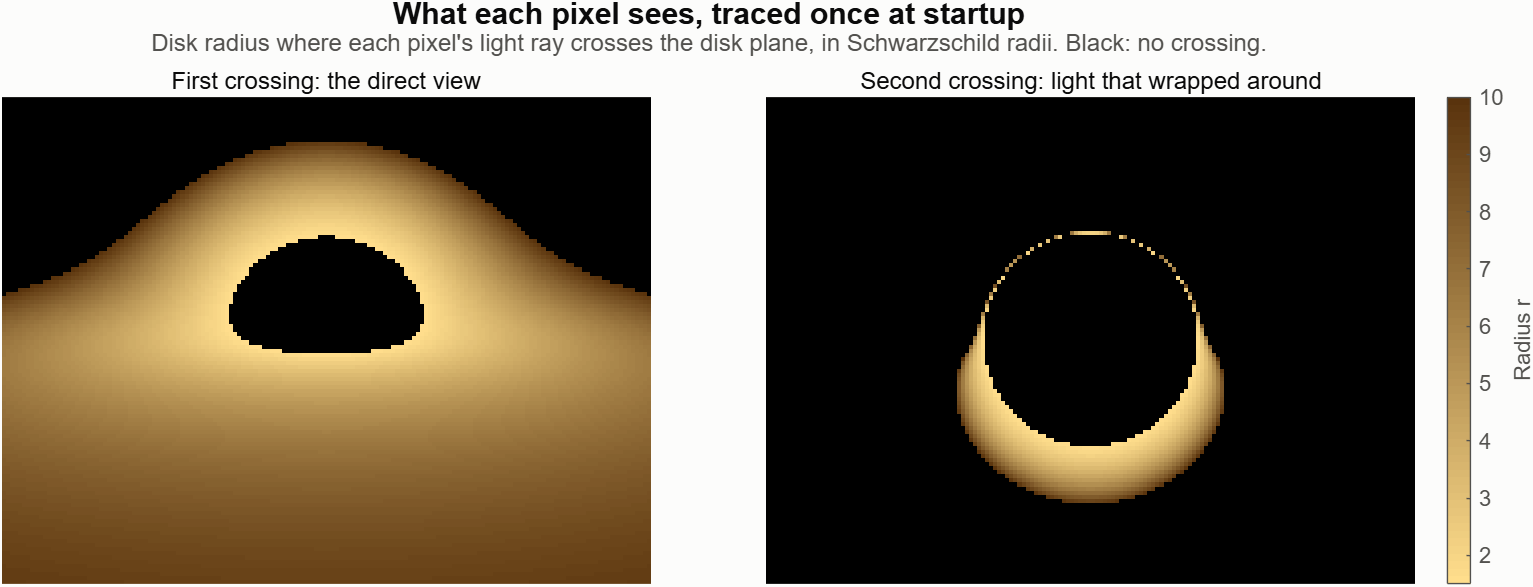
The trace takes about 160 ms at startup on my PC. After that, each frame only shades the stored points, and the game's whole frame work is about 6 ms.
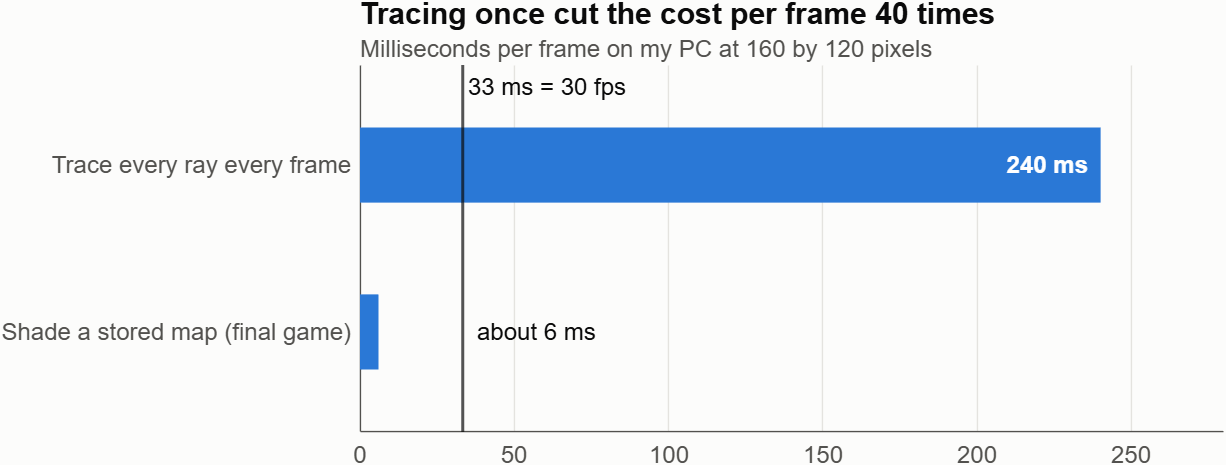
The 240 ms comes from an early prototype with a slightly different camera, so treat the ratio as approximate.2. Paint the game into the disk, and gravity bends it for free
Because the map stores a disk position for every pixel, anything I draw in disk coordinates gets lensed automatically. The ship is just a glow centered on its position in the disk, and the flares are rings of disk radius:
zs = s.r*exp(1i*s.ph); % ship position as x + iy
S(L.i) = S(L.i)+exp(-abs(L.c-zs).^2/.2); % L.c: disk point of each pixel
b = max(0,1-((L.r-s.fc)./s.fw).^2); % flare rings by radius
When the ship passes behind the hole, its image smears into arcs above and below the shadow. No extra code does that. The engine exhaust from each tap is drawn the same way, so it bends too.
Storing disk points as complex numbers kept the distance check to one short line.
3. Real physics needed a real gauge
The orbit uses the Schwarzschild radial equation, so the innermost stable orbit at r = 3 is real: below it, no orbit is stable and the ship slides inward. Time dilation sets the score. A circular orbit's clock runs at sqrt(1 - 1.5/r) of a distant clock, so Earth gains the rest:
s.vr = s.vr+(-.5/s.r^2+s.L^2/s.r^3-1.5*s.L^2/s.r^4-.04*s.vr)*T;
s.yrs = s.yrs+10*h*s.m*(1-sqrt(max(0,1-1.5/s.r)));
The physics made two first designs fail:
- Head-on debris didn't work. Moving up or down is slower than going around the hole, so you met debris before a burn could lift you clear. Climbing one unit took about 3 s even tapping 5 times a second. I replaced debris with flares that warn for 3.5 s, and I sped up game time 1.6 times.
- A beautiful view isn't a readable one. In my first playtest, I couldn't tell what a tap did, because the lensed ship jumps around the screen. A simple height gauge on the left fixed that. Tapping moves your bar up, red bands are flares, and green bands are bonuses. The black hole is the show, and the gauge is the controller.
After that came the parts that made it fun: a combo multiplier for staying deep, stages every 100 years with faster and drifting flares, and a close-call bonus for clearing a flare by a hair.4. Small tricks that saved characters
The final file counts 9,993 of 10,000 characters. The counter reformats your code first, so comments are free but spaces and indentation count, as I described in my first post. These helped:
- Divide by zero to hide things. 0/0 is NaN, and graphics skip NaN points, so one expression both positions and hides a marker:G.gs.YData = [1 1]*(100+60*(s.r-1))+0/(s.mode == 1);
- Make several texts in one call. text takes vectors and a cell array of strings:text(ax,[103 108 50 50],[220 280 88 502],{'ISCO','COMBO','HORIZON','HEIGHT'},f{:});
- Store end times, not countdowns. A message that shows until s.t < s.got needs no line to count it down each frame.
- Write constants out when they're fixed. My camera never moves, so its right and up vectors became constants instead of cross products.
One trim I had to undo: dropping a normalization in the star placement put stars inside the black hole's shadow. Look at the frames after every trim.Play it
If MATLAB Online is slow for you, run it in desktop MATLAB: download the starter project, copy the entry's code into game.m, and run minihackContest.play.
How many years into the future can you get?

Lira vanished 19 years ago. Now her signal is back. You control a radio telescope that sweeps the sky, and you only have one button (SPACE or click).
- Watch the dish sweep left and right. When the beam passes over a “?” in the sky, press to lock onto the signal.
- Then tap as fast as you can to collect pulses (up to 8 in 2.4 seconds).
- Each signal turns out to be an ALIEN, a NEW PLANET or a BLACK HOLE, and a little face appears in the sky.
- Lira’s signature is SHORT-SHORT-LONG. Aliens repeat it, so they need more pulses to be confirmed. If you don’t reach the goal, the alien gets away and you can try again.
- Every alien you confirm decodes part of a hidden message. Clear the three sectors (Pulsar, Dust Cloud, Deep Space) to read it.
HOW THE CODE WORKS
The game follows the contest contract: game() returns init, update and render.
1. init – builds everything once.
It draws the pixel-art backdrop (one small image with a sunset in color bands), the dish, the wave panel, the texts and the three faces. Each face is a few ellipse patches inside an hggroup, parented to an hgtransform so it can be moved and scaled later.
2. update – the game logic.
The game is a small state machine with one phase number: 0 ready, 1 scan, 2 collect, 3 transit, 4 done. The same button means “start”, “lock on” or “tap fast” depending on the phase. A short cooldown after each press avoids double hits.
The dish angle is a triangle wave over time:
a = 110*(1-abs(mod(t*rate/110,2)-1))-55
A target can be locked when it is within 14 degrees of the beam. Each sector raises the sweep rate.
3. Signals and their type.
Each signal is built from two 3-letter patterns of short (S) and long (L) pulses, drawn as one waveform. The type comes straight from the patterns:
- both halves equal to Lira’s SSL → alien
- both halves equal but different → new planet
- halves different → black hole
So the wave you see on screen really tells you what you found.
4. render – only updates properties.
Nothing is created while playing. Each frame only changes XData/YData of the dish and wave, the String and Color of the texts, and the Matrix of each face (makehgtform with translate and scale). The faces “pop” on every tap with a simple scale change. This keeps the game smooth.
5. Fitting under 10,000 characters.
The validator counted more than the file size, so I used anonymous helpers for repeated line/text calls, stored shapes in small matrices and ran minihackContest.validate often.
Thanks for playing, and good luck everyone!
I built Beat the PID for the One-Button Game Mini Hack: Beat the PID. Each tap switches an actuator on or off, and you try to hold a trace inside a moving band across six plants, from a thermostat to an inverted pendulum. A PID ghost plays the same level with the same on/off limit.
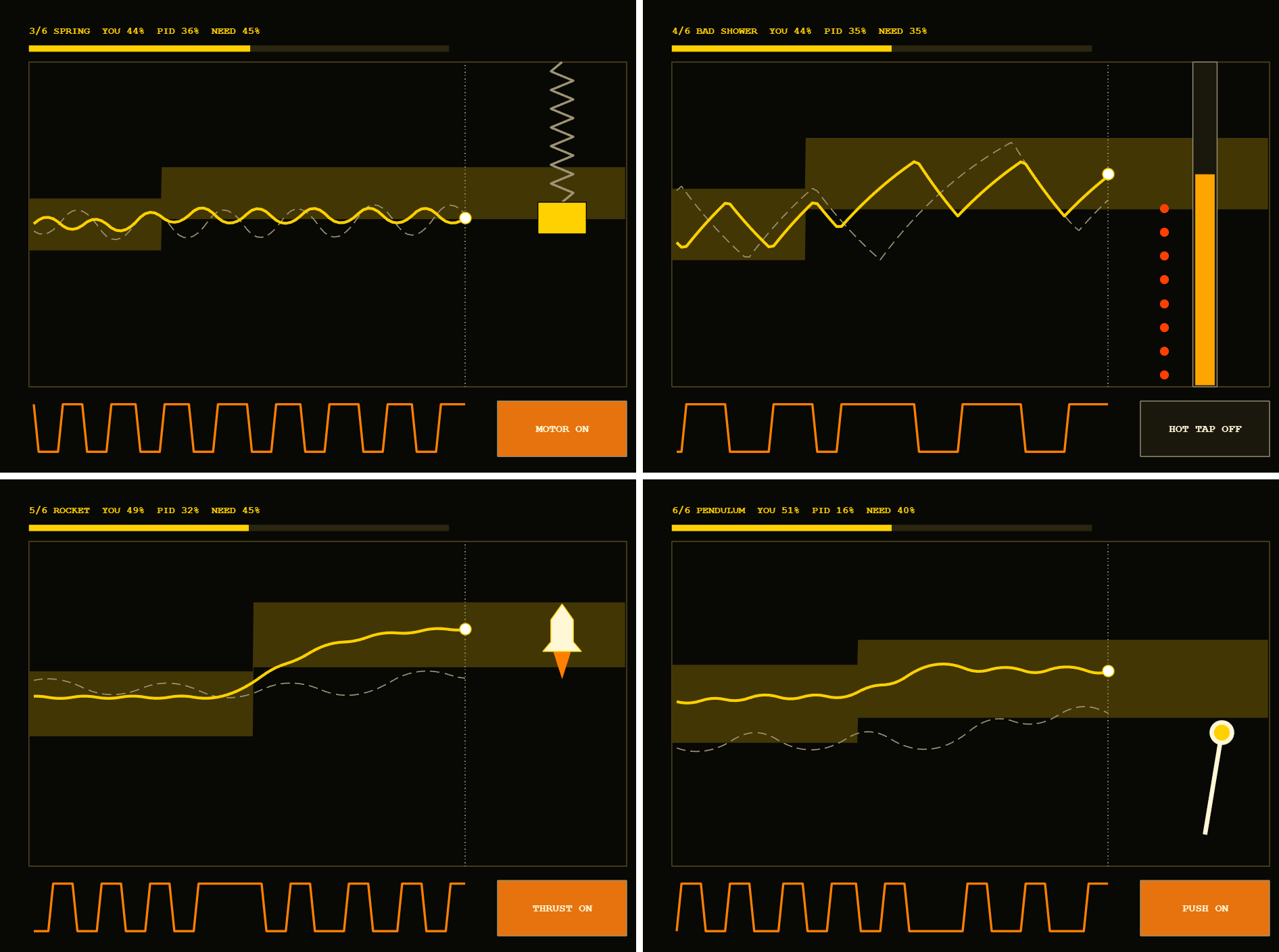
The yellow line is you, and the dashed gray line is the PID ghost. The band scrolls in from the right so you can plan ahead.
These are the things that surprised me, with measurements where I have them. I built it with help from an AI coding assistant (Claude Code), and we tested each change in MATLAB.
1. The character limit counts reformatted code
My first local count, with comment lines removed, said 9,862 characters. minihackContest.validate said 12,253. The validator's number matched this exactly:
code = char(tree2str(mtree(fileread('game.m'))));
numel(code)
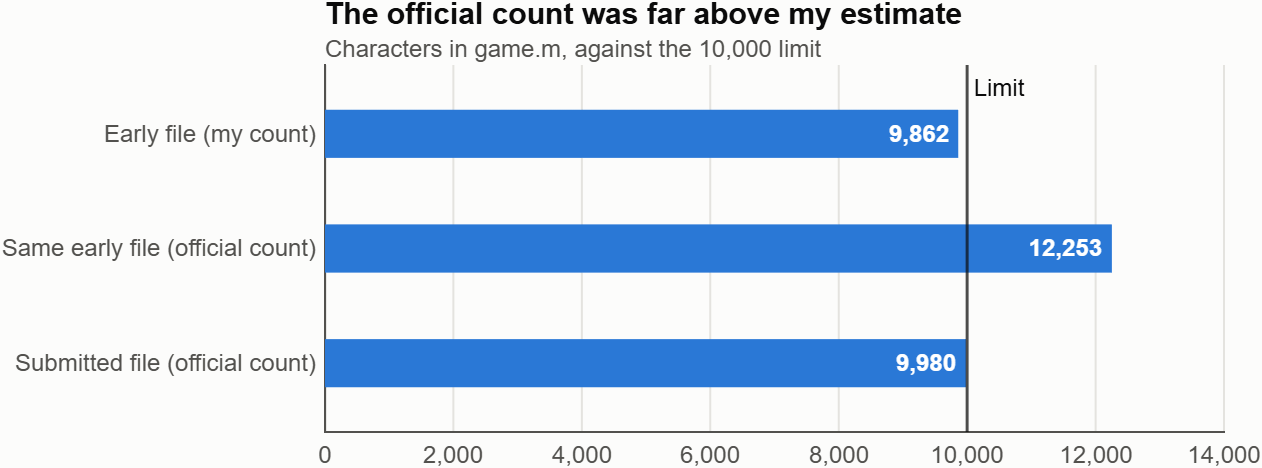
mtree and tree2str are undocumented, so treat this as a useful local estimate. It matched on my game at several sizes and on another contest entry.
Reformatting changes what costs characters:
% What you write
ax.Color=[.035 .045 .07];
% What gets counted
ax.Color = [ .035, .045, .07 ];
- Comments are free, so comment generously.
- Squeezing out spaces saves nothing, because they get added back.
- Every value in an array costs extra for its comma and spacing.
- Each nesting level costs 4 characters per line. Moving a deep block into its own function can pay for itself.
- Grouping assignments helps:
[s.t,s.acc,s.in,s.ing,s.ei,s.dwg,s.n] = deal(0);
Those changes, along with cutting a few visual extras, took my game from 12,253 to under 10,000 and kept all six levels.2. min and max ignore NaN
I used NaN for trace samples not recorded yet, then clamped values to the scope:
max(-.02,min(1.02,NaN)) % returns 1.02, not NaN
Because min and max ignore NaN, every empty sample became a real value at the top of the scope and drew a stray line. If you need clamping, restore the gaps afterward with y(isnan(v)) = nan.3. Use a fixed physics step and expm
dt varies between frames, so I run the physics at a fixed 120 Hz and spend the elapsed time in whole steps:
s.acc = s.acc+dt;
while s.acc >= s.h && s.t < s.T && ~s.crash
s.acc = s.acc-s.h;
s = stepPlant(s);
end
Each plant is linear, x' = Ax + B[u;1], so I can discretize it exactly once at startup:
n = size(A,1);
M = expm([A B;zeros(2,n+2)]*h);
Ad = M(1:n,1:n);
Bd = M(1:n,n+1:n+2);
Each physics step is then just x = Ad*x + Bd*[u;1]. The contest player limits dt to 0.05 s, so a game running under 20 fps plays in slow motion, but the physics stays stable and each step stays the same.4. A one-button PID is a relay
The ghost's PID output doesn't set a power level. Its sign picks on or off, and a minimum switching interval stops it from toggling faster than a person could:
e = r-y;
ei = max(-.3,min(.3,ei+e*h));
v = e+Ki*ei-Kd*(y-yPrev)/h;
if timeSinceSwitch >= minDwell && (v > 0) ~= u
u = v > 0;
timeSinceSwitch = 0;
end
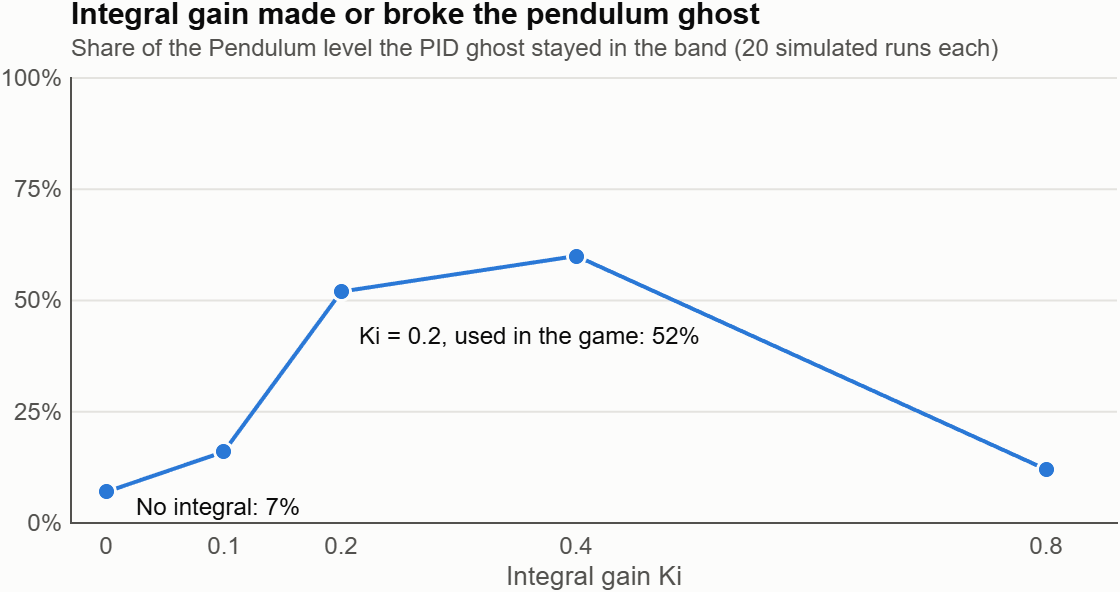
The integral term matters more than I expected on a relay. On the inverted pendulum level, the ghost averaged 52% of the time in the band with Ki = 0.2, and 7% with Ki = 0. These are averages from simulated runs at one set of gains, and the result is very sensitive to tuning.
5. Measure work and frame rate separately
MATLAB Online was by far the biggest performance surprise. On my connection, the same game behaved very differently:
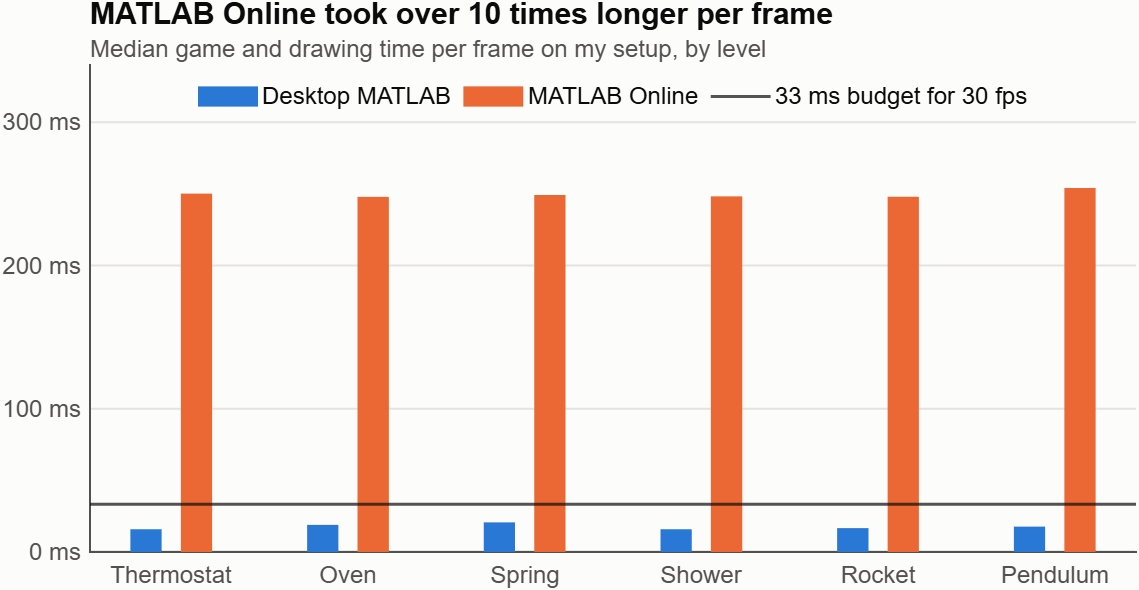
Median game and drawing time per frame. I measured MATLAB Online on a slightly earlier build, before the final color and text changes.
The MATLAB Online time was almost the same on all six levels, even though each draws different things, so I suspect a fixed delay and not my drawing load. Other games lagged for me there too. Your results may differ, so test your own game there.
Two habits helped:
- Time the work, not just the frame. On my Windows PC, a paced loop took about 46 ms per frame even when the actual work was about 10 ms, because pause overshot. Frame rate alone would have sent me after the wrong problem.
- Send only what changed. Create graphics once, set fixed X data once, and update only Y data. My render also skips frames where nothing changed, which keeps idle menus quiet and still gives the same result if called twice:
st = [s.mode s.lv s.t s.u];
if isequal(s.ax.UserData,st)
return
end
s.ax.UserData = st;
A piecewise-constant band needs vertices only at its ends and steps, which cut it from up to 166 numbers per update to a handful. Scrolling the scope at 15 Hz while moving the player marker every frame also reduced updates without making the controls feel slower.Play it on the desktop
If the game crawls in MATLAB Online, you can run it in desktop MATLAB:
- Download the starter project, unzip it, and open minihackContest.prj. Opening the project installs the contest tools.
- Copy my entry's code into the project's game.m.
- Run minihackContest.play.
Tap Space or click to play. I'd love to know which plant beats you, and whether anyone can beat the PID on all six.

By SunHuilin
What happens when a tiny pixel cat tries on eight different personalities? Sometimes you get instant cuddles. Sometimes your sofa gets a new ruler.
Purrfect Fit is my entry for the MATLAB One-button Game Mini Hack. Different pairs of eyes scroll through a cat's glasses. Tap or press SPACE to stop them. Fit the eyes inside the frames, and the kitty reveals its personality with a short message and matching pixel effects. Miss the target, and the kitty offers a little encouragement. Tap again to try another round.
Play the game: Purrfect Fit
Here are four techniques behind the game. The snippets below are simplified illustrations of the implementation, rather than a complete runnable game.
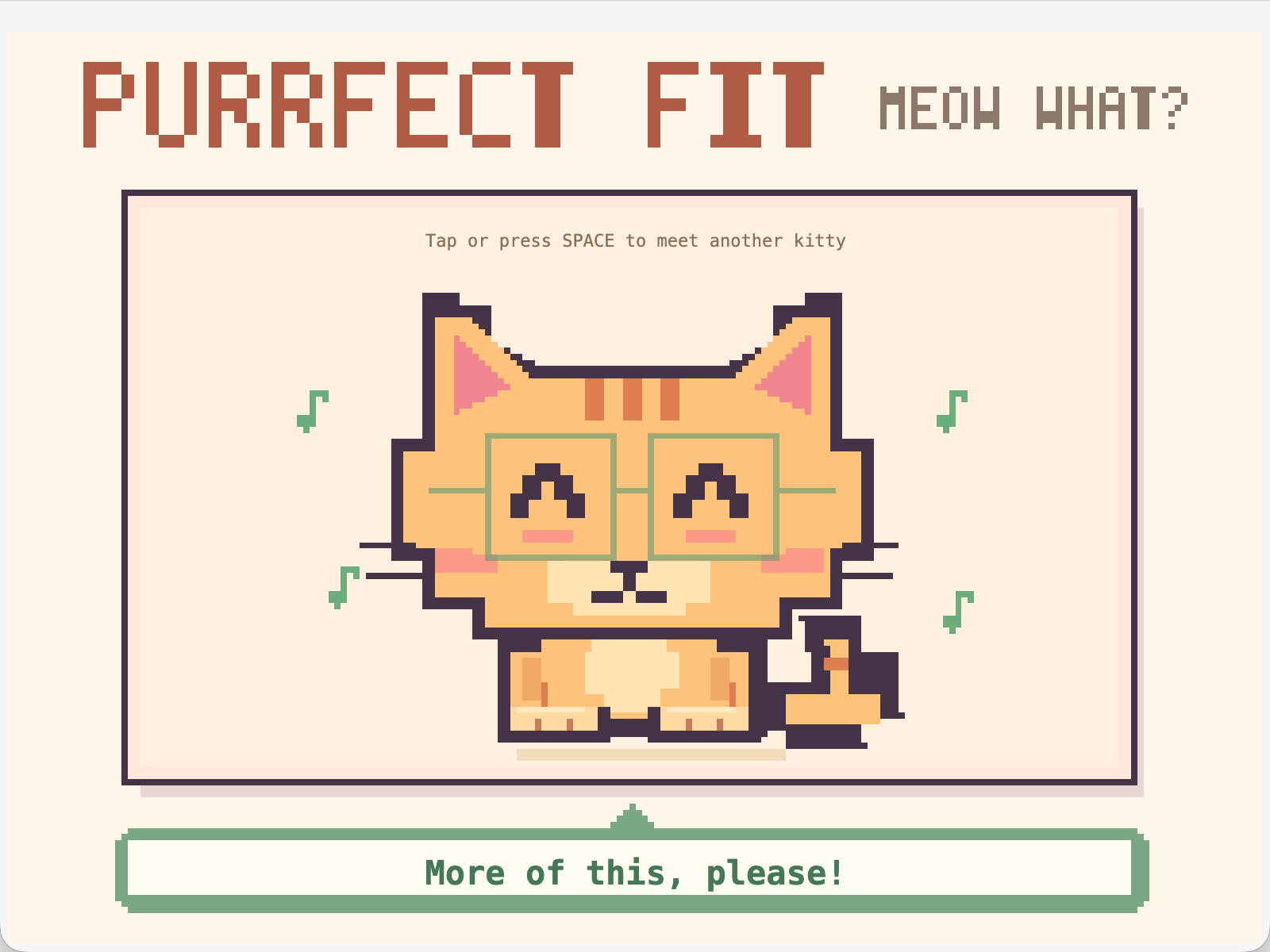
1. Treat an RGB array as a tiny canvas
The artwork starts as a 150-by-200-by-3 RGB array, displayed across an 800-by-600 game area. One artwork pixel occupies four game-coordinate units in each direction. Rectangles, filled polygons, and small bitmap patterns build the cat, glasses, lettering, and effects without loading external image files.
The key is to create the image object once, then update its CData:
% During initialization:
h = image(ax,[2 798],[2 598],background);
% During rendering:
frame = background;
% Draw the moving elements into frame here.
h.CData = frame;
The static background is prepared during initialization. Each render starts with that background and adds the animated elements. This avoids accumulating drawing operations from previous frames and keeps the number of graphics objects fixed.
I also draw the title with small bitmap letters. That gives the main heading a consistent pixel style without depending on an installed pixel font. The longer instructions and feedback use MATLAB text objects for readability.
2. Separate scrolling, stopping, and feedback
The game has three states: scrolling, success, and miss. The same button stops the eyes during scrolling and starts another round after the result.
Scrolling uses elapsed time rather than a fixed distance per update:
phase = mod(phase + speed*dt,192);
There are eight eye designs, each occupying a 24-row tile, so the strip repeats after 192 artwork pixels. Using dt makes the intended scrolling speed independent of the number of updates per second, although a slow display can still make fast motion harder to judge.
One small detail matters: when a press arrives, I check the current phase before advancing the strip. This keeps the timing decision tied to the state that was just rendered.
The fit test uses the visible vertical bounds of each eye design. Both bounds must lie inside the target opening; checking only the center could accept eyes that still stick out of the frame. On success, the strip snaps to the centered position for the final portrait.
A brief restart guard prevents an immediate second press from dismissing the result before the player can read it.
3. Animate the tail with a small coordinate shift
The cat's tail uses filled polygons. Instead of storing multiple animation frames, I shift their horizontal coordinates with a sine wave:
d = 3*sin(t*3);
x = x + round(d*(118-y)/21);
The vertical weighting keeps the base relatively steady while the tip moves more. Rounding preserves the pixel-art appearance.
Layering is just as important as motion. I draw the moving tail first, restore the static foreground artwork through a mask, and then draw the eyes and glasses. This keeps the tail behind the body and prevents it from painting over the face.
4. Store small patterns compactly, then reuse them
The eight eye styles share a palette and a common rendering path. Their pixel data is stored as compact runs and decoded during initialization, so rendering can reuse the prepared arrays.
The personality effects use a different representation: seven integers describe a 7-by-7 binary pattern. Each bit says whether one pixel is filled:
if bitget(pattern(row),8-col)
% Draw this pixel using the personality's color.
end
The same drawing loop produces paws, lightning bolts, sleepy Zs, sparkles, spirals, question marks, hearts, and musical notes. Changing the pattern and color gives each personality its own visual feedback without duplicating the effect renderer.
The messages work similarly: each eye style has three possible success lines, while misses draw from a shared pool of encouraging phrases. For example:
- Fierce: "Tiny paws. Big boss energy."
- Sleepy: "Wake me when snacks arrive."
- Loving: "Can I keep you, human?"
- Miss: "Oops! Let's blame the whiskers."
Random choices happen when a round starts or a result is selected. Rendering reads those choices, so the message does not change every frame.
What helped most under the character limit
The biggest savings came from reusing drawing routines, palettes, and animation logic, and from compact representations of the artwork. Shorter variable names helped too, but shared structure saved more space than shortening names alone.
The current build passed the official validator at 8,933 counted code characters. During compression, I compared rendered frames and seeded update sequences with the previous version to check that the smaller code preserved the existing appearance and gameplay.
My favorite part is that the eyes change more than the cat's expression: they change the little conversation you have with it.
Which personality would you add next: a suspicious detective kitty, a dramatic movie-star kitty, or something even stranger?
Development note: I used OpenAI Codex to assist with coding, iteration, and code review.

Currently, MathWorks provides free access to MATLAB Online for anyone with a personal account. Each account receives 20 hours of usage per month and includes access to the following 10 toolboxes:
- Control System Toolbox(控制系统工具箱)
- Curve Fitting Toolbox(曲线拟合工具箱)
- Deep Learning Toolbox(深度学习工具箱)
- Image Processing Toolbox(图像处理工具箱)
- Optimization Toolbox(优化工具箱)
- Signal Processing Toolbox(信号处理工具箱)
- Statistics and Machine Learning Toolbox(统计与机器学习工具箱)
- Symbolic Math Toolbox(符号数学工具箱)
- Text Analytics Toolbox(文本分析工具箱)
I would like to know whether it is possible to customise the selection of these 10 toolboxes. For example, I mainly work in computer vision, but Computer Vision Toolbox is not included in the current offering, which is quite disappointing because I cannot use it.
At the same time, several of the included toolboxes are not useful for my work, such as Control System Toolbox and Signal Processing Toolbox. Therefore, it would be great if users could choose the toolboxes that best fit their needs rather than being limited to a fixed set of toolboxes.

I have to say, fitting this into 10k characters was quite challenging. This is an original version coded many, many years ago that I wanted to reimplement to test my limits. I actually lost the code of the original project because the PC died...and since at the moment I feel nostalgic for that achievement I just wanted to go back my steps.
First of all: colours and textures. To stay in the limits I had to give up on them.
🆕 (the contest remake) https://it.mathworks.com/matlabcentral/communitycontests/uploaded_files/20973/preview.gif
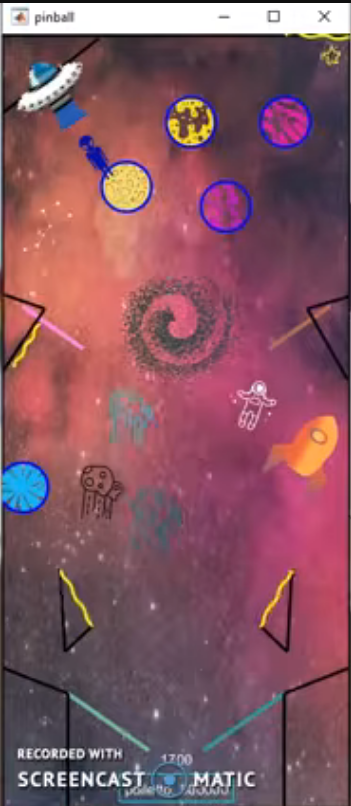
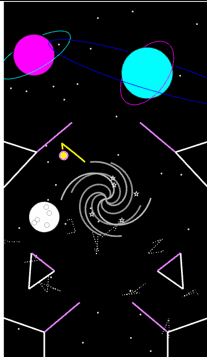
Moreover, the implementation of the collision system definitely had to be simplified -guys be kind in the comments please- and reused for both the walls and the moving parts of the flipper. Of course it does not handle edge-cases and sometimes the ball travels where it should not. By the way, I think the real advantage of this 'reuse' approach is that the elasticity of each collision can be independently parameterized. And also, it's a simple Flipper game with one button, it's just for fun, no real physics, just creativity. Since I'm naturally competitive, I deliberately decided to make this one relaxing: no score, no pressure, and infinite lives. 💚
- of course the ball moves because at some point I say (x,y)=(x,y)+v*t and v=v+a*t,
- and of course I had to pack the more verbose geometric formulas (semi-obscured tilted ellipses 💀) with some clumsy function-handle
- ⬆ but this is totally off-topic.
About the flippers, I loved the idea to save some little extra space by rendering all the moving segments with the quiver function, since the junction point (x,y) in this game is fixed and calculating the relative (u,v) component comes for free.
I really had to abandon the wormholes (a kind of segment that if the ball enters it - exits from another portal) but at least I could recreate a weird kind of solar system in which any planet is used as a bouncer. (This year I got married 💍, so I plot many many saturn-rings 🪐- I love you Selena)
In the original game there were some conditions in which the gravity could flip direction (bottom-up) and this feature was smartly comunicated in-game with some asteroids that changed orientation (upside down) based on the situation. Kinda delightful, but the first rule of the game is clarity for the player: if it's too complicated to put inside and the code is already saturated, better let it go.
But what I really appreciate of such a strong language as matlab happens to be, are the small details in the classic syntax. Do you recall this simple code? ⭐ plot( ___ , 'p' ) ⭐ that generates star-symbols at no cost! The temptation to use it on space-themed works is SO STRONG!!! Couldn't resist. It's too cool! And to make the idea of an infinite flow of stars there is a buffer of coordinates that keeps resetting those ones that reach nearly the center of the black hole, so there is no need to delete and regenerate new symbols. Some coding expert probably would label it as Procedural Generation... not my case: it's just common sense - MATLAB Online renders so slowly 🥲
I guess I said enough... So, enjoy the Black Hole in the space flipper, a simple state-machine mechanic that when the ball passes too close makes the hole star-hungry and when it reaches the critical level, all the universe vanishes and all the trajectories collapse due to the gravity, until the timer resets the state 🫠. I'm not sure but Matthew Mcconaughey probably was in that tiny Hole during the first rendering step, I swear I saw him...!
Don't forget to smile for the right reasons. Byeeee
clc, clear all
(non AI generated text, the use of emojis was a built-in feature of my personality)

For the MATLAB One-Button Game Mini Hack I made KOI — and I fell straight into the trap: I skimmed the rules, got excited, and built the prettiest game I could (caustic water shaders, a spine-chain fish, score-reactive effects…). Then I met the second line of the rules: 10,000 characters. The next several hours were spent tearfully ripping out features and compressing code until no human could read it anymore.
Read the requirements first. The constraints are not the fine print — they are the design brief. "Beautiful" and "10k characters" lead to two very different first lines of code.
A thank-you to AI agents, by the way: my final file has dense comments and aggressively packed one-liners that a human reader would weep at — but the agent working alongside me still knew exactly what was going on, measured every cut before it was made, and caught every regression. If you use agents for this, a few things made a real difference:
- Clear structure — small, single-purpose functions (init / update / render / helpers) instead of one blob
- Skills and rules — giving the agent your constraints (contest contract, banned functions, testing workflow) explicitly, once, up front
- Sorted context — snapshots of earlier states on disk meant we could always trade features back in; nothing was ever lost, only parked
If I did it again, my order of work would be:
- Brainstorm — everything on the table, nothing wrong yet (a pretty game and a minimal game are both valid answers here)
- Decide what you actually want — the experience, not the feature list
- Write down requirements — including the contest rules, this time as step one
- Architecture — how state flows, what gets created where
- Individual base functions, then merge the ideas in
- Test headless from minute one
- Friends play it — they find what you're blind to
- Only then: polish
I did steps 4–8 with a lot of joy and steps 1–3 not at all. That order is free, and it would have saved me a very entertaining, slightly painful afternoon.
GLHF — and read the rules. 🙂
PS:
Idea:
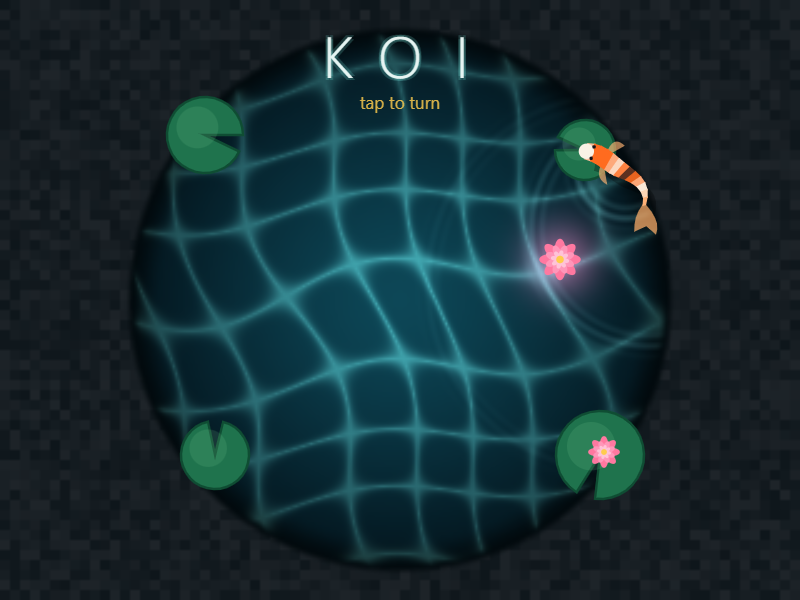
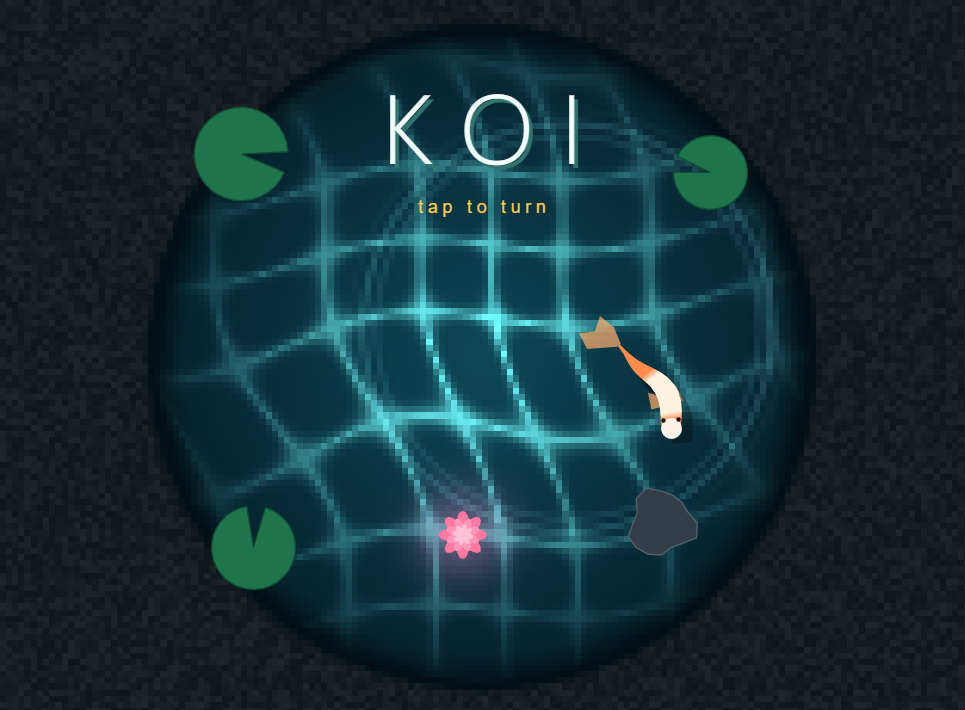
Final result after cutting dynamic rock spawns, lilies on the leaves, drifting light particles, guide lines, wake ripples, a second pickup ripple, 3 of 4 title glow copies, the game-over box styling:
PPS: but it still looks beautiful though haha

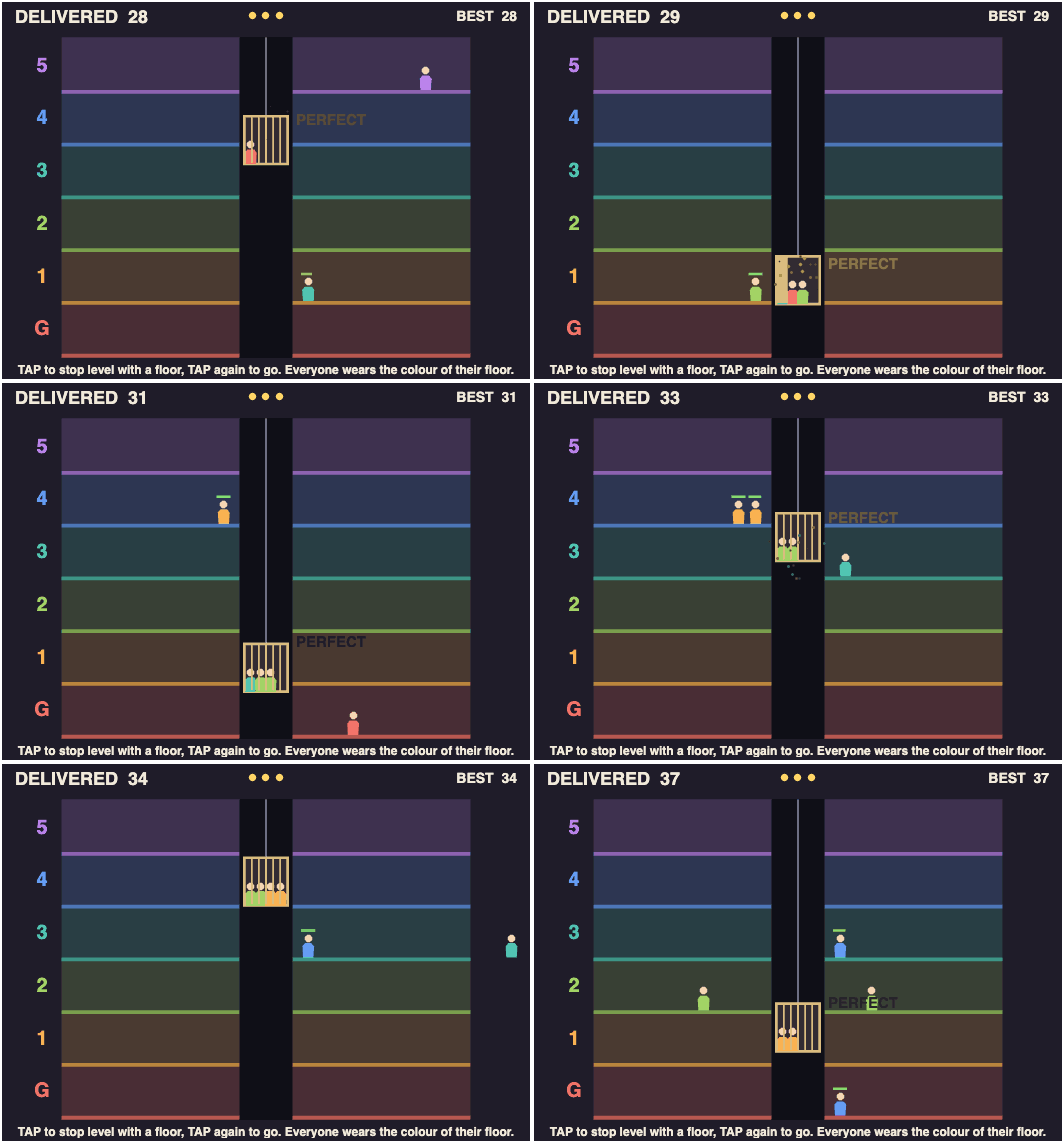
My entry for the one-button game mini hack, GOING UP, makes you the lift attendant. The lift never stops on its own: one tap stops it, the next tap sends it on. Every passenger wears the colour of the floor they want.
How to play
- Stop level with a floor and the gate opens. Riders for that floor get off (1 point each), and waiting people get on until the lift holds four.
- Stop more than 12 px off a floor and you get a CLUNK. Nobody moves, and everyone waiting loses 1.5 s of patience.
- Stop within 4 px while someone gets on or off: PERFECT, +1 point.
- Waiting passengers have a patience bar. Three walk-outs and your shift is over.
- The lift speeds up and people arrive faster as the shift goes on.
Tips for a high score
- Skip floors with nothing to do. Every stop costs time.
- The lift only turns around at the top and bottom. Pick up people whose floor is ahead of you; anyone else rides to the end and back.
- Don't mash. In my bot tests random tapping lost in about 21 s, and never tapping in about 29 s.
MATLAB tricks inside
- The lift has no direction flag. Its height is a triangle wave of the distance travelled, cy = 460 - abs(mod(ride, 840) - 420), so stopping just pauses ride.
- Queue order without loops or sorting: ahead = sum(w' & s.pf' == s.pf & s.side' == s.side & s.pt' < s.pt, 2) counts, for every passenger at once, who arrived earlier at the same spot.
- Timers store when something happened (s.stopAt = s.t) instead of counting up every frame. Elapsed time is just s.t - s.stopAt.
- All 20 passengers are one patch of 6-vertex bodies plus one scatter of heads. Empty slots are NaN, so nothing is created after init.
What's your best shift?

I have been using MATLAB on a daily basis for more than 30 years. For the past few months, I have been working with version 2026, and the problems I have encountered are staggering, especially when debugging functions.
The issues started to appear gradually with R2026a. Suddenly, the cursor would disappear, copy and paste would stop working, and MATLAB often had to be restarted because of these issues. In addition, the new figure UI is painfully slow, and entering debug mode has become frustrating. When stepping through code, MATLAB can take several seconds to respond to a debugging command such as Step.
Today, I finally got fed up and reinstalled R2024b. It works perfectly fine.
My entry for the one-button game mini hack, LIGHTKEEPER, puts you in a lighthouse on a reef. Ships sail in blind from the dark. The beam sweeps on its own, and one tap reverses its spin. Any ship the light touches turns for home.
How to play
- A tap reverses the beam. It has inertia, so a reversal takes about a third of a second.
- Boats are rescued the moment the light touches them: 1 point.
- Freighters need 0.6 s of light: 3 points. The arc around the ship shows progress.
- A lantern blinking red means that ship is close to the reef. Three wrecks and the lamp goes out.
Tips for a high score
- Tap fast to make the beam hover. Quick reversals cancel out, and a slow beam lights freighters three times faster.
- Swing toward the ship closest to the reef, not the one closest to the beam.
- Don't mash. In my bot tests, random tapping lost in about 19 s, and never tapping in about 39 s.
MATLAB tricks inside
- Every position is a complex number, so z.' + outline.*exp(1i*heading.') turns and places the whole fleet at once. Use .', because ' also conjugates.
- All ships are one patch with a face per ship. NaN vertices hide the ones not sailing. The whole game is 24 graphics objects.
- The beam is a patch with per-vertex alpha ('FaceAlpha','interp'), built once and turned with an hgtransform.
- Setting the axes limits every frame, even to the same values, added about 5 ms to each frame. The screen shake now touches the axes only while it's running.
How long can you keep the lamp lit?

Hi everyone! I made PULSE // PALS - Lumi & Afterglow for the One-Button Game Mini Hack.
Play the published game:
https://www.mathworks.com/matlabcentral/communitycontests/contests/10/entries/16481
Press SPACE or click when a diamond reaches the small ring beneath Lumi. Release between taps. There is no aiming or dragging. The game has 64 authored notes across eight visual phrases, with a tempo that gradually rises from 96 to 136 BPM.
The submitted version passed minihackContest.validate at 9,778 characters, with no banned functions reported. Here are the most useful lessons from building it. The short code examples below use descriptive names for explanation; they are not additional files required to play.
1. Make the moving target and the notes share one beat coordinate
The target drifts and the rail bends, but the input is still about timing. A note must meet the ring at its scheduled beat, wherever the ring has moved.
For a note at noteBeat and a current beat b, define d = noteBeat - b. This simplified example uses the same rail formula as the game:
rail = @(d,b) 22*(sin(.72*d+.22*b)-sin(.22*b)) ...
+ 26*sin(pi*b/12).*tanh(d/2);
b = 12.5;
noteBeat = 14;
targetX = 218 + 58*sin(pi*b/8);
targetY = 306 + 37*sin(pi*b/6);
spacing = 91*(1+.09*sin(pi*b/4));
d = noteBeat - b;
noteX = targetX + spacing*d;
noteY = targetY + rail(d,b);
The useful invariant is rail(0,b) = 0. At d = 0, the note and target coincide. The hit test uses beat distance, rather than mouse position or a pixel collision. That keeps the animation and timing rule connected while leaving room to change the path.
2. Animate a character's parts, then batch the drawing
Lumi is procedural geometry, not an imported sprite. The ears, hands, blinking eyes, star pin, and two scarf tails have separate motion. A shared transform adds tilt and squash-and-stretch.
All 22 colored character polygons are held in one patch object; the mouth uses one additional line. Independent animation does not require an independent graphics object for every body part.
Complex coordinates are a convenient way to express 2-D transforms. For local points z, rotation angle theta, and a position x0,y0:
zWorld = (x0 + 1i*y0) + z*exp(1i*theta);
set(h,'XData',real(zWorld),'YData',imag(zWorld));
The game creates its graphics objects during initialization and reuses them. It also avoids setting text when the string has not changed:
if ~strcmp(label.String,newText)
label.String = newText;
end
The main waveform uses 177 on-screen samples instead of storing a whole song-length curve in the scene. Background geometry has a separate update gate. These reduce unnecessary work; they are not a promise of a particular frame rate in MATLAB Online.
One testing lesson: check the effective face colors, not only one expected CData array shape. With flat shading, per-face colors and per-vertex colors need to be interpreted correctly; for the latter, the first vertex determines the face color.
3. Make the strongest effects something the player earns
A catch makes Lumi rebound and produces a ring around the target. Eight consecutive catches outside Afterglow fill the constellation and start an eight-beat double-scoring interval for subsequent notes. The palette warms, the scarf extends, and the surrounding shapes become stronger.
I wanted the visual changes to explain what the player had achieved. The background stays comparatively restrained between these moments so that the next diamond remains readable. The chart is fixed rather than randomized, so replaying also means learning its pauses and short runs of notes.
4. A slow frame is not proof that the player left
An earlier version paused whenever an update interval exceeded 0.8 seconds. During MATLAB Online playtesting, it repeatedly paused just after starting. The code was treating elapsed time as if it were a window-focus event.
I removed that automatic-pause condition. The submitted version bounds a simulation step to 0.1 seconds and marks slow sessions PRACTICE. This avoids a large catch-up jump, but intentionally allows the game to run slower than wall-clock time under sustained load. It does not fix rendering throughput or network latency.
A browser prototype helped with visual iteration, but browser smoothness is not a measurement of the MATLAB version. Testing in the official runner caught a problem that screenshots and reference simulations did not.
5. Pack data, and let the official validator decide the size
Some geometry, palette, and chart tables are stored as character arrays and decoded into numbers. For a small integer table, the principle is:
values = [0 2 4 6];
packed = char(13312 + values);
restored = double(packed) - 13312;
assert(isequal(values,restored));
Those unusual-looking characters are numerical data. They are not dynamically executed code. Keep values in a safe character range, preserve the source encoding, and verify that decoding reproduces the original table.
The distinction between character arrays and string scalars matters: double('ABC') returns character codes, while double("ABC") attempts a numeric conversion and returns NaN. My decoder receives character arrays.
Raw file size was not a reliable way to judge the contest budget. I used minihackContest.validate for the final decision and kept an expanded numeric copy for inspection. Compact data, shared drawing helpers, and fewer repeated statements were more useful than merely deleting whitespace.
Working with AI
AI assistance was used for implementation, iteration, and testing support. I playtested the game and used visible problems to steer changes: the first designs were too static, the character felt like a sticker, and the slow-frame pause rule failed in actual use. The important lesson was to keep reference-model checks, native validation, and real playtesting separate.
Useful MATLAB documentation
Graphics performance:
https://www.mathworks.com/help/matlab/creating_plots/improve-graphics-update-performance.html
Patch colors and properties:
https://www.mathworks.com/help/matlab/ref/matlab.graphics.primitive.patch-properties.html
Character codes and numeric conversion:
https://www.mathworks.com/help/matlab/matlab_prog/unicode-and-ascii-values.html
What visual cues help you anticipate a beat when there is no sound? I would be interested to hear what other Mini Hack participants have tried.

