Quadcopter Visualization
You can visualize the simulation data using one of these ways:
Use the Simulation Data Inspector.
Use the Flight Instruments blocks.
Toggle between the different visualization variant subsystems.
You can toggle between the different variant subsystems by changing the
VSS_VISUALIZATIONvariable. These options include:Scope — Use scopes to visualize the position and orientation of the vehicle by setting
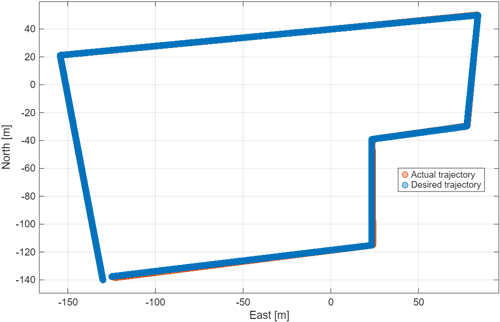
VSS_VISUALIZATIONto 0. In addition, for theTrajectory Generatorvariant of theCommandsubsystem (VSS_COMMAND = 2). the XY graph can be used to visualize and compare the desired and actual trajectories of the vehicle. This figures shows the reference trajectory generated using thegenerateTrajfunction.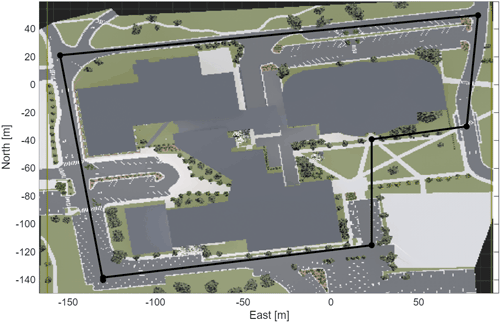
This figure shows the XY plot showing the reference and actual trajectories.
Workspace by setting
VSS_VISUALIZATIONto 1.Flight Simulator Interfaces — This variant is a FlightGear animation. To use this animation, add a FlightGear-compatible model of the quadcopter to the project and set
VSS_VISUALIZATIONto 2. The software does not include this model.Simulink® 3D Animation™ — Airport and Apple Hill scenes.
The Airport scene is available in the Aerospace Blockset™ and you can use it by setting the visualization variable
VSS_VISUALIZATIONto 3.The Apple Hill scene is available in the Aerospace Blockset Interface for Unreal Engine® Projects. To use this scene, set the visualization variable
VSS_VISUALIZATIONto 4 and follow these steps:Install the Aerospace Blockset Interface for Unreal Engine Projects support package. For more information, see Customize 3D Scenes for Aerospace Blockset Simulations.
In the
Apple Hill Scenesubsystem, open the Simulation 3D Scene Configuration block mask, set the project to theAutoVrtlEnv.uprojectfile, and click Open Unreal Editor.Click OK to save your changes and close the mask.
In Unreal® Editor, change the map to
AppleHill.
The Aerospace Blockset uses Unreal Engine for 3D visualization. For details on installing the support package and using customized scenes, see Customize 3D Scenes for Aerospace Blockset Simulations.

See Also
Rotors | Multirotor | Airport

