Generate HDL Code for Simscape Three-Phase PMSM Drive Containing Averaged Switch
R2026bThis example shows how to generate HDL code and synthesize the results for a three-phase PMSM Simscape™ model that has an averaged switch.
Simscape Models with Averaged Switch
You can generate HDL code for Simscape models with converter blocks that have averaged switches and deploy the code onto the FPGAs.
This example uses a three-phase PMSM model with a six-pulse three-phase controlled converter block consisting of averaged switches. The switching frequency of this model is 50 kHz. For the system to be HDL compatible, the averaged switches use a piecewise constant approximation method for the gate input. Note that this model with the averaged switches might introduce instability during dead time (when all gate inputs are set to 0) with the Partitioning local solver.
Set Up Synthesis Tool Path
To synthesize the generated HDL code, set up your synthesis tool path before you use HDL Coder™ to generate code. For example, if your synthesis tool is Xilinx® Vivado®, install the latest version of Xilinx Vivado as shown in HDL Language Support and Supported Third-Party Tools and Hardware.
Then, set the tool path to the installed Xilinx Vivado executable by using the hdlsetuptoolpath function. For example, this command sets the synthesis tool path to point to your installed Vivado® Design Suite 2024.1 batch file:
hdlsetuptoolpath("ToolName","Xilinx Vivado",...
"ToolPath","C:\Xilinx\Vivado\2024.1\bin\vivado.bat")
Three-Phase PMSM Drive Model
Open the model at the MATLAB® command prompt.
open_system("ee_pmsm_drive_averaged_switch_hdl")
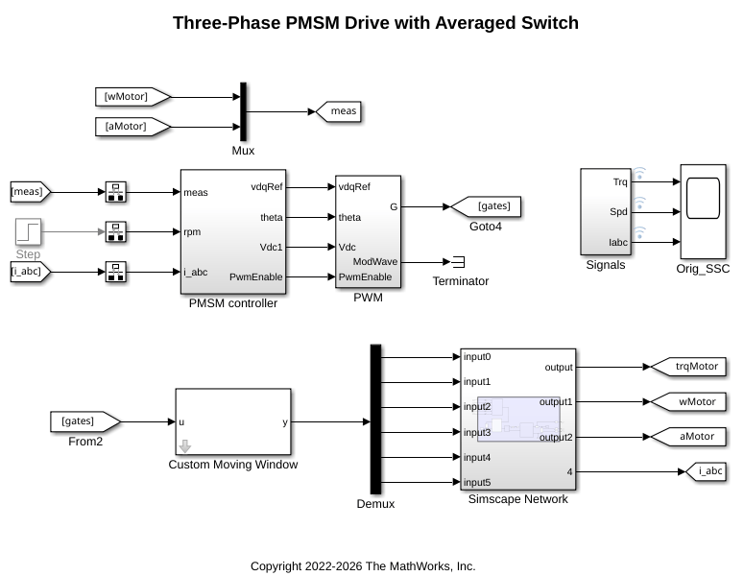
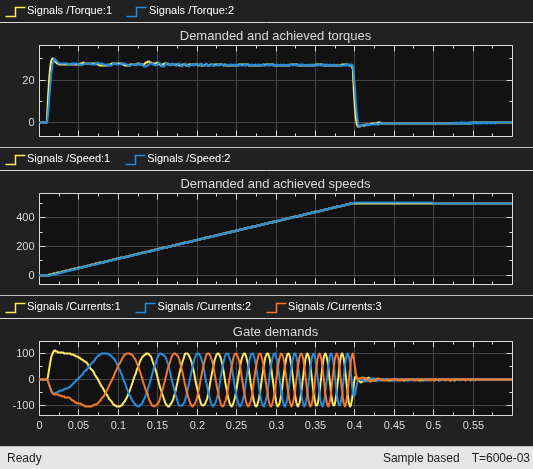
To see the waveforms, simulate the model.
sim("ee_pmsm_drive_averaged_switch_hdl")
open_system("ee_pmsm_drive_averaged_switch_hdl/Orig_SSC")
To see the components inside the Simscape Network subsystem, enter:
open_system("ee_pmsm_drive_averaged_switch_hdl/Simscape Network")
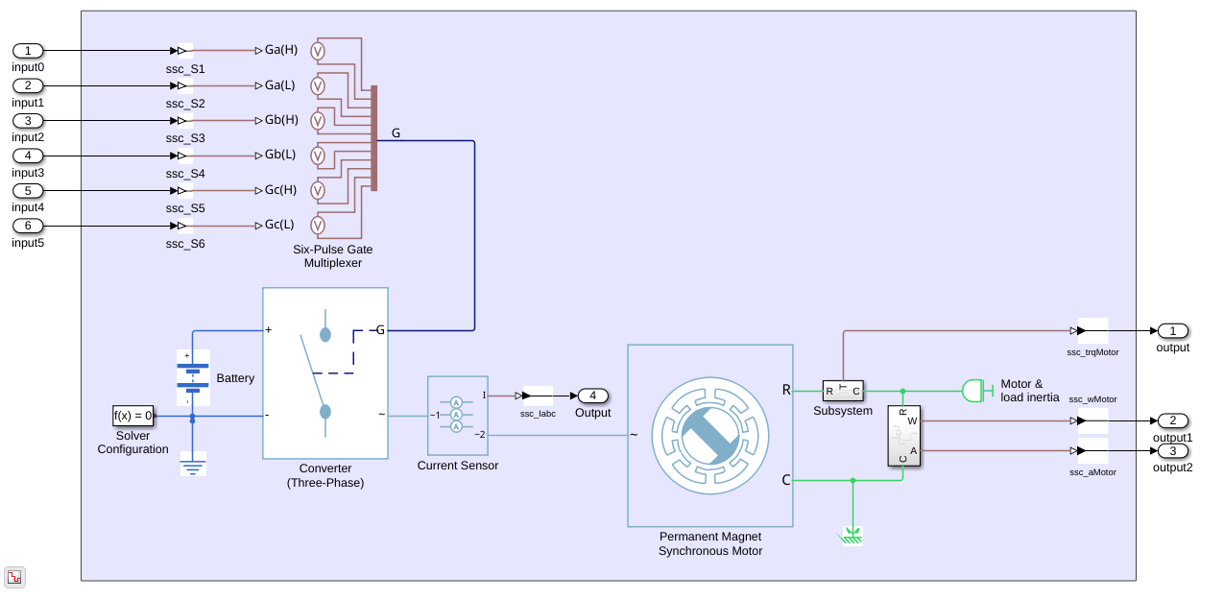
For HDL code generation, in the Converter (Three-Phase) block parameter Settings tab, the Integer for piecewise constant approximation of gate input parameter is set to 10. The model is set up to use the Partitioning solver by selecting the Use local solver check box in the Solver Configuration (Simscape) block.
Generate HDL Implementation Model
The Simscape HDL Workflow Advisor converts the Simscape plant model to an HDL implementation model from which you generate HDL code.
Set your model configuration parameters to default values recommended for HDL code generation.
hdlsetup("ee_pmsm_drive_averaged_switch_hdl")
To generate the HDL implementation model, open the Simscape HDL Workflow Advisor.
sschdladvisor("ee_pmsm_drive_averaged_switch_hdl/Simscape Network")
Right-click the Implementation model generation > Generate implementation model task and then select Run to Selected Task. To get better resource utilization, in the Generate implementation model task window, set Map state space parameter to RAMs to On.
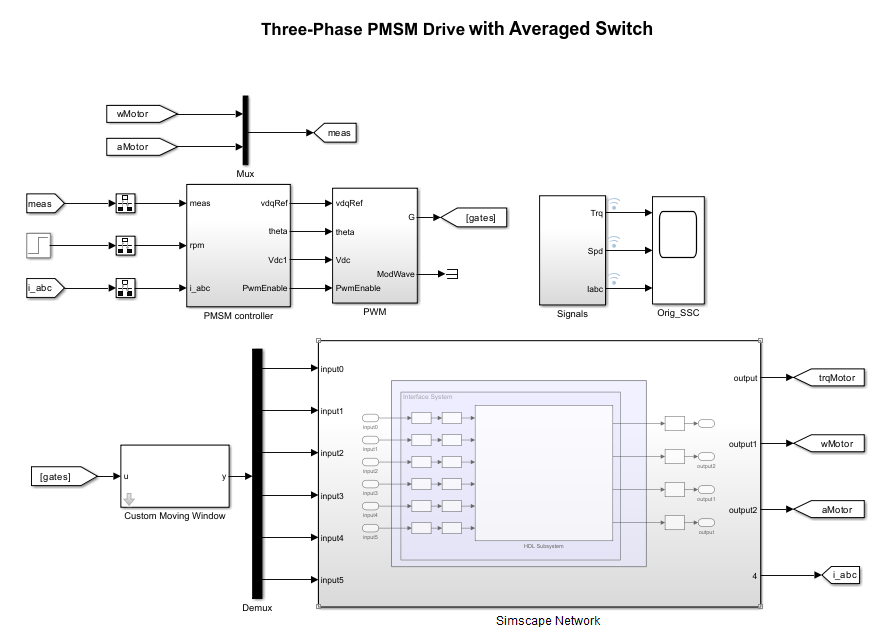
After the task passes, you see a link to the HDL implementation model gmStateSpaceHDL_ee_pmsm_drive_averag. The figure shows the generated HDL implementation model.
Generate HDL Code
The HDL Workflow Advisor guides you through the tasks required for generating HDL code and an FPGA design process. It provides you with feedback on the results of each task. When you complete the tasks, it provides a synthesis result report from one of the supported synthesis tools. To learn more about HDL workflow tasks and settings, see Getting Started with the HDL Workflow Advisor.
Open the HDL Workflow Advisor for the HDL Subsystem block.
hdladvisor("gmStateSpaceHDL_ee_pmsm_drive_averag/Simscape Network/HDL Subsystem")
You can also open the HDL Workflow Advisor from your model window. In the Apps tab, click HDL Coder. Then, in the HDL Code tab, click Workflow Advisor.
Set Target Device and Synthesis Tool
Before you generate HDL code, if you want to deploy the code onto a target platform, specify the synthesis tool.
In the HDL Workflow Advisor:
Under the Set Target task folder, in the Set Target Device and Synthesis Tool task, specify Target workflow as
Generic ASIC/FPGAand Synthesis tool asXilinx Vivado. The rest of the fields are auto-populated. Specify the Family asKintex7, Device asxc7k325t, Package asfbg676, and Speed as-1.In the Set Target Frequency task, set the Target Frequency to
130.Select the task that you want to run and click Run This Task.
HDL Code Generation
In the HDL Code Generation task folder, click Set HDL Options and then click the HDL Code Generation Settings button. This opens the Configuration Parameters dialog box. In the HDL Code Generation > Optimizations pane, on the Pipelining tab, select Adaptive pipelining to improve timing performance and click Apply.
In the HDL Code Generation > Global Settings pane, in the Clock Settings section, set Oversampling factor to
260to meet the timing requirements of the model. Click Apply, and then click OK.To generate HDL code, run the tasks under the HDL Code Generation task folder.
For more information about HDL optimization settings, see Simscape HDL Workflow Advisor Tasks.
Synthesize Generated HDL Code
HDL Coder synthesizes the HDL code on the target platform and generates area and timing reports for your design based on the target device that you specify. You can run logic synthesis for a specified FPGA device and get the synthesis reports.
In the FPGA Synthesis and Analysis task folder:
Create an FPGA synthesis project for your supported FPGA synthesis tool.
Start supported FPGA synthesis tools to perform synthesis, mapping, and place/route tasks. To run FPGA synthesis, right-click the Run Synthesis task under the Perform Synthesis and P/R subtask folder. This starts Xilinx Vivado and executes the Vivado Synthesis step. You can annotate your original model with critical path information obtained from the synthesis tools.

See Also
Functions
Topics
- Generate and Validate HDL Code for Simscape Model
- FPGA-Based HIL Deployment of Simscape Model on Speedgoat FPGA I/O Module
- Deploy Simscape Grid Tied Converter Model to Speedgoat IO Module Using HDL Workflow Script
- Generate HDL Code for Nonlinear Simscape Models by Using Partitioning Solver
- Generate HDL Code for Simscape Models by Using Dynamic Switch Approximation

