Process Blocked Images Efficiently Using Mask
R2026bThis example shows how to process a blocked image efficiently by using a mask to isolate regions of interest (ROIs).
Some sources of large images have meaningful data in only a small portion of the image. You can improve total processing time by limiting processing to the ROI containing meaningful data. Use a mask to define ROIs. A mask is a logical image in which true pixels represent the ROI.
In the blocked image workflow, the mask represents the same spatial region as the image data, but it does not need to be the same size as the image. To further improve the efficiency of the workflow, create a mask from a coarse image, especially one that fits in memory. Then, use the coarse mask to process the finer images.
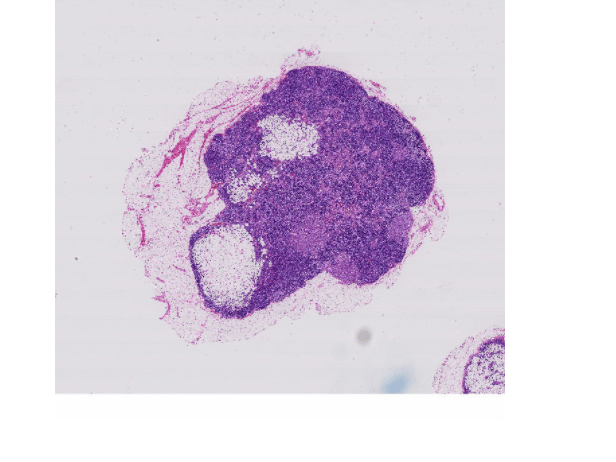
Create a blocked image using a modified version of image tumor_091.tif from the CAMELYON16 data set. The original image is a training image of a lymph node containing tumor tissue. The original image has eight resolution levels, and the finest level has resolution 53760-by-61440. The modified image has only three coarse resolution levels. The spatial referencing of the modified image has been adjusted to enforce a consistent aspect ratio and to register features at each level.
bim = blockedImage("tumor_091R.tif");Display the blocked image by using the imageshow function.
imageshow(bim);
Create Mask
Create a binary mask that identifies the tissue regions in the image. By default, gather collects blocks from the coarsest level. Working at the coarsest level makes processing faster.
imCoarse = gather(bim);
Convert the RGB image to grayscale for thresholding and normalize to [0,1].
imGray = rgb2lightness(imCoarse);
imGray = rescale(imGray);
Threshold and invert to select tissue (dark regions)
BW = imcomplement(imbinarize(imGray));
Remove small noise regions
BW = imopen(BW, strel("square", 3));
imageshow(BW)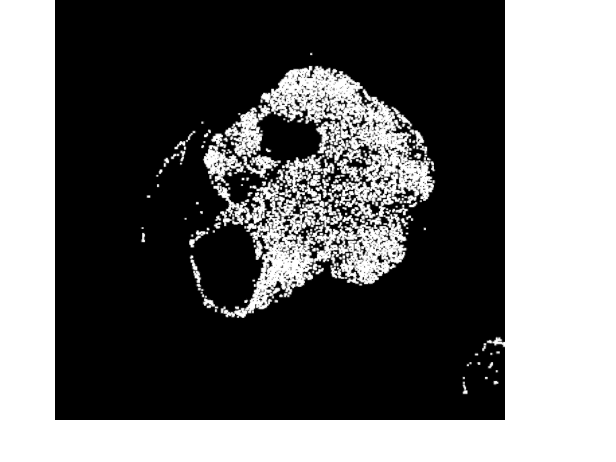
Create a blocked image from the mask with the same spatial referencing as the input mask.
bmask = blockedImage(BW,WorldEnd=bim.WorldEnd(3,1:2));
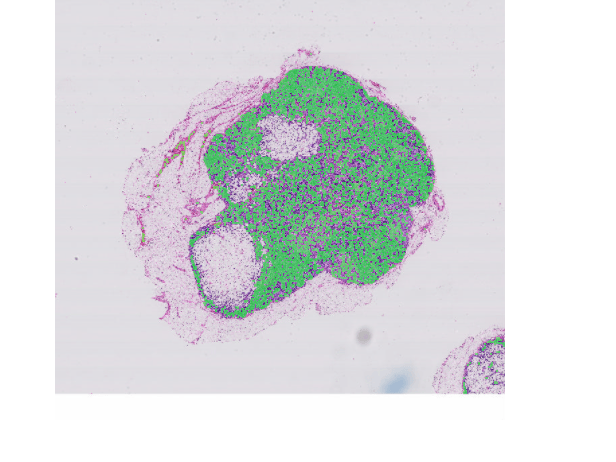
Display the mask as a translucent green overlay on the original blocked image.
imageshow(bim,OverlayData=bmask,OverlayDisplayRangeMode="data-range", ...
    OverlayAlphamap = [0 0.5],OverlayColormap=[0 1 0]);
Adjust Inclusion Threshold to Cover Region of Interest
The apply function processes blocked images one block at a time. You can use the selectBlockLocations function to specify which blocks apply processes. The InclusionThreshold name-value argument of selectBlockLocations specifies the percentage of mask pixels that must be true for a block to be included. To process more blocks of the image, decrease the inclusion threshold. You can also process all blocks that have at least a single true pixel in the mask. To use this option, specify the InclusionThreshold name-value argument as 0. Note that not all blocks of the image are included.
Using the mask with any value of InclusionThreshold decreases the total execution time because apply processes only a subset of blocks from the full image. The benefit of using a mask is more significant at higher resolutions and as the processing pipeline increases in complexity.
As an example processing task, apply a non-local means filter to denoise the image. This filter is computationally expensive, so the speedup from masking is significant.
Measure the execution time of filtering the full image.
tic
bout = apply(bim,@(bs)imnlmfilt(bs.Data,DegreeOfSmoothing=15));
tFullProcessing = toc;
Measure the execution time of filtering only the blocks within the ROI.
bls = selectBlockLocations(bim,Mask=bmask,InclusionThreshold=0);
tic
boutMasked = apply(bim, ...
    @(bs)imnlmfilt(bs.Data,DegreeOfSmoothing=15), ...
    BlockLocationSet=bls);
tMaskedProcessing = toc;
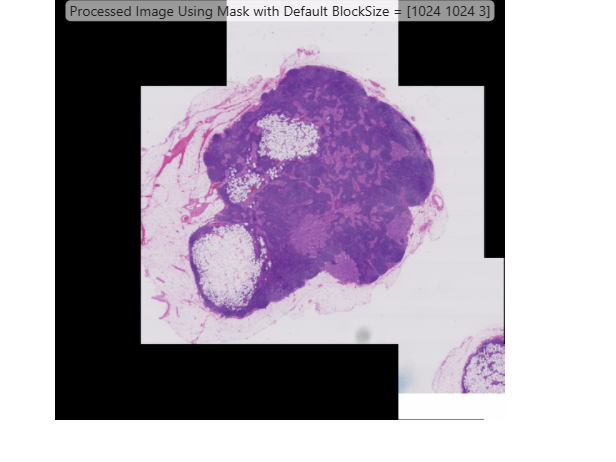
Create a multilevel version of the output and visualize it.
boutMasked = makeMultiLevel2D(boutMasked);
hbim = imageshow(boutMasked);
defaultBlockSize = bim.BlockSize(1,:);
hbim.Parent.Title = "Processed Image Using Mask with Default BlockSize = [" + ...
    join(string(defaultBlockSize)," ") + "]";
Compare the execution time of processing the full image to the execution time of processing only the blocks in the ROI.
disp("Speedup using mask: " + ...
    num2str(tFullProcessing/tMaskedProcessing) + "x");
Speedup using mask: 1.6413x
Adjust Block Size to Follow Contours of Region of Interest
You can decrease the block size to create a tighter wrap around the ROI. For some block sizes, this reduces the execution time because apply processes fewer pixels outside the ROI. However, if the block size is too small, then performance decreases because the overhead of processing a larger number of blocks offsets the reduction in the number of pixels processed.
The function apply does not accept both BlockSize and BlockLocationSet at the same time. To use a custom block size with a mask, specify BlockSize in the call to selectBlockLocations.
Measure the execution time of filtering all the blocks within the ROI with a decreased block size.
blockSize = [512 512];
blstight = selectBlockLocations(bim,Mask=bmask,InclusionThreshold=0,BlockSize=blockSize);
tic
boutMasked = apply(bim, ...
    @(bs)imnlmfilt(bs.Data,DegreeOfSmoothing=15), ...
    BlockLocationSet=blstight);
tSmallerBlockProcessing = toc;
Create a multilevel version of the output and visualize it.
boutMasked = makeMultiLevel2D(boutMasked,Scales=[1 0.5 0.1]);
hbim = imageshow(boutMasked);
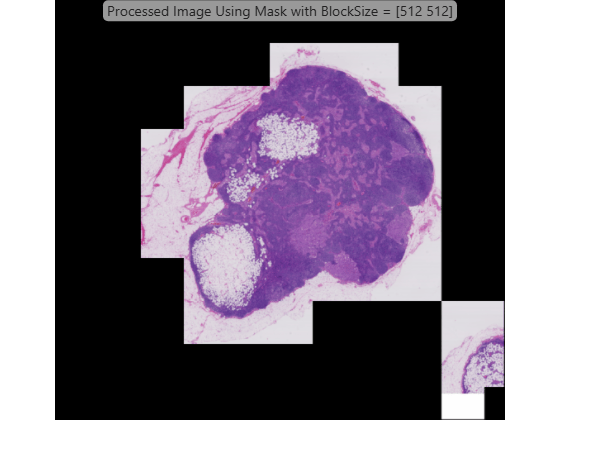
hbim.Parent.Title = "Processed Image Using Mask with BlockSize = [" + ...
    join(string(blockSize)," ") + "]";
Compare the execution time of processing the entire ROI with smaller blocks to the execution time of processing the entire ROI with the original blocks.
disp("Additional speedup using mask with decreased block size: " + ...
    num2str(tMaskedProcessing/tSmallerBlockProcessing) + "x");
Additional speedup using mask with decreased block size: 1.3065x
See Also
blockedImage | bigimageshow | apply

