Install Add-Ons from MATLAB Folder-Based Repositories
R2026bYou can find and install add-ons in MATLAB® folder-based repositories directly from the Add-Ons panel by adding a connection to the repository. For more information about folder-based repositories, see MATLAB Packages and Package Dependencies.
Add Connection
To add a connection to the repository, go to the Home tab and in the Environment section, click the Connections button to open the Connections panel. Then, click the Add button next to the Package Repository connection to add a connection.

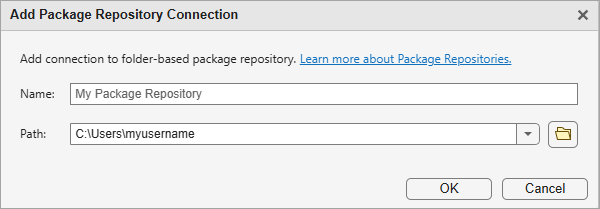
In the Add Package Repository Connection dialog box that opens, enter a repository name and path and then click OK to create the connection.
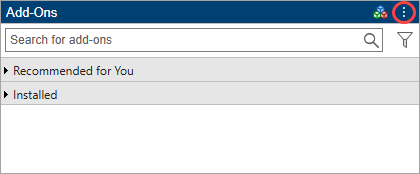
Alternatively, to add a connection from the Add-Ons panel, click the Add-Ons icon on the left sidebar of the desktop to open the Add-Ons panel. Then, click the Add-Ons actions button at the top of the Add-Ons panel and select Add Package Repositories.
View and Install Add-ons
After adding a connection to a package repository, you can view and install add-ons from the repository from the Add-Ons panel. To open the Add-Ons panel from the Connections panel, click the Connections actions button to the right of the MATLAB package repository connection and select Browse for Repository Add-Ons.
In the Add-Ons panel, go to the From your Package Repositories section and select an add-on to install. You also can search for an add-on using the search box at the top of the panel.

Manage Connections
To remove a connection to a MATLAB package repository, go to the Connections panel, click the Connections actions button to the right of the MATLAB package repository connection, and select Remove. Alternatively, to remove a connection from the Add-Ons panel, right-click the package repository name, and select Remove Package Repository.
To open the package repository folder, in the Connections panel, click the Connections actions button to the right of the MATLAB package repository connection, and select Navigate to Repository Folder. The package repository folder opens in the Files panel. Alternatively, to open the package repository folder from the Add-Ons panel, right-click the package repository name, and select Navigate to Repository Folder.

