Create an App for Retrieving DICOM Data from PACS Server
R2026bThis example shows how to build an app using App Designer to connect to Picture Archiving and Communication System (PACS) servers, query medical imaging data, and retrieve DICOM data sets.
PACS servers are central repositories used to store, manage, and distribute medical images that are widely used in healthcare environments. PACS servers use the Digital Imaging and Communications in Medicine (DICOM) networking protocol to support querying, retrieving, and transferring imaging data sets across systems.
Using the PACSConnectionApp app, users can configure multiple PACS server connections, establish secure or non-secure connections, query PACS servers using standard DICOM attributes, inspect query results interactively, and retrieve selected DICOM series to local storage or directly into other medical imaging apps.
In this example, you first build a custom configuration manager you can use to specify PACS server settings across app instances. Then, you build an app that uses this configuration to connect to PACS servers, perform DICOM queries, and retrieve selected data sets.
Open App Designer
App Designer is an interactive development environment for designing custom UI components and apps and programming their behavior.
To build the app from scratch, open App Designer using this command. Alternatively, you can open App Designer by selecting the Design App option on the Apps tab of the MATLAB® toolstrip.
appdesigner
In this example, you build the PACSConfigManager custom configuration manager and the PACSConnectionApp app. The PACSConfigManager class and the PACSConnectionApp app are also attached to this example as supporting files. For information on running the app, see the Retrieve DICOM Data from PACS Server Using App section.
You can also open this example from the App Designer home page by clicking Show examples in the Apps section of the home page and selecting Query/Retrieve the PACS from the list of examples.
You can customize the code of the app in the attached supporting files. For information on customizing the app, see the Customize the App section.
App Layout Design
The PACSConnectionApp app uses a tabbed interface to organize functionality into a section for configuring a PACS connection and a section for querying or retrieving imaging data.
The app has two main regions:
Tab group to separate the configuration and query/retrieve sections.
Workspace area to display input controls, results tables, and status information.
Configuration Tab
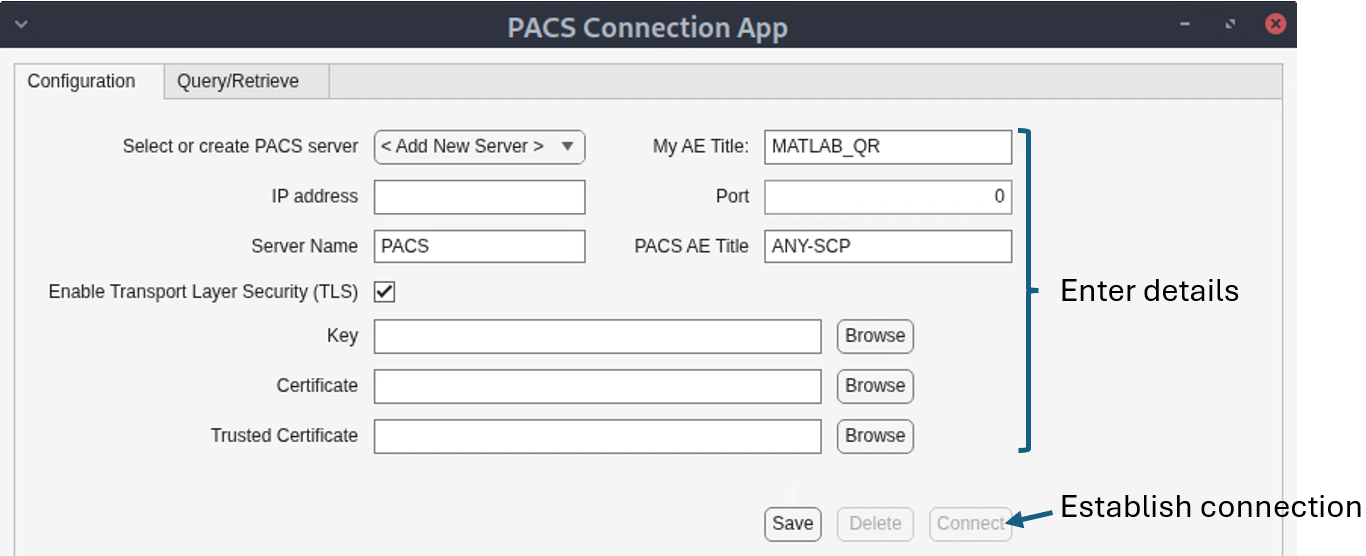
Users can configure and establish one or more PACS servers connections in the Configuration tab of the app. The tab has these UI elements. For more details about the configuring a PACS server connection, see the dicomConnection object.
Select or create a PACS server — Drop-down containing the list of all existing PACS server connections. To configure a new PACS server connection, users must select the
< Add New Server >option in the drop-down.My AE Title — Text field to specify the client application entity title. The default value is
MATLAB_QR.IP address — Text field to specify the IP address of the PACS server.
Port — Numeric field to specify the port number for the PACS server.
Server Name — Text field to specify a descriptive server name.
PACS AE Title — Text field to specify the AE Title of the PACS server. The default value is
ANY-SCP.Enable Transport Layer Security (TLS) — Check box to select to use a secure TLS connection. If the user enables a TLS connection by selecting the check box, they must provide paths for the Key, Certificate, Trusted Certificate files in their respective fields.
Key, Certificate, Trusted Certificate — TLS authentication files. Users can browse for the respective files. Users must specify the paths of the TLS authentication files when the TLS connection is enabled.
Connect/Disconnect — Button to establish or terminate the PACS connection. When no connection has been established, the button displays Connect and performs the connect function. When an existing connection is established, the button displays Disconnect and performs the disconnect function.
Save — Button to save the current configuration.
Delete — Button to remove the selected server configuration.
Query/Retrieve Tab
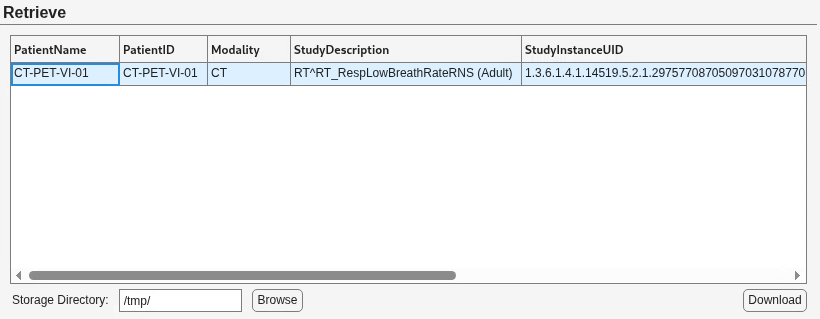
Once the user has established a connection to a PACS server, they can switch to the Query/Retrieve tab to query the PACS server and retrieved relevant data sets. The Query/Retrieve tab has two sections: the Query section and the Retrieve section. In the Query section, users can define query parameters such as the date range and DICOM attributes to match, and run the query to search the PACS server for matching data sets. The Retrieve section lists all the matching data sets found in PACS server. Users can select and download the relevant data sets.
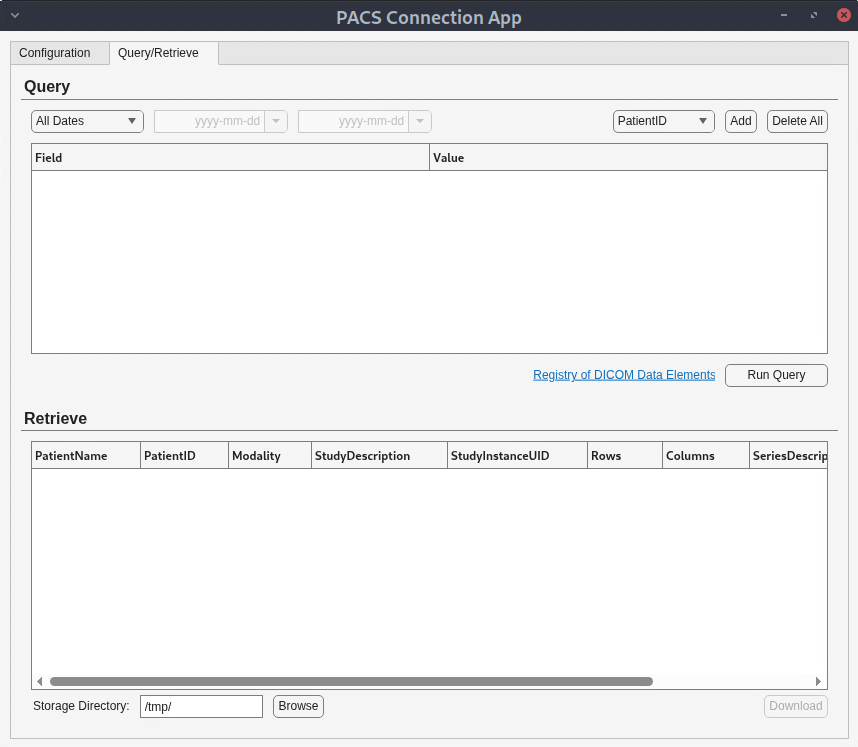
The app uses a grid layout structure to create the defined layout. For more information on using a grid layout with App Designer, see Use Grid Layout Managers in App Designer.
Define App Methods
The app uses methods to establish a connection with the PACS server, query the PACS server, retrieve data from the PACS server, and control the app state. The app also uses some helper functions to improve code readability and code reusability. These are some of the important app methods.
Methods for Startup and Connection Persistence
When users work with PACS servers, they typically reuse the same connection settings repeatedly. The app therefore restores saved servers and the corresponding UI state when it starts and persists changes when it closes.
The app restores saved servers and the corresponding UI state using the startupFcn method, which runs immediately after the app creates the UI components. The startupFcn method loads saved configurations by calling the loadSavedConfiguration method, and initializes UI defaults such as drop-down items and results table columns. It also restores the UI state, such as the storage directory to which to download data, the names of PACS servers in the drop-down, the configuration fields corresponding to the last used server, and the appropriate state of the Connect or Disconnect button, by calling the restoreUIStateFromConfig method. Users can use the PACSConnectionApp as a standalone app or as a UI component to embed into other custom apps. The startupFcn method configures the standalone or embedded behavior of the app. In the embedded mode, the app displays the Import button, so that users can import data into their custom app. In the standalone mode, the app instead displays the Download button, so that users can download data.
        function startupFcn(app,OpenedFromApp)
            if nargin > 1
                app.OpenedFromApp = OpenedFromApp;
            end
            % Load previously saved configuration
            loadSavedConfiguration(app);

            % Initialize UI components
            app.ServerSelectionDropDown.Items = getServerNameList(app);
            app.ClientAETitleEditField.Value = app.ClientAETitleDefault;
            app.ServerNameEditField.Value = generateUniqueServerName(app);
            app.ServerAETitleEditField.Value = app.ServerAETitleDefault;
            app.CommonFieldsDropDown.Items = app.CommonDicomFieldNames;
            app.QueryResultsTable.ColumnName = app.DicomFieldsToRetrieve;

            % If already connected, show Query/Retrieve tab by default
            if app.IsCurrentlyConnected
                app.TabGroup.SelectedTab = app.QueryRetrieveTab;
            end

            % Restore UI state from saved configuration
            restoreUIStateFromConfig(app);

            % Configure visibility based on how dialog was opened
            if app.OpenedFromApp
                % Opened from another app - start hidden, show Import button
                app.DownloadOrImportButton.Tooltip = {'Import the data to volume viewer'};
                app.DownloadOrImportButton.Text = 'Import';
                app.MainFigure.Visible = "off";
            else
                % Standalone mode - show immediately, show Download button
                app.DownloadOrImportButton.Tooltip = {'Download the data to storage directory'};
                app.DownloadOrImportButton.Text = 'Download';
                app.MainFigure.Visible = "on";
            end
        end
The app enables the connection configuration to persist by using the PACSConfigManager custom class. The static managePersistentConfig method of the custom class stores or retrieves a configuration structure using a persistent variable named savedConfig. The saveConfigurationToPersistentStorage method of the app collects the minimal state needed to restore the app later and saves it using the setPersistentConfig method, which routes the persistence through the PACSConfigManager class.
classdef PACSConfigManager
    % PACSConfigManager Persistent Configuration Storage for PACS Dialog
    % PACSConfigManager provides persistent storage functionality for PACS
    % server configurations across application instances.
    % This class uses persistent MATLAB variables to maintain
    % configuration data in memory during a MATLAB session.
    %
    % Syntax:
    %   config = PACSConfigManager.managePersistentConfig('get')
    %   config = PACSConfigManager.managePersistentConfig('set', newConfig)

    %   Copyright 2026 The MathWorks, Inc.

    methods (Static)
        function config = managePersistentConfig(action,newConfig)
            % Manage persistent configuration using persistent variable
            % This allows configuration to persist across app instances
            %
            % Inputs:
            %   action - 'get' to retrieve config, 'set' to save config
            %   newConfig - Configuration structure (only used with 'set')
            %
            % Output:
            %   config - Retrieved or saved configuration structure

            persistent savedConfig

            switch action
                case 'set'
                    % Save new configuration
                    savedConfig = newConfig;
                    config = savedConfig;

                case 'get'
                    % Retrieve saved configuration
                    if isempty(savedConfig)
                        config = struct();
                    else
                        config = savedConfig;
                    end
            end
        end
    end
end
Methods to Create, Select, Save, or Delete Configurations
When the user changes the value of the server drop-down, the onServerSelectionChanged method determines whether the user selected an existing saved server or a the option to add a new server. If the user selects an existing server, the app calls the populateConfigurationFields method and resets the connection state using the onConnectionParameterChanged method. If the user selects the option to add a new server, the app calls the resetConfigurationFields method and resets the connection state. This ensures that switching servers always forces a reconnect so the app cannot accidentally query using stale credentials.
        function onServerSelectionChanged(app,event)
            % Handle server selection change in dropdown

            selectedServer = app.ServerSelectionDropDown.Value;

            % Check if selected server exists in saved configurations
            serverIndex = find(ismember([app.SavedServerConfigs.ServerName],selectedServer));

            if ~isempty(serverIndex)
                % Load existing server configuration
                serverConfig = app.SavedServerConfigs(serverIndex);
                populateConfigurationFields(app,serverConfig);
                onConnectionParameterChanged(app);

            elseif isequal(selectedServer,app.NewServerPlaceholder)
                % Reset to default values for new server
                resetConfigurationFields(app);
                onConnectionParameterChanged(app);
            end

        end
When the user selects the Save button in the Configuration tab, the saveCurrentServerConfiguration method gathers the current UI field values into a structured configuration with fields such as IPAddress, Port, MyAEtitle, PACSAEtitle, and ServerName, as well as TLS-related fields such as EnableTLS, Key, Certificate, TrustedCertificate. If the server name already exists, the method updates the corresponding structure in SavedServerConfigs. Otherwise, it appends a new structure. It then refreshes the dropdown list so the saved server appears in the selection list.
        function saveCurrentServerConfiguration(app,event)
            % Save the current PACS server configuration to persistent storage
            % Updates existing configuration or adds new one

            % Validate that server name is provided
            if isempty(app.ServerNameEditField.Value)
                uialert(app.MainFigure,"Server name must not be empty","Missing Server Name");
                return;
            end

            % Create server configuration structure
            serverConfig = struct( ...
                "IPAddress",'', ...
                "Port",[], ...
                "MyAEtitle",'', ...
                "PACSAEtitle",'', ...
                "ServerName",'', ...
                "EnableTLS",false, ...
                "Key",'', ...
                "Certificate",'', ...
                "TrustedCertificate",'');

            % Populate structure with current UI values
            serverConfig.IPAddress = app.HostIPAddressEditField.Value;
            serverConfig.Port = app.PortNumberEditField.Value;
            serverConfig.MyAEtitle = app.ClientAETitleEditField.Value;
            serverConfig.PACSAEtitle = app.ServerAETitleEditField.Value;
            serverConfig.ServerName = string(app.ServerNameEditField.Value);
            serverConfig.EnableTLS = app.EnableTLSCheckBox.Value;
            serverConfig.Key = app.TLSKeyFileEditField.Value;
            serverConfig.Certificate = app.TLSCertificateEditField.Value;
            serverConfig.TrustedCertificate = app.TLSTrustedCertEditField.Value;

            if isempty(app.SavedServerConfigs)
                % First server configuration
                app.SavedServerConfigs = serverConfig;
            else
                % Check if server name already exists
                isExistingServer = ismember([app.SavedServerConfigs.ServerName],serverConfig.ServerName);

                if any(isExistingServer)
                    % Update existing server configuration
                    app.SavedServerConfigs(isExistingServer) = serverConfig;
                else
                    % Add new server configuration
                    app.SavedServerConfigs(end+1) = serverConfig;
                end
            end

            % Update the server selection drop-down
            updateServerDropdownList(app,serverConfig.ServerName);
        end
When the user selects the Delete button in the Configuration tab, the deleteCurrentServerConfiguration method prompts the user with a confirmation dialog. If the user confirms, it removes the selected server from SavedServerConfigs, resets the UI to a new server state, and refreshes the drop-down list. This prevents accidental loss of server settings and ensures that deletion immediately returns the UI to a valid state.
        function deleteCurrentServerConfiguration(app,event)
            % Delete the currently selected PACS server configuration
            % Shows confirmation dialog before deletion

            serverIndex = find(ismember([app.SavedServerConfigs.ServerName], app.ServerSelectionDropDown.Value));

            if ~isempty(serverIndex)
                % Show confirmation dialog
                serverName = app.SavedServerConfigs(serverIndex).ServerName;
                msg = "Are you sure you want to delete the PACS server configuration " + ...
                    string(serverName) + "?" + newline + newline + ...
                    "This action cannot be undone. You will need to re-enter all connection details if you want to use this server again.";
                selection = uiconfirm(app.MainFigure, ...
                    msg, ...
                    "Confirm Delete", ...
                    Icon="warning", ...
                    Options=["Delete","Cancel"], ...
                    DefaultOption="Cancel");

                if strcmpi(selection,"Delete")
                    % Remove server from saved configurations
                    app.SavedServerConfigs(serverIndex) = [];

                    % Reset UI to default state
                    resetConfigurationFields(app);
                    onConnectionParameterChanged(app);
                    % Update drop-down
                    app.ServerSelectionDropDown.Items = getServerNameList(app);
                end
            end
        end
Methods to Establish Connection to PACS Server
The Connect or Disconnect button behaves as a toggle and triggers the togglePACSConnection method. If the button currently reads Disconnect, the method disconnects by calling the onConnectionParameterChanged method. Otherwise, it attempts to connect by creating a dicomConnection object. After creating the connection, it validates the association using the testConnection function and updates the UI using the updateConnectionStatus method.
        function togglePACSConnection(app,event)
            % Connect to or disconnect from the PACS server
            % Button toggles between "Connect" and "Disconnect" states

            if isequal(app.ConnectButton.Text,"Disconnect")
                % User wants to disconnect
                onConnectionParameterChanged(app);
                return;
            end

            % Clear previous results
            app.QueryResultsTable.Data = [];
            app.DownloadOrImportButton.Enable = "off";

            try
                isTLSEnabled = app.EnableTLSCheckBox.Value;

                if ~isTLSEnabled
                    % Connect without TLS (insecure connection)
                    w = warning("off","medical:dicomConnection:InsecureTransmission");
                    oc = onCleanup(@() warning(w));
                    app.ActiveDicomConnection = dicomConnection(...
                        app.HostIPAddressEditField.Value, ...
                        app.PortNumberEditField.Value, ...
                        AETitle=app.ClientAETitleEditField.Value, ...
                        RetrieveAETitle=app.ServerAETitleEditField.Value, ...
                        EnableTLS=false);

                    % Show security warning on first connection
                    if ~app.IsCurrentlyConnected
                        uialert(app.MainFigure, ...
                            "Using non-TLS communication is highly insecure. Switch to TLS connection to enhance safety of medical data.", ...
                            "Warning", ...
                            Icon="warning");
                    end
                else
                    % Connect with TLS (secure connection)
                    app.ActiveDicomConnection = dicomConnection(...
                        app.HostIPAddressEditField.Value, ...
                        app.PortNumberEditField.Value, ...
                        app.TLSKeyFileEditField.Value, ...
                        app.TLSCertificateEditField.Value, ...
                        app.TLSTrustedCertEditField.Value, ...
                        "AETitle"=app.ClientAETitleEditField.Value, ...
                        "RetrieveAETitle"=app.ServerAETitleEditField.Value);
                end

                % Test the connection and update UI accordingly
                connectionSuccessful = testConnection(app.ActiveDicomConnection);
                updateConnectionStatus(app,connectionSuccessful);

            catch ME
                % Connection failed
                updateConnectionStatus(app,false);
            end
        end
The updateConnectionStatus method updates the connection status icon visibility, the label of the Connect or Disconnect button, and the IsCurrentlyConnected flag. If the connection fails, the method displays an alert that includes the server name, host, port, and a checklist of likely issues such as server accessibility, IP or port correctness, or AE Title matching.
        function updateConnectionStatus(app,isConnected)
            % Update UI to reflect current connection status
            %
            % Input:
            %   isConnected - true if connection successful, false otherwise

            if isConnected
                % Connection successful
                app.ConnectionStatusIcon.Visible = "on";
                app.ConnectButton.Text = "Disconnect";
                app.IsCurrentlyConnected = true;
            else
                % Connection failed
                app.ConnectionStatusIcon.Visible = "off";
                app.ConnectButton.Text = "Connect";
                app.IsCurrentlyConnected = false;

                msg = "Unable to connect to PACS server '" + string(app.ServerNameEditField.Value) + ...
                    "' at " + string(app.HostIPAddressEditField.Value) + ":" + num2str(app.PortNumberEditField.Value) + newline + newline + ...
                    "Please verify:" + newline + ...
                    "- Server is running and accessible" + newline + ...
                    "- IP address and port are correct" + newline + ...
                    "- AE Titles match server configuration";
                uialert(app.MainFigure,msg,"Connection Failed");

            end
        end
Many UI components in the Configuration tab, such as the IP address, port, AE Titles, and TLS files, call the onConnectionParameterChanged method when their values change to prompt the user to reconnect using the changed configuration. This method resets the Connect or Disconnect button position to Connect, updates the Connect button enable state, and clears the active connection, the previous results in the retrieve table and the IsCurrentlyConnected flag. This forces a deliberate reconnect whenever connection inputs change, preventing the app from querying with mismatched parameters.
        function onConnectionParameterChanged(app,event)
            % Handle changes to any connection parameter
            % When connection settings are modified, reset the connection state
            % and require the user to reconnect to apply changes

            app.ConnectButton.Text = "Connect";
            app.ActiveDicomConnection = [];
            app.ConnectionStatusIcon.Visible = "off";
            app.IsCurrentlyConnected = false;

            % Clear previous results
            app.QueryResultsTable.Data = [];
            app.DownloadOrImportButton.Enable = "off";

            % Update Connect button enabled state based on field validity
            updateConnectButtonState(app);
        end
The onConnectionParameterChanged method calls updateConnectButtonState to enable or lock the Connect button based on whether all required connection fields are filled. The required fields are IP Address, Port, Client AE Title, and Server AE Title. If TLS is enabled, the Key, Certificate, and Trusted Certificate fields must also be non-empty. This validation prevents users from attempting a connection with an incomplete configuration.
        function updateConnectButtonState(app)
            % UPDATECONNECTBUTTONSTATE Enable or lock Connect button
            % based on whether all required connection fields are filled.
            % Required: IP Address, Port, Client AE Title, Server AE Title.
            % If TLS is enabled: Key, Certificate, and Trusted Certificate
            % must also be non-empty.

            % Check required fields
            hasIPAddress = ~isempty(strtrim(app.HostIPAddressEditField.Value));
            hasPort = app.PortNumberEditField.Value > 0;
            hasClientAETitle = ~isempty(strtrim(app.ClientAETitleEditField.Value));
            hasServerAETitle = ~isempty(strtrim(app.ServerAETitleEditField.Value));

            isValid = hasIPAddress && hasPort && hasClientAETitle && hasServerAETitle;

            % If TLS is enabled, also require certificate fields
            if isValid && app.EnableTLSCheckBox.Value
                hasKey = ~isempty(strtrim(app.TLSKeyFileEditField.Value));
                hasCert = ~isempty(strtrim(app.TLSCertificateEditField.Value));
                hasTrustedCert = ~isempty(strtrim(app.TLSTrustedCertEditField.Value));
                isValid = hasKey && hasCert && hasTrustedCert;
            end

            if isValid
                app.ConnectButton.Enable = "on";
            else
                app.ConnectButton.Enable = "off";
            end
        end
Methods to Query the PACS Server and Retrieve Data
Users can specify query parameters, such as a date range and DICOM attributes, in the Query section of the Query/Retrieve tab of the app. When the user selects the Run Query option, the executeQueryOnPACS method performs these steps.
Tests the connection to the PACS server using the
testConnectionfunction. If the connection is missing or if the verification fails, it alerts the user and redirects them to the Configuration tab, then invalidates the connection state.Clears prior results and locks the Download or Import button until a row in the results table has been selected.
Builds the query parameters by calling
buildQueryParametersmethod. ThebuildQueryParametersmethod builds a structure where each query parameter becomes a field-value pair. This method ensures that every DICOM attribute added as a query parameter has a value to match, and if the user selects a custom date range, they must provide both a start and end date.Performs the query using the
performDicomQuerymethod, which uses thedicomqueryfunction.Displays results in the results table in the Retrieve section of the Query/Retrieve tab by using the
populateResultsTablemethod.
        function executeQueryOnPACS(app,event)
            % Execute DICOM query on the PACS server
            % Retrieves study/series information based on query parameters

            % Verify connection is active
            if isempty(app.ActiveDicomConnection) || ...
                    ~isa(app.ActiveDicomConnection,"dicomConnection") || ...
                    ~testConnection(app.ActiveDicomConnection)
                uialert(app.MainFigure, ...
                    "Connection to PACS server has been lost." + newline + newline + ...
                    "You will be redirected to the Configuration tab to re-establish the connection.", ...
                    "Connection Lost", Icon="error");
                app.TabGroup.SelectedTab = app.ConfigurationTab;
                onConnectionParameterChanged(app);
                return;
            end

            % Clear previous results
            app.QueryResultsTable.Data = [];
            app.DownloadOrImportButton.Enable = "off";

            % Build query parameters from table
            queryParams = buildQueryParameters(app);
            if isempty(queryParams)
                return;  % Validation failed
            end

            try
                % Execute DICOM query
                queryResults = performDicomQuery(app,queryParams);
            catch ME
                uialert(app.MainFigure,ME.message,"Error");
                return;
            end

            % Populate results table
            populateResultsTable(app,queryResults);
        end
When the query returns matching data sets in the results table, users can select the data they want to download and then select the Download or Import button. The button triggers the downloadOrImportSelectedData method, which checks the OpenedFromApp flag. If the app is in embedded mode, it downloads the data without showing a success dialog, and then triggers the ImportIsSuccessful event so the parent app can react. If the app is in standalone mode, it downloads the data and shows a success dialog.
        function downloadOrImportSelectedData(app,event)
            if isempty(app.StorageDirEditField.Value)
                uialert(app.MainFigure,"Storage directory must not be empty","Invalid Storage Directory");
                return;
            end

            % Download or import selected DICOM data
            if app.OpenedFromApp
                % Import selected DICOM data from PACS to volume viewer
                % Downloads data and triggers ImportIsSuccessful event for parent app to handle

                % Perform download without showing success message
                if downloadSelectedSeries(app,false)
                    % Notify listeners that import is complete
                    % Listeners can access app.Filepath to get the download location
                    notify(app,"ImportIsSuccessful");
                end
            else
                % Download selected DICOM data from PACS to local storage

                % Perform download with success message
                downloadSelectedSeries(app,true);
            end
        end
Retrieve DICOM Data from PACS Server Using App
Run the PACSConnectionApp app.
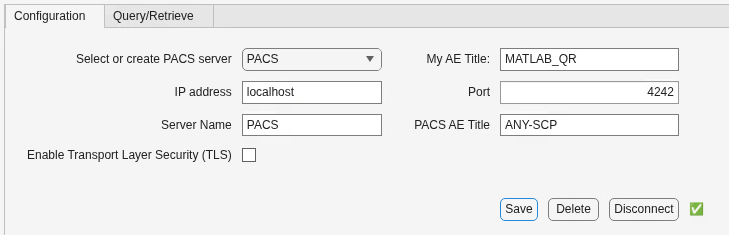
In the Configuration tab of the app, select < Add New Server > from the Select or create PACS server drop-down. Enter the details of the PACS server, such as the IP address, port number, your AE Title, and the AE Title of the PACS server in the corresponding fields on the Configuration tab. To establish a secure connection with the PACS server, select the Enable Transport Layer Security (TLS) option and provide the key, certificate, and trusted certificate files. Select Save to store the configuration, and then Connect to establish the connection. The app changes the button to Disconnect mode and shows a green check mark when the connection has been established and verified.
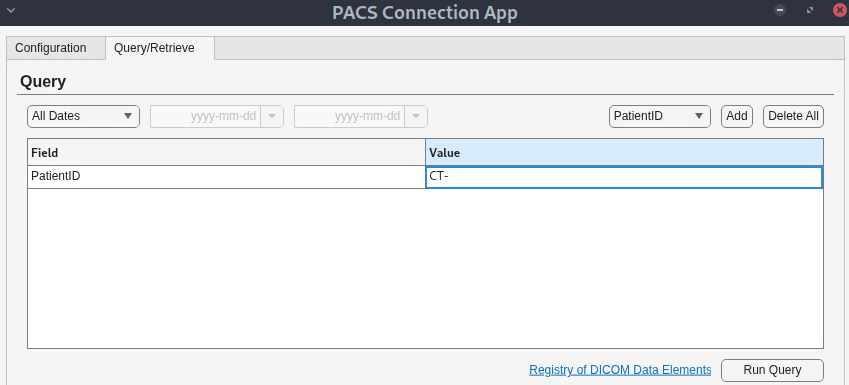
Switch to the Query/Retrieve tab of the app. Specify query parameters such as a date range and DICOM attributes. You can choose some frequently used DICOM attributes, such as PatientID and Modality, from the drop-down or add custom DICOM attributes. Enter values to match for each of the selected DICOM attributes in the query. When you finalize all query parameters, select the Run Query option. The app populates the search results as a table in the Retrieve section of the Query/Retrieve tab with the patient and study information of the matching data sets.
Select the row in the results table for the data set you want to download. Specify or browse to a storage directory, and select the Download option to save the DICOM files locally.
Customize the App
You can customize the code of the PACSConnectionApp app and PACSConfigManager class in the attached supporting files. For example, you can add DICOM attributes you use more frequently to the query parameters.
To customize the app, you can choose one of these options:
Open the attached MLAPP files in App Designer and edit the code in the Code View.
Open the attached MLAPP files in App Designer, select Share in the Designer tab and then Export to MATLAB Class (.m), and save the M file. You can then edit the M file.

