Eclipse: Install Polyspace as You Code Plugin
R2026bThe Polyspace® as You Code™ plugin in Eclipse™-based IDEs allows you to run Polyspace on the file that you are currently viewing and see analysis results such as bugs and coding standard violations. You must install the Polyspace as You Code analysis engine to run the analysis. The plugin allows you to use this analysis engine from Eclipse and show results produced by the Polyspace analysis.
After you install the analysis engine with the MathWorks® installer, use the contents of the
polyspaceroot\polyspace\plugin\eclipse_paycpolyspacerootC:\Program
Files\Polyspace\R2026b.
The Polyspace as You Code plugin is not compatible with the Polyspace desktop plugin for Eclipse. Uninstall the desktop plugin before installing the Polyspace as You Code Eclipse plugin.
If you are updating Polyspace as You Code to the latest version, first follow the instructions to Uninstall Polyspace as You Code in Eclipse.
Interactive Installation
To install the plugin interactively:
In the Eclipse IDE, select Help > Install New Software.
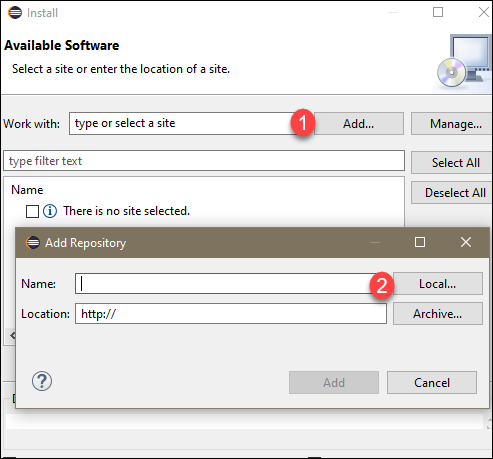
In the Install window, click Add, and then click Local in the Add Repository window.
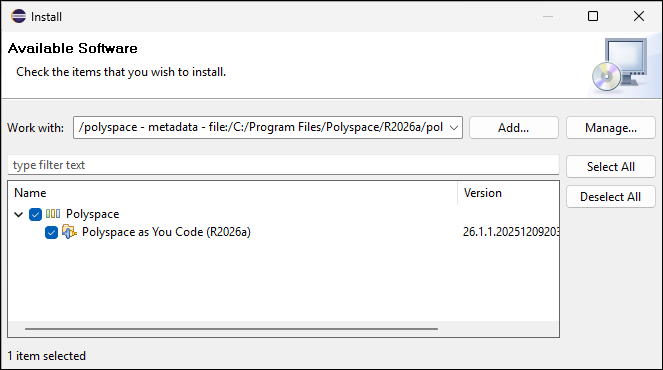
Navigate to the
polyspaceroot\polyspace\plugin\eclipse_paycConfirm that the Polyspace as You Code plugin is selected, then click Next and follow the prompts to complete the installation.
Command-line Installation
To install the Polyspace as You Code plugin, open a terminal and navigate to your Eclipse installation folder and enter:
eclipsec.exe -application org.eclipse.equinox.p2.director ^
-repository file:"/polyspaceroot/polyspace/plugin/eclipse_payc/" ^
-installIU com.polyspace.eclipse.feature -nosplash
polyspacerootC:\Program
Files\Polyspace. The -repository path must be
specified with forward slashes "/".Uninstall Polyspace as You Code in Eclipse
To uninstall the plugin:
Navigate to Help > About Eclipse IDE.
In the About Eclipse IDE window, click Installation Details and select the Polyspace plugin on the Installed Software tab.
Click Uninstall. Follow the prompts to uninstall the plugin.
After uninstalling the plugin, relaunch Eclipse using these flags to clear any cached layout or user interface state:
eclipse.exe -clean -clearPersistedState
To uninstall the command-line version of Eclipse, enter:
eclipsec.exe -application org.eclipse.equinox.p2.director ^
-uninstallIU com.polyspace.eclipse.feature -nosplash

