Visualize Custom and Non-ROS Schema Messages from Bag Files
R2026bThe ROS Data Analyzer app enables you to visualize custom ROS and ROS 2 messages using adapters. An adapter converts a custom message into a format that the app can display.
The app also supports visualizing non-ROS schema messages, such as OMG IDL-encoded messages in MCAP files. MCAP files can contain messages that use OMG IDL schemas instead of standard ROS message definitions. You can create an adapter to convert these messages into a format that the app can display. You can also inspect them directly in the app without converting them.
Note
To visualize custom ROS or ROS 2 messages, MATLAB® must recognize the message definitions. If the messages are not already
registered, generate the message package using the rosgenmsg function for ROS or ros2genmsg
function for ROS 2. You can verify that MATLAB recognizes the custom message types by listing them using rosmsg
list or ros2
msg list. This requirement does not apply to non-ROS schema messages,
which the app can load directly.
Supported Message Type Conversions for Visualization
The ROS Data Analyzer app visualizes custom messages by converting them into supported standard message types. You can create adapters only for custom messages whose data can be meaningfully mapped to a supported standard message type that has an associated visualizer. Typically, custom messages are messages that contain image-based or spatial data suitable for visualization.
| Target Standard Message Type | Supported Visualizer |
|---|---|
| Image Viewer |
sensor_msgs/PointCloud2 | Point Cloud Viewer 3D Viewer |
sensor_msgs/LaserScan | Laser Scan Viewer 3D Viewer |
nav_msgs/Odometry | Odometry Viewer |
| Map Viewer |
| Marker Viewer 3D Viewer |
Tip
Adapters can also modify or transform standard message data before visualization. For example, you can apply the conversion logic of an active adapter to image data before rendering it in the Image viewer.
When to Use Message Adapters
Use message adapters to convert, modify, or transform message data for visualization without changing the contents of the input ROS or ROS 2 bag file.
Adapters enable you to apply restructuring logic or processing algorithms, such as field remapping, filtering, or data transformation, so that you can visualize data using the visualizers supported in the app. You can update adapter logic and immediately revisualize the data, which makes adapters useful for iterative analysis and experimentation.
The following examples illustrate how adapters support different visualization workflows.
This example shows how to convert image data published as foxglove_msgs/RawImage into the standard sensor_msgs/Image message type using an adapter. This conversion enables the ROS Data Analyzer app to interpret the data and make it available to supported viewers for visualization.
When a ROS 2 bag file contains image data published in a custom message type, the ROS Data Analyzer app is unable to interpret the message directly. In such cases, use an adapter to convert the custom message into a supported standard message type without modifying the contents of the bag file.
Because foxglove_msgs are not shipped with MATLAB, you must first generate the message package using the ros2genmsg function so that MATLAB recognizes the message types used by the adapter.
ros2genmsg("custom_msgs\", BuildRoot='C:/shortBuildPath')
Identifying message files in folder 'C:/Users/user/OneDrive - MathWorks/Documents/MATLAB/ExampleManager/user.myBdocUpdated/ros-ex78414578/custom_msgs'...Validating message files in folder 'C:/Users/user/OneDrive - MathWorks/Documents/MATLAB/ExampleManager/user.myBdocUpdated/ros-ex78414578/custom_msgs'...Done.
Done.
[1/1] Generating MATLAB interfaces for custom message packages... Done.
Running colcon build in folder 'C:/shortBuildPath/matlab_msg_gen_R2026a/win64'.
Build in progress. This may take several minutes...
Build succeeded.build_log.
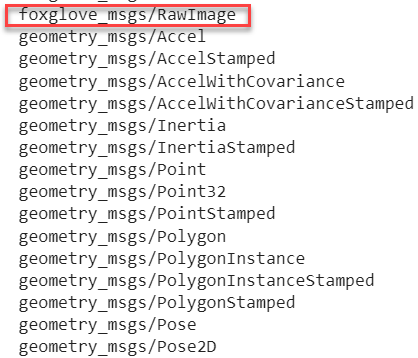
Verify the generated message types.
ros2 msg list
To convert image data from foxglove_msgs/RawImage to sensor_msgs/Image, first understand how the two message types relate. Both message types represent a grid of pixels, and the underlying pixel data is typically compatible. Foxglove image messages use a flat layout, where metadata such as timestamp and frame ID appear at the top level of the message, while standard ROS 2 image messages store this information inside a nested header field. As a result, the adapter logic restructures metadata rather than performing complex data conversion.
From the app toolstrip, click Create in the Message Adapters tab to configure the ROS version, the message type that you want to convert, and the message type you want to convert it to. Click Generate Adapter to generate the MATLAB plugin file (.m), that opens in the MATLAB Editor. Implement the adapter logic in the MATLAB® plugin (.m) file by defining how fields from the input custom message map to the corresponding fields of the standard message type.
The following adapter function converts a Foxglove image message into a sensor_msgs/Image message by restructuring metadata and copying compatible image data fields.
function output_msg = FoxGloveImageAdapter(input_msg, output_msg)

% Map timestamp and frame information into the ROS 2 header
output_msg.header.frame_id = input_msg.frame_id;
output_msg.header.stamp    = input_msg.timestamp;

% Copy image dimensions
output_msg.width  = input_msg.width;
output_msg.height = input_msg.height;

% Map encoding and memory layout
output_msg.encoding = input_msg.encoding;
output_msg.step     = input_msg.step;

% Copy pixel data directly
output_msg.data = input_msg.data;

% Set endianness (ROS 2 default)
output_msg.is_bigendian = 0;
end
From the Message Adapters tab, click Manage to open Adapter Manager and you can see the registered message available for visualization.
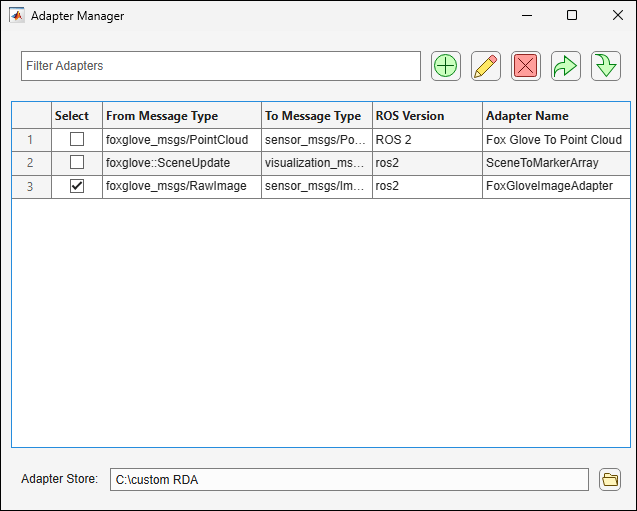
You can now visualize the foxglove_msgs/RawImage message converted to a sensor_msgs/Image message in the Image viewer.
This example shows how to invert RGB image data stored as sensor_msgs/Image messages using an adapter. This workflow enables the ROS Data Analyzer app to display inverted image data for visual inspection without modifying the contents of the input ROS 2 bag file.
When a ROS 2 bag file contains image data that you want to transform for analysis, the ROS Data Analyzer app visualizes the data as recorded. In such cases, use an adapter to apply image-processing logic at visualization time so that you can inspect transformed image data without altering the stored bag file.
To invert RGB image data, both the input and output message types use the standard sensor_msgs/Image format. The adapter therefore acts as a processing step rather than a structural converter. The adapter preserves metadata such as timestamps, frame ID, and image dimensions, accesses the image pixel data, and applies an inversion operation to the RGB channels. This operation transforms each pixel value by subtracting it from the maximum intensity value.
From the app toolstrip, click Create in the Message Adapters tab to configure the ROS version, the message type that you want to convert, and the message type you want to convert it to. Click Generate Adapter to generate the MATLAB® plugin file (.m), that opens in the MATLAB Editor. Implement the adapter logic below in the MATLAB plugin (.m) file by defining how the adapter processes pixel data and updates message fields and save the file. The following adapter function inverts RGB image data at visualization time.
function output_msg = InvertRGBAdapter(input_msg, output_msg)

% Preserve metadata
output_msg.header = input_msg.header;
output_msg.height = input_msg.height;
output_msg.width  = input_msg.width;
output_msg.encoding = input_msg.encoding;
output_msg.step     = input_msg.step;
output_msg.is_bigendian = input_msg.is_bigendian;

% Invert pixel values (uint8 range [0, 255])
output_msg.data = uint8(255 - input_msg.data);
end
From the Message Adapters tab, click Manage to open Adapter Manager and you can see the registered message available for visualization.
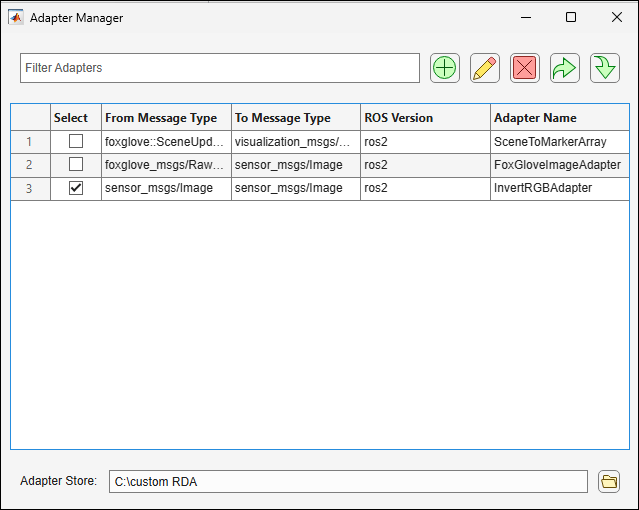
You can now visualize the inverted sensor_msgs/Image data in the Image viewer.
This example shows how to convert non-ROS schema messages from an MCAP file containing OMG IDL-encoded data into a standard ROS 2 message type using an adapter. This workflow enables the ROS Data Analyzer app to visualize foxglove::SceneUpdate messages as visualization_msgs/MarkerArray data in the 3D viewer without modifying the contents of the input MCAP file.
This example uses the foxglove::SceneUpdate schema, which defines a scene composed of geometric entities such as cubes, spheres, cylinders, arrows, lines, triangles, texts, and models. Each entity carries pose, scale, and color information. The adapter maps these entities to individual visualization_msgs/Marker messages and outputs them as a visualization_msgs/MarkerArray, which the 3D viewer can render.
Create Adapter to Visualize Non-ROS Schema Data
To visualize non-ROS schema data using other viewers in the app, you must create a custom adapter in a MATLAB® plugin (.m) file that maps fields from the input non-ROS schema message to the corresponding fields of a standard ROS 2 message type.
From the app toolstrip, click Create in the Message Adapters tab to configure the ROS version, the message type that you want to convert, and the message type you want to convert it to. Click Generate Adapter to generate the MATLAB plugin file (.m), that opens in the MATLAB Editor. Edit this file to implement the conversion logic given below and save the file.
function outputMsg = nonROSSchema(inputMsg, outputMsg)
% SceneToMarkerArray - Conversion function from foxglove::SceneUpdate to visualization_msgs/MarkerArray
%
% Output:
%  - outputMsg.markers: array of visualization_msgs/Marker (ROS2)

    % ROS2 only
    markerT = makeMarkerTemplate();

    % Start with an empty marker array
    markers = repmat(markerT, 0, 1);

    if ~isstruct(inputMsg) || ~isfield(inputMsg, "entities") || isempty(inputMsg.entities)
        outputMsg.markers = markers;
        return;
    end

    idCounter = int32(0);

    ents = inputMsg.entities;
    for ei = 1:numel(ents)
        ent = ents(ei);

        nsBase = "foxglove_scene";
        if isstruct(ent) && isfield(ent, "id") && ~isempty(ent.id)
            nsBase = string(ent.id);
        end

        % Extract frame ID from entity
        frameId = "world";
        if isstruct(ent) && isfield(ent, "frame_id") && ~isempty(ent.frame_id)
            frameId = string(ent.frame_id);
        end

        % ROS2 header stamp struct (sec, nanosec)
        stamp = extractStampROS2(ent);

        % CUBES -> Marker.CUBE (type 1)
        if isfield(ent, "cubes") && ~isempty(ent.cubes)
            for i = 1:numel(ent.cubes)
                idCounter = idCounter + 1;
                m = markerT;
                m = fillCommonROS2(m, nsBase + "/cubes", idCounter, frameId, stamp);
                m.type   = int32(1); % CUBE
                m.action = int32(0); % ADD
                cube = ent.cubes(i);
                m = applyPoseFromFoxPose(m, getField(cube, "pose", struct()));
                m = applyScaleFromVector3(m, getField(cube, "size", struct()), 1, 1, 1);
                m = applyColorRGBA(m, getField(cube, "color", struct()), 0, 1, 0, 0.3);
                markers(end+1,1) = m; %#ok<AGROW>
            end
        end

        % SPHERES -> Marker.SPHERE (type 2)
        if isfield(ent, "spheres") && ~isempty(ent.spheres)
            for i = 1:numel(ent.spheres)
                idCounter = idCounter + 1;
                m = markerT;
                m = fillCommonROS2(m, nsBase + "/spheres", idCounter, frameId, stamp);
                m.type   = int32(2); % SPHERE
                m.action = int32(0); % ADD
                s = ent.spheres(i);
                m = applyPoseFromFoxPose(m, getField(s, "pose", struct()));
                if isfield(s, "size") && ~isempty(s.size)
                    m = applyScaleFromVector3(m, s.size, 1, 1, 1);
                else
                    r = getScalar(s, "radius", 0.5);
                    d = 2 * double(r);
                    m.scale.x = d; m.scale.y = d; m.scale.z = d;
                end
                m = applyColorRGBA(m, getField(s, "color", struct()), 0, 0.6, 1, 0.5);
                markers(end+1,1) = m; %#ok<AGROW>
            end
        end

        % CYLINDERS -> Marker.CYLINDER (type 3)
        if isfield(ent, "cylinders") && ~isempty(ent.cylinders)
            for i = 1:numel(ent.cylinders)
                idCounter = idCounter + 1;
                m = markerT;
                m = fillCommonROS2(m, nsBase + "/cylinders", idCounter, frameId, stamp);
                m.type   = int32(3); % CYLINDER
                m.action = int32(0); % ADD
                c = ent.cylinders(i);
                m = applyPoseFromFoxPose(m, getField(c, "pose", struct()));
                if isfield(c, "size") && ~isempty(c.size)
                    m = applyScaleFromVector3(m, c.size, 1, 1, 1);
                else
                    r = getScalar(c, "radius", 0.5);
                    h = getScalar(c, "height", 1.0);
                    d = 2 * double(r);
                    m.scale.x = d; m.scale.y = d; m.scale.z = double(h);
                end
                m = applyColorRGBA(m, getField(c, "color", struct()), 1, 1, 0, 0.5);
                markers(end+1,1) = m; %#ok<AGROW>
            end
        end
    end

    outputMsg.markers = markers;
end
The adapter iterates over all entities in the foxglove::SceneUpdate message and converts each geometric primitive (cubes, spheres, cylinders) into the corresponding visualization_msgs/Marker type. You can extend this adapter to handle additional primitive types such as arrows, lines, triangles, texts, and models by following the same pattern.
From the Message Adapters tab, click Manage to open Adapter Manager and you can see the registered message available for visualization.
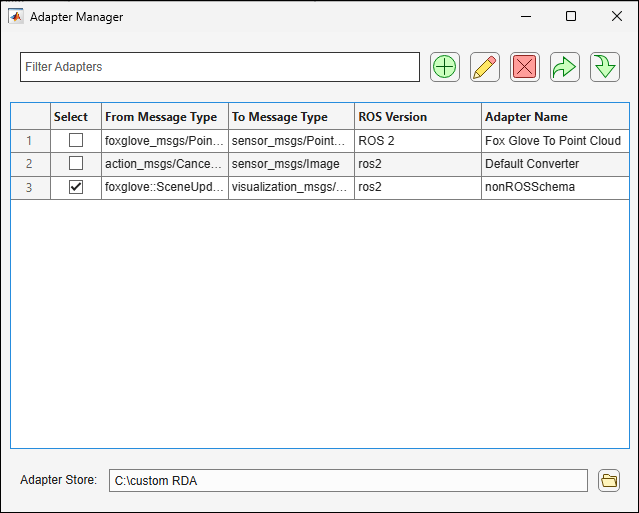
Visualize Converted Non-ROS Schema Data
You can now visualize the converted visualization_msgs/MarkerArray data in the 3D viewer.
Specify Location to Save Message Adapter Files
You can save adapter files to reuse them in future sessions. To save an adapter file to a folder, click Create on the Message Adapters tab on the app toolstrip, and then select a folder to save the adapter files.
You set this location once and the app reuses it in future sessions. You can set or change the folder at any time without opening a bag file.
Define Message Conversion and Generate Adapter
After you select the adapter store location, the app opens the Adapter Creation Utility dialog box.
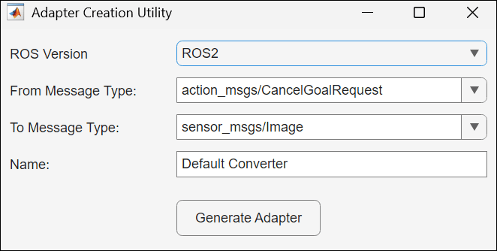
In the Adapter Creation Utility dialog box:
Select a ROS Version based on whether you are working with a ROS bag file or a ROS 2 bag file.
Select the From Message Type to specify the custom message type that you want to convert.
Select the To Message Type to specify the supported standard message type to convert to.
Enter a name for the adapter in the Adapter Name field.
Click Generate Adapter to generate the MATLAB plugin file (
.m), which opens in the MATLAB Editor. Edit this file to implement the conversion logic that maps your custom message fields to the target visualization message type.
Manage Adapters Using Adapter Manager
From the Message Adapters tab, click Manage to open Adapter Manager. The Adapter Manager window displays all the registered message adapters. For each adapter, the table shows the source message type, the target message type after conversion, the ROS version, and the adapter name.
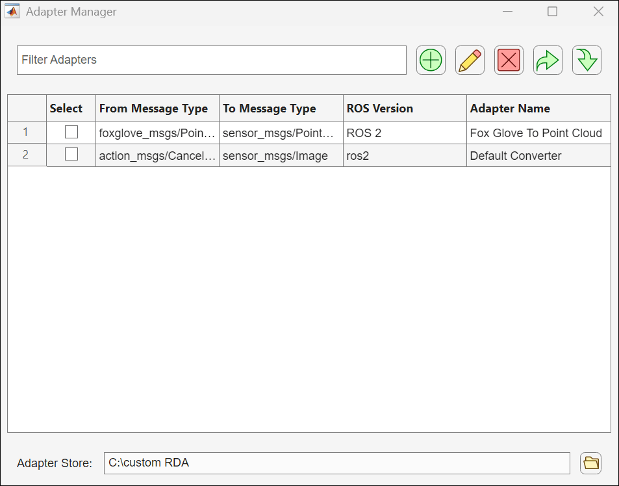
Use Adapter Manager to:
Create new adapters in the Adapter Store.
Edit adapters to update conversion logic in the associated MATLAB plugin file (
.m).Remove selected adapters from the list.
Export selected adapters for sharing by packing them in a ZIP file.
Import adapters from ZIP files.
Filter adapters by name or message type using the search bar.
Change the location to store adapters using the folder icon next to Adapter Store that lists the current path to store adapters.
The Adapter Manager window updates automatically when you remove or edit an existing adapter.
Visualize Custom Messages
After you register an adapter, the app adds the custom message types to Topic List.
Open a supported visualizer and specify an adapter in Active Adapter to apply the appropriate message conversion. After you apply the adapter, select the custom message from the Select Data Source drop-down list to visualize the data.

