Main Content

Configure PDF Fonts

R2026b

PDF Font Support for Languages

For PDF output, MATLAB® Report Generator™ comes configured with default fonts: a serif, a sans serif, and dingbats. It also comes configured to use the font for your language, based on your locale. You can map to a different font for your locale.

When generating PDF reports, the MATLAB Report Generator uses a font capable of rendering text in these languages:

  • English

  • Japanese

  • Korean

  • Russian (Cyrillic)

The Report Generator uses a font map to determine the font appropriate for a particular locale. The font map specifies a default set of fonts. You can modify the map to:

  • Change the fonts used for a particular locale

  • Add support for locales other than the default locales

The language font map specifies the font to use on a specific platform (for example, Windows®) and locale for basic report elements such as body text.

Identifying When to Specify a Font

If a required non-English font is missing for a report, the generated text includes pound sign characters (#). For example:
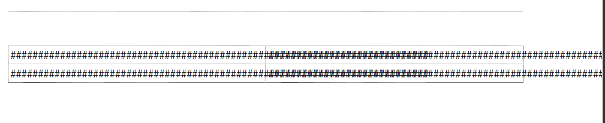
Generated text displaying as a string of pound signs

Style Sheets Override PDF Font Mapping

PDF style sheets for the MATLAB Report Generator specify fonts for body text, copyright, quotes, symbols, dingbats, monospace, sans serif, and titles.

The PDF style sheet settings override the PDF font mapping entries.

If you do not specify a PDF style sheet, then you can use PDF language font mapping entries to change the default fonts for English reports.

Non-English PDF Font Mapping Tasks

To add or modify non-English PDF font mapping specifications:

lang_font_map.xml File

Use an XML editor with the lang_font_map.xml file to enter all the PDF font mappings for your reports.

Installing the MATLAB Report Generator software loads the lang_font_map.xml file in the following location:

<matlabroot>/toolbox/shared/rptgen/resources/fontmap

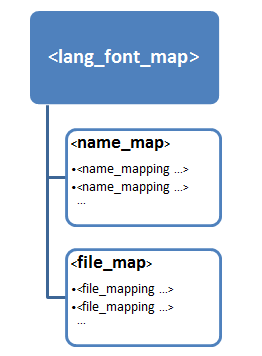
The lang_font_map.xml file includes two sections:

  • name_map — Contains name_mapping elements that specify the name of the font, the language, and the font usage in the report (for example, body text).

  • file_map— Contains entries for the location of the font files for the fonts specified in the name_map.

Diagram showing that lang_font_map contains two sections, name_map and file-map

For example, the following lang_font_map.xml file includes name_map and file_map entries that provide basic PDF font support for Japanese (ja), Korean (ko), and Russian (ru).

<?xml version="1.0" encoding="UTF-8" ?>
<lang_font_map>
  <name_map>
    <name_mapping lang="ja" platform="win" usage="body">MS Gothic</name_mapping>
    <name_mapping lang="ja" platform="win" usage="monospace">MS Gothic</name_mapping>
    <name_mapping lang="ja" platform="win" usage="sans">MS Gothic</name_mapping>
    <name_mapping lang="ja" platform="win" usage="title">MS Gothic</name_mapping>
 
    <name_mapping lang="ko" platform="win" usage="body">Gulim</name_mapping>
    <name_mapping lang="ko" platform="win" usage="monospace">Gulim</name_mapping>
    <name_mapping lang="ko" platform="win" usage="sans">Gulim</name_mapping>
    <name_mapping lang="ko" platform="win" usage="title">Gulim</name_mapping>
 
    <name_mapping lang="ru" platform="win" usage="body">Arial Unicode MS</name_mapping>
    <name_mapping lang="ru" platform="win" usage="monospace">Arial Unicode MS</name_mapping>
    <name_mapping lang="ru" platform="win" usage="sans">Arial Unicode MS</name_mapping>
    <name_mapping lang="ru" platform="win" usage="title">Arial Unicode MS</name_mapping>
 
    <name_mapping lang="en" platform="glnx" usage="body">FreeSerif, Regular</name_mapping>
    <name_mapping lang="en" platform="glnx" usage="monospace">FreeMono, Regular</name_mapping>
    <name_mapping lang="en" platform="glnx" usage="sans">FreeSans, Regular</name_mapping>
    <name_mapping lang="en" platform="glnx" usage="title">FreeSerif, Bold</name_mapping>
 
    <name_mapping lang="ru" platform="mac" usage="body">Arial Unicode MS</name_mapping>
    <name_mapping lang="ru" platform="mac" usage="monospace">Arial Unicode MS</name_mapping>
    <name_mapping lang="ru" platform="mac" usage="sans">Arial Unicode MS</name_mapping>
    <name_mapping lang="ru" platform="mac" usage="title">Arial Unicode MS</name_mapping>
  </name_map>
 
  <file_map>
    <file_mapping lang="ja" platform="win" name="MS Gothic">msgothic.ttc</file_mapping>
    <file_mapping lang="ja" platform="win" name="MS PGothic">msgothic.ttc</file_mapping>
 
    <file_mapping lang="ko" platform="win" name="Gulim">gulim.ttc</file_mapping>
 
    <file_mapping lang="en" platform="glnx" name="FreeSerif, Regular">FreeSerif.ttf</file_mapping>
    <file_mapping lang="en" platform="glnx" name="FreeMono, Regular">FreeMono.ttf</file_mapping>
    <file_mapping lang="en" platform="glnx" name="FreeSans, Regular">FreeSans.ttf</file_mapping>
    <file_mapping lang="en" platform="glnx" name="FreeSerif, Bold">FreeSerifBold.ttf</file_mapping>
 
    <file_mapping lang="ru" platform="mac" name="Arial Unicode MS">Arial Unicode.ttf</file_mapping>
  </file_map>
</lang_font_map>

Locate Non-English Fonts

The system from which you generate a report using the language font map must have access to the appropriate non-English fonts.

Use one of these font formats for non-English font support:

  • Type 1 (PostScript®)

  • TrueType

  • OpenType®

Fonts in other formats, such as bitmap fonts for the X Window System (X11), produce poor MATLAB Report Generator report output.

Some TrueType fonts are grouped into packages called TrueType Collections. To specify a collection in the language font map file, specify the individual font within the TrueType Collection.

In addition to the font name, the weight (e.g., bold) and slant (e.g., italic, oblique) may distinguish one font from another in the same family.

The approach you use to identify font names depends on your computer platform.

To identify a TrueType font name on Windows systems:

  1. Navigate to the font folder (usually C:\Windows\Fonts).

  2. If the font is a simple TrueType (not a collection), in the window, right-click the font and choose Properties to see the name of the file containing that font.

  3. If the font is a TrueType Collection, right-click to open the collection, optionally in a new window. Each constituent font appears, with its name. Use the name of the constituent font, not the name of the whole collection.

    1. Right-click any of constituent font and select Properties. The properties box displays the name of the file containing that font.

Mac OS X provides an application called Font Book (in the /Applications folder) that provides information about available fonts on the system. The application shows all the fonts on your system. Hover over a specific font to see a datatip with the font name and the path to the font.

Linux® distributions use a variety of conventions for the location of fonts, or how those font folders can be found. By default, MATLAB Report Generator searches these folders, in this order:

  1. /.fonts/

  2. /usr/local/share/fonts/

  3. /usr/X11R6/lib/fonts/

  4. /usr/share/fonts/

You can specify alternative folders in the fonts.conf file (in the /etc/fonts/ folder).

Add or Modify Language Font Mappings

In the name_map section of the lang_font_map.xml file, add a separate name_mapping entry for each combination of language, font, and usage that you want in PDF reports.

Each name_mapping element has three attributes:

  • lang specifies the two letter ISO 639-1 code corresponding to the language of the report.

  • platform specifies the operating system platform:

    • win — Windows

    • mac — Mac OS X

    • glnx— Linux

  • usage specifies the kind of report element or font:

    • body

    • title

    • monospaced

    • sans (sanserif)

The text of the name_mapping element is a font name, as specified in an XSL-FO style sheet.

Here is an example name_mapping entry:

<name_mapping_lang="ja" platform="win" usage="body">MS Gothic</name_mapping>

Specify the Location of Font Files

In the file_map section, add a file_mapping entry that identifies the location of the font file for each font that you include in the name_map section.

Each of the platforms (Windows, Mac, and Linux) has a different default search path for fonts. If the lang_font_map.xml file does not contain a full file path for a font, the MATLAB Report Generator uses a platform-specific approach to search for the font.

On Windows platforms, the MATLAB Report Generator searches for fonts in <windir>/Fonts, where windir is an operating system environment variable. The typical location is C:\Windows or C:\Winnt.

On Mac OS X platforms, fonts are generally in one of these folders:

  • ~/Library/Fonts

  • /Library/Fonts

  • Network/Library/Fonts

  • System/Library/Fonts

  • System/Folder/Fonts

On Linux platforms, the convention for locating fonts can differ, depending on the Linux distribution. The MATLAB Report Generator follows the Debian® convention of finding the list of font folders in the /etc/fonts/fonts.conf file.

If the MATLAB Report Generator does not find the fonts.conf file in /etc/fonts/ folder, it searches the following folders, in the following order:

  1. /.fonts

  2. /usr/local/share/fonts

  3. /usr/X11R6/lib/fonts

  4. /usr/share/fonts

Because of the variety of conventions used in different Linux distributions, consider using full file paths in file_mapping elements.