Change Model Workspace Data
When you use a model workspace to contain the variables that a model uses, you choose a source to store the variables, such as the model file or an external MAT-file. To modify the variables at the source, you use a different procedure depending on the type of source that you selected.
Change Workspace Data Whose Source Is the Model File
If the data source of a model workspace is the model file, you can use Model Explorer or MATLAB® commands to modify the stored variables (see Manipulate Model Workspace Programmatically).
For example, to create a variable in a model workspace:
Open the Model Explorer. On the Modeling tab, click Model Explorer or press Ctrl+H.
In the Model Explorer Model Hierarchy pane, expand the node for your model, and select the model workspace.
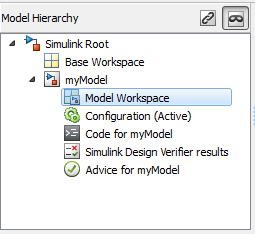
Select Add > MATLAB Variable.
You can similarly use the Add menu or toolbar to add a
Simulink.Parameterobject to a model workspace.
To change the value of a model workspace variable:
Open the Model Explorer. On the Modeling tab, click Model Explorer.
In the Model Explorer Model Hierarchy pane, select the model workspace.
In the Contents pane, select the variable.
In the Contents pane or in Dialog pane, edit the value displayed.
To delete a model workspace variable:
Open the Model Explorer. On the Modeling tab, click Model Explorer.
In the Model Explorer Model Hierarchy pane, select the model workspace.
In Contents pane, select the variable.
Select Edit > Delete.
Change Workspace Data Whose Source Is a MAT File or MATLAB File
You can use Model Explorer or MATLAB commands to modify workspace data whose source is a MAT file or MATLAB file.
To make the changes permanent, in the Model Workspace dialog box, use the Save To Source button to save the changes to the MAT-file or MATLAB file.
Open the Model Explorer. On the Modeling tab, click Model Explorer.
In the Model Explorer Model Hierarchy pane, right-click the workspace.
Select the Properties menu item.
In the Model Workspace dialog box, use the Save To Source button to save the changes to the MAT-file or MATLAB file.
To discard changes to the workspace, in the Model Workspace dialog box, use the Reinitialize From Source button.
Changing Workspace Data Whose Source Is MATLAB Code
The safest way to change data whose source is MATLAB code is to edit and reload the source. Edit the MATLAB code and then in the Model Workspace dialog box, use Reinitialize From Source button to clear the workspace and re-execute the code.
To save and reload alternative versions of the workspace that result from editing the MATLAB code source or the workspace variables themselves, see Export Workspace Variables and Importing Workspace Variables.
Manipulate Model Workspace Programmatically
For most common data management tasks, regardless of data source, it is
recommended that you use the Simulink.data.connect function to create a connection to your data
source, then use the common set of functions provided by the Simulink.data.DataConnection object. For more information, see Manage Design Data for Simulink Models Programmatically.
For tasks specific to a model workspace, use a Simulink.ModelWorkspace object. An
object of the Simulink.ModelWorkspace class
describes a model workspace. Simulink® creates an instance of this class for each model that you open during
a Simulink session. The methods associated with this class can be used to
accomplish a variety of tasks related to the model workspace, including:
Listing the variables in the model workspace
Assigning values to variables
Evaluating expressions
Clearing the model workspace
Reloading the model workspace from the data source
Saving the model workspace to a specified MAT file or MATLAB file
Saving the workspace to the MAT file or MATLAB file that the workspace designates as its data source
For example, the following MATLAB code creates variables specifying model parameters in the model workspace, saves the parameters, modifies one of them, and then reloads the workspace to restore it to its previous state.
hws = get_param(bdroot, 'modelworkspace');
hws.DataSource = 'MAT-File';
hws.FileName = 'params';
hws.assignin('pitch', -10);
hws.assignin('roll', 30);
hws.assignin('yaw', -2);
hws.saveToSource;
hws.assignin('roll', 35);
hws.reload;
To programmatically access variables for the purpose of sweeping block parameter
values, consider using Simulink.SimulationInput
objects instead of modifying the variables through the programmatic interface of the
model workspace. See Optimize, Estimate, and Sweep Block Parameter Values.
Create Model Mask
Mask the model, which enables you to control how users of the model interact with model arguments. For more information, see Introduction to System Mask.

