Add Custom Model Preset to Regression Learner
R2026bIn the Regression Learner app, you can add custom model presets to the Model Presets gallery. A custom model preset uses a custom training function, prediction function, and optional hyperparameter structure stored in a model class file. When you create a custom model preset, you can add code to a template model class file or import an existing model class file . After you add the custom model preset, it is installed in the app, and you can use it to create and train draft models in the current session and future app sessions.
Note
When you save an app session that has a custom preset model in the Models pane, you cannot load the saved session file into Regression Learner unless the corresponding custom model preset is installed in the app. For information about how to export a custom model preset class file from the app, see Manage Custom Model Presets.
Use Model Class Template File
If you do not have an existing model class file, follow these steps to add a custom model preset using a model class template file.
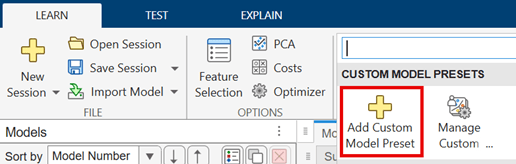
In the Custom Model Presets section of the Model Presets gallery, click Add Custom Model Preset.
In the dialog box, select Create new model class.
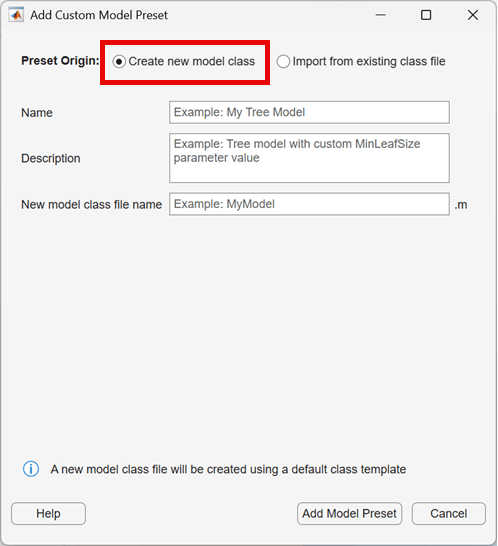
In the Name box, enter the name of the custom model preset. This name appears next to the preset icon in the Model Presets gallery.
(Optional) In the Description box, enter a description of the preset. This description appears below the preset name when you select Details view in the Model Presets gallery, and as a tooltip when you select Icon view.
In the New model class file name box, enter a name for the new model class file.
Click Add Model Preset. The app adds the new custom model preset to the Custom Model Presets section of the Model Presets gallery. The app also saves the new model class file to the
+custommodelsfolder, and opens the file in the MATLAB® Editor. To use the custom model preset, you must add MATLAB code to the model class file that describes the model's training function, prediction function, and optional hyperparameter structure. For more details, see Import and Edit Custom Model Preset Class File for Regression.After you add code to the model class file, you can click the custom model preset icon to create a draft model in the current session and future app sessions. For information on how to train draft models, see Train Regression Models in Regression Learner App. For information on how to validate and debug custom model presets, see Manage Custom Model Presets.
Import and Edit Custom Model Preset Class File for Regression
The class file of a custom model preset in Regression Learner contains MATLAB code for model training and prediction, and optionally for the hyperparameter structure of the model. This example shows how to add a custom model preset to the app by importing an existing class file, and how to change the hyperparameter structure of the model preset by editing the preset's class file.
Load Data Set
If you click the button located in the upper-right section of this example and open this example in MATLAB, then MATLAB opens the example folder. This folder includes the example model class file. Alternatively, you can enter openExample("CustomRegressionTreeClass.m") at the command line.
In MATLAB, load the carbig data set and create a table containing the different variables.
load carbig
cartable = table(Acceleration,Cylinders,Displacement, ...
    Horsepower,Model_Year,Weight,Origin,MPG);
Start Regression Learner Session
Open Regression Learner using the cartable table and the MPG variable as the response.
regressionLearner(cartable,"MPG")
In the New Session from Arguments dialog box, click Start Session.
Add Custom Model Preset
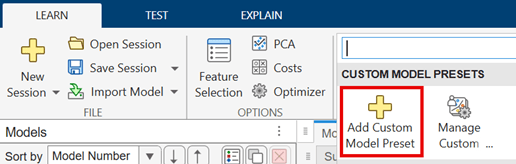
In the Custom Model Presets section of the Model Presets gallery, click Add Custom Model Preset.
.
In the Add Custom Model Preset dialog box, select Import from existing class file.
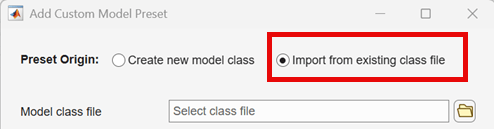
Click the folder icon next to the Model class file box and select CustomRegressionTreeClass.m.
Click Open in the Select Model Class File dialog box to load the example class file.
In the Add Custom Model Preset dialog box, enter the following:
Name —
MyTreeDescription —
My custom treeNew model class file name —
MyTreeClass
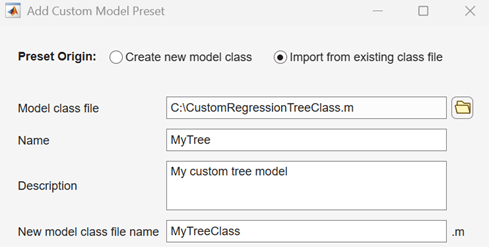
Click Hyperparameters to view the hyperparameter structure of the model class.

Select the Validate model class file before adding preset check box located below the hyperparameters table.
Click Add Model Preset. The app validates the training and prediction functions of the model class using a sample from the app session training data set.
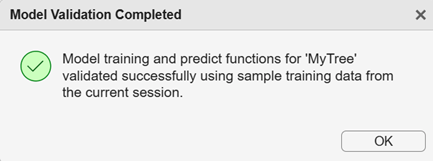
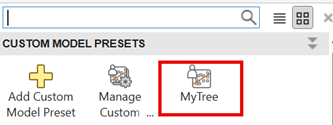
The app adds the MyTree model preset to the Custom Model Presets section of the Model Presets gallery. Click OK in the Model Validation Completed and Custom Model Preset Added dialog boxes.
Edit Model Preset Class File
After you add a model preset to the app, you can edit the preset's model class file to change the training function, prediction function, and hyperparameter structure.
In the Custom Model Presets section of the Model Presets gallery, click Manage Custom Model Presets.
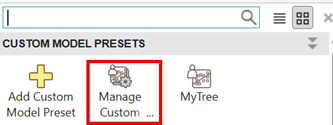
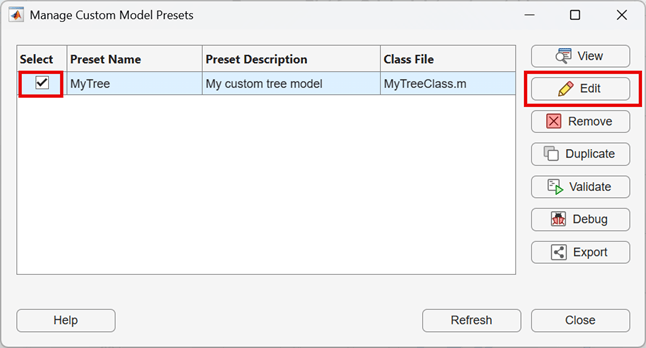
In the dialog box, select the MyTree model check box, and click Edit. The app opens the MyTreeClass.m model class file in the MATLAB Editor.
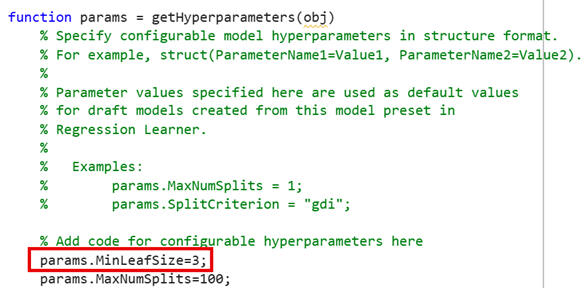
In this example, add the MinLeafSize hyperparameter with the default value 3 to the model class file. In the params function definition section, add the following line:
params.MinLeafSize=3;
In the training function definition section, add the following to the fitrtree function syntax:
MinLeafSize=params.MinLeafSize

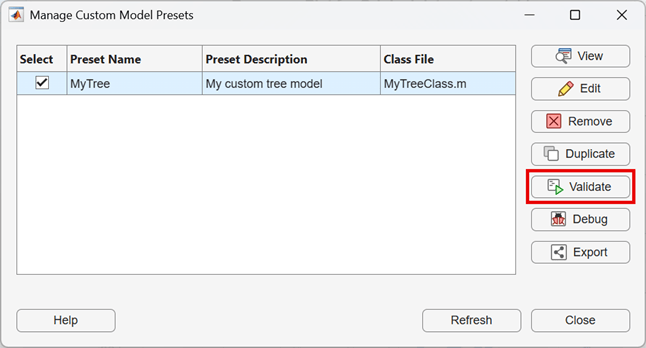
Save the model class file and return to the app. In the Manage Custom Model Presets dialog box, click Validate to validate your changes.
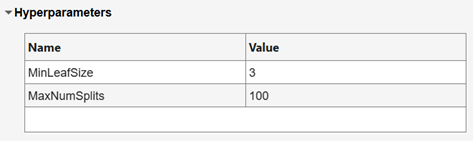
You can view the new model preset hyperparameter structure by clicking View.
To create a draft model using the edited custom model preset, click the MyTree button in the Custom Model Presets section of the Model Presets gallery.
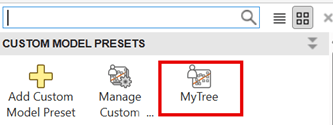
For information on how to train draft models, see Train Regression Models in Regression Learner App.
For information on how to validate and debug custom model presets, see Manage Custom Model Presets.
Manage Custom Model Presets
Regression Learner provides options to manage custom model presets that you add to the app. In the Custom Model Presets section of the Model Presets gallery, click Manage Custom Model Presets.
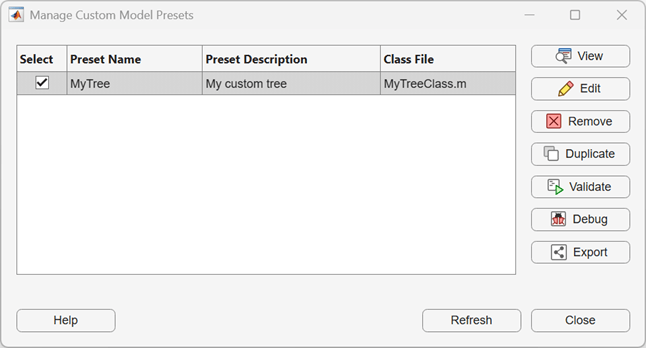
In the Select column, select the check box for the model preset you want to work with, and then click one of the buttons to take the corresponding action:
View — Display information about the selected model preset, including the name, description, class file name, and model hyperparameters.
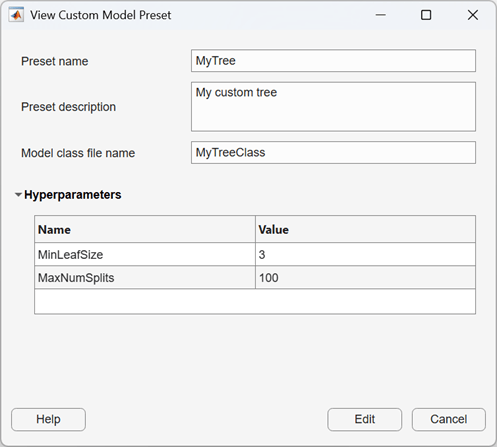
Edit — Open the selected model class file for editing in the MATLAB Editor. After you save your edits, click Refresh in the Manage Custom Model Presets dialog box to update the displayed table. The app updates any draft models in the Models pane that use the custom model preset with any changes you make to the training and prediction functions. For trained models that use the custom model preset, the app updates the prediction function only. The app does not update the hyperparameter structure of any existing draft or trained models that use the custom model preset.
Remove — Remove the selected model preset from the Model Presets gallery. This action also deletes the model's class file from the
+custommodelsfolder, and all trained and draft models in the Models pane that use the custom model preset. To preserve the model class file for later use, you must first export it to another folder (see the Export button description below).Duplicate — Create a duplicate of the selected model preset in the Model Presets gallery. In the Duplicate Custom Model Preset dialog box, modify the preset name and preset description if necessary, and enter the name of the new model class file in the Model class file name box. The app saves a copy of the selected model's class file in the
+custommodelsfolder using the new model class file name. You cannot adjust the model hyperparameter structure in the Duplicate Custom Model Preset dialog box. To change the hyperparameter structure of the duplicated model, you can edit the model's class file (see the Edit button description above).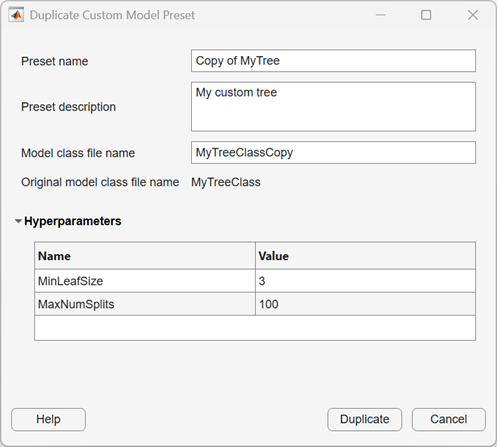
Validate — Validate the selected model preset's class file. The app validates the training and prediction functions using a sample from the app session's training data set and displays any errors. To fix any errors in the class file, click Debug or Edit.
Debug — The app opens the MATLAB Debugger and the selected model class file with break points added in the training and prediction functions. Step through these functions in debug mode and resolve any issues by editing the code. After you save your edits to the model class file, click Refresh in the Manage Custom Model Presets dialog box to update the displayed table. You must close the debugger before performing any other actions in the dialog box.
Export — Copy the selected model's class file from the
+custommodelsfolder to another folder. Use this option before you remove a custom model preset to preserve the model's class file.

