connect
R2026bConnect MAVLink client to UDP or serial port
Description
connectionName = connect(mavlink,type)mavlink using the connection type specified
by type.
connectionName = connect(___,Name=Value)LocalPort=50791 specifies to connect the MAVLink client to UDP port 50791.
Examples
Connect a local MAVLink client to a serial port and establish communication with a Pixhawk® 4 board running PX4® firmware by exchanging heartbeat messages.
Create a mavlinkdialect
object using the common.xml file.
dialect = mavlinkdialect("common.xml");Create a local MAVLink client by using the mavlinkio
object.
gcs = mavlinkio(dialect);
Store the remote MAVLink client information by using the mavlinkclient
object. This code stores information for a Pixhawk board with a system ID of 1 and a component ID of 1.
uav = mavlinkclient(gcs,1,1)
uav =
  mavlinkclient with properties:

         SystemID: 1
      ComponentID: 1
    ComponentType: "Unknown"
    AutopilotType: "Unknown"
Connect the local MAVLink client to the same serial port as the Pixhawk board by using the connect
function. In this code, the Pixhawk board uses the "COM5" port.
connect(gcs,"Serial",SerialPort="COM5");
Create a heartbeat microservice object.
heartbeat = mavlinkmicroservice(gcs,"heartbeat");Start sending heartbeat messages to the Pixhawk board by using the start
function.
start(heartbeat,uav,"Serial",SerialPort="COM5")
If the Pixhawk board replies with heartbeat messages, the local MAVLink client establishes a connection to it.
Verify that a connection has been established by using the listClients
function. Note that the heartbeat messages include the ComponentType and
AutopilotType information of the Pixhawk board.
listClients(gcs)
ans = 2×4 table
    SystemID    ComponentID       ComponentType             AutopilotType
    ________    ___________    ____________________    _______________________

      255            1            "MAV_TYPE_GCS"        "MAV_AUTOPILOT_INVALID"
       1             1         "MAV_TYPE_QUADROTOR"       "MAV_AUTOPILOT_PX4"
Verify that the ComponentType and
AutopilotType properties of the mavlinkclient
object have been automatically updated to match the heartbeat message values.
uav
uav =
  mavlinkclient with properties:

         SystemID: 1
      ComponentID: 1
    ComponentType: "MAV_TYPE_QUADROTOR"
    AutopilotType: "MAV_AUTOPILOT_PX4"
To stop the connection, first stop the heartbeat message stream.
stop(heartbeat,uav)
Then, disconnect the local MAVLink client from the serial port.
disconnect(gcs)
Connect a local MAVLink client to QGroundControl by exchanging heartbeat messages over UDP,
Open QGroundControl.
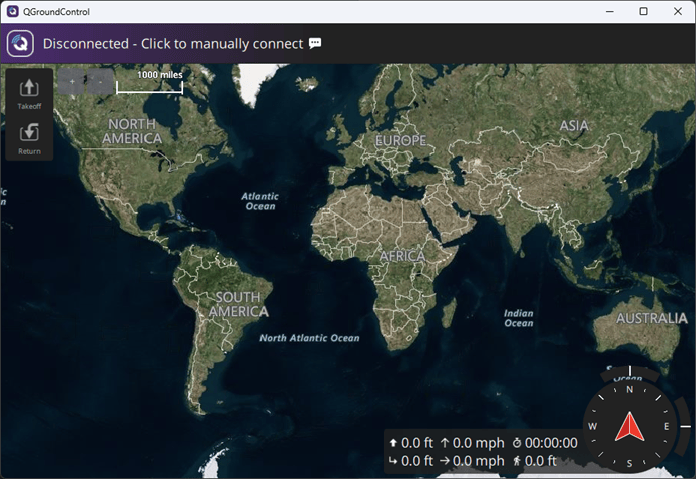
Create a mavlinkdialect object using the common.xml file.
dialect = mavlinkdialect("common.xml");Create a local MAVLink client that represents a simulated UAV by creating a mavlinkio object with these settings:
MAVLink message definition —
dialectMAVLink system ID —
1MAVLink component ID —
1MAVLink component type —
MAV_TYPE_QUADROTORMAVLink autopilot type —
MAV_AUTOPILOT_GENERIC
uav = mavlinkio(dialect,SystemID=1,ComponentID=1,AutopilotType="MAV_AUTOPILOT_GENERIC", ...
    ComponentType="MAV_TYPE_QUADROTOR");
Store the remote MAVLink client information that represents QGroundControl. By default, QGroundControl has a system ID of 255 and a component ID of 190.
qgc = mavlinkclient(uav,255,190);
Connect the local MAVLink client to a UDP port by using the connect function.
connect(uav,"UDP");Verify that the local MAVLink client has connected to a UDP port by using the listConnections function.
connectionTable = listConnections(uav)
connectionTable =
   1x2 table
       ConnectionName         ConnectionInfo
       ______________      ___________________

        "Connection1"      "UDP@0.0.0.0:55371"
Create a heartbeat microservice object.
heartbeat = mavlinkmicroservice(uav,"heartbeat");Specify the host address and port of QGroundControl.
qgcHost = "127.0.0.1";
qgcPort = 14550;
Start sending heartbeat messages to QGroundControl by using the start function.
start(heartbeat,qgc,"UDP",RemoteHost=qgcHost,RemotePort=qgcPort);If QGroundControl replies with heartbeat messages, the local MAVLink client establishes a connection to it.
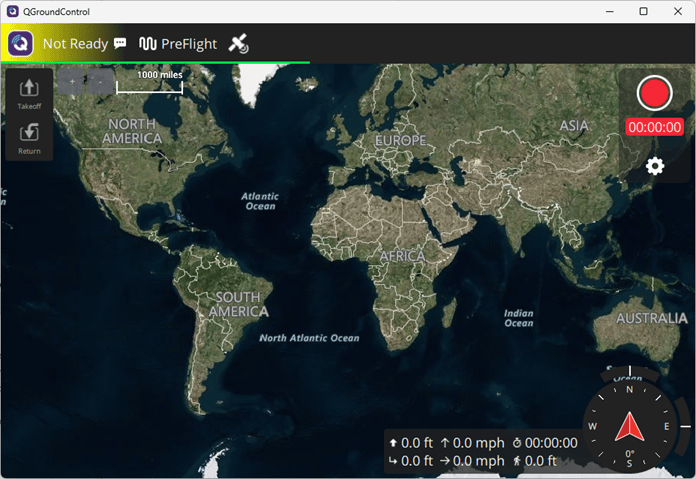
Verify that the connection has been established by using the listClients
function.
listClients(uav)
ans = 2×4 table
    SystemID    ComponentID       ComponentType             AutopilotType
    ________    ___________    ____________________    _______________________

      255           190          "MAV_TYPE_GCS"        "MAV_AUTOPILOT_INVALID"
       1             1        "MAV_TYPE_QUADROTOR"     "MAV_AUTOPILOT_GENERIC"
To stop the connection, first stop the heartbeat message stream.
stop(heartbeat,gcs)
Then, disconnect the local MAVLink client from the UDP port.
disconnect(uav)
Input Arguments
Name-Value Arguments
Output Arguments
Version History
Introduced in R2019aSee Also
disconnect | mavlinkclient | heartbeatMicroservice | parameterMicroservice | commandMicroservice | missionMicroservice | ftpMicroservice | mavlinkdialect

