Deploy and Run Student-Teacher Anomaly Detection on NVIDIA Jetson
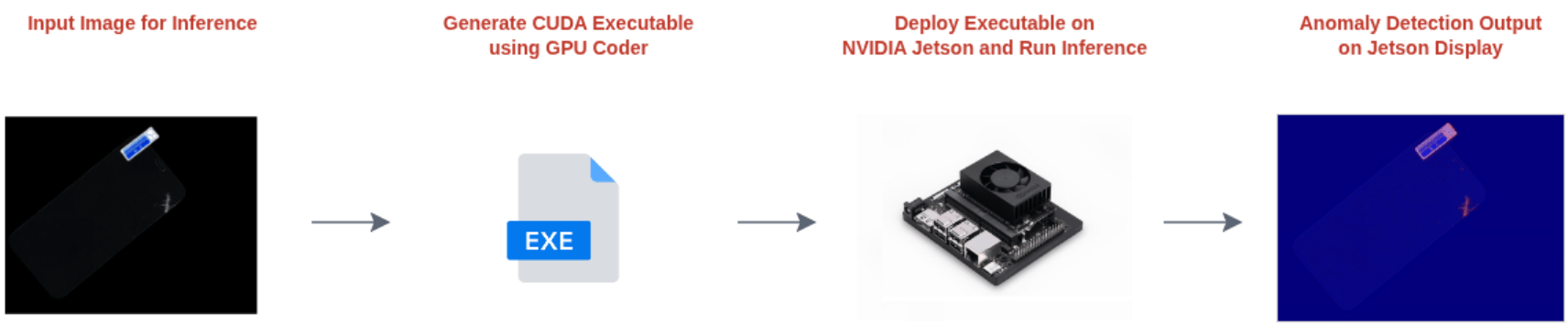
R2026bThis example shows how to deploy a Student-Teacher anomaly detection network as a CUDA® executable on NVIDIA® Jetson™ hardware. In this example, you generate a CUDA executable for the anomaly detection network, deploys it to the NVIDIA Jetson board, and displays the detection output on the target display.
Prerequisites
These are the requirements for the target hardware and the development host computer.
Target Hardware Requirements
NVIDIA Jetson or DRIVE embedded platform.
Ethernet crossover cable to connect the target board and host computer, if you cannot connect the target board to a local network.
NVIDIA CUDA toolkit installed on the board.
Environment variables for the compilers and libraries.
For more information, see Prerequisites for Generating Code for NVIDIA Boards (MATLAB Coder).
Development Host Requirements
MATLAB Coder for C++ code generation. For a tutorial, see Get Started with MATLAB Coder (MATLAB Coder).
GPU Coder for CUDA code generation. For a tutorial, see Get Started with GPU Coder (GPU Coder).
NVIDIA CUDA toolkit on the host and environment variables for the compilers and libraries. For more information, see Third-Party Hardware (GPU Coder) and Setting Up the Prerequisite Products (GPU Coder).
Connect to NVIDIA Jetson Board
The MATLAB Coder Support Package for NVIDIA Jetson and NVIDIA DRIVE™ Platforms uses an SSH connection over TCP/IP to execute commands while building and running the generated CUDA code on the Jetson platform. Connect the target board to the same network as the host computer or use an Ethernet crossover cable to connect the board directly to the host computer. For information on how to set up and configure your board, see the NVIDIA documentation.
To communicate with the NVIDIA hardware, create a live hardware connection object by using the jetson (MATLAB Coder) function. When connecting to the target board for the first time, you must provide the host name or IP address, the username, and the password of the target board.
You can connect to the target board using the device address, username, and password such as these:
hwObj = jetson("jetson-board-name","ubuntu","ubuntu");
On subsequent connections, you do not need to supply the address, the username, and the password. The hardware object reuses these settings from the most recent successful connection to an NVIDIA board.
This example reuses the settings from the most recent successful connection to an NVIDIA Jetson board.
hwObj = jetson;
### Checking for CUDA availability on the target...
### Checking for 'nvcc' in the target system path...
### Checking for cuDNN library availability on the target...
### Checking for TensorRT library availability on the target...
### Checking for prerequisite libraries is complete.
### Gathering hardware details...
### Checking for third-party library availability on the target...
### Gathering hardware details is complete.
Board name              : NVIDIA Jetson Orin Nano Developer Kit
CUDA Version            : 12.6
cuDNN Version           : 9.3
TensorRT Version        : 10.3.0
GStreamer Version       : 1.20.3
V4L2 Version            : 1.22.1
SDL Version             : 1.2
OpenCV Version          : 4.7.0
Available Webcams       :
Available GPUs          : Orin
Available Digital Pins  : 7  11  12  13  15  16  18  19  21  22  23  24  26  29  31  32  33  35  36  37  38  40
Verify GPU Environment on Target Board
Verify that the compilers and libraries necessary for running this example are set up correctly, using the coder.checkGpuInstall (GPU Coder) function. The environment configuration specifies the target NVIDIA Jetson hardware, enables basic code generation checks, suppresses command-line output, and links the configuration to the connected hardware.
envCfg = coder.gpuEnvConfig("jetson");
envCfg.BasicCodegen = 1;
envCfg.Quiet = 1;
envCfg.HardwareObject = hwObj;
coder.checkGpuInstall(envCfg);
Load Sample Input Image
Choose an input image to perform inference on. The example provides a sample anomalous image from the screen test subset of the MulsenAD data set [1].
Read the inference image using the imread function.
inferenceImage = imread("screenSampleImageTest.png");Normalize the input image to single precision to match the preprocessing used during training of the pretrained Student-Teacher model.
inferenceImage = im2single(inferenceImage);
Save the input image as a MAT file.
save("inputImage.mat","inferenceImage");
Download Pretrained Network
Download the pretrained Student-Teacher anomaly detection network.
trainedModelURL = "https://ssd.mathworks.com/supportfiles/visualinspection/data/trainedScreenDefectDetectorModel.zip";
downloadTrainedNetwork(trainedModelURL,pwd);
Downloading pretrained network. This can take several minutes to download... Done. Network extracted successfully.
Generate CUDA Code for Target Board Using GPU Coder
To generate a CUDA executable that you can deploy on to the target board, create a GPU code configuration object for generating an executable.
cfg = coder.gpuConfig('exe');Create a configuration object for the NVIDIA Jetson platform and assign it to the Hardware property of the code configuration object, using the coder.hardware (MATLAB Coder) function.
cfg.Hardware = coder.hardware('NVIDIA Jetson');Specify the folder for performing the remote build process on the target board. To specify the folder, use the BuildDir property of the Hardware property of the code configuration object. If the specified build folder does not exist on the target board, then the object creates a folder with the specified name. If you do not assign a value to cfg.Hardware.BuildDir, the remote build process occurs in the most recently specified build folder. If no folder is explicitly set, the deployment and inference operations default to the home folder on the target board.
cfg.Hardware.BuildDir = '~/remoteBuildDir';Set the GenerateExampleMain property to generate and compile an example C++ main file. This example does not require any modifications to the generated main files.
cfg.GenerateExampleMain = 'GenerateCodeAndCompile';Generate CUDA code using the codegen (MATLAB Coder) function. Pass the GPU code configuration to the function, along with the detectAndDisplayAnomaly entry-point function, which is attached to this example as a supporting file. After code generation takes place on the host, MATLAB copies the generated files to the target board and builds them.
codegen("-config",cfg,"detectAndDisplayAnomaly","-report");
### Checking for CUDA availability on the target...
### Checking for 'nvcc' in the target system path...
Code generation successful: View report
Prepare Data for Inference
Transfer the network and input image files to the target board. The inputImage.mat file contains a test image, and the trainedScreenDefectDetectorModel.mat file contains the pretrained Student-Teacher anomaly detection network.
putFile(hwObj,"inputImage.mat", hwObj.workspaceDir);
putFile(hwObj,"trainedScreenDefectDetectorModel.mat",hwObj.workspaceDir);
Run Anomaly Detection on Target Board
Run the deployed anomaly detection application on the target board.
pid = runApplication(hwObj,"detectAndDisplayAnomaly");### Launching the executable on the target... Executable launched successfully with process ID 534839. Displaying the simple runtime log for the executable... Note: For the complete log, run the following command in the MATLAB command window: system(hwobj,'cat /home/ubuntu/remoteBuildDir/MATLAB_ws/R2026b/home/user/Documents/MATLAB/ExampleManager/user.Bdoc.j3338571/visualinspection-ex35575744/detectAndDisplayAnomaly.log')
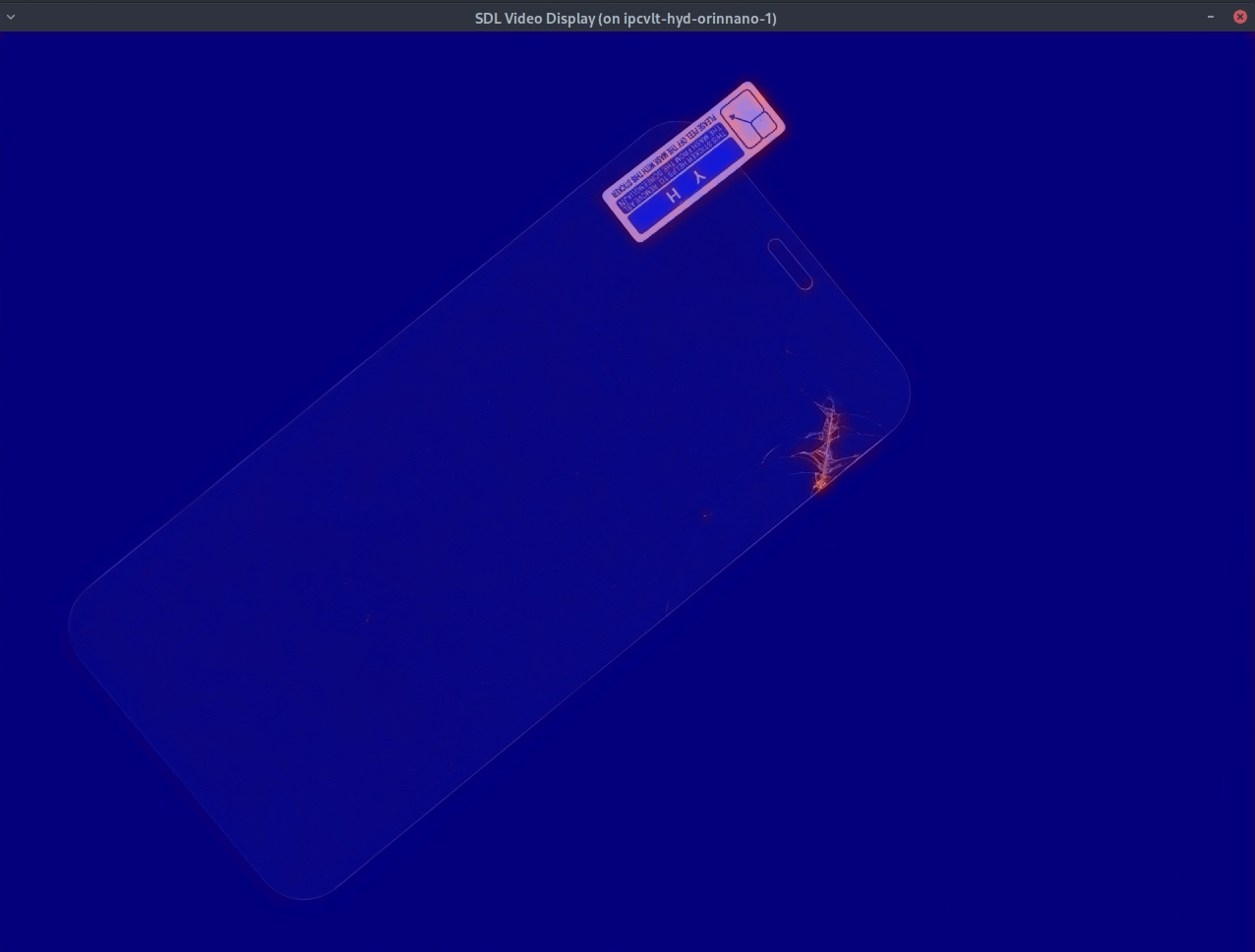
A window opens on the target hardware display, showing the anomaly detection output.
References
[1] Li, Wenqiao, Bozhong Zheng, Xiaohao Xu, Jinye Gan, Fading Lu, Xiang Li, Na Ni et al. "Multi-sensor object anomaly detection: Unifying appearance, geometry, and internal properties." In Proceedings of the computer vision and pattern recognition conference, pp. 9984-9993. 2025.
See Also
studentTeacherAnomalyDetector | codegen (MATLAB Coder)

