addNodes
Description
addNodes(
adds wireless nodes to the wireless traffic viewer object,
wirelessTrafficVis,node)wirelessTrafficVis.
Examples
Initialize a wireless network simulator, then create and configure both an access point (AP) node and a station (STA) node. After associating the STA with the AP, you add both nodes to the simulation. Next, you set up a wireless traffic viewer for visualization and run the simulation to observe the state transitions and channel occupancy of the wireless nodes.
Initialize the wireless network simulator.
networkSimulator = wirelessNetworkSimulator.init;
Create and configure the AP node.
deviceCfg = wlanDeviceConfig(Mode="AP");
apNode = wlanNode(Name="AP",Position=[0 10 0],DeviceConfig=deviceCfg);
Create the STA node with a default device configuration.
staNode = wlanNode(Name="STA",Position=[5 0 0]);Associate the STA node with the AP node.
associateStations(apNode,staNode,FullBufferTraffic="on")Add the nodes to the simulator.
addNodes(networkSimulator,[apNode staNode])
Create a wireless traffic viewer and add the nodes to it.
wirelessTrafficVis = wirelessTrafficViewer;
addNodes(wirelessTrafficVis,[apNode staNode])
Set the simulation time, and run the simulation.
simulationTime = 0.2;
run(networkSimulator,simulationTime)
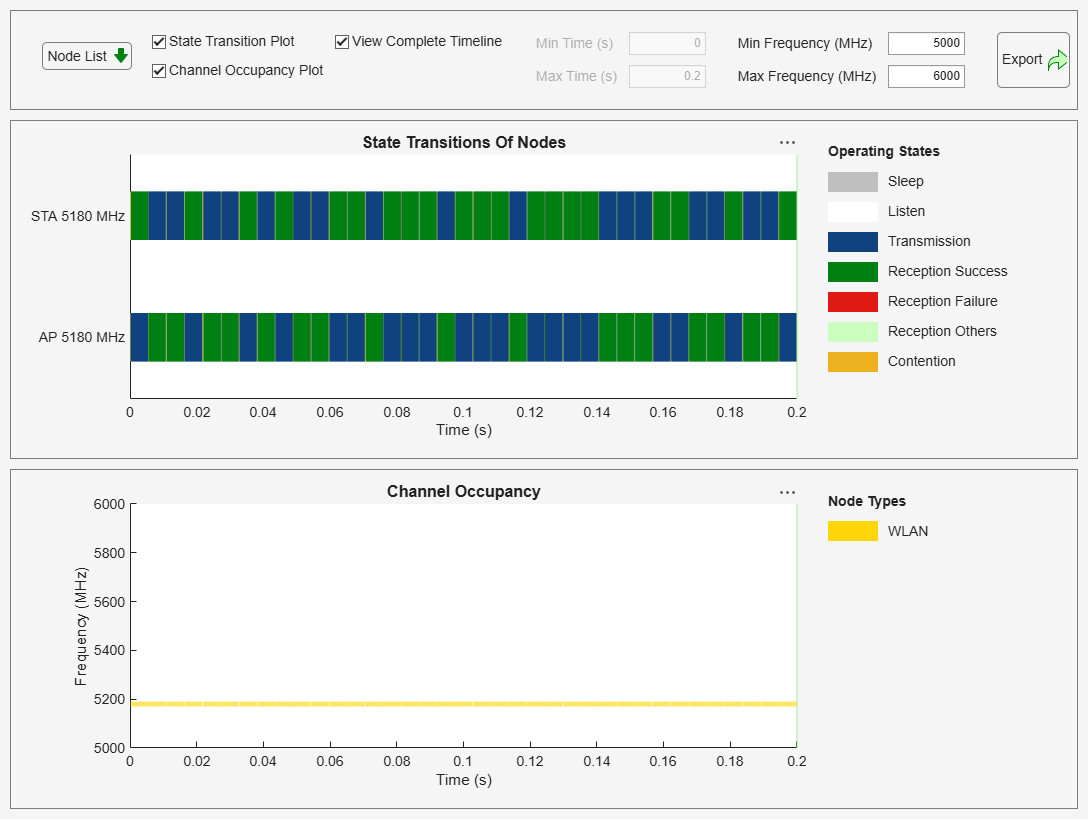
Try exploring these additional features of the wireless traffic viewer:
Disable and enable nodes from plots.
Disable and enable operating states and node types.
Visualize certain time and frequency durations.
Export images.
Simulate a Bluetooth® Low Energy (LE) network to observe the state transitions and channel occupancy of Bluetooth nodes. Initialize the wireless network simulator, create and connect a Central and a Peripheral node, and configure On-Off traffic. After adding the nodes to the simulator and the wireless traffic viewer, run the simulation and visualize node activity.
Initialize the wireless network simulator.
networkSimulator = wirelessNetworkSimulator.init;
Set simulation time.
simulationTime = 0.2;
Create a Central and PeripheralBluetooth LE node.
centralNode = bluetoothLENode("central",Position=[0 0 0]);
peripheralNode = bluetoothLENode("peripheral",Position=[1 0 0]);
Create and configure the connection between the nodes.
cfg = bluetoothLEConnectionConfig;
configureConnection(cfg,centralNode,peripheralNode);
Configure On-Off traffic.
traffic = networkTrafficOnOff(DataRate=200,PacketSize=27,OnTime=Inf,OffTime=0);
Add traffic sources.
addTrafficSource(centralNode,traffic,DestinationNode=peripheralNode)
Add the nodes to the simulator.
nodes = [centralNode peripheralNode];
addNodes(networkSimulator,nodes)
Create a wireless traffic viewer and add the nodes to it.
wirelessTrafficVis = wirelessTrafficViewer;
addNodes(wirelessTrafficVis,nodes)
Run the simulation.
run(networkSimulator,simulationTime)
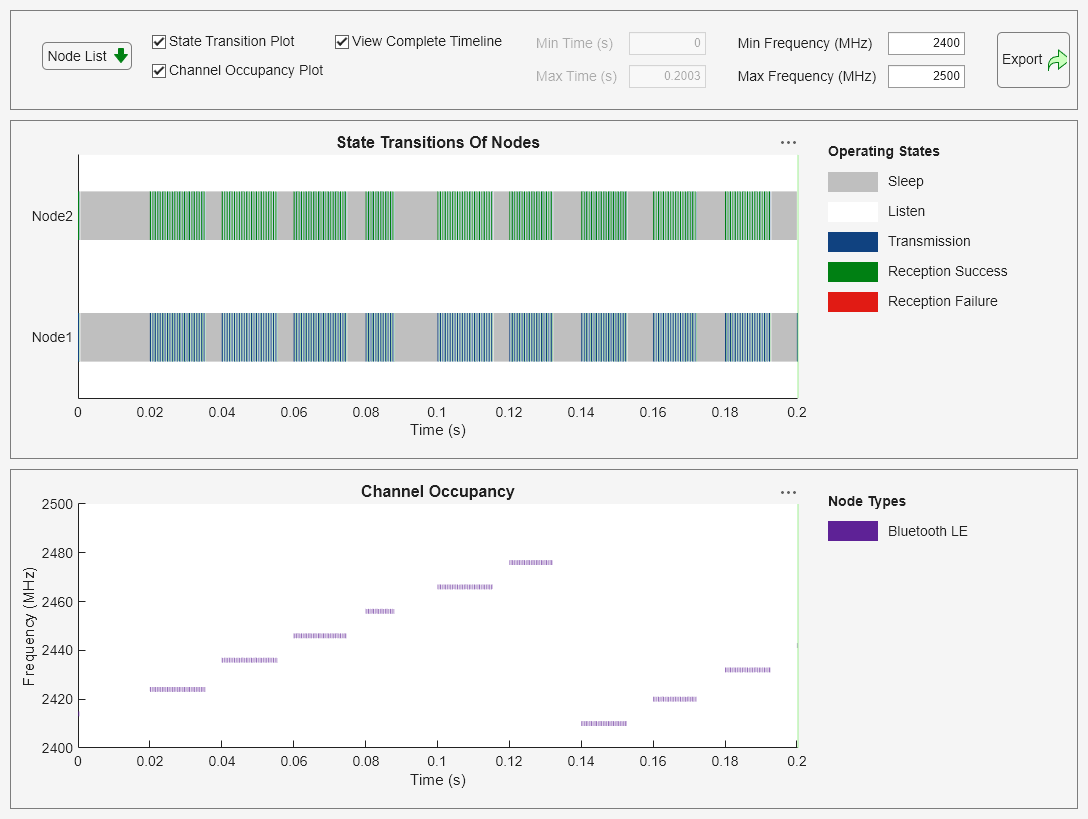
Try exploring these additional features of the wireless traffic viewer:
Disable and enable nodes from plots.
Disable and enable operating states and node types.
Visualize certain time and frequency durations.
Export images.
Input Arguments
Version History
Introduced in R2026a

