Build Linux Image for AMD Kria KR260 Robotics Starter Kit Using PetaLinux Tool
This example shows how to build custom Linux image for the AMD® Kria® KR260 Robotics Starter Kit that is compatible with MathWorks® applications. You build the Linux image from by configuring the PetaLinux project using Kria board support packages (BSP), integrating the meta-mathworks layer, and setting up the boot files. Alternatively, you can use the pre-configured MathWorks PetaLinux repository, which includes all the necessary setup and configuration files to build the Linux image. You can also follow the process in this example to build a PetaLinux image for the AMD Kria KV260 Vision AI Starter Kit and other Zynq UltraScale+ platforms by using their respective BSPs.
Prerequisites
To run this example, you require:
A Linux-based host computer with minimum of 8GB RAM and 100GB of free workspace
An Ubuntu 20.04 LTS or Ubuntu 22.04 LTS operating system
PetaLinux Installer v2023.1
The packages in the package_list on the AMD website.
PetaLinux Image Build Process
PetaLinux is an embedded Linux software development kit (SDK) designed for AMD FPGA-based system-on-chip (SoC) platforms. You can use PetaLinux to create, configure, build, and package the complete Linux systems for AMD SoC, MPSoC, and FPGA devices. This image shows the process of generating a Linux image in PetaLinux.
To develop a custom Linux image, you:
Create the PetaLinux project — Create a new PetaLinux project. You download a Board Support Package (BSP) from the hardware vendor website. The BSP includes board-specific configurations, boot files, and reference hardware designs.
Import the hardware design — Integrate your hardware design and ensure the Linux image recognizes the connected peripherals and custom IP blocks.
Configure the project — Set up the kernel, device tree, and root file-system options to match the target application requirements.
Integrate Yocto layer — Add Yocto layers, such as the
meta-mathworkslayer, to extend the image with additional software, drivers, and tools.Build the image — Compile the kernel, device tree, and root file system into a deployable image.
Package and deploy the image — Create a bootable image and copy it to an SD card or other boot media for use on the target board.
Install PetaLinux Tool
To install the PetaLinux tool on your host machine, follow these steps:
1. The host machine must be running in bash mode. If the host machine is currently running in dash mode, switch to bash by running this command. Running this command requires administrative privileges. For more information, see Setting Up Your Environment.
sudo dpkg-reconfigure dash
2. Download the PetaLinux installer v2023.1 from the AMD website.
3. To install the PetaLinux tool, run this command in your Linux terminal. Specify the path where you downloaded the PetaLinux installer.
chmod 755 ./petalinux-v2023.1-05012318-installer.run
./petalinux-v2023.1-050121318-installer.run
4. To use PetaLinux commands to build the image, source the PetaLinux tool by running this command:
source <petalinux_installed_directory>/settings.sh
Build Linux Image Using MathWorks PetaLinux Repository
Follow these steps to build the Linux image by using the MathWorks PetaLinux repository. This repository is configured with the necessary settings and contains a script that automates the process of building the Linux image.
1. Clone the MathWorks PetaLinux repository.
git clone https://github.com/mathworks/Petalinux.git
2. Navigate to the PetaLinux directory, then check out the latest branch.
git checkout mathworks_R2026a
3. Navigate to the mw_kria_kr260 directory. This folder contains the mw_build_kr260.sh script, which adds the meta-mathworks layer as a submodule to the PetaLinux project. Run the script by using this command.
chmod +x mw_kria_kr260
./mw_kria_kr260.sh
The script:
a. Adds the meta-mathworks submodule to the Kria KR260 PetaLinux project.
git submodule add https://github.com/mathworks/meta-mathworks project-spec/meta-mathworks
b. Copies the mw_kr260.patch patch file to meta-mathworks folder by using the command:
cp -f mw_kr260.patch project-spec/meta-mathworks/
c. Applies the mw_kr260.patch by using the command:
git apply mw_kr260.patch
d. Sets the meta-mathworks layer as a user layer in the PetaLinux project by using the PetaLinux configuration menu:
petalinux-config
After setting up the PetaLinux project, the script builds the Linux image and generates the Linux image ZIP file by performing the tasks in the Generate Boot Image section.
Build Linux Image Using KR260 Board Support Package
Follow these steps to set up the PetaLinux project, add meta-mathworks layer, configure the kernel and the u-boot environment, and generate a bootable Linux image.
Set Up PetaLinux Project with BSP
First, set up the PetaLinux project:
1. Download the AMD Kria KR260 Robotics Starter kit PetaLinux BSP from the AMD website.
2. Create the PetaLinux project using the KR260 BSP by running this command.
petalinux-create -t project -s <path_to_downloaded_bsp>
The command creates a project with the name xilinx-kr260-starterkit-v2023.1 is created. For more information, see Creating a Project from BSP.
3. Navigate to the xilinx-kr260-starterkit-2023.1/project-spec folder and to clone the meta-mathworks layer by using this command:
git clone https://github.com/mathworks/meta-mathworks.git
4. Copy the mw_kr260.patch file from the MathWorks repository to the directory that contains the meta-mathworks layer. Then, navigate to xilinx-kr260-starterkit-2023.1/project-spec/ and apply the patch by entering this command:
git apply mw_kr260.patch
5. Copy the generated Xilinx Source Archive (XSA) file to the PetaLinux project directory by using the Export Hardware option in Xilinx Vivado.
Add meta-mathworks Layer to the PetaLinux Project
1. Navigate to the xilinx-kr260-starterkit-2023.1.
2. Point the PetaLinux project to the XSA file by using this command:
petalinux-config --get-hw-description <path_to_xsa> --silentconfig
The configuration menu opens. Click Yocto Settings > User Layers. Select User layer 0 and enter the this string:
${PROOT}/project-spec/meta-mathworks
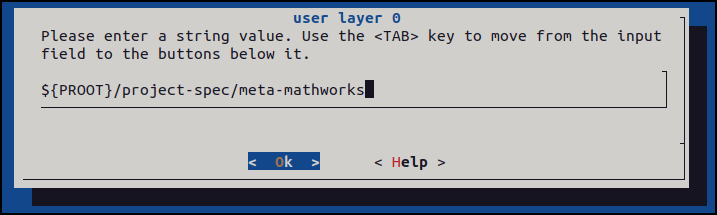
3. Click OK.
Configure PetaLinux System Settings
In the PetaLinux configuration menu, under System AUTO Hardware Settings you can change the memory, Ethernet and serial settings. By default, the PetaLinux project uses the IP configuration settings of the processing system of your Xilinx Vivado design.
1. To change the IP address, navigate to the System AUTO Hardware Settings > Ethernet Settings. Clear the Obtain IP address automatically check box and set your Static IP Address to the the static IP address of your network.
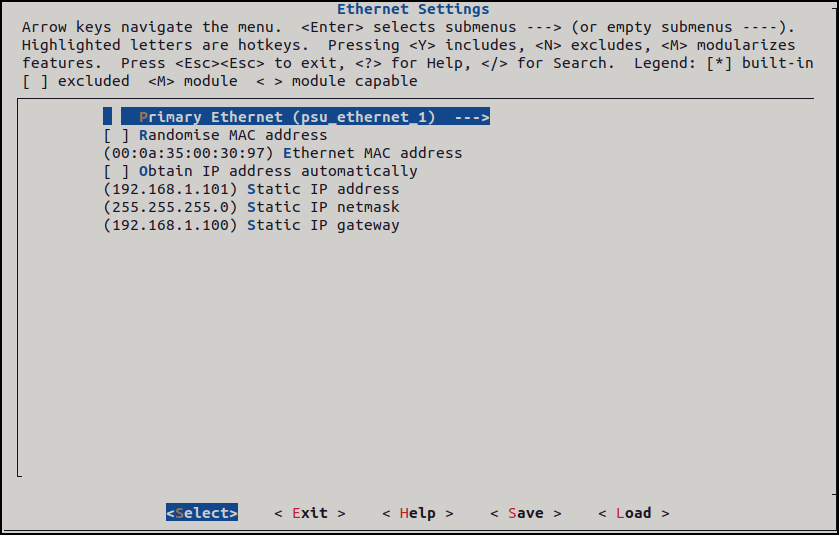
2. In the Image Packaging Configuration setting, set the Root File System to INITRD.
3. In the Firmware Version Configuration setting, set the Host name and Product name, properties. The host name and product name appear in the Linux console when you boot the board. For example, in this image, the host name and product name are mw-kr260.
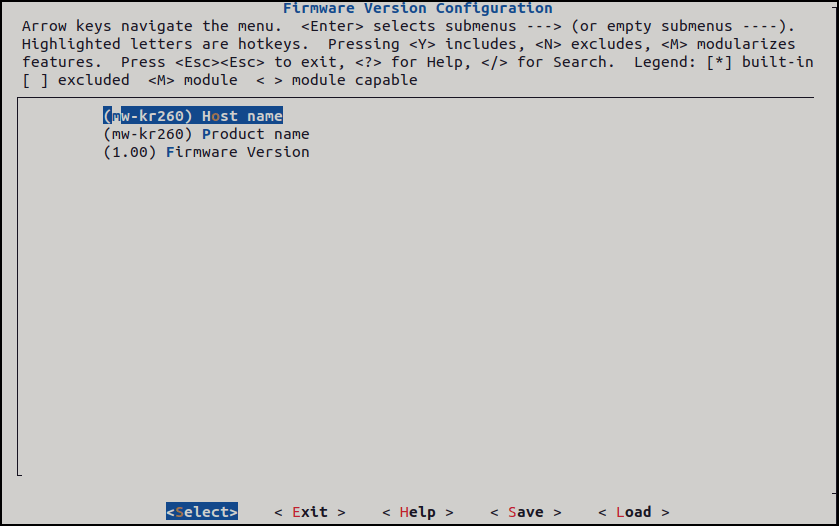
To modify other hardware configuration settings, see Importing a Hardware Configuration.
Configure Root File System
Next, configure the root file system (ROOTFS).
1. In the xilinx-kr260-starterkit-2023.1/project-spec/meta-user/conf/ folder, open the user_rootfsconfig file.
2. Copy these packages to the Linux image:
CONFIG_libserialport
CONFIG_libiio
CONFIG_boost
CONFIG_lttng-ust
CONFIG_mw-fs-overlay
3. Similarly, copy your custom file packages to the root file system.
4. Navigate to PetaLinux project path, xilinx-kr260-starterkit-2023.1.
5. Open the root file system configuration settings by running the command:
petalinux-config -c rootfs
To view the packages, navigate to the User packages settings. Select all of the packages you copied in step 2, then save and exit the configuration menu. You can follow the same process to add your own custom packages. You can also include other packages in your ROOTFS by choosing packages under the Filesystem Packages and PetaLinux Package Groups menu options.
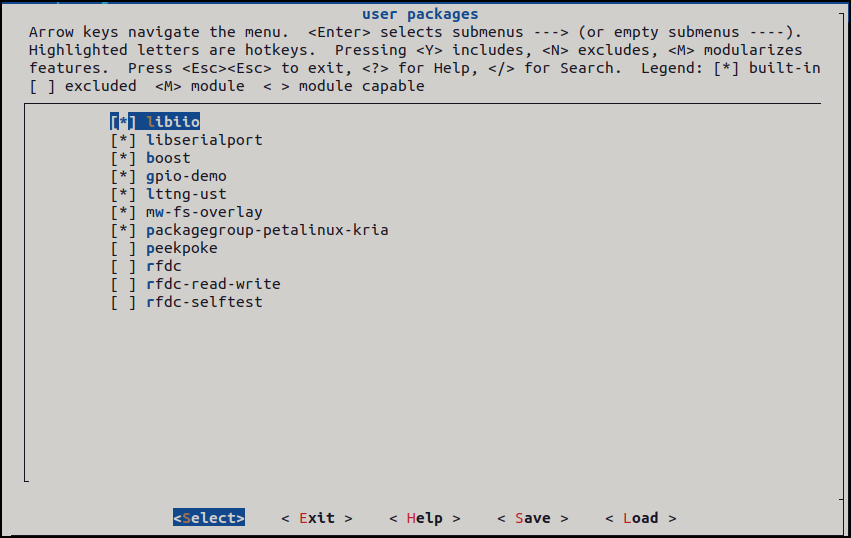
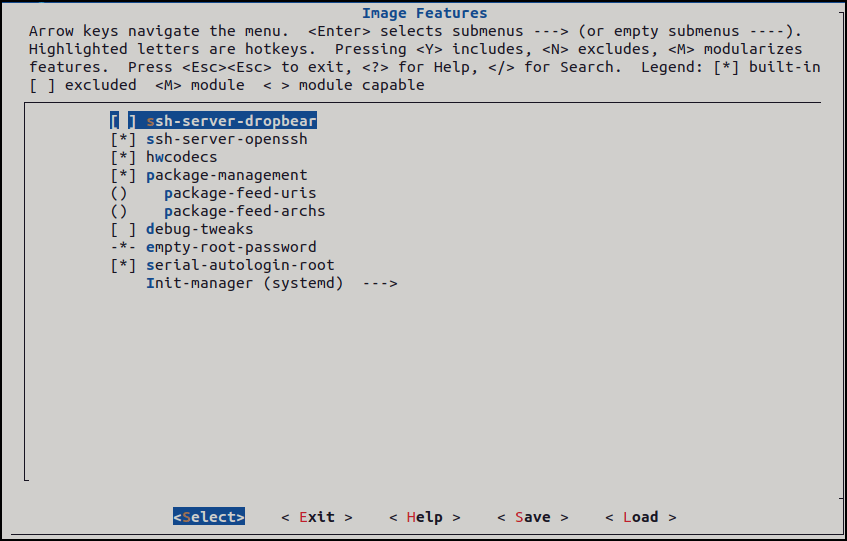
To turn off the password security of your Linux image, select the empty-root-password and serial-autologin-root options.
Configure u-boot Environment
After the board boots up using the MathWorks Linux image, the boot environment is stored in the SD card as uboot.env and uboot-redund.env. However, for the KR260, you cannot store the boot environment directly in a FAT partition because the SD card communicates with the processing system (PS) via a USB interface instead of the standard SDHCI interface. You must store the boot environment in raw format in the available QSPI memory and then copy it to the FAT partition after the board boots. For more information, see Boot Args for Kria Kits on the AMD website.
To configure the u-boot environment by using the GUI, run this command:
petalinux-config -c u-boot
Navigate to the Environment settings and modify the settings to save the boot environment in QSPI memory.
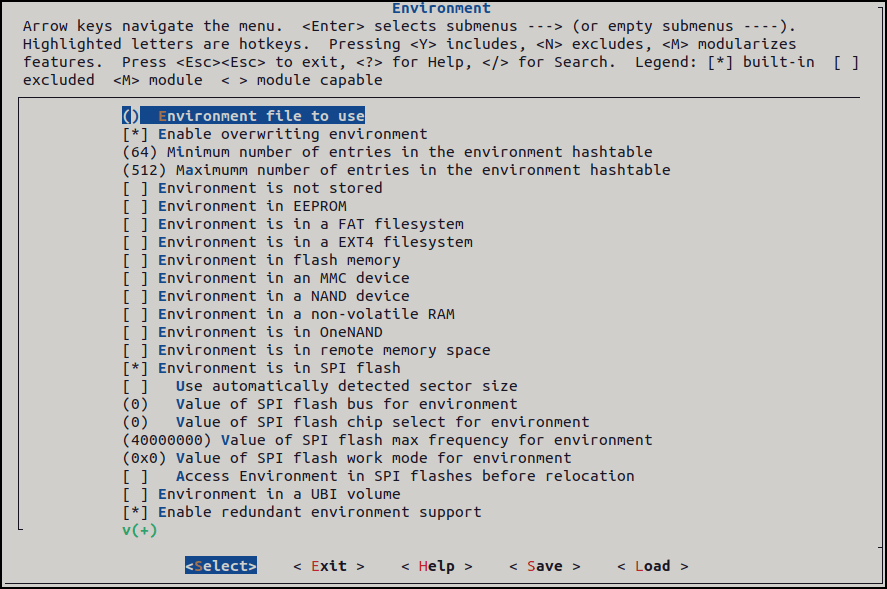
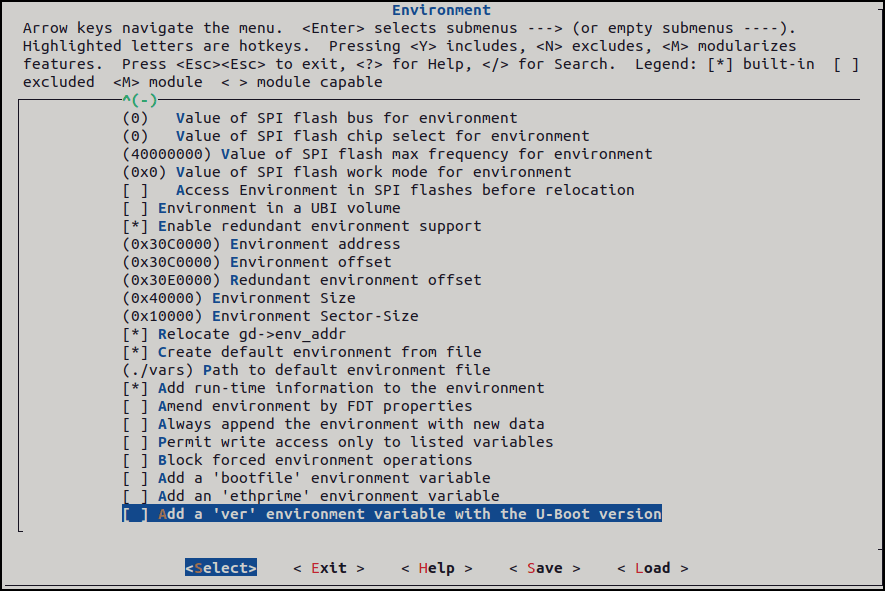
Define the environment variables by using the Environment address, Environment offset, Redundant environment offset, Environment Size and Environment Sector-Size properties. This image shows the settings for the QSPI memory layout of a KR260 kit.
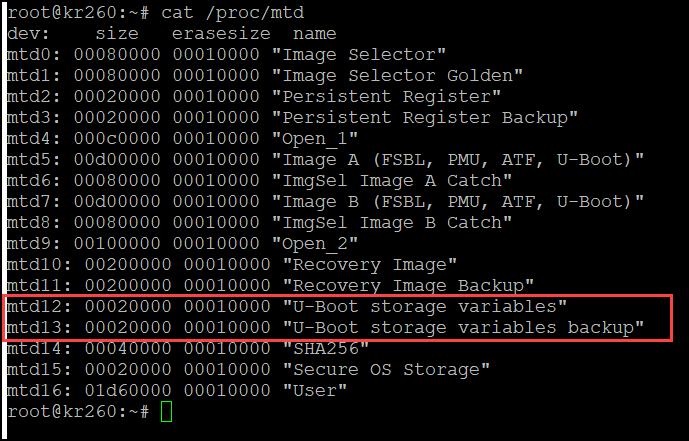
The u-boot configuration settings vary based on the target. For the KV260 kit, you can directly use the FAT partition to store the environment variables. To view the uboot configuration settings for KV260, see User Configuration.
After adding the configuration settings, click Save and Exit. You can see the new CFG file in the project-spec/meta-user/recipes-bsp/u-boot/files folder.
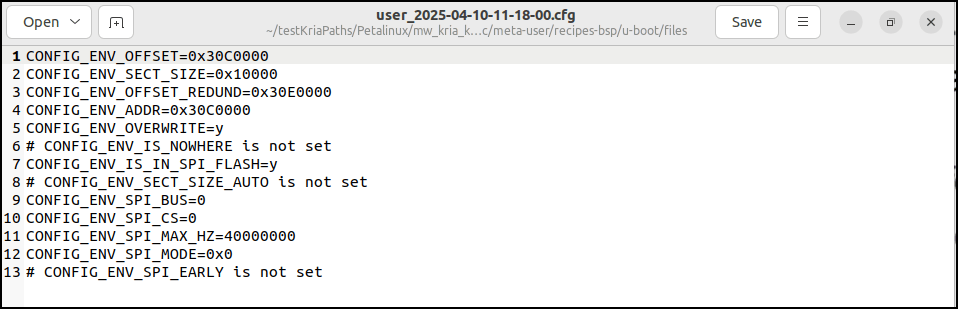
This file is added to the PetaLinux project by appending the .cfg file to the u-boot-xlnx_%.bbappend file.

Configure Kernel Settings
The PetaLinux project uses the default kernel settings to build the Linux image on the Kr260 board. To add the kernel drivers to the Linux image, you can add the kernel drivers manually or add them by using the MathWorks repository.
To include the custom kernel drivers in the Linux image:
In the
project-spec/meta-user/recipes-kernel/Linux-xlnxfolder, in thebsp.cfgfile, add the drivers that you want to include.Create your own CFG file in the
/project-spec/meta-user/recipes-kernel/Linux-xlnxfolder and specify the drivers in it. Then, you can append this configuration file to the recipes-kernel folder by usinglinux-xlnx_%.bbappendfile.Add the kernel drivers to the image by using the PetaLinux configuration menu. To open the menu, enter:
petalinux-config -c kernel
4. Select the kernel drivers you want to add to the Linux image, click Save and then click Exit. The configuration menu creates a new CFG file and adds this file to the linux_xlnx_%.bbappend file.
Configure Device tree Settings
The basic.dtsi device tree source file includes the MathWorks device tree nodes in the Linux image. This file is in the project-spec/meta-user/recipes-bsp/device-tree/files folder. You can also include additional device tree files in the project-spec/meta-mathworks/recipe-apps/mw-refdesign-dtb/files folder, depending on your application. Append all the device tree source file paths in the in device-tree.bbappend file available in the project-spec/meta-user/recipes-bsp/device-tree folder.
Generate Boot Image
Next, build the Linux image.
1. Run the PetaLinux build command for a complete build.
petalinux-build
2. To clean the cache before every build, use this command:
petalinux-build -x distclean
3. To clean the entire build directory, use this command:
petalinux-build -x mrproper
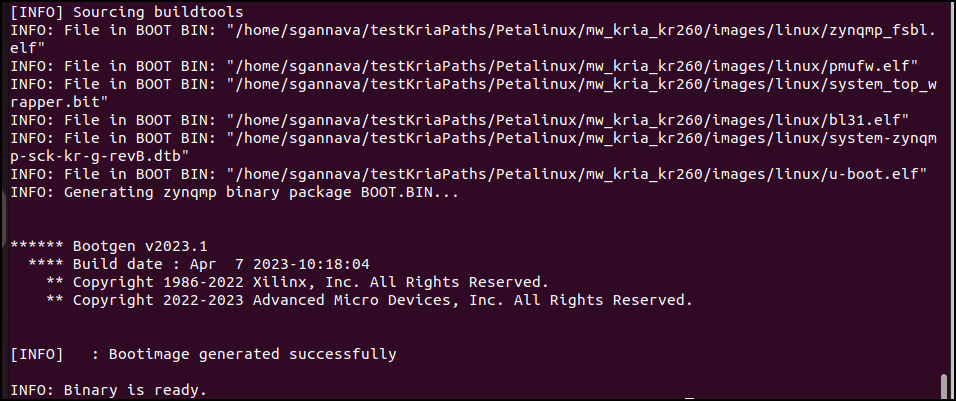
When the build completes, you can see the Linux binaries in the images/Linux folder. You can package the the boot image into a BOOT.BIN file by running this command.
petalinux-package --boot --u-boot --fpga --force
This command generates the BOOT.BIN boot image file, which also contains the design system_top_wrapper.bit file.
Pack Images into a ZIP File
You can use the mw_package_binaries.sh script to pack the image into a ZIP file. You can modify it based on your requirements.
Extract the ZIP file into the SD card. The ZIP file contains these files:
BOOT.BINboot.scrImageinit.shinterfacesrootfs.cpio.gz.u-bootshell.jsonsystem.bitsystem.dtbsystem_wrapper.dtbosystem-zynqpmp-sck-kv-g-revB.dtb
The init.sh script runs immediately after the board boots. This script includes utility commands that set your BOOT.BIN file as the default binary for booting on every power-on reset of the target. It also copies the raw boot environment from QSPI memory to the FAT partition of the SD card. You can customize this script to include additional commands that you want to run after the board boots successfully.
The interfaces file contains the IP address of the board and corresponding gateway details. You can update these values to match your domain network configuration.
The DTBO file is the device tree overlay file, and the name of the file depends on the name of the bitstream file. Because both files load onto the target kit as applications, their file names much match. When you generate code for a KR260 board, HDL Coder generates the bitstream file, system_wrapper.bit and the corresponding overlay file, system_wrapper.dtbo. HDL Coder uses the pl.dtsi file to generate this DTBO file. After you build the PetaLinux image, the DBTO file is in the images/linux folder.For more information, see Generate DTBO Overlay Files.
Deploy on the Board
Kria boards come with factory settings and use a Xilinx-provided binary file for the initial boot process. The SD card is mounted on /mnt folder. The BOOT.BIN file is in the same folder.
Load the BOOT.BIN file by using this command:
sudo xmutil bootfw_update -i /mnt/BOOT.BIN
To apply the changes, hard reset the board by using the SW2 reset button.
After the board boots up, ping the board on 192.168.1.101 IP address.
Every time you power cycle the board, it uses the MathWorks BOOT.BIN file for initial boot. However, you can change the BIN file or point to the Xilinx BIN files by using the above command.
Copyright 2025 The MathWorks, Inc

