Configure a New Model for TI mmWave Radar
Radar Toolbox Support Package for Texas Instruments® mmWave Radar Sensors enables you to create and run Simulink models on the ARM® Cortex® processor of TI mmWave radar board. The support package includes a library containing the Read Detections block that helps you configure the TI mmWave radar and read detections in the ARM Cortex core. These detections can then be used to develop applications.
To model, build, and deploy applications using the Radar Toolbox Support Package for Texas Instruments mmWave Radar Sensors, you must install additional third-party software. The Hardware Setup process guides you through these installation steps.
To begin Hardware Setup, enter the following command in the MATLAB® Command Window:
mmWaveRadarSetup
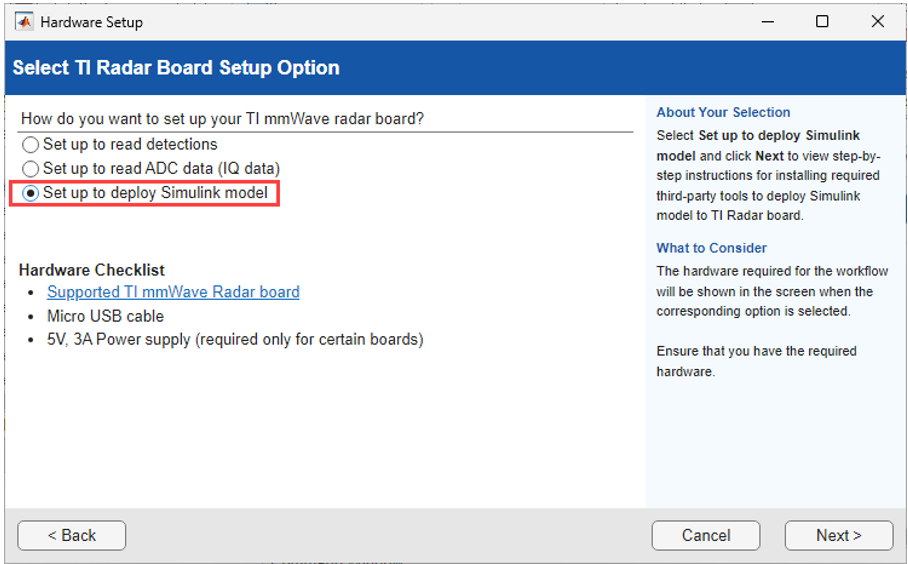
On the second screen of the Hardware Setup interface, select Set up to deploy Simulink model, and then click Next. Follow the on-screen instructions to download and install all required third-party tools.
If you face any issues with installing the third-party tools, refer to Third-Party Software Installation Issues.
To create and configure a simple Simulink® model for working with TI mmWave Radar boards:
Create a new Simulink Model.
In MATLAB, go to the Home tab and select New > Simulink Model, and then select Blank Model > New Model.
Specify the hardware.
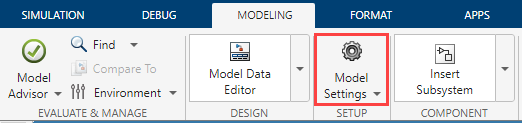
In your Simulink model, open the Configuration Parameters dialog by selecting the Modeling tab and clicking Model Settings, or by pressing Ctrl+E.
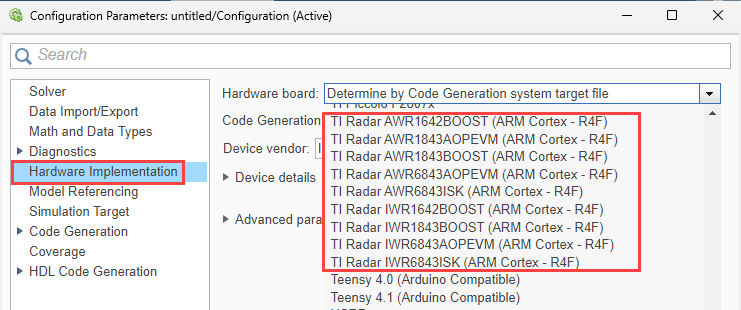
In the Configuration Parameters dialog, select the Hardware Implementation pane.
From the Hardware board list, select your target TI Radar hardware.
Click Apply and OK.
Develop your application using the relevant Simulink blocks.
For example, if you want to read detections from a TI radar sensor, you can use the Read Detections available in the support package. To do this, follow the steps below.
Open the Simulink Library Browser by selecting Simulation > Library Browser in Simulink, or by entering
slLibraryBrowserin the MATLAB Command Window.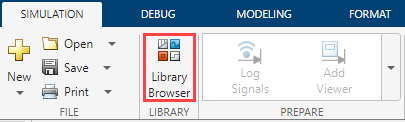
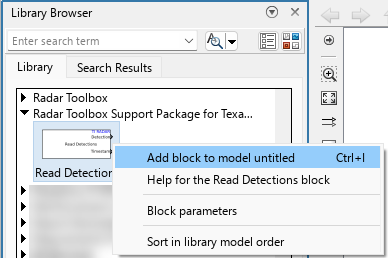
Navigate to the Radar Toolbox Support Package for Texas Instruments mmWave Radar Sensors library.
Locate the Read Detections block. Right-click the block and select Add block to model to add it to your model canvas.
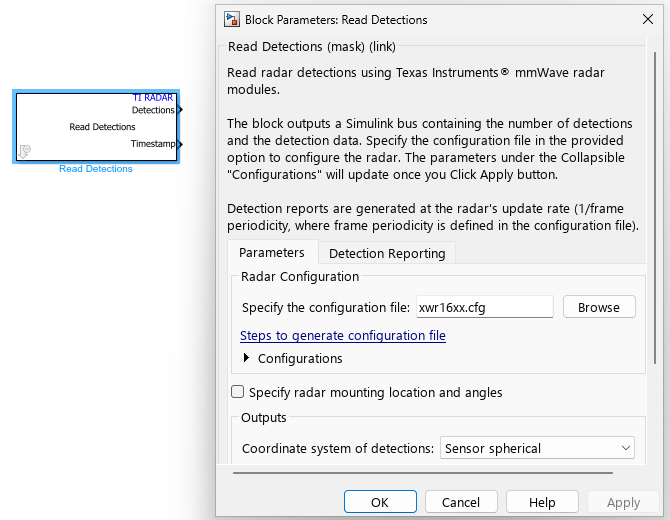
Double-click the Read Detections block and use the available options to configure the block as needed.
Continue developing the rest of your model as needed. For more information on the Simulink block diagram environment, refer to Simulink Onramp or the tutorials listed in Get Started with Simulink (Simulink).
Try out the various workflows described in:

