visionhdl.FrameToPixels
R2026bConvert frame-based video to pixel stream
Description
The visionhdl.FrameToPixels
System object™ converts color or grayscale frame-based video to a pixel stream and control
structure. The control structure indicates the validity of each pixel and its location in the
frame. The pixel stream format can include padding pixels around the active frame. You can
configure the frame and padding dimensions by selecting a common video format or by specifying
custom dimensions. For details about the pixel stream format, see Streaming Pixel Interface.
Use this object to generate input for a function targeted for HDL code generation. This object itself does not support HDL code generation.
If your design converts frames to a pixel stream and later converts the stream back to
frames, specify the same video format for the FrameToPixels
object and the PixelsToFrame object.
To convert frame-based video to a pixel stream:
Create the
visionhdl.FrameToPixelsobject and set its properties.Call the object with arguments, as if it were a function.
To learn more about how System objects work, see What Are System Objects?
Creation
Description
F2P = visionhdl.FrameToPixels(PropertyName=Value)
Properties
Unless otherwise indicated, properties are nontunable, which means you cannot change their
values after calling the object. Objects lock when you call them, and the
release function unlocks them.
If a property is tunable, you can change its value at any time.
For more information on changing property values, see System Design in MATLAB Using System Objects.
Number of values used to represent each pixel, specified as 1,
3, or 4 components.
For grayscale video, set this property to
1.For color video, for example, {R,G,B} or {Y,Cb,Cr}, set this property to
3.For color video with an alpha channel for transparency, set this property to
4.
The visionhdl.FrameToPixels object returns a
P-by-NumComponents matrix, where
P is the total number of pixels in the padded frame.
Dependencies
When NumComponents is greater than 1, you must set the
NumPixels property to 1.
Number of pixels transferred on the streaming interface for each cycle, specified as
1, 2, 4, or
8. To enable multipixel streaming and increase throughput for
high-resolution or high-frame-rate video, set this property to 2,
4, or 8. The
visionhdl.FrameToPixels object returns a
P-by-NumPixels matrix, where
P is the total number of pixels in the padded frame.
Note
You can simulate System objects with a multipixel streaming interface, but you cannot generate HDL code for System objects that use multipixel streams. To generate HDL code for multipixel algorithms, use the equivalent Simulink® blocks.
Dependencies
When NumPixels is greater than 1, you must set the
NumComponents property to 1.
Dimensions of active and inactive regions of a video frame. To select a predefined
format, specify the VideoFormat property as one of the options in
the first column of the table. For a custom format, set VideoFormat
to 'Custom', and specify the dimension properties as integers. The
frame dimensions are indicated in the diagram.

Video Format | Supported for NumPixels | Active Pixels Per Line | Active Video Lines | Total Pixels Per Line | Total Video Lines | Starting Active Line | Ending Active Line | Front Porch | Back Porch |
|---|---|---|---|---|---|---|---|---|---|
240p | 2 | 320 | 240 | 402 | 324 | 1 | 240 | 44 | 38 |
480p | 2, 4, or 8 | 640 | 480 | 800 | 525 | 36 | 515 | 16 | 144 |
480pH | 2 | 720 | 480 | 858 | 525 | 33 | 512 | 16 | 122 |
576p | 2 or 4 | 720 | 576 | 864 | 625 | 47 | 622 | 12 | 132 |
720p | 2 | 1280 | 720 | 1650 | 750 | 25 | 744 | 110 | 260 |
768p | 2, 4, or 8 | 1024 | 768 | 1344 | 806 | 10 | 777 | 24 | 296 |
1024p | 2, 4, or 8 | 1280 | 1024 | 1688 | 1066 | 42 | 1065 | 48 | 360 |
1080p (default) | 2, 4, or 8 | 1920 | 1080 | 2200 | 1125 | 42 | 1121 | 88 | 192 |
1200p | 2, 4, or 8 | 1600 | 1200 | 2160 | 1250 | 50 | 1249 | 64 | 496 |
2KCinema | - | 2048 | 1080 | 2750 | 1125 | 42 | 1121 | 639 | 63 |
4KUHDTV | 2, 4, or 8 | 3840 | 2160 | 4400 | 2250 | 42 | 2201 | 88 | 472 |
8KUHDTV | 2, 4, or 8 | 7680 | 4320 | 8800 | 4500 | 42 | 4361 | 88 | 1032 |
Custom | If all horizontal dimensions are divisible by
NumPixels. | User- defined | User- defined | User- defined | User- defined | User- defined | User- defined | User- defined | User- defined |
Note
When using a custom format, the properties you enter for the active and inactive dimensions of the image must add up to the total frame dimensions.
For the horizontal direction, TotalPixelsPerLine must be
greater than or equal to FrontPorch +
ActivePixelsPerLine. The object calculates
BackPorch = TotalPixelsPerLine −
FrontPorch − ActivePixelsPerLine.
For the vertical direction, TotalVideoLines must be greater
than or equal to StartingActiveLine +
ActiveVideoLines − 1. The object calculates
EndingActiveLine = StartingActiveLine +
ActiveVideoLines − 1.
If you specify a format that does not conform to these rules, the object reports an error.
Note
When using a custom format, ActivePixelsPerLine must be
greater than 1. Also, set the horizontal blanking interval, or
BackPorch + FrontPorch, according to these
guidelines.
The total of
BackPorch+FrontPorchmust be at least 2 times the largest kernel size of the algorithm in the objects following thevisionhdl.FrameToPixelsobject. If the kernel size is greater than 4, the total porch must be at least 8 pixels.The
BackPorchproperty value must be at least 6 pixels. This property is the number of inactive pixels before the first valid pixel in a frame.
For more information on blanking intervals, see Configure Blanking Intervals.
Note
When using multipixel streaming (NumPixels > 1), these
requirements apply.
The video format must have horizontal dimensions divisible by the
NumPixelsproperty value. The horizontal dimensions are set by these properties:ActivePixelsPerLine,TotalPixelsPerLine,FrontPorch, andBackPorch. Standard video protocols 480p, 768p, 1024p, 1080p, 1200p, 4k UHD, and 8k UHD supportNumPixelsequal to 4 or 8.The minimum input frame size for multipixel streaming is 18 rows by 32 columns.
Choose your kernel size and
ActivePixelsPerLinesuch thatActivePixelsPerLine/NumPixelsis at least the kernel width.
Custom Video Format
This value must be greater than 1. For other limitations and common video formats,
see the VideoFormat
property.
Dependencies
This property is available when you set VideoFormat to
'Custom'.
For limitations and common video formats, see the VideoFormat
property.
Dependencies
This property is available when you set VideoFormat to
'Custom'.
For limitations and common video formats, see the VideoFormat
property.
Dependencies
This property is available when you set VideoFormat to
'Custom'.
For limitations and common video formats, see the VideoFormat
property.
Dependencies
This property is available when you set VideoFormat to
'Custom'.
For limitations and common video formats, see the VideoFormat
property.
Dependencies
This property is available when you set VideoFormat to
'Custom'.
For limitations and common video formats, see the VideoFormat
property.
Dependencies
This property is available when you set VideoFormat to
'Custom'.
Usage
Description
[
converts the input image matrix, pixels,ctrlOut] = F2P(frm)frm, to a
vector
of pixel values, pixels, and an associated vector of control
structures, ctrlOut. The control structure indicates the validity of
each pixel and its location in the frame. The output pixels include padding around the
active image, specified by the VideoFormat property.
For details about the pixel stream format, see Streaming Pixel Interface.
Input Arguments
Output Arguments
Object Functions
To use an object function, specify the
System object as the first input argument. For
example, to release system resources of a System object named obj, use
this syntax:
release(obj)
Examples
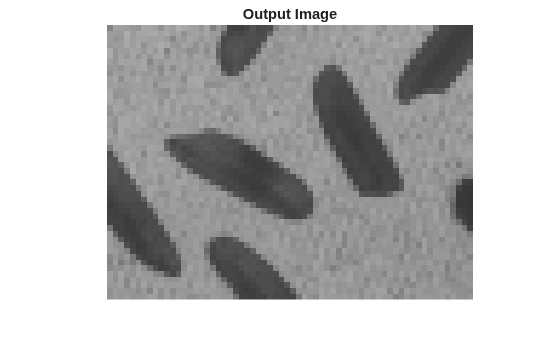
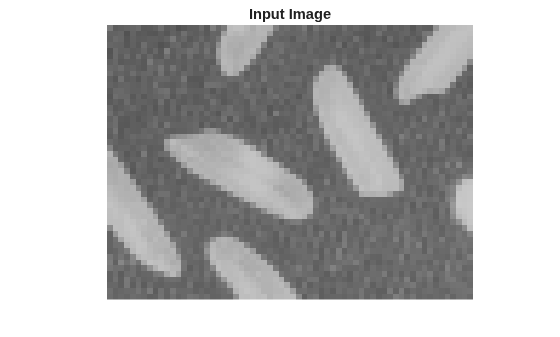
This example converts a custom-size grayscale image to a pixel stream. It uses the visionhdl.LookupTable object to obtain the negative image. Then it converts the pixel stream back to a full-frame image.
Load the source image from a file. Select a portion of the image matching the desired test size.
frmOrig = imread('rice.png');
frmActivePixels = 64;
frmActiveLines = 48;
frmInput = frmOrig(1:frmActiveLines,1:frmActivePixels);
figure
imshow(frmInput)
title 'Input Image'
Create a serializer object and specify the size of the inactive pixel regions.
frm2pix = visionhdl.FrameToPixels( ...
      'NumComponents',1, ...
      'VideoFormat','custom', ...
      'ActivePixelsPerLine',frmActivePixels, ...
      'ActiveVideoLines',frmActiveLines, ...
      'TotalPixelsPerLine',frmActivePixels+10, ...
      'TotalVideoLines',frmActiveLines+10, ...
      'StartingActiveLine',6, ...
      'FrontPorch',5);
Create a lookup table (LUT) object to generate the negative of the input image.
tabledata = linspace(255,0,256);
inverter = visionhdl.LookupTable(tabledata);
Serialize the test image by calling the serializer object. pixIn is a vector of intensity values. ctrlIn is a vector of control signal structures.
[pixIn,ctrlIn] = frm2pix(frmInput);
Prepare to process pixels by preallocating output vectors.
[~,~,numPixelsPerFrame] = getparamfromfrm2pix(frm2pix);
pixOut = zeros(numPixelsPerFrame,1,'uint8');
ctrlOut = repmat(pixelcontrolstruct,numPixelsPerFrame,1);
For each pixel in the stream, look up the negative of the pixel value.
for p = 1:numPixelsPerFrame
    [pixOut(p),ctrlOut(p)] = inverter(pixIn(p),ctrlIn(p));
end
Create a deserializer object with a format that matches the format of the serializer. Convert the pixel stream to an image frame by calling the deserializer object. Display the resulting image.
pix2frm = visionhdl.PixelsToFrame( ...
      'NumComponents',1, ...
      'VideoFormat','custom', ...
      'ActivePixelsPerLine',frmActivePixels, ...
      'ActiveVideoLines',frmActiveLines, ...
      'TotalPixelsPerLine',frmActivePixels+10);
[frmOutput,frmValid] = pix2frm(pixOut,ctrlOut);
if frmValid
    figure
    imshow(frmOutput)
    title 'Output Image'
end